How to see who unfollowed you on Instagram in 2026
Instagram doesn't show you who unfollowed, and most third-party apps that promise to aren't worth the risk. I'll cover the five methods that actually work in 2026, what each one can and can't tell you, and where to draw the line on account safety.
Key takeaways
- There’s no unfollow notification inside Instagram. No unfollower list either. The app simply removes the name and moves on
- Fastest single-person check: search their username in your Followers list. Gone means they unfollowed you, blocked you, or deleted their account
- Business and creator accounts get follow/unfollow counts in Insights. Useful for spotting spikes, but you won’t see individual names
- If you need actual names, export your data through Accounts Center twice (different dates) and compare the files
- Some web-based tools snapshot public profiles and flag changes without needing your password. They won’t catch anything from before your first scan, though
- Steer clear of any app that wants your Instagram password or runs actions for you. Not worth the risk
- Personally, I use data exports when I need names and the Insights count when I just want to know the size of the drop
Instagram doesn’t tell you when someone hits Unfollow. No ping, no badge, nothing. One day you just notice the number dropped and a name you used to see in your Followers list is gone.
I test Instagram tools, ads, and analytics with the Zeely team every week, and this is something I get asked about constantly. Below is every method I know of for spotting unfollowers in 2026, plus the tools I’d skip entirely.
Can you see who unfollowed you on Instagram?
No. Instagram doesn’t have an unfollowers page. It doesn’t ping you about it. All you get is your current Followers list and your current Following list, and when somebody unfollows you, their name just quietly drops off the first one.
What you can actually see inside Instagram:
- Followers list: who follows you right now
- Following list: who you follow
- Activity tab: likes, comments, new followers, mentions. Unfollows don’t show up here
- Insights (business and creator accounts): follow and unfollow counts for a period you pick. Still no names
- Data export: a file containing your full follower and following lists, frozen at the time you requested it
Each method in this guide does something different. A username search tells you about one person. Insights tell you how many left. The data-export comparison gets you a list of who exactly is gone since the last time you checked.

How to check if a specific person unfollowed you
It takes about ten seconds.
- Open Instagram → your profile → tap Followers
- Type their username in the search bar
- If they come up, you’re fine. Empty result means they unfollowed you, blocked you, or their account is gone
Another way: go to their profile. If the button says Follow where it used to say Following, they dropped you. If you see Follow back, they’re still following you but you unfollowed them at some point.
This only tells you about one person at a time, so you need somebody specific in mind before it’s useful. For growing your follower count instead of just monitoring it, see our guide on how to get 1K Instagram followers.
Manual ways to track Instagram unfollowers over time
To catch unfollows across your account without installing anything, you need to compare your follower list at two different points.
Compare your Followers and Following lists
- On your profile, tap Following
- Notice accounts you follow that don’t follow you back
- If a previously mutual follow is now one-way, they likely unfollowed you
- Screenshot your Followers list at the start of a week and compare at the end
Track key accounts with screenshots or notes
Useful for small accounts where specific followers matter: clients, collaborators, top commenters.
- Pick 5–10 accounts you want to monitor
- At the start of the month, note their names from your Followers list
- At the end of the month, check again manually or export your data (see below)
- Note what you posted during weeks when someone left
Check unfollow counts with Instagram Insights
If you’ve got a business or creator account, there’s a follow/unfollow breakdown tucked inside Instagram Insights. It won’t give you names, but it shows exactly how many people followed and unfollowed during whatever time window you choose.
- Open Instagram → your profile
- Tap Insights (or Professional dashboard → Total followers)
- Pick your time range: 7 days, 14 days, 30 days, or custom
- Instagram splits it into Follows and Unfollows
Where this gets useful: you see 40 unfollows on a Tuesday when you normally lose about 5. Go look at what you posted Monday and Tuesday. There’s almost always a reason.
Still running a personal account? You can switch to creator or business for free in about 30 seconds: Settings → Account type and tools.
How to see who unfollowed you on Instagram without an app
Insights gives you the count. But if you want actual usernames, the data export is the cleanest way to get them without handing your login to a third-party app.
How it works: you download your follower list from Instagram, wait a few weeks, download it again, and compare. Anyone who appears in the first file but not the second unfollowed you (or deleted their account).
Your data stays on your device the whole time. Nothing leaves Instagram.
Request your Instagram data in 2026
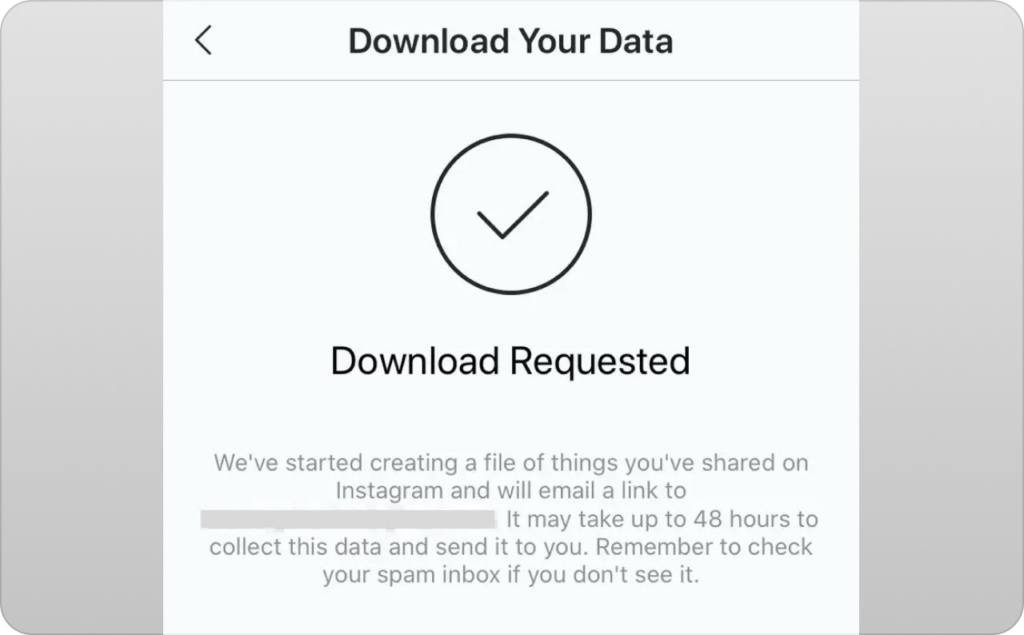
The export runs through Meta’s Accounts Center. Instagram’s official data export page covers the full process:
Getting to Accounts Center:
- Mobile: Open Instagram → tap ☰ (top right) → Accounts Center
- Desktop: Open instagram.com → click More (bottom left) → Settings → Accounts Center
From there, on either platform:
- Tap Your information and permissions
- Tap Download your information (may also say Export your information)
- Tap Download or transfer information → select your Instagram account
- Choose Some of your information → select Followers and following under Connections
- Set the date range to All time and format to JSON
- Tap Start export and confirm your password
Instagram sends a download link to your email. Smaller accounts usually get it in minutes. Bigger accounts can take hours; I’ve waited up to 48 once. Grab the file quickly because the link dies after a few days.
Find the followers and following files inside the ZIP
Inside the ZIP, look for:
- followers_and_following or connections folder
- A file named followers_1.json (or followers.html)
- A second file named following.json (or following.html)
Both files include timestamps. If you’ve never touched a JSON file: it’s basically a text file with a specific layout. You can open it in Notepad, or drop it straight into Google Sheets or Excel.
Save a backup. The whole method depends on comparing two exports from different dates.
Compare two exports to find who unfollowed you
- Open followers_1.json from your older export and your newer export
- Copy both lists into a spreadsheet, one column per export
- Use VLOOKUP, duplicate detection, or a text-diff tool
- Any username in the old list but missing from the new one is an unfollow (or a deleted account)
Hate spreadsheets? Paste both lists into something like ListDiff and you’ll see the gaps in seconds. A few tools also read the JSON file directly so you can skip the manual work. Whatever you pick, make sure it doesn’t ask for your Instagram password and keeps everything on your device.
Best 2026 tools to track Instagram unfollowers
If doing your own exports sounds tedious, there are tools that handle it. The catch is that plenty of them aren’t safe.
Analytics tools that show follower growth
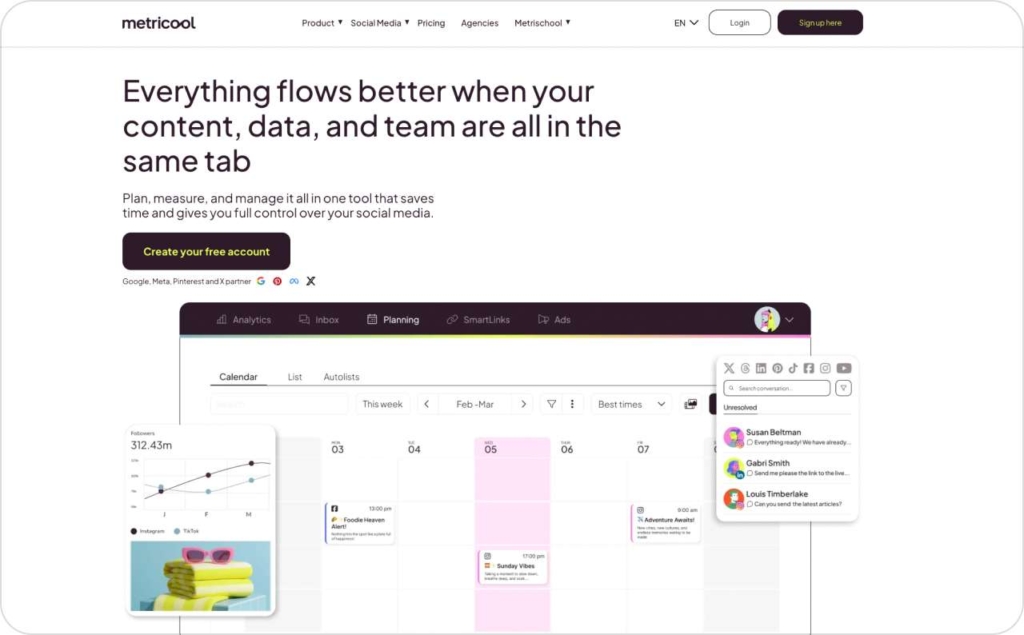
Tools like Metricool connect to Instagram through your business or creator account. They show follower gains and losses over time in a dashboard alongside post performance.
Low-risk because they use official access and never ask for your password. The trade-off: they show net changes, not who left by name.
No-login web tools that compare follower snapshots
A few web-based tools will snapshot a public profile’s follower list on a schedule and flag any changes. You type in a username, and that’s it. No password, nothing to install. When the tool spots a difference, it tells you which accounts are gone.
A few things to know before you depend on these:
- They only work on public profiles
- They can’t catch unfollows from before your first scan
- Most run weekly, so mid-week changes slip through
- Accuracy gets shaky on very large follower lists
High-risk unfollower apps to avoid
Plenty of apps promise a complete unfollower list. Many carry real risks. Instagram’s Terms of Use explicitly prohibit creating accounts or collecting information through automated means without permission. Red flags:
- The app asks for your Instagram password (not OAuth through Meta)
- It runs automated actions like mass unfollow, bulk follow, or ghost-follower cleanup
- It stores your credentials or shares data with unknown third parties
- It claims real-time unfollow alerts, which Instagram’s API doesn’t support
Instagram also warns that accounts caught scraping data can be restricted. A clean unfollower report isn’t worth losing your account. If a tool wants more access than Instagram officially hands out, I pass.
What to do when you spot unfollows
Once you know who left, or how many, match the timing to your content. Open your Insights or export log and check which posts went live during the same window. Drops often cluster around heavy promo streaks, off-topic Reels, or sudden format changes.
Not every unfollow is a loss. Someone who followed your old niche and leaves after a deliberate shift is making room for someone who wants what you offer now. If you’re looking to create stronger Reels that keep people around, our guide on how to create Instagram Reels with AI covers the creative side.
How Zeely AI helps you keep followers after the click
Better ads bring people who actually want what you sell. Fewer mismatched clicks, fewer unfollows. Zeely AI ad generator lets you build multiple static and video ad variations from the same product and test different hooks and messages. When a version stops pulling, swap the creative instead of watching followers leave.
FAQ
Nope. Never has. You won’t get a push notification, an email, or anything in the Activity tab. The only way to find out is checking your Followers list yourself, comparing data exports, or using a third-party tracker.
You can. For a single person, type their username into the search bar on your Followers list. If they don’t appear, they unfollowed you. For a bigger-picture answer, run two data exports through Accounts Center a few weeks apart and compare them. Insights on business and creator accounts also shows how many people unfollowed, just not who.
Not from one export on its own. Each file is a snapshot of who follows you right then. To spot unfollowers, you need a second export taken later. Line the two up, and anyone in the first file who’s missing from the second has unfollowed you or closed their account.
Mixed bag. Anything that connects through Instagram’s official API with proper login permissions is generally fine. Web trackers that only look at public profiles without needing your credentials are low-risk. What I’d avoid: apps that want your actual Instagram password, do things on your account automatically, or claim they can alert you the moment someone unfollows. Those usually violate Instagram’s rules, and the fallout can range from reduced reach to a full account suspension.

Emma blends product marketing and content to turn complex tools into simple, sales-driven playbooks for AI ad creatives and Facebook/Instagram campaigns. You’ll get checklists, bite-size guides, and real results, pulled from thousands of Zeely entrepreneurs, so you can run AI-powered ads confidently, even as a beginner.
Written by: Emma, AI Growth Adviser, Zeely
Reviewed on: September 17, 2026