How to post a video on Instagram in 2026
Trying to post an Instagram video and the app keeps steering you into Reels, trimming your Story, or compressing the quality? I pulled together the 2026 posting steps, format rules, and the most common upload failures so you can publish cleanly every time.
- Open Instagram and tap the plus button
- Choose Post for a feed Instagram post, Reel for a full-screen IG video, or Story for a temporary video story
- Pick your video, trim it, add a cover, caption, tags, and music if available, then tap Share
Need desktop? Use instagram.com or a scheduler to upload from PC. For HD, export 1080p, use the right aspect ratio, and turn on the highest-quality upload setting in Instagram.
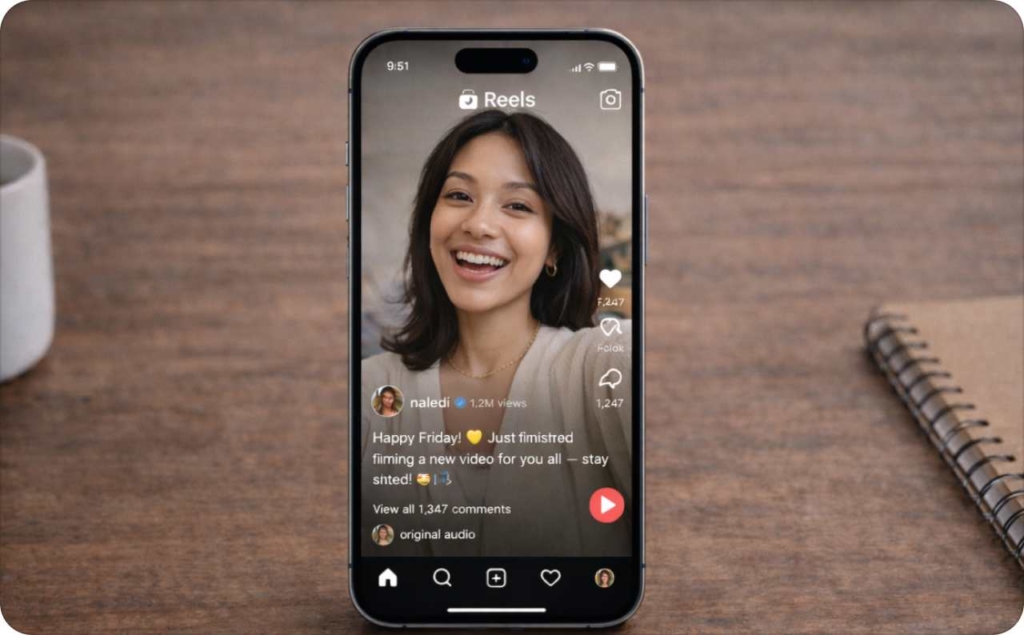
Instagram video posting in 2026 is simple until it isn’t. The same clip can become a Reel, sit in your grid, or get sliced into Stories, depending on where you tap.
How to post a video on Instagram in under 60 seconds
Before you post, pick the placement that matches how people will watch. Feed posts live on your grid. Reels get discovery reach. Stories are fast, tap-through updates.
Feed quick steps
- Tap plus, choose Post
- Select your video, tap Next, then Edit
- Pick a cover, write a caption, add tags and a location
- Tap Share to publish an Instagram post (and later, a carousel with photos on Instagram)
Reels quick steps
- Tap plus, choose Reel
- Select your clip, trim it, then add on-screen text
- Add audio, captions, and a cover frame
- Tap Share.
Stories quick steps
- Tap plus (or swipe to the camera), choose Story
- Record or upload from camera roll, then add stickers
- Add a link sticker and music sticker if you have them
- Tap Share to post your Story
Which should you pick? Feed is best for evergreen updates people re-check. Reels are best for discovery and new viewers. Stories are best for quick context and daily touchpoints.
How to post a video to your Instagram feed as an Instagram post
A lot of people mean “feed” when they search how to post on Instagram. This section keeps it calm and clear, so you land the right placement, cover, and caption.
Feed steps: single video post with clean steps
- Tap plus and choose Post
- Select your Instagram video, then tap Next
- Trim if needed, then tap Next again
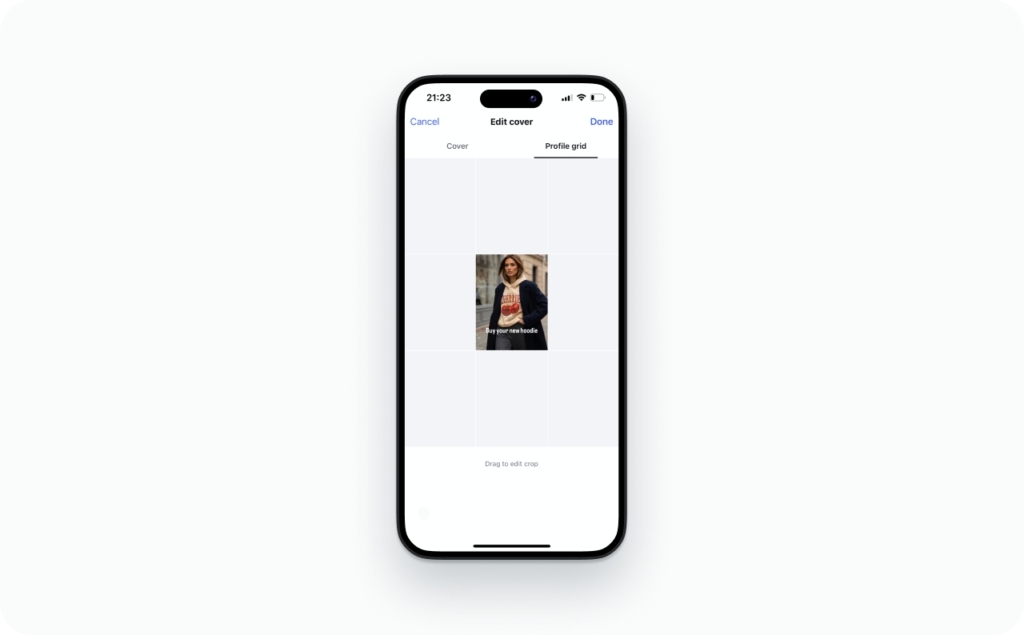
- Tap Cover and pick a frame (or upload one)
- Write your caption, add hashtags, tag people, and add a location
- Review the Share screen, then tap Share
Don’t-skip checklist: Before you hit Share, double-check your cover, your caption’s first line, your tags, and your location. Then add accessibility, including on-screen captions when they’re available.
Carousel: multiple videos and photos in one Instagram post
If you want multiple videos in one Instagram post, make a carousel:
- Tap plus, choose Post, then tap the Select multiple icon
- Pick your clips (and photos), then arrange the order
- Trim each clip, then choose one cover that reads well
- Publish, then watch how viewers swipe through
Tip: your first frame earns the watch. Lead with motion, a face, or a clean headline so people stop scrolling.
Cover photo, caption, hashtags, location, tags, collaborator
Your cover has one job: stay readable at thumbnail size. Use big text, high contrast, and keep the key words centered. Grid crops can be tighter than the full frame. Hootsuite’s 2026 sizing guide notes Reels display as 9:16 in the feed, but the grid preview is closer to 3:4, so centered covers usually survive the crop.
For captions, write the first line like it has to earn the tap. Then add context in 1 to 3 short lines. Treat hashtags like footnotes, not a wall of keywords. Tag people only when it’s actually relevant. Add a collaborator only when you’re truly co-owning the post. The AI Instagram ad generator will handle everything for you, from safe zones and grid alignment to writing the perfect caption, so you can focus on your idea, not the technical details.
Can you keep video from becoming a Reel?
Can you post a video to your feed without it becoming a Reel? Often, no. Instagram keeps pushing uploaded videos into the Reels format. The control you still have is where it shows up (your grid, follower feed, and Reels surfaces) and how it’s formatted.
Quick troubleshooting: update the app, try the same upload on a different account, and don’t assume your friend’s menu matches yours. Rollouts vary by region and account type, so features can look different even on the same day.
How to post a Reel on Instagram with music, captions, and cover
Reels are the most searched lane for a reason.
Upload a pre-recorded video to Reels
- Tap plus and choose Reel
- Open your gallery and pick your clip
- Trim the start so your first two seconds make sense
- Keep on-screen text inside the center “safe” area
- Tap Next to reach the edit and share screens
If you’re wondering how to post a longer video on Instagram, note that Instagram expanded Reels up to 3 minutes for many accounts, so you can publish longer clips without forcing a split.
Add music without getting muted
This is the simplest version of how to post a video with music on Instagram:
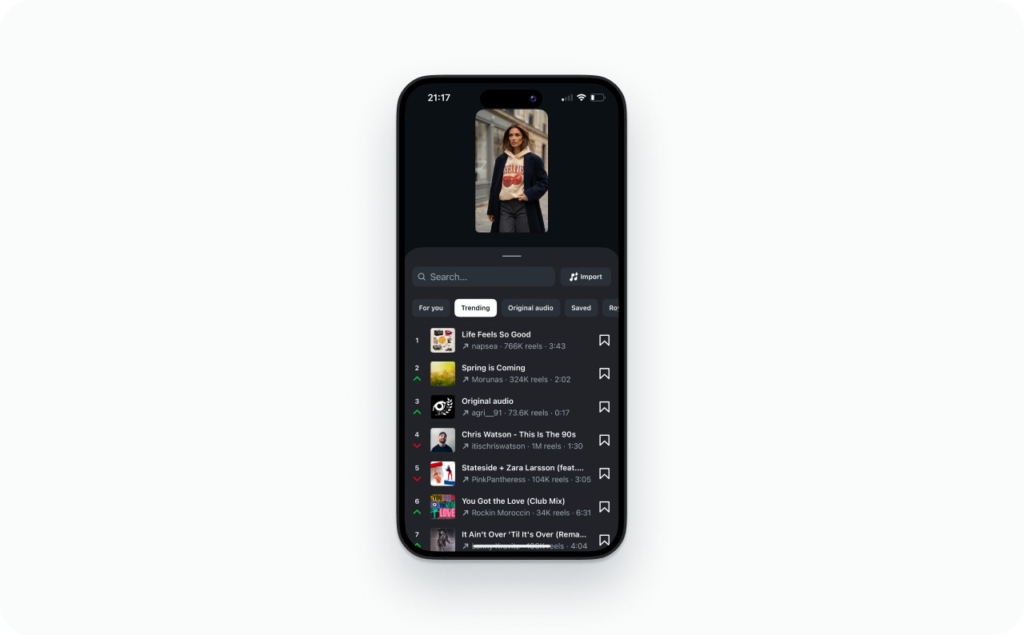
- Pick trending audio, or choose original audio from your clip
- Keep voice clear with captions, since many viewers watch muted
- If music options are missing, it’s often licensing, region, or account-type limits
Plan B: post with original audio plus on-screen captions, then add music in Stories.
Captions, on-screen text, and accessibility
Use auto-captions if you have them. Clean captions help silent viewers follow, and they reduce drop-off. Keep text high enough to avoid UI overlays, and avoid tiny fonts.
Reel cover, collaborators, and share to Story
Pick a cover that works in two crops: full-screen 9:16 and grid 3:4. Hootsuite’s 2026 guide lists Reels at 1080 x 1920 in feed and 1080 x 1440 in the grid, so centered covers stay safe.
Use Collaborator posts when two accounts will promote the same reel. After posting, share the Reel to your Story for a second wave of reach. Read now how to repost a story on Instagram.
How to post a video on Instagram Story without awkward cuts
Stories are quick by design, but you can make longer clips feel intentional. Think in chapters: hook, context, and a clear next step.
Post a Story video from your phone
- Tap plus (or swipe to the camera) and choose Story
- Record, or upload from your camera roll
- Add stickers, captions, and audience controls
- Choose Close Friends or Everyone, then tap Share
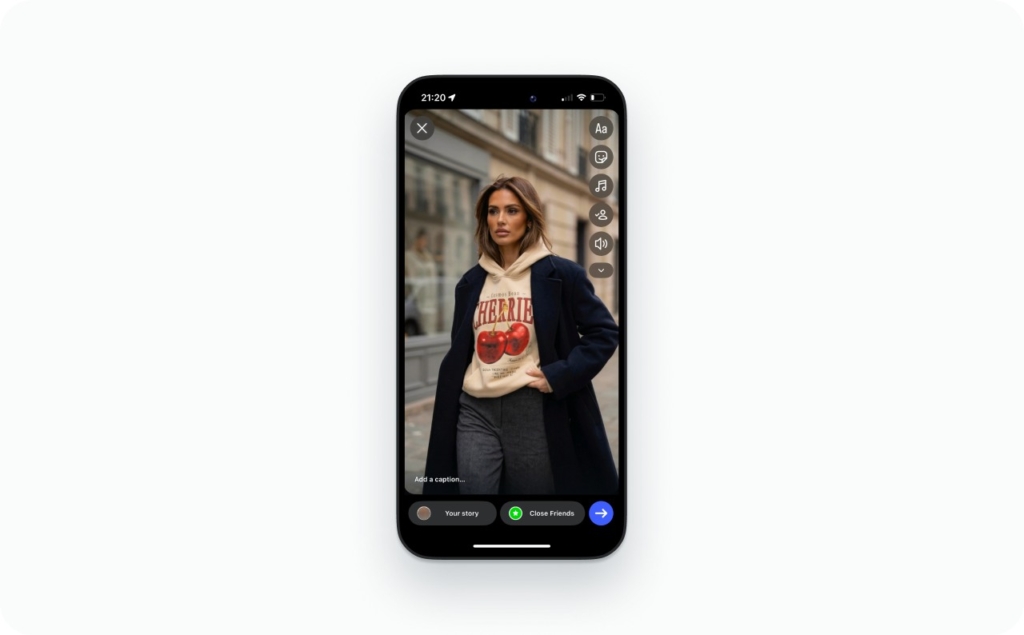
How to post a long video on Instagram Story
Stories have a time limit, so longer videos won’t post as one clip. Instagram will split them into multiple Story segments. In most cases, you’ll see the video break into shorter chunks, often around 15 seconds each, until the full clip is posted.
A simple 3-part Story structure:
- Part 1: hook and promise
- Part 2: the detail people came for
- Part 3: CTA with link sticker
Music, links, and saving before posting
Music: add the music sticker, then trim the audio to match the beat. Links: use the link sticker, keep link text short, and match it to your CTA.
For layout, use a safe area so stickers and UI don’t cover text. Hootsuite lists the Story safe area as 1080 x 1610 inside a 1080 x 1920 frame. Read now about Instagram safe zones.
Saving before posting: if you want a backup, save the edit to your camera roll before sharing, options vary by device and app version. You may also like to read how to add music to your Instagram story.
How to post a video on Instagram from PC and schedule it
Desktop posting is real, but it’s not identical to mobile. I use it when I’m batching content, editing on a laptop, or coordinating approvals.
How to post a video on Instagram on PC via instagram.com
Posting from a desktop is fine for feed uploads. How to post a video on Instagram on PC:
- Open instagram.com on your browser
- Click Create in the left sidebar
- Choose Post, then upload your video file
- Add your caption, tags, and collaborators, then click Share

How to post a video on Instagram from PC with scheduling
When people ask how to post a video on Instagram from PC, they often mean scheduling. Scheduling is worth it for series posts, campaigns, and multi-account calendars.
A practical workflow:
- Upload video, choose cover, and write caption.
- Pick a publish time, then confirm.
- If you need music, stickers, product tags, or Story links, many tools require notification-based publishing so you finish inside Instagram.
Best time to post Reels for views: Buffer’s 2026 analysis of 9.6 million posts found certain weekday times trend higher for engagement, which is a smarter baseline than guessing.
Drafts, cross-posting, and reuse
Drafts usually live inside the Reel composer or your Post composer, depending on what you started. For reuse, share a Reel to your Story, and cross-post to Facebook when accounts are connected.
Downloading your posted Instagram video isn’t always consistent across accounts. When it’s available, look for save or download options inside the post menu.
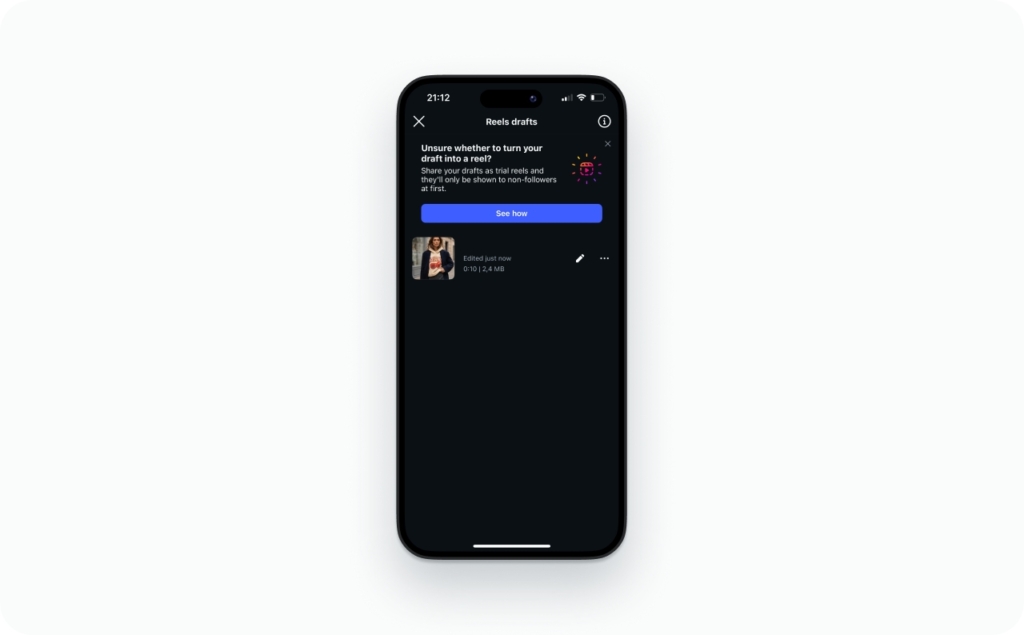
Upload without losing quality: HD settings, fixes, FAQs
Instagram compresses video. You can’t fully stop it, but you can reduce the damage with exports, settings, and a clean upload.
How to post a video on Instagram without losing quality
Use this checklist first:
- Export at 1080p, with the correct aspect ratio (9:16 for Reels and Stories)
- Use MP4 (H.264) with AAC audio when possible
- Avoid re-saving the same file multiple times
- Upload on stable Wi-Fi, not weak cellular
- In Instagram settings, look for Media Quality and enable Upload at highest quality (wording varies)
One more truth: Instagram has tested adjusting video quality based on how well a video performs, which is another reason clean exports matter.
Fix blurry video, muted audio, and out-of-sync sound
Blurry video usually comes from a mismatch: wrong size, low bitrate, or heavy re-encoding. Re-export once at 1080p, then upload fresh.
Muted audio can happen with licensed music, business limitations, or regional restrictions. If music keeps failing, publish with original audio and use captions as backup.
Audio out of sync often points to variable frame rate exports. Re-export at a standard frame rate and avoid unusual codecs. MP4 with AAC is a safe baseline.
FAQ
Yes, you can post through instagram.com by using Create and selecting Post. For Reels and Stories, you’ll often need a publishing tool.
If you need longer than a few minutes, test carousel video posts, or split into a series. Hootsuite lists carousel videos as supporting long runtimes, while Reels length can vary by account.
Start by choosing the right placement. For many accounts, Reels can reach 3 minutes, while Stories will split longer clips.
Write a three-part outline before uploading, then let Instagram split it. Keep sticker placement consistent and keep key text inside the safe area.
Try switching account type, updating the app, and testing a different audio track. If it still fails, publish with original audio and add captions, or add music via Story after posting.
On the edit screen, tap Cover and choose a clear frame. Keep text centered so it survives grid crops.
Use a carousel and order clips so the first card earns the swipe. Remember some schedulers cap carousels due to API limits.
Use Meta Business Suite or a scheduler. If you need music and stickers, you may need notification-based publishing to finish in-app.
Yes. Save as a draft on mobile, or schedule with a publishing tool. Desktop posting is best when you’re ready to share.
Availability varies. When it’s present, look for save or download options in the post menu, or use your original file as the archive copy.

Emma blends product marketing and content to turn complex tools into simple, sales-driven playbooks for AI ad creatives and Facebook/Instagram campaigns. You’ll get checklists, bite-size guides, and real results, pulled from thousands of Zeely entrepreneurs, so you can run AI-powered ads confidently, even as a beginner.
Written by: Emma, AI Growth Adviser, Zeely
Reviewed on: March 3, 2026