Instagram Stories ideas & templates: A practical 2026 guide
Looking for Instagram stories ideas & templates that look good and actually get replies in 2026? I broke down today’s Story ready-made templates, and posting mechanics so you can publish faster and see real engagement.
- Use a template pack when you want brand consistency across every Story
- Use single-slide templates for promos, launches, and quick updates
- Use sticker prompt templates when you want replies, taps, and DMs
Instagram stories ideas & templates are the fastest way to post consistently without staring at a blank screen. In this guide, I’ll show you where to find free Instagram Story templates, how to customize an instagram story template fast without wrecking the spacing, and a library of Story ideas and prompt-based instagram templates you can reuse every week. You’ll also get a set of templates people actually use, because pretty quote slides don’t pay rent.
Instagram Stories basics in 2026: how they work and what to design for
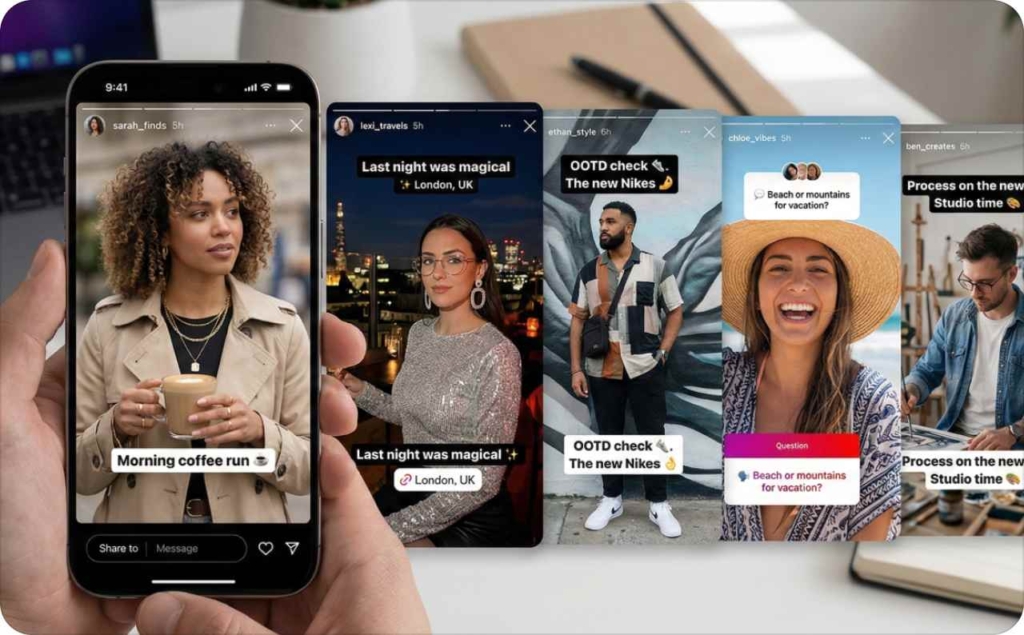
Instagram Stories are full-screen, vertical posts that sit at the top of the app and disappear after 24 hours unless you save them to Highlights. Design-wise, you’re working in a 9:16 format (commonly 1080 x 1920), so templates matter because they keep text readable and buttons tappable across phone sizes. Brandwatch calls out the importance of using the correct Story size so your creative fills the screen cleanly and doesn’t crop awkwardly.
The practical takeaway: every Story you post is competing for thumb attention in a tight space. Templates give you a repeatable layout so your hook, proof, and CTA show up in the same places every time.
Free Instagram Story templates: Best places to download and tools
Where to get free Instagram Story templates
Most people want the big three places to start:
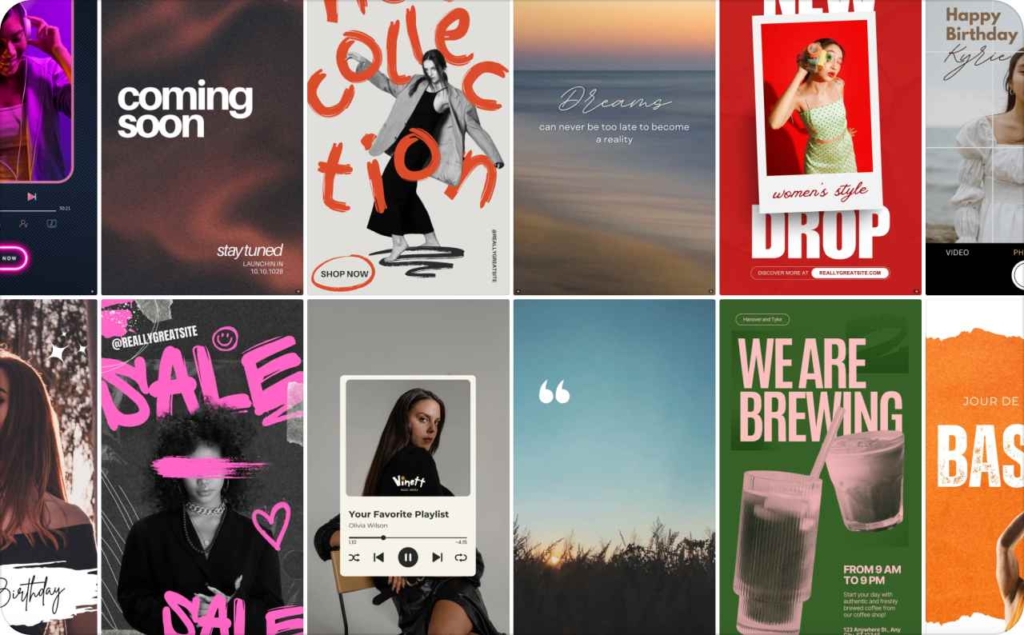
- Canva: the fastest way to grab a ready-made instagram story template and edit it in minutes
- HubSpot: free Instagram Story templates designed for business posting rhythms, plus they’re built around common promo and announcement needs. HubSpot also anchors why consistency matters: they cite that 60% of people say they discover new products on Instagram and 200+ million Instagram users visit at least one business profile a day
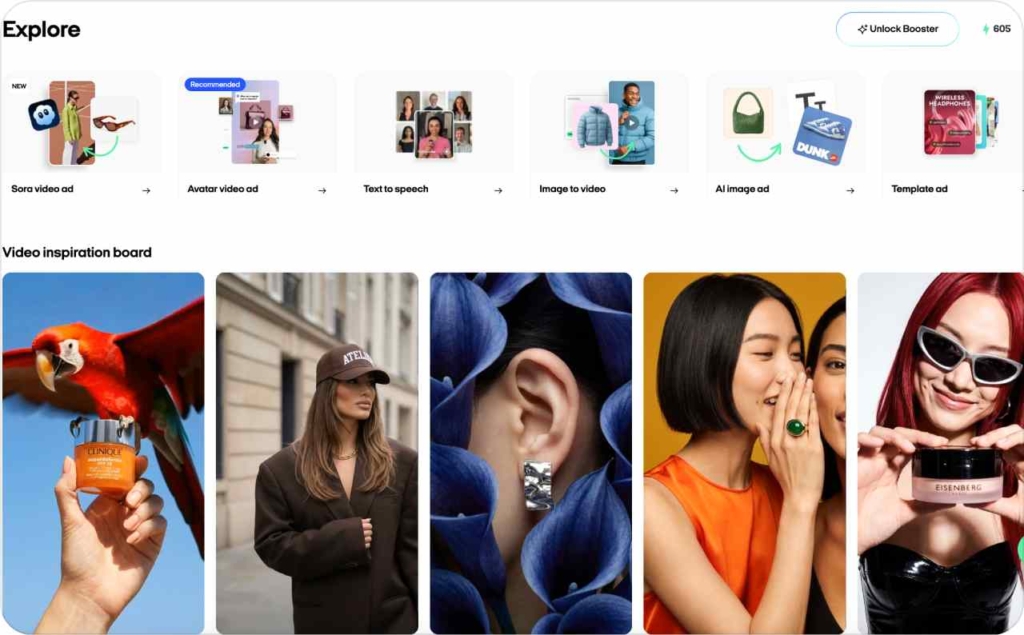
- A creation tool category: when you need more than static design, this is where tools like Zeely fit, especially if you want to generate banners, ad-ready creatives, AI video avatars, or videos from links, then download without watermarks for publishing.
Pick your fastest path
- Need branded consistency: download a template pack
- Need quick promo: grab a single-slide template
- Need engagement: use a sticker prompt template
To keep your SEO clean: yes, this is an Instagram template workflow, and yes, the goal is to discover Story templates you can reuse without rebuilding from scratch.
Are Canva Instagram Story templates free and how to customize them?
A lot of Canva Instagram Story templates are free, and the editing flow stays simple because it’s built like a drag-and-drop editor.
Here’s the non-technical way I want you to think about customization:
- Swap brand colors first so the template immediately feels like you
- Set typography next, meaning choose a headline font and a body font and stick to them
- Replace imagery last so your photos fit the layout instead of forcing the layout to fit random photos
- Keep the spacing. The template’s spacing is doing quiet work for readability
You’ll see me go deeper on brand kits later, but for now: Canva plus consistent brand colors and typography gets you 80% of the way there.
Best Instagram Story template apps and tools
If you’re picking tools, I’d choose based on outcomes, not feature lists:
- Canva: best when you want speed plus a huge template library. It’s usually the quickest path to “good enough, on brand”
- Picsart: best when you want faster photo effects, cutouts, and more playful edits without feeling locked into rigid layouts
- Zeely: best when your output includes more than static slides, like motion creatives and short video ads generated from a product link, plus fast variants for promos.
Use-case fit is the honest filter:
- If you’re posting daily and need consistency, Canva wins
- If your Stories lean heavily on edited visuals, Picsart can be faster
- If your Stories need motion, avatars, or ad-style variations, Zeely saves time
Can you download templates as editable files (PSD / PNG / MP4)?
- PSD: layered editing for designers (Photoshop)
- PNG: static image export for crisp text
- MP4: motion export for animated templates
Remember: exporting and compression settings decide whether your Story looks sharp or fuzzy.
Reuse templates across multiple brand accounts
If you run multiple brand accounts (sub-brand, franchise, multi-location), reuse is a workflow:
- Duplicate the pack, then swap logos and brand colors first
- Keep core spacing and safe zones the same so every account stays readable
- Rename consistently so teams don’t post the wrong brand by mistake
Build a template pack that matches brand guidelines
A real template pack is not 50 random backgrounds. It’s a small set of repeatable slides:
- Typography slides (headline, subhead, body rules)
- CTA slides (link sticker prompts, “DM us,” “tap to shop”)
- FAQ slides (question layout, answer layout)
- Testimonial slides (quote, name, proof line)
If your brand guidelines mention a style guide, build the pack around a simple type scale and a spacing system so every slide feels related, even when the content changes.
Organize templates for faster posting
Templates only save time if you can find them fast. Use folders plus a naming convention tied to intent:
- Engagement
- Trust / social proof
- Product / launch
- Community / behind-the-scenes
- Seasonal
Example naming convention: ENG-poll-this-or-that-01, PROD-launch-countdown-02, TRUST-testimonial-04. Your asset library should feel like a menu, not a junk drawer.
Customize Instagram Story templates fast: Brand kit + exports + safe zones
Set up reusable text styles (fonts, sizes, spacing)
I like a four-level text hierarchy for Stories:
Headline (big hook)
This is the reason someone stops tapping. It should say one clear thing, fast.
Think: the promise, the problem, or the punchline. Keep it short so it stays readable on any phone.
Subhead (clarify)
This answers the viewer’s next silent question: “Wait, what do you mean?”
Use it to add context, a constraint, or the “who this is for.” It should make the headline feel specific, not vague.
Body (details)
This is where the slide becomes useful. Use it for 1 to 3 tight bullets or a short sentence.
If the body turns into a paragraph, your slide turns into homework and people tap away.
Microcopy (tiny CTA or label)
This is the small directional text that makes the slide easier to use.
It’s where you tell people what to do and where, without shouting. Examples: “Tap a button,” “Reply with one word,” “Link sticker above,” “Slide to vote,” “New,” “Step 2 of 7.”
Microcopy is also how you label sections so your Story feels organized, not chaotic.
Spacing rules that keep everything clean:
- Keep padding consistent on the left and right
- Align text to an invisible grid so slides feel connected
- Use the same line height for the same text level every time
This is boring in the best way. It makes your templates look intentional even when you’re moving fast.
Photo placeholders and layout rules that prevent chaos
A placeholder is basically a “reserved parking spot” for your visuals. Instead of dragging photos around until everything feels off, you drop your image into a frame that already protects your text, margins, and CTA space. That’s how an instagram story template stays clean across posts, even when the photos change.
Build 4 reusable placeholder frames, the ones you’ll actually use:
1) Product photo frame
Use this when the product is the hero. The frame should leave a clear text zone so your hook never sits on top of packaging, faces, or busy patterns.
Best for: launches, features, pricing callouts, “new in” slides.
2) UGC frame (caption + name space)
UGC looks real, but it’s usually messy. This frame gives you a consistent spot for the caption and credit (name or handle) so the slide reads like a story, not a screenshot dump.
Best for: reviews, unboxings, “customer said this” slides.
3) Before/after split (two equal blocks)
This is your proof layout. Two equal frames force honest comparison and keep the eye moving left to right. Add small labels so people instantly understand what they’re seeing.
Best for: transformations, results, redesigns, edits.
4) Testimonial frame (headshot circle + quote)
A headshot circle signals “real person,” and a quote block keeps text readable. This layout makes testimonials feel intentional instead of pasted in.
Best for: trust-building, case studies, service businesses.
Simple layout rules that keep every slide readable
- Crop to the focal point: center what matters (face, product, result). If the focal point is tiny, the slide feels weak
- Don’t shrink photos into postage stamps: if the image is too small, it loses emotional pull and looks like a collage
- Never put text on chaos: if the background is busy, add a readable overlay (a soft gradient or a solid panel behind text). Your message should win, not the wallpaper
Progress bars and step indicators for 5–10 slide series
Series Stories fail for one reason: people don’t know how long they’re stuck with you. A step indicator is a tiny promise that makes the viewer relax and keep watching.
What a step indicator does
- It sets expectations: “This is a 7-slide story, not a forever-story”
- It increases completion because viewers can pace themselves
- It makes your content feel organized, which matters when you’re teaching, explaining, or selling
Two simple options
- “1/7” label: best when you want clarity and speed. Put it top-left or top-right, small
- Thin progress bar: best when you want a cleaner look. It gives momentum without adding extra words
Keep it consistent across your instagram template pack. Same position every time so returning viewers instantly recognize the format.
Animated Instagram Story templates
Animation in Stories isn’t “make it flashy.” It’s “make the message easier to notice.” Think of motion as a highlighter that guides the eye.
What animation means in templates
- Motion text: a headline that slides in, fades in, or pops once
- Basic transitions: smooth scene changes between slides in a series
- Subtle movement: a small pulse on a button or CTA area, so people know where to tap
When animation is worth using
- Your hook needs to land faster: a quick text reveal can pull attention before the viewer taps away
- You’re teaching steps: motion can pace the information so it feels easier to follow
- Your CTA needs focus: a small CTA pulse or arrow-like movement (without actually using arrows) helps direct attention to the link sticker area or “Reply” prompt
How to keep it from looking chaotic
- One main motion per slide. If everything moves, nothing stands out
- Keep motion short. The viewer is already tapping fast
- Use motion to support the hierarchy: headline animates first, microcopy last
Why MP4 is the usual export
Animated templates need a video file to preserve movement. That’s why most motion-based Story templates export as MP4, while static slides export as PNG.
Export templates so they don’t lose quality
Hootsuite flags that using the wrong dimensions can hurt reach and engagement, which is why export discipline matters even when you’re “just posting a Story.” Read now how to post a story on Instagram.
Quality checklist
- Correct dimensions for full-screen vertical
- Avoid over-compressing before upload
- Keep text inside safe zones
- Check for pixelation on thin fonts
- If exporting video, don’t crush the bitrate so hard that text turns mushy
Troubleshooting: fix the common Story template problems
Use it as a pre-post check when your template looks right in the editor but wrong after upload.
| Problem | Likely cause | Fix |
| Why can’t I add music to my Instagram Story? | Music isn’t available for your account type, region, or the track is restricted | Try a different track, update the app, or switch to a creator account if available. If nothing works, post without music and add it after saving to drafts. |
| Why is the link sticker missing? | Feature not rolled out, account restrictions, or app glitch | Update the app, log out/in, and confirm you’re not violating policies. If it still won’t show, use a “DM me for the link” template temporarily. |
| Why are my Stories muted/no sound after upload? | Exported video has no audio track, or the audio got stripped during export | Re-export with audio enabled, avoid aggressive compression, and test by sending to a private account or Close Friends first. |
| Why is text cut off on different phones (safe zone issues)? | Text is too close to the top/bottom UI areas | Pull text inward and upward from the bottom bar, and avoid placing critical text near the top username area. Use the same safe-zone margins across your whole pack. |
| Why does my Story look cropped after exporting from Canva? | Exported at the wrong size, or elements sit outside the 9:16 frame | Confirm the canvas size is full-screen vertical before exporting. Keep key elements centered and inside safe zones. |
| How do I fix Instagram Story upload quality settings? | Data saver or upload settings reduce quality | Turn on the app’s higher-quality upload option (if available), upload on strong Wi-Fi, and export at clean resolution so the platform compresses less aggressively. |
50+ Instagram Story ideas by goal and niche
Before we jump into the library, one definition matters: Instagram reach is the number of unique accounts that saw your content in a timeframe. That’s the scoreboard for visibility.
So when you pick Story ideas, pick formats that earn interactions (replies, sticker taps, shares). Those behaviors help your Stories get watched, finished, and revisited.
What to post on Instagram Stories every day
A simple 7-day rotation keeps you consistent without feeling repetitive:
- Day 1: Reply-first prompt (questions or poll)
- Day 2: Proof (testimonial, before/after, result)
- Day 3: Behind-the-scenes (process, workspace, prep)
- Day 4: Value (tip, checklist, myth vs truth)
- Day 5: Product (use case, demo, comparison)
- Day 6: Community (feature a follower, repost UGC, shoutout)
- Day 7: Recap (wins, what’s next, CTA)
Tie each day to a goal: replies, trust, traffic, or sales.
Quick Story ideas for when you have no time
These are “2-minute Stories”: single slide, one sticker, one CTA.
- Hook: “Pick one” | Sticker: Poll | CTA: “Vote fast”
- Hook: “True or false?” | Sticker: Quiz | CTA: “Tap your answer”
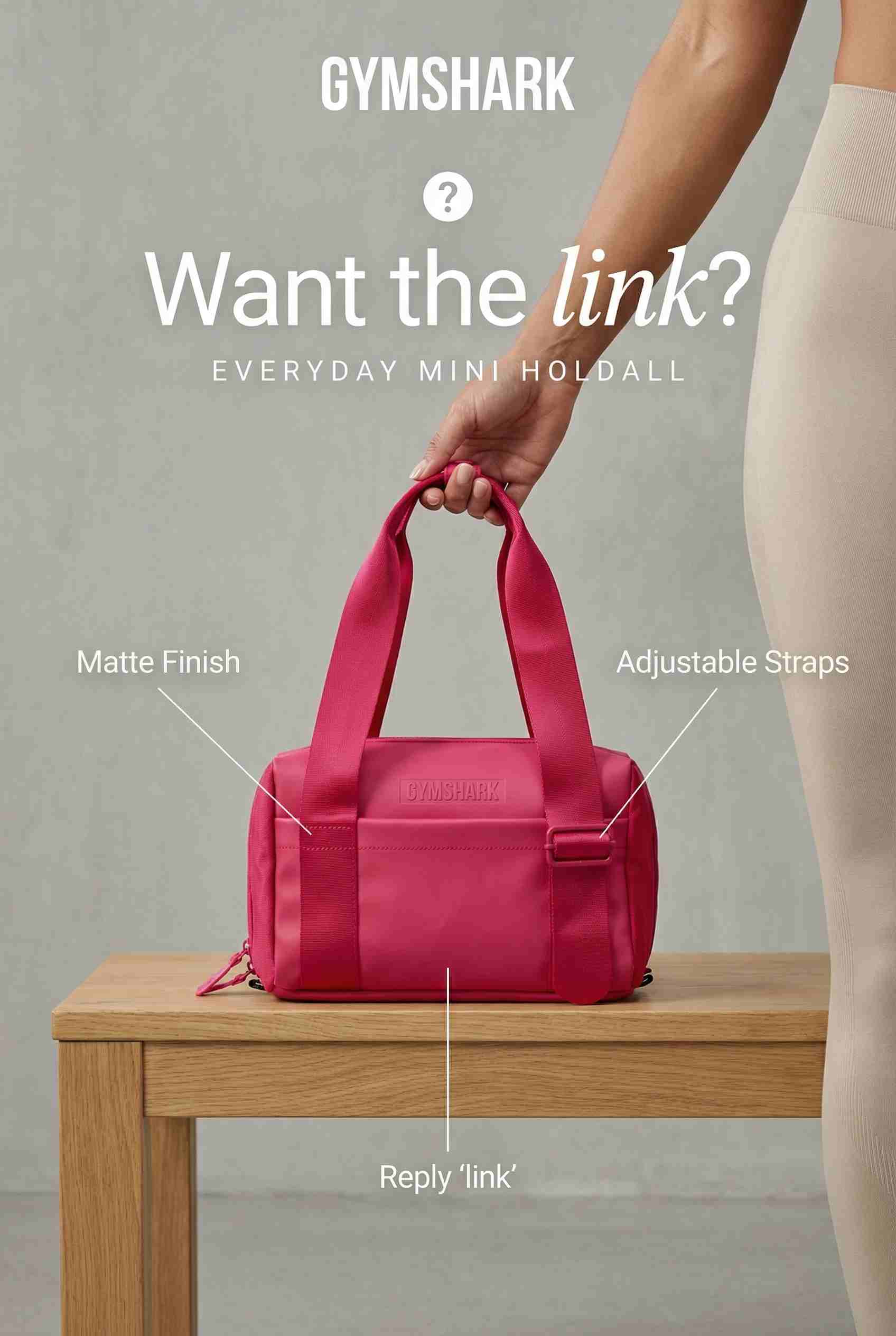
- Hook: “Want the link?” | Sticker: Question | CTA: “Reply ‘link’”
Story ideas to boost engagement
Reply triggers are simple: make the viewer choose, guess, or confess.
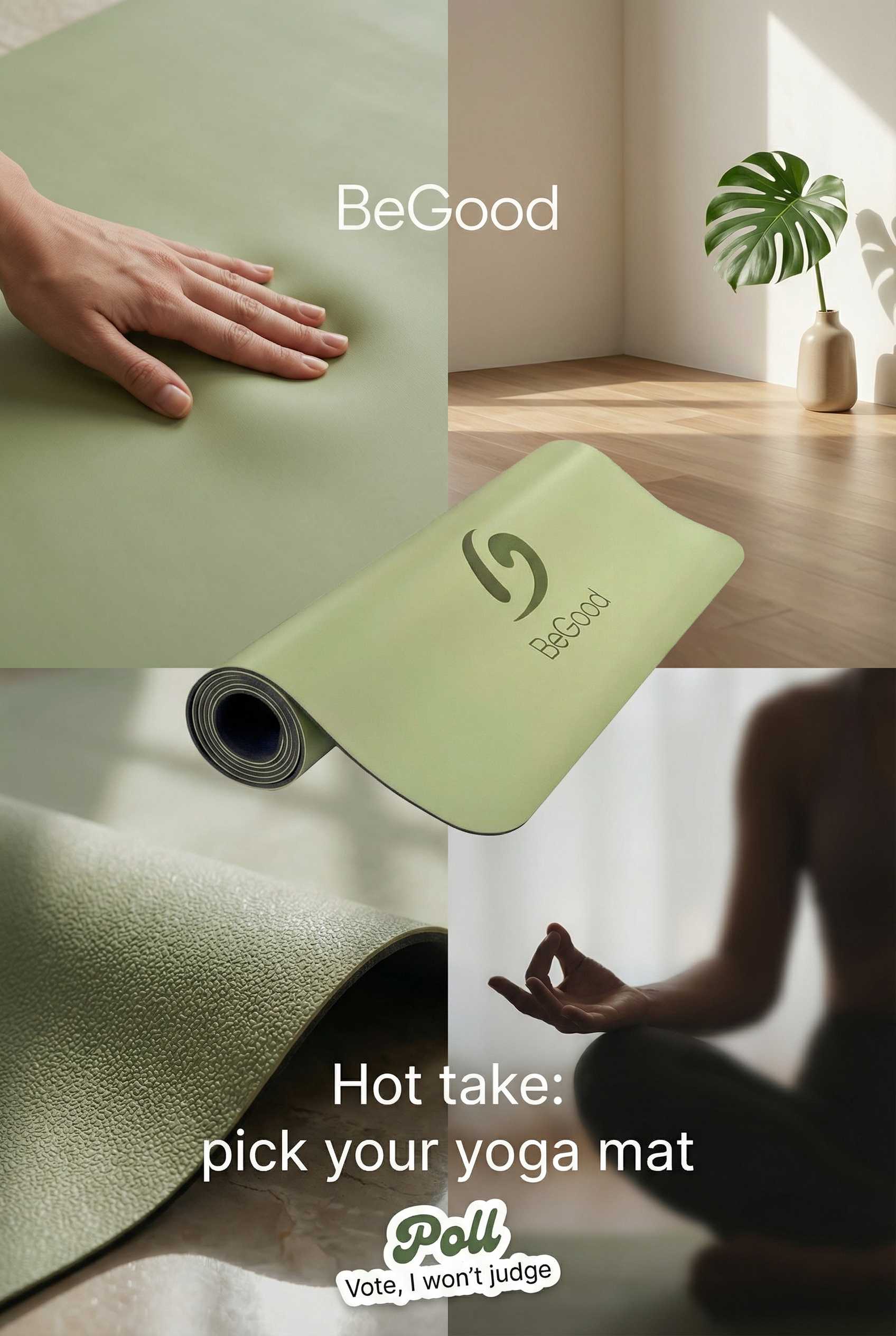
- Hook: “Hot take: ____” | Sticker: Poll | CTA: “Vote, I won’t judge”
- Hook: “Finish this sentence” | Sticker: Question | CTA: “Reply with yours”
- Hook: “Which one are you?” | Sticker: Poll | CTA: “Tap your type”
Story ideas to promote a product without sounding salesy
Make it about the viewer’s decision, not your offer.
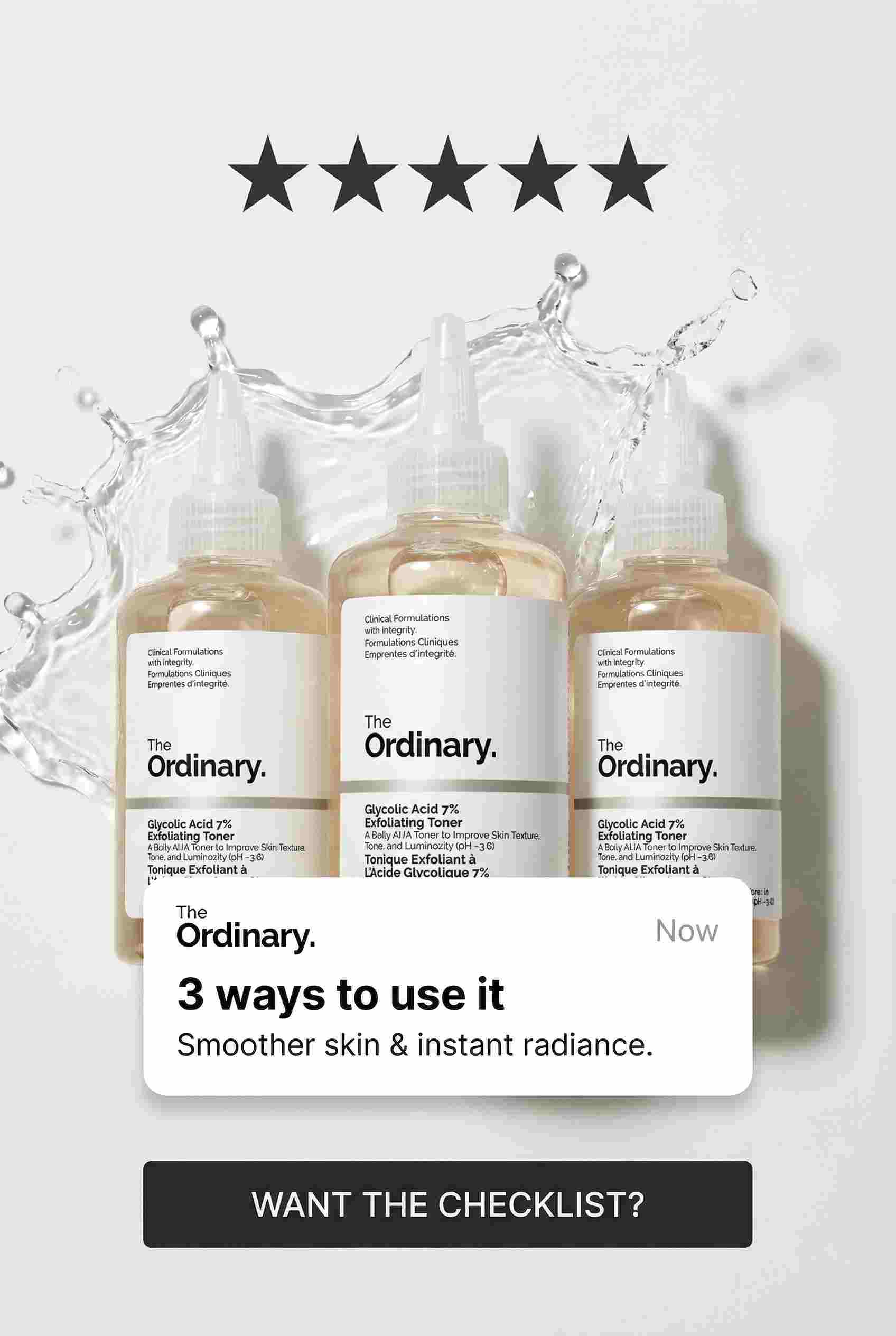
- Hook: “3 ways to use ____” | Sticker: Poll | CTA: “Want the checklist?”
- Hook: “This vs that” | Sticker: Poll | CTA: “Vote, then I’ll show results”
- Hook: “Common mistake” | Sticker: Quiz | CTA: “Guess the fix”
Story ideas that build trust
Use three proof types: testimonial, result, process transparency.
- Hook: “What changed in 7 days” | Sticker: Question | CTA: “Want the template?”
- Hook: “Client result breakdown” | Sticker: Poll | CTA: “More like this?”
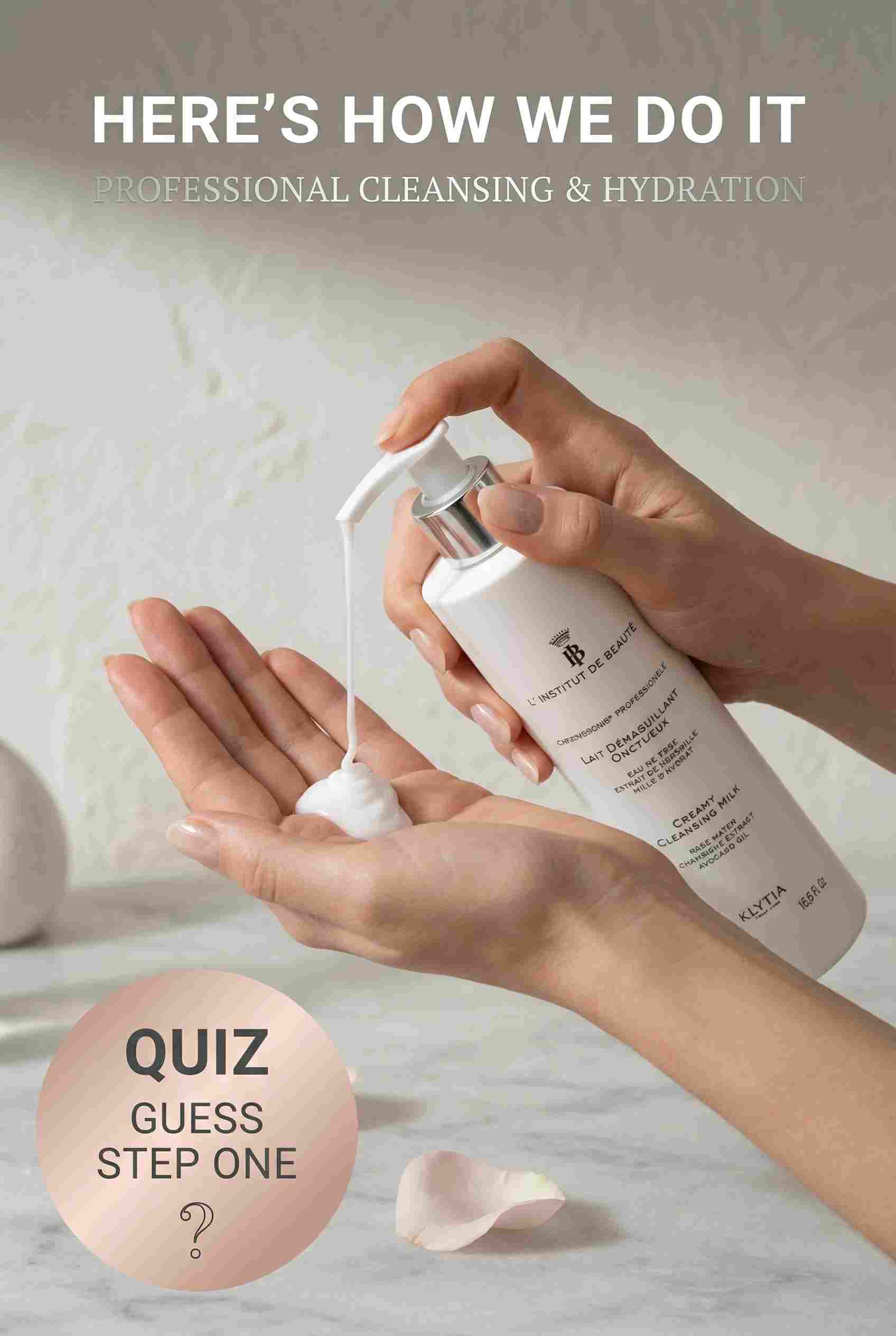
- Hook: “Here’s how we do it” | Sticker: Quiz | CTA: “Guess step one”
50+ Instagram Story idea library
Each idea includes: Hook | Sticker | CTA
Engagement goals
- “Pick one for today” | Poll | “Vote now”
- “This or that?” | Poll | “Tap your choice”
- “Guess the price” | Quiz | “Answer fast”
- “Rate this idea” | Slider | “Slide it”
- “Unpopular opinion:” | Poll | “Agree or disagree?”
- “One word check-in” | Question | “Reply with one word”
- “Ask me anything” | Question | “Drop your question”
- “Which would you wear?” | Poll | “Vote”
- “What’s your biggest issue?” | Poll | “Pick one”
- “Hot take Tuesday” | Poll | “Tap your side”
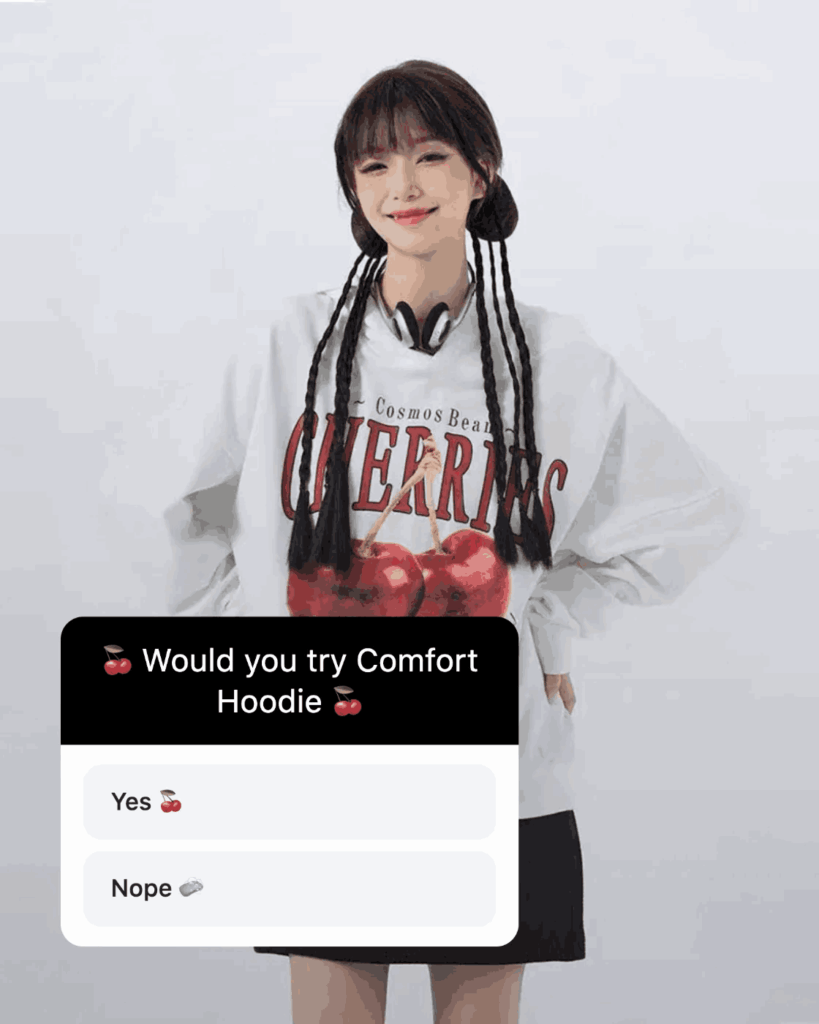
- “Would you try this?” | Poll | “Yes or no”
- “Finish this: I wish I could ____” | Question | “Reply”
Trust goals
13. “Real client win” | Sticker | “Want the steps?”
14. “Before and after” | Poll | “Which is better?”
15. “Behind the scenes” | Question | “Want more BTS?”
16. “What we fixed” | Quiz | “Guess the issue”
17. “What I’d do differently” | Question | “Want part 2?”
18. “Proof screenshot” | Poll | “More proof posts?”
19. “FAQ: people ask this” | Question | “Ask yours”
20. “How it’s made” | Poll | “See step two?”
Traffic goals
21.“Free download is live” | Poll | “Want the link?”
22. “New post summary” | Quiz | “Guess the takeaway”
23. “Quick checklist” | Poll | “Want the full list?”
24. “New video is up” | Poll | “Should I link it?”
25. “Tool I’m using” | Question | “Want the resource?”
26. “One-minute tutorial” | Poll | “Want part 2?”
Sales goals
27. “What’s included” | Poll | “Want pricing?”
28. “Best for who?” | Poll | “Which are you?”
29. “Common objection” | Quiz | “Guess my answer”
30. “Last spots” | Countdown | “Set reminder”
31. “Bundle vs single” | Poll | “Which would you buy?”
32. “Restock alert” | Countdown | “Remind me”
Niche module: Creators and influencers
33. “Ask me anything, no fluff” | Question | “Send a question”
34. “Vote my next video” | Poll | “Pick the topic”
35. “Hot take: creator edition” | Poll | “Agree or disagree?”
36. “Choose my edit style” | Poll | “Vote”
37. “What should I test?” | Question | “Reply with an idea”
Niche module: Service businesses
38. “Open slots this week” | Poll | “Want a time?”
39. “Client result story” | Poll | “Want the process?”
40. “My booking rules” | Quiz | “Guess the rule”
41. “Pricing question I get” | Question | “Ask yours”
42. “Behind the scenes setup” | Poll | “More BTS?”
Niche module: Ecommerce
43. “Unboxing time” | Poll | “Want a link?”
44. “Restock is here” | Countdown | “Set reminder”
45. “Pick the color” | Poll | “Vote”
46. “UGC repost” | Poll | “Want the product?”
47. “Sizing help” | Quiz | “Guess your fit”
48. “Bundle builder” | Poll | “Pick item one”
Niche module: Seasonal
49. “Launch week schedule” | Countdown | “Set reminder”
50. “Holiday gift pick” | Poll | “Which one wins?”
51. “Event day prep” | Poll | “Want updates?”
52. “Limited edition drop” | Countdown | “Remind me”
53. “Year recap” | Question | “Want next year plans?”
54. “New season menu” | Poll | “Pick your favorite”
That’s 54 ideas you can plug into templates without rewriting your whole plan.
Instagram Story templates people actually use
Generic quote slides look nice, but prompt templates get taps. Buffer notes you can add more than one sticker to a Story, which is why “stacked prompts” work: you can combine a poll plus a question or a slider plus a link.
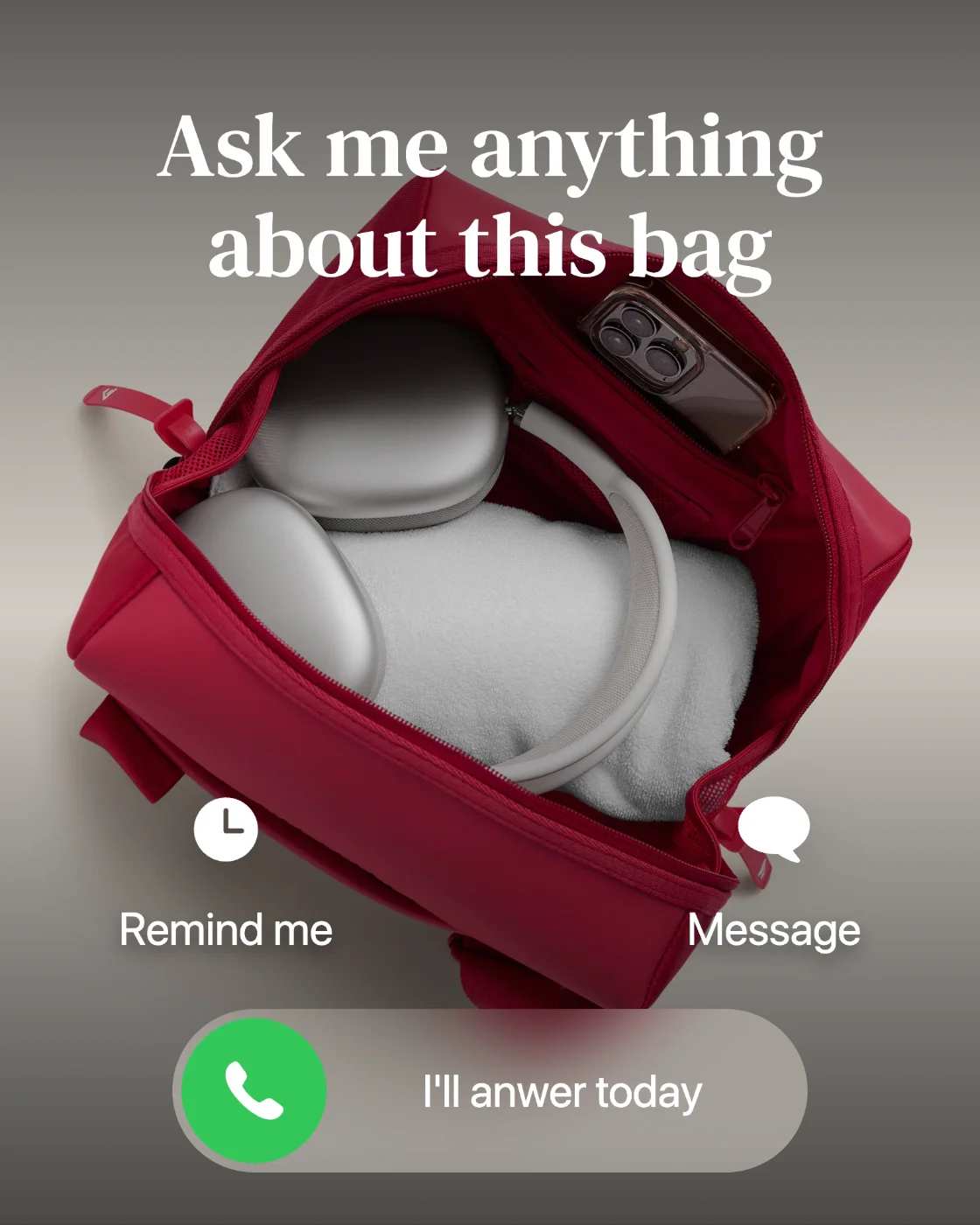
Ask me anything editable Instagram story template
- Placeholder headline: “Ask me anything about ____”
- Sticker placement zone: Question sticker in the middle third
- CTA microcopy: “I’ll answer today”
- Safe-zone note: Keep headline below the top UI bar
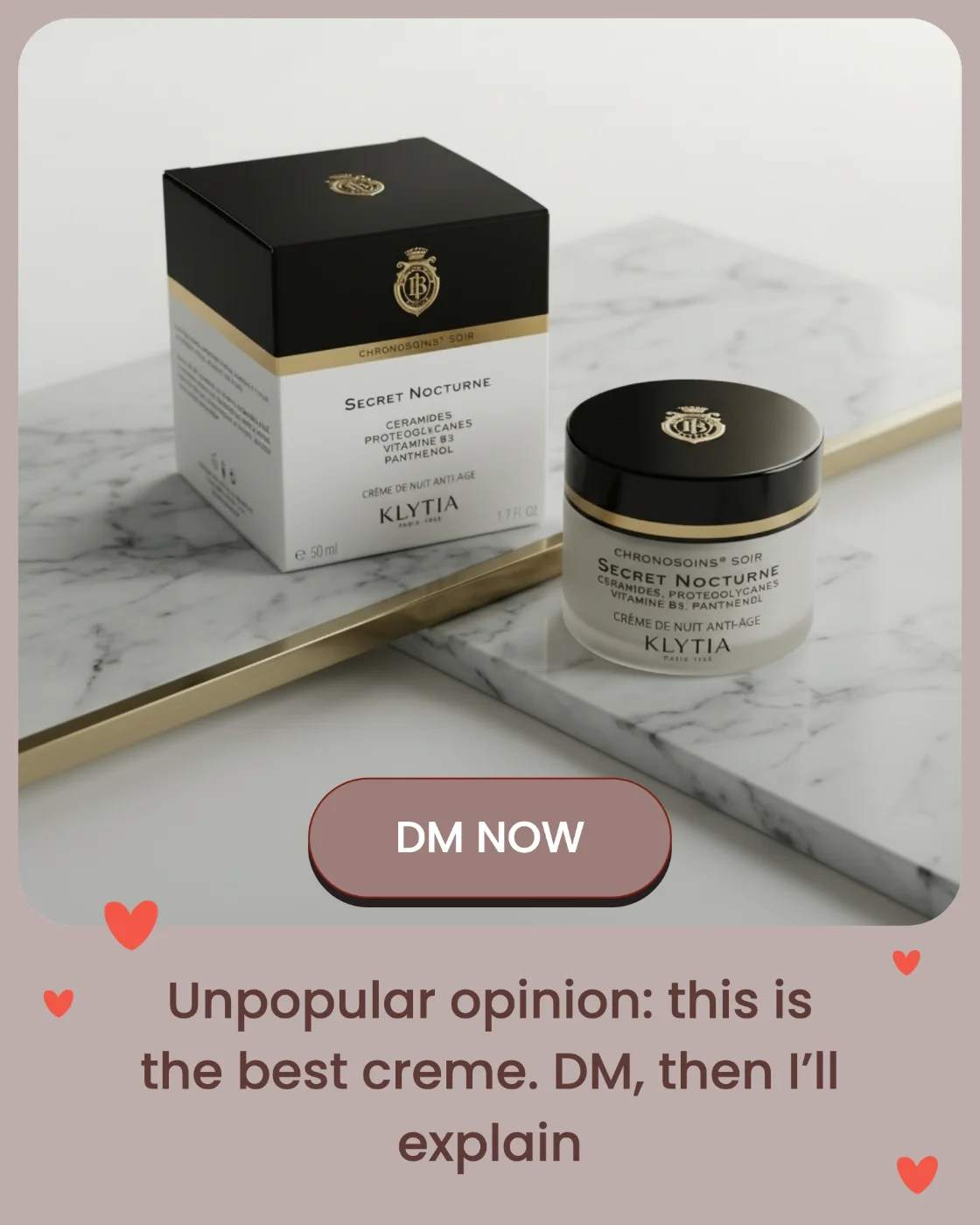
Unpopular opinion
- Placeholder headline: “Unpopular opinion: ____”
- Sticker zone: Poll under the headline (Agree / Disagree)
- CTA: “DM, then I’ll explain”
- Safe-zone note: Leave space at bottom for the reply bar
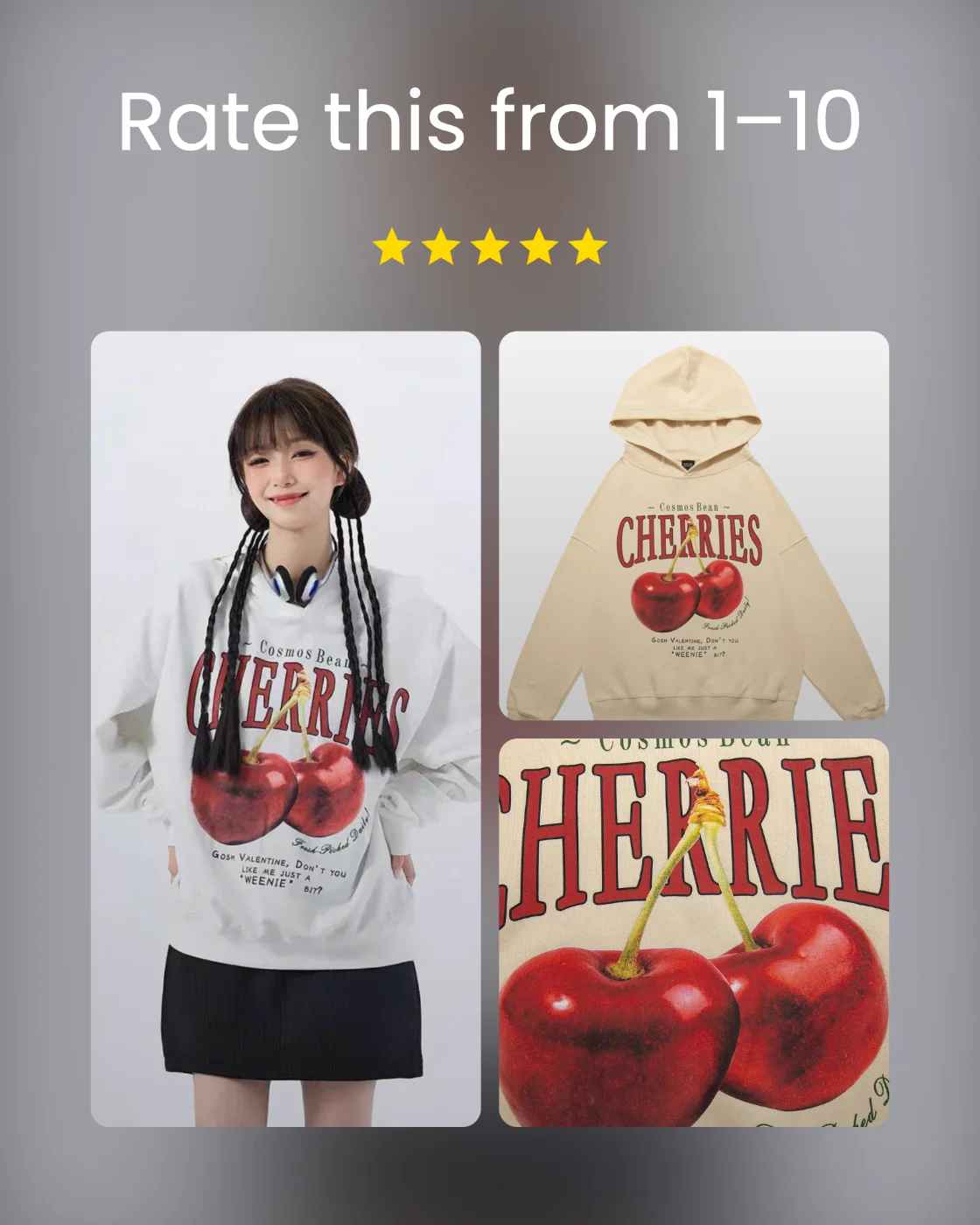
Rate this / slider
- Placeholder headline: “Rate this from 1–10”
- Sticker zone: Slider centered under the visual
- CTA: “Be honest”
- Safe-zone note: Don’t place the slider too low
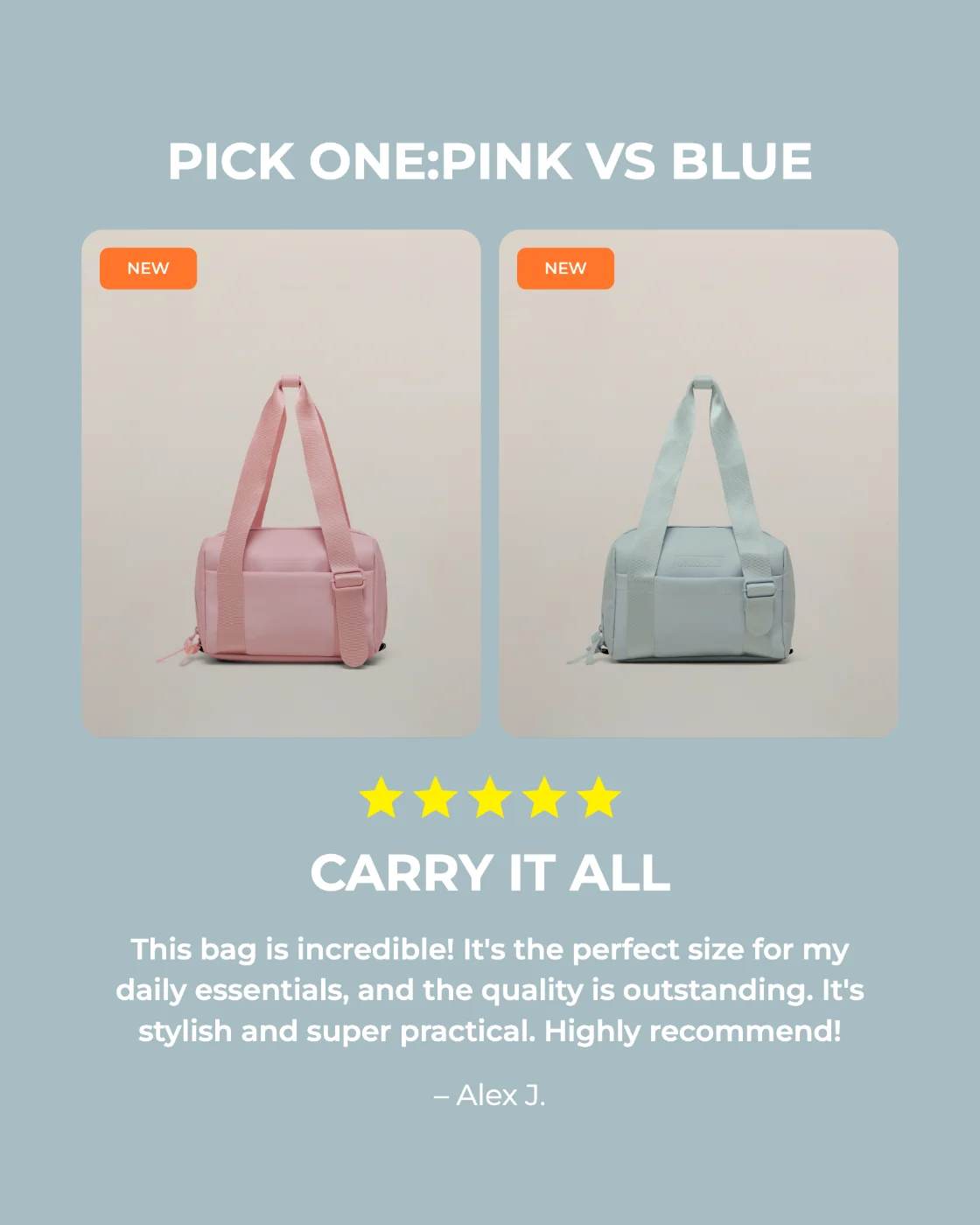
Pick one / bracket / tournament
- Placeholder headline: “Pick one: ____ vs ____”
- Sticker zone: Poll across the center
- CTA: “Vote now”
- Safe-zone note: Keep both options large and readable
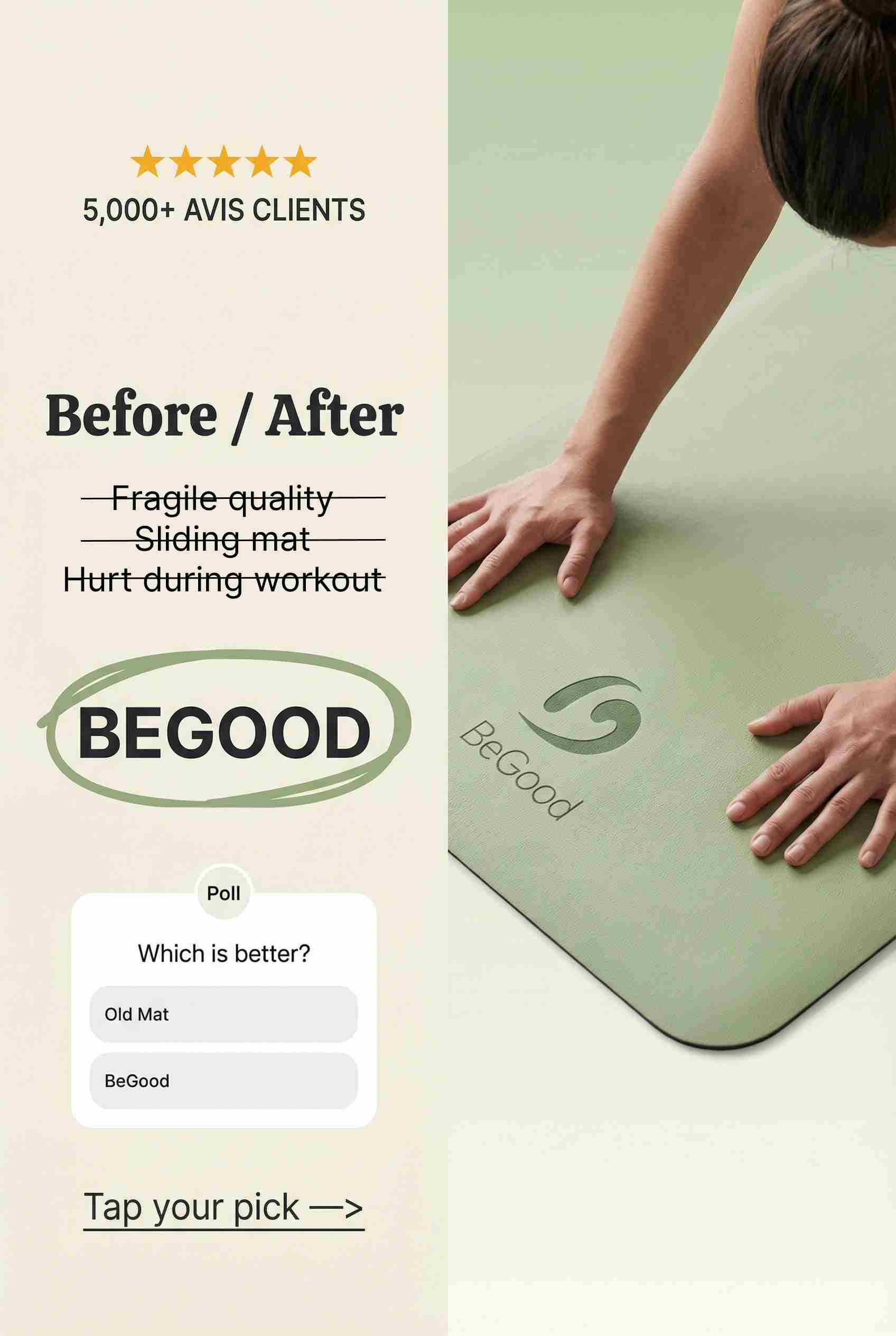
Before/After
- Placeholder headline: “Before / After”
- Sticker zone: Poll at the bottom (Which is better?)
- CTA: “Tap your pick”
- Safe-zone note: Keep labels away from edges
Checklist / routine / step-by-step
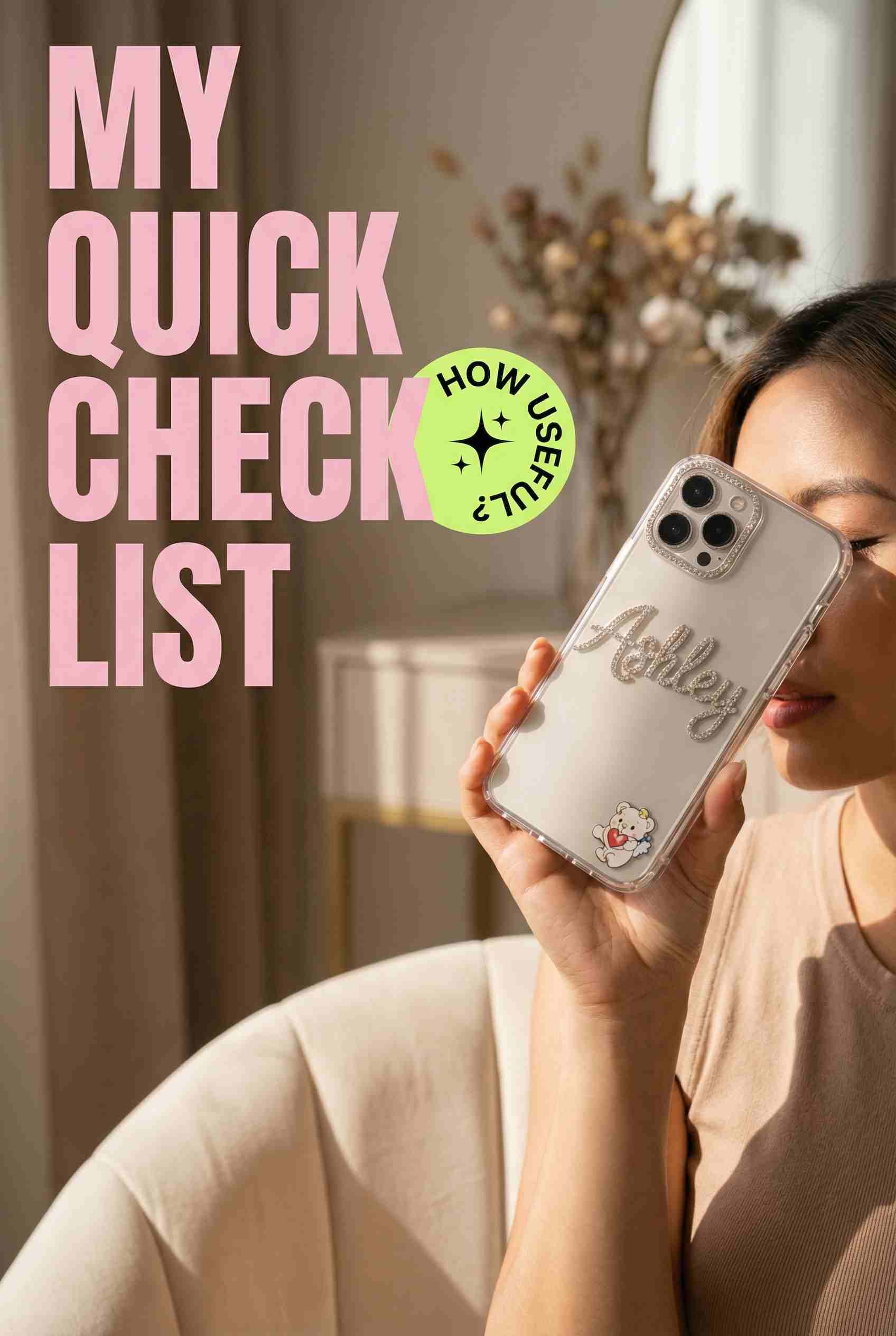
- Placeholder headline: “My quick checklist”
- Sticker zone: Optional slider at end (“How useful?”)
- CTA: “Want the template?”
- Safe-zone note: Use bigger line spacing for readability
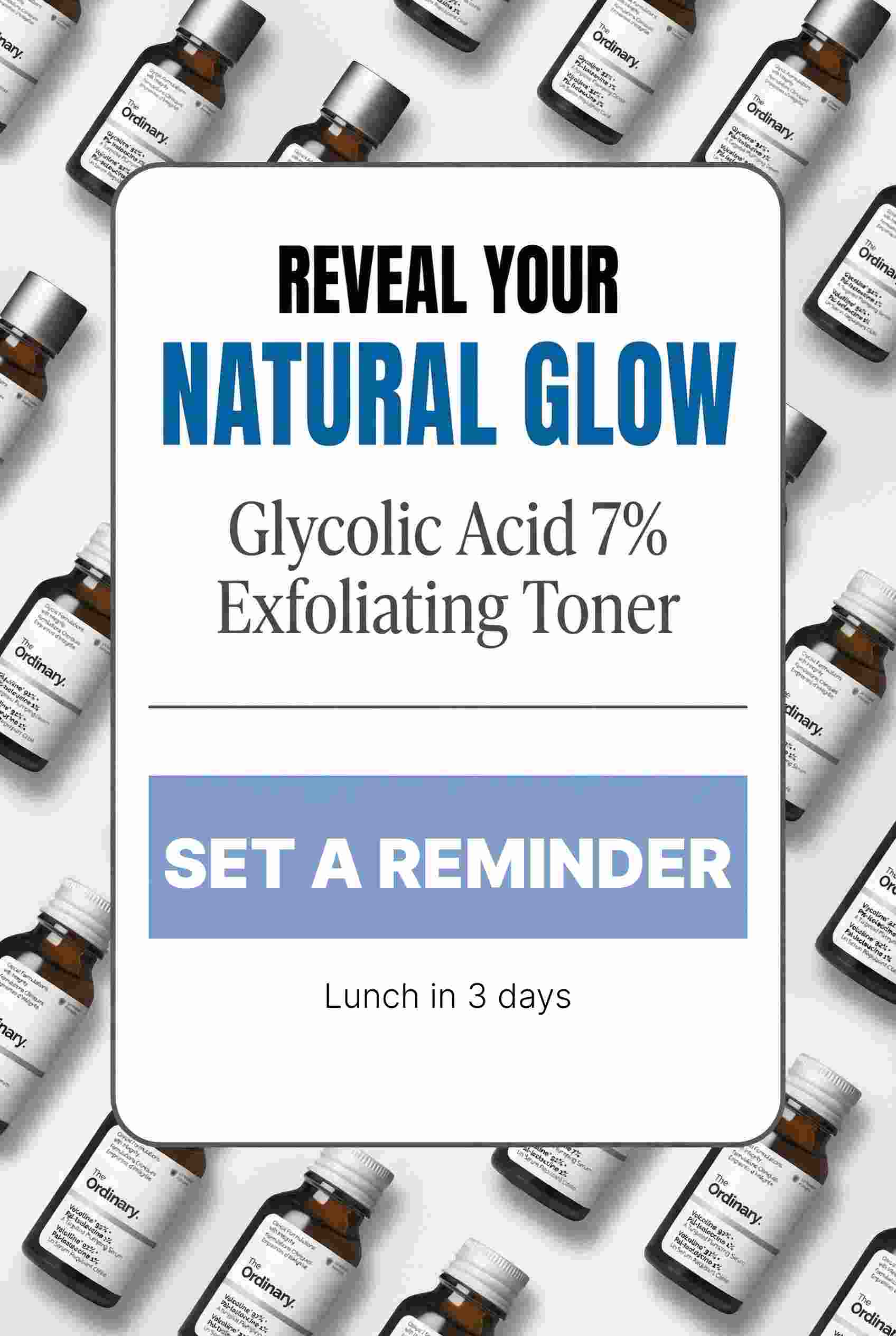
Countdown for launches
- Placeholder headline: “Launch in:”
- Sticker zone: Countdown sticker centered
- CTA: “Set a reminder”
- Safe-zone note: Keep countdown away from bottom UI
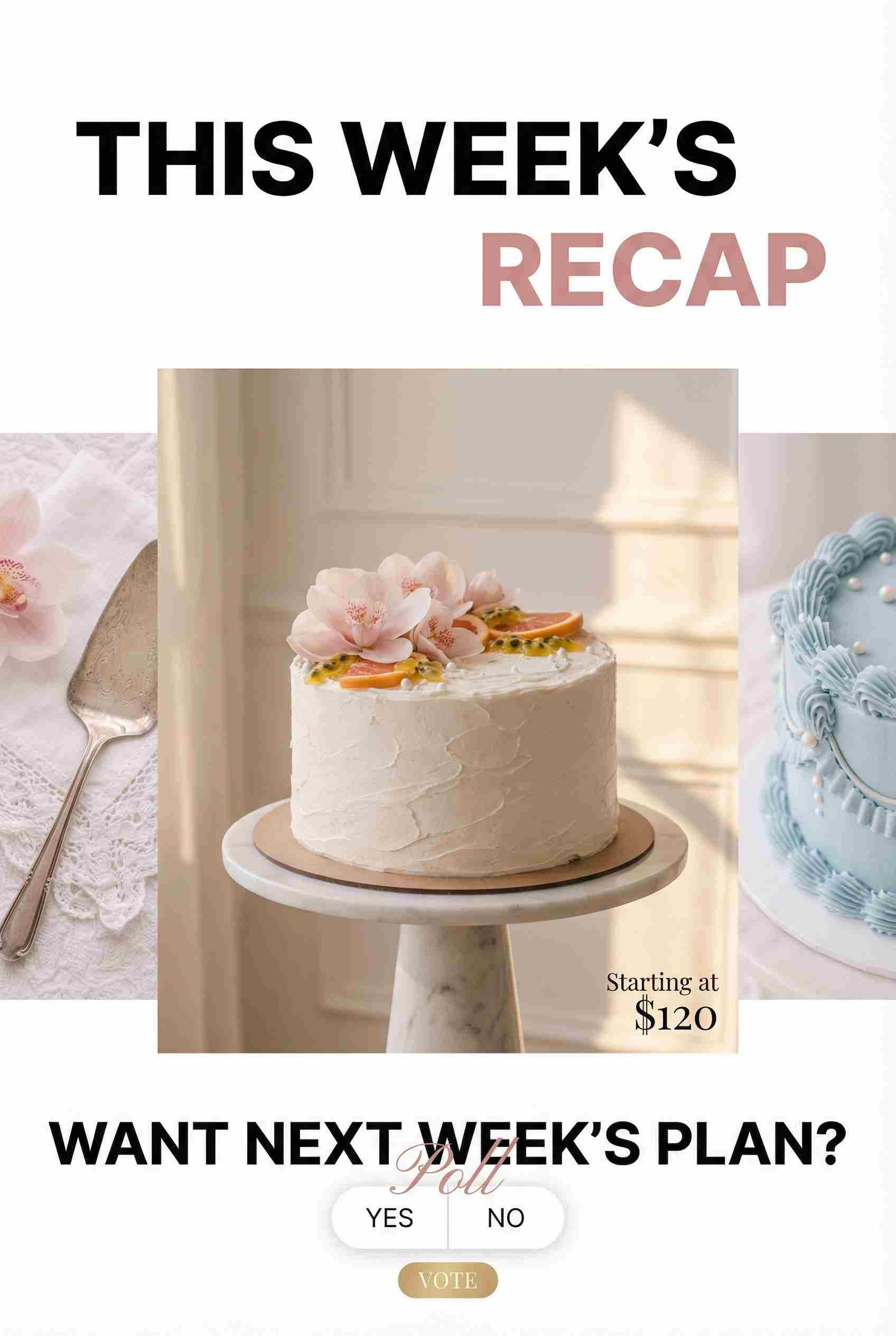
Weekly recap
- Placeholder headline: “This week’s recap”
- Sticker zone: Poll (“Want next week’s plan?”)
- CTA: “Vote”
- Safe-zone note: Don’t cram too many bullets
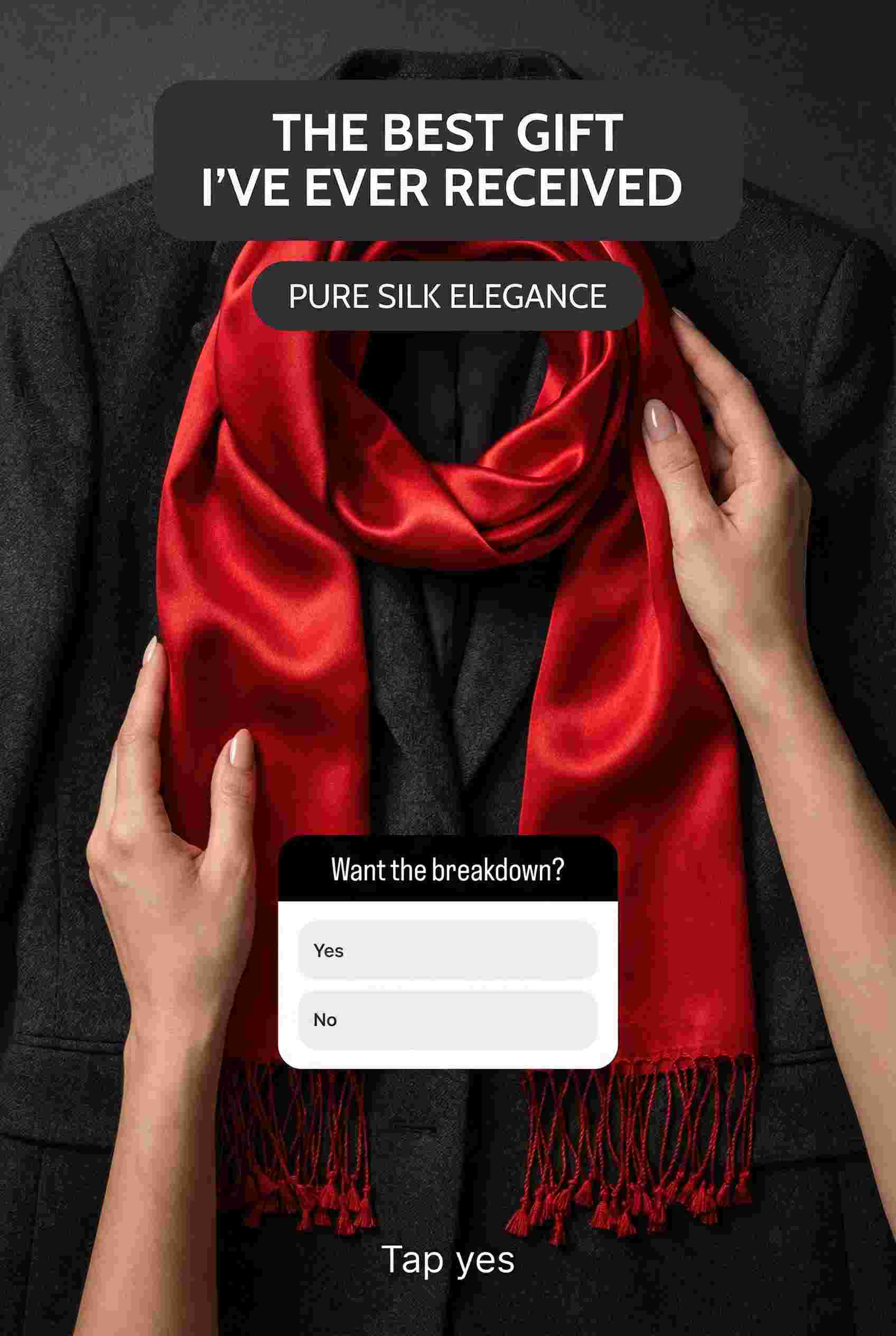
Client results / testimonial
- Placeholder headline: “Client win”
- Sticker zone: Poll (“Want the breakdown?”)
- CTA: “Tap yes”
- Safe-zone note: Keep names and proof text centered
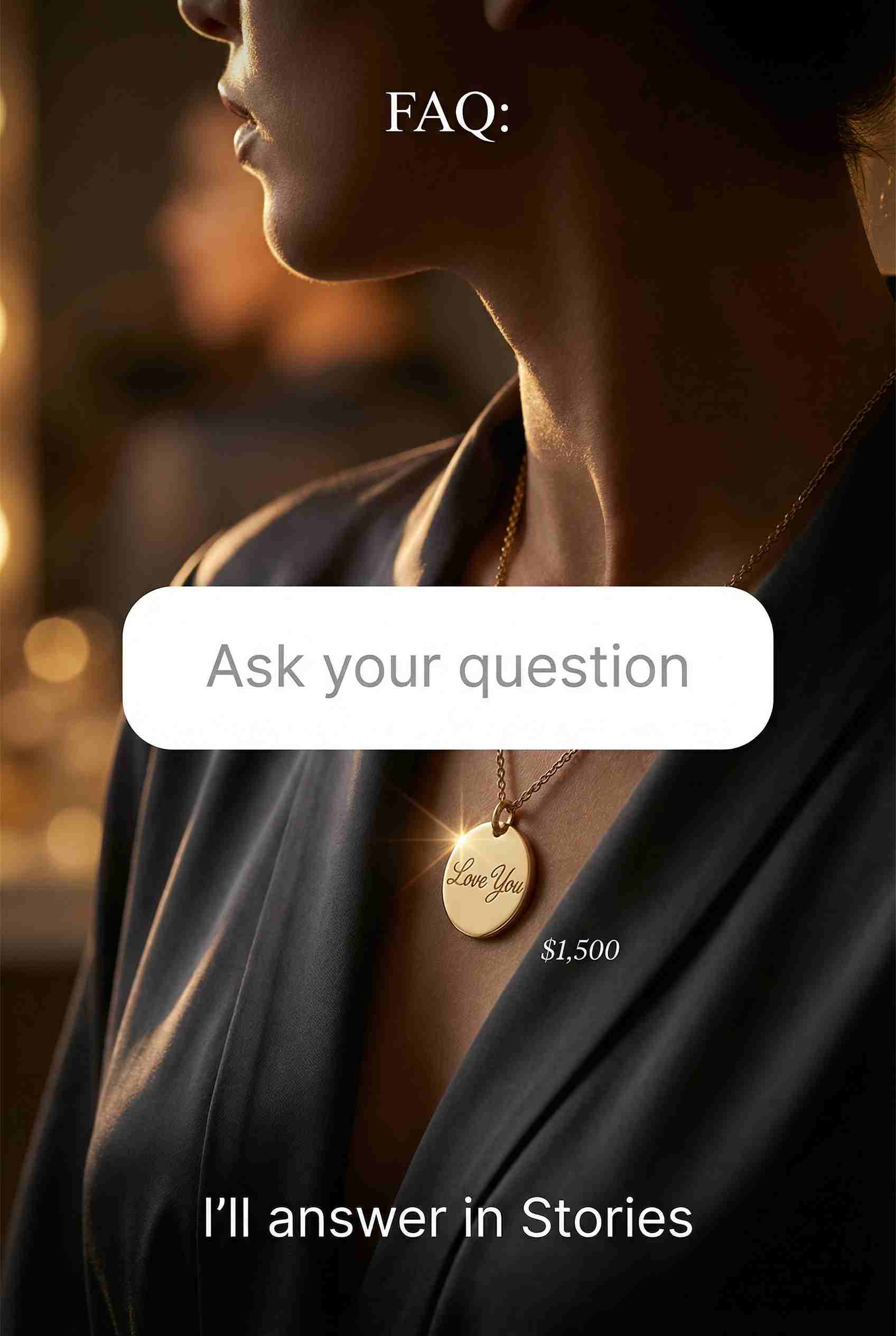
FAQ
- Placeholder headline: “FAQ: ____”
- Sticker zone: Question sticker (“Ask your question”)
- CTA: “I’ll answer in Stories”
- Safe-zone note: Leave room for longer replies
Conclusion
Instagram Stories ideas & templates work best when you treat them like a reusable system, not a one-off design task. Start with a small template pack, keep your text hierarchy and safe zones consistent, then rotate the prompt-style slides that earn replies and taps. When you post faster and cleaner, you give yourself more chances to learn what actually drives engagement. Use an Instagram ads generator to craft compelling, high-impact stories that capture attention and drive engagement. Ready to elevate your content? Read more about Story templates now!
Emma blends product marketing and content to turn complex tools into simple, sales-driven playbooks for AI ad creatives and Facebook/Instagram campaigns. You’ll get checklists, bite-size guides, and real results, pulled from thousands of Zeely entrepreneurs, so you can run AI-powered ads confidently, even as a beginner.
Written by: Emma, AI Growth Adviser, Zeely
Reviewed on: March 5, 2026