How to loop a video on Instagram in 2026
Trying to make a clip repeat on Instagram without a jump cut? I’m Emma from Zeely, and this guide shares the exact Reels, Story, and iPhone loop methods we use when we need smooth replays that hold attention.
If you mean Reels, your video already replays for viewers, so your job is making the ending match the beginning. If you mean Stories, use the Boomerang infinity tool for a true looping effect, or duplicate a 1–2 second moment so it fills a Story segment cleanly. For the smoothest results, build a short loop (3–10 seconds), match motion and audio, export 1080×1920, and keep key text inside safe zones.
“Looping” on Instagram means three different things depending on where you post. I’ll show you the fastest way to loop a video on Reels, the native loop effect for Stories, and the simplest iPhone workflow for 1–2 second loops. You’ll also get export settings and fixes for choppy playback.
What does it mean – to loop a video on Instagram?
On Instagram, looping shows up in three places. It depends on where you’re posting.
- Reels replay (viewer-side behavior): Your Reel replays automatically after it finishes. There’s no loop toggle, you make it feel infinite
- Story Boomerang (native loop effect): Instagram’s built-in Boomerang tool makes a short clip loop forward-and-back, GIF-style, but bouncy
- Seamless loop edit (you edit the loop): You cut/duplicate/align the clip so the last frame flows into the first frame with no jump cut
Why do this at all? Because a smooth loop quietly gives you a second watch. When the ending flows into the beginning, people often replay it without thinking. That extra view time adds up, especially on product demos, quick transitions, and simple process videos where the movement feels satisfying to see again.
A clean loop makes your video easier to rewatch. And easier to rewatch usually means stronger performance.
Here’s my simple decision rule at Zeely:
- If you want reach, use Reels. They’re built for discovery and rewatch behavior
- If you want reaction, use Stories. They’re built for quick replies, taps, and DMs
Now let’s make your video repeat the way you actually intend.
How to make a video loop on Instagram Reels
Reels already replay on their own. Instagram doesn’t give you a “loop” button to turn on. If you want it to feel seamless, that part happens in your edit. You shape the ending so it flows straight back into the beginning.
That’s the difference between a video that simply repeats and one that people rewatch without noticing.
How to make a video loop on Instagram
- Open Instagram → tap “+” → Reel
- Import your clip or record inside the Reel camera
- Trim to a loopable length sweet spot: 3–10 seconds
- Check your first and last frame
- If the ending looks finished, like you stop moving, strike a pose, or drop the camera, the replay will feel obvious. Technically it loops. Visually, it feels done. Adjust the cut so the motion continues instead of stopping. That small tweak makes the replay feel natural instead of forced
- Add captions/text and keep placement consistent, no last-second layout changes
- Post as a Reel, not a regular feed video, then watch it back and feel for a “bump” at the replay point
- If it bumps, re-edit: tighten your cut point, or add a transition that hides the seam
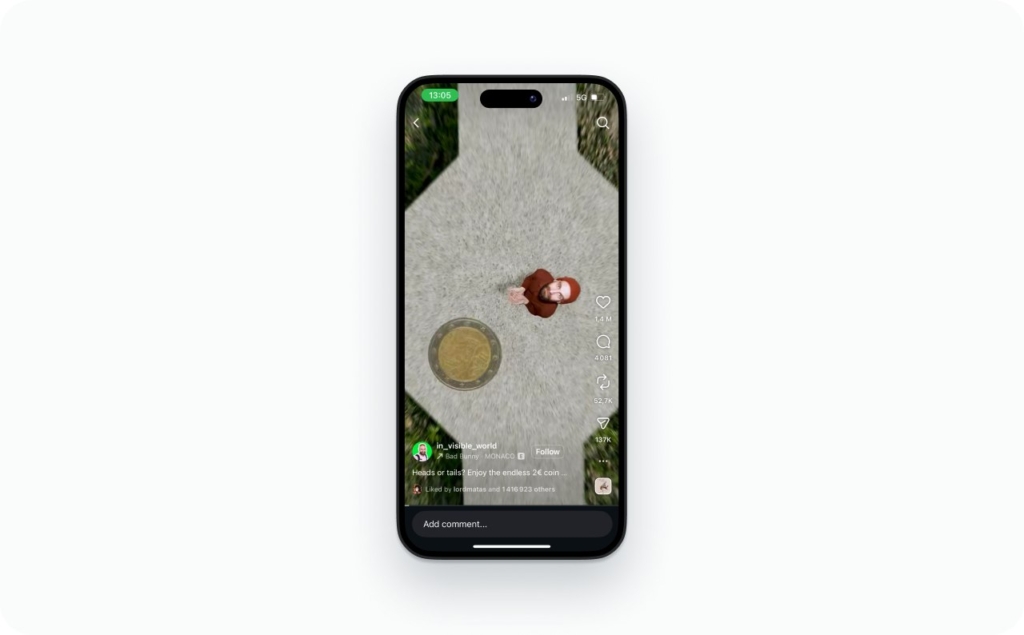
Photo source: @in_visible_world loop video on Instagram
Reel vs feed video confusion
A lot of “my video isn’t looping” issues come down to format. Reels are built to replay. Regular feed videos don’t always feel the same depending on where someone watches them, whether that’s the main feed, your profile grid, or Explore.
If your goal is a smooth repeat, post it as a Reel. There’s a practical reason for that. Reels is where people spend most of their time. Buffer reports that Meta says over 50% of time on Instagram goes to Reels. So if you’re building for rewatch behavior, that’s the surface that supports it best. Read a detailed guide on how to post a Reel on Instagram.
How to make a seamless looping Reel
A seamless loop is the difference between “watched once” and “watched twice without noticing.”
Seamless loop checklist
- Motion continuity: End with motion that can logically continue into the start
- Match framing: Try to end on a composition that mirrors the beginning, for example subject position and camera angle
- Hide the cut: Use a natural cover like blink, whip pan, hand over lens, object passing the camera, or a quick zoom
- Audio beat match: Loop on a clear beat (downbeat is the easiest). Your ears catch mismatches faster than your eyes
- Text continuity: Keep captions/stickers stable. Avoid sudden reflow or disappearing text on the last frame
- Lighting consistency: Even tiny exposure shifts can create a “flash” at the loop point
- Export consistency: Match frame rate and don’t re-encode three times
Best lengths to loop
- 3 seconds: Perfect for micro-demos, swipe, tap, pour, reveal
- 5 seconds: My go-to for product moments and quick before/after
- 7 seconds: Great when you need one extra beat for understanding
- 10 seconds: Ideal for a mini-process (packaging, application, transformation)
Go longer only if the loop is part of a story, otherwise short loops win because they invite rewatching.
Loop templates we use at Zeely
- Product demo loop: Start with the product in hand → end with the product returning to the same position
- Satisfying process loop: Stir/pour/peel → end with a motion that resets (hand exits frame, pan ends on the starting surface)
- Transition reset loop: Cover lens → new scene → cover lens again to return
Why this works: Hootsuite’s 2026 breakdown is blunt about Reels ranking signals — how long people watch, whether they rewatch, and if they engage or share — which is exactly what a seamless loop is engineered to trigger. Use the AI Instagram Reels creator to make an engaging video with a smooth loop.
How to loop a video on Instagram Story
If you’re asking how to loop a video on Instagram Story, you’re usually asking for Boomerang which is the native loop effect.
How to make a video loop on Instagram Story
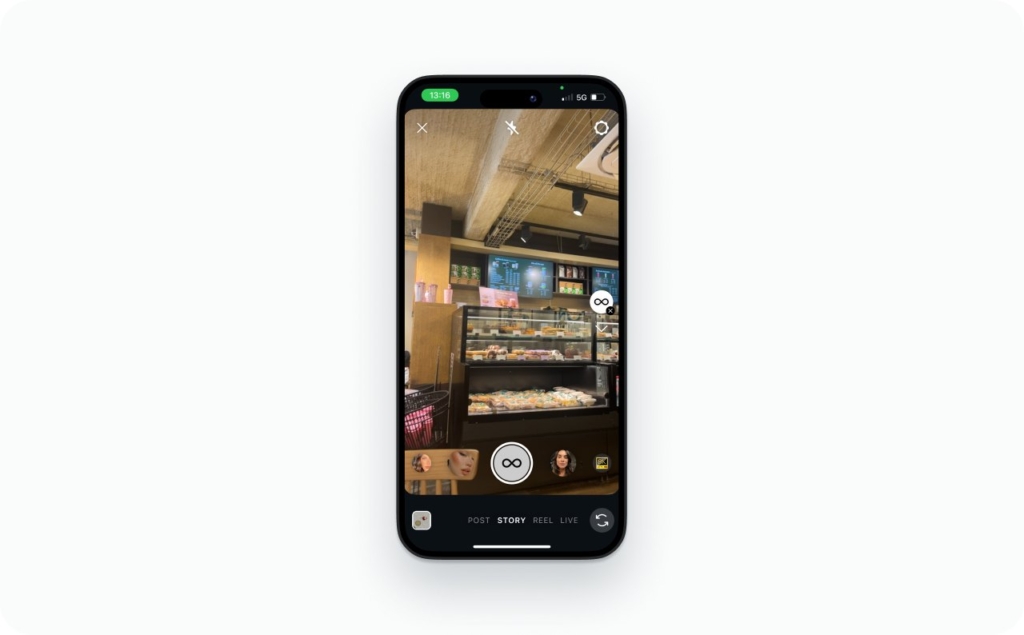
- Open Instagram → swipe right to the Story camera
- Look for Boomerang (often shown as an infinity symbol)
- Tap to record a short moment (Boomerang is meant for quick clips)
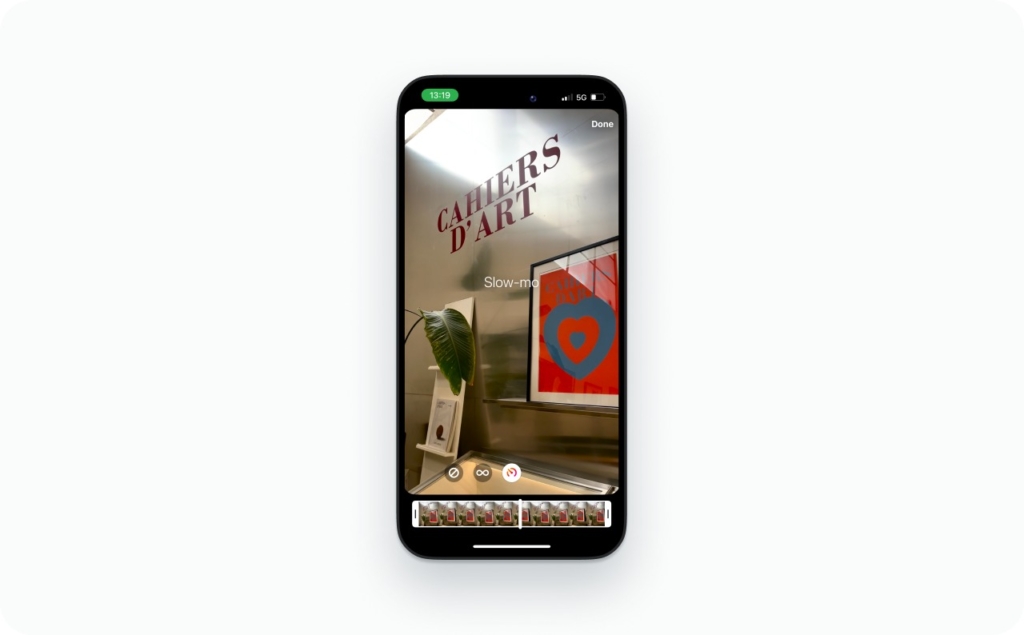
- Tap the Boomerang icon again to open effects, then choose
- Slow-Mo: smoother, dreamy repeat
- Echo: adds motion trails (great for movement)
- Duo: a “double” effect (fun, but use sparingly)
- Trim if needed, add text/stickers, then post.
If you want your existing clip to loop
Stories aren’t built to replay a normal video endlessly in one view. So you have two realistic options:
- If it’s a Live Photo: On iPhone, Live Photos can sometimes be used to create a Boomerang-style moment (when available in your Story tools)
- If it’s a regular video: Pick a 1–2 second moment and loop it outside Instagram (iPhone workflow next), then upload it back as a Story
That’s how you get the “how to get a video to loop on Instagram Story” result without fighting the app.
How to make a 1 second or 2 second video loop on iPhone for Instagram
This is the one I get the most: how to make a 1 second video loop on Instagram or how to make a 2 second video loop on Instagram, especially for Stories.
Here’s the clean, no-fluff iPhone method using iMovie, free, reliable, and doesn’t make your clip mushy.
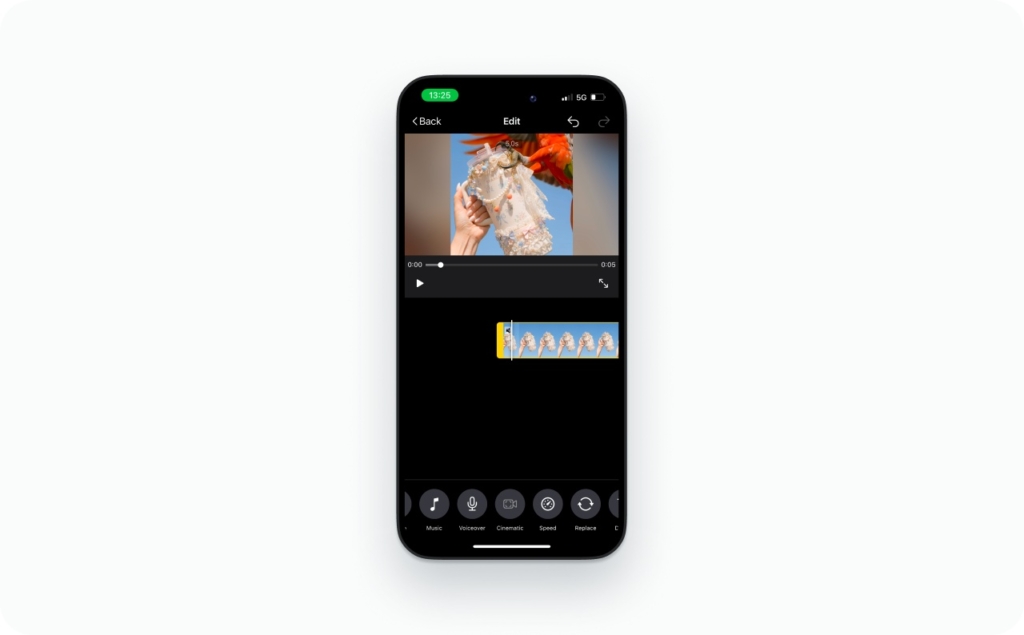
- Open iMovie → Create Project → Movie
- Import your 1–2 second clip
- Tap the clip in the timeline, then choose Actions → Duplicate
- Repeat Duplicate until you hit your target length:
- For Stories, aim for 5–15 seconds depending on your plan (shorter often performs better)
- If you see a “bump,” split and re-trim at a better loop point (blink/hand cover/beat)
- Export/share in vertical format when possible, then upload to Stories or Reels
Apple’s iMovie guide specifically notes that using Duplicate adds a copy of the clip right after the original — exactly what you want for a clean repeat.
Quick audio fixes
- Audio longer than the clip: Trim the audio to end on a beat, or fade out gently before the loop point
- Clip longer than the audio: Either loop the audio too (best) or cut the video to match the audio beat (second best)
If you prefer alternatives, CapCut or InShot can do this too, but iMovie is the fastest path to “video repeat” without extra exports. You may also like to read how to add music to an Instagram story.
Best export settings for loop videos on Instagram
A smooth loop can look choppy if your export is fighting Instagram compression. Here’s the setup that keeps loops clean. Read an article about Instagram Reels dimensions and aspect ratio now.
Recommended canvas
- 1080×1920
- 9:16 vertical
Safe zones
Keep key text, logos, and buttons out of the UI overlays:
- Leave breathing room near the top (Story/Reel headers)
- Leave extra space near the bottom (captions, buttons, reply bar).
If it’s important, bring it closer to center
Export checklist
- H.264 MP4 (classic, stable “mp4 looper” friendly format)
- 30 fps (or match your source, don’t “upgrade” frame rate)
- Export once (avoid re-encoding in three different apps)
- Keep edits in one timeline when possible (less compression stacking)
Upload quality reminder
Instagram’s upload quality settings vary by device/app version, but in general: enable the highest upload quality option available in your settings, especially when your loop depends on smooth motion.
Why isn’t my Instagram video looping? Fixes that actually work
If your loop isn’t looping, it’s usually one of these, and none of them are a personal failure.
- My Reel isn’t repeating
It probably is — your ending just feels final. Fix: cut earlier, or end on motion that resets into frame 1. - My Story plays once
That’s normal. Stories aren’t designed to auto-loop in a single view session. Use Boomerang or upload a pre-looped edit. - Boomerang icon is missing
Features roll out unevenly. Update the app, check alternate Story camera modes, and try again later. - My loop looks jumpy
Your cut point is visible. Fix: hide the seam with a cover/whip/blink, or match framing more closely. - Audio drifts after looping
Beat mismatch or multiple re-encodes. Fix: choose a loop point on a downbeat, export once, upload final. - It worked on my other account
Yep — rollouts can be account-by-account.
Engadget highlighted this reality in early 2026 while covering Instagram’s expanding “Your Algorithm” controls features ship in waves, and accounts can look different even on the same phone. Read more about the AI Reels maker to discover how it can help you create stunning, high-quality Reels faster and simplify the entire content creation process.
FAQ
Instagram doesn’t give you one universal “loop” button for every format. Reels replay naturally, Stories use Boomerang for a loop effect, and “seamless loops” come from editing the ending to match the beginning.
A carousel won’t force a viewer into an endless repeat. If you want a loop feel, keep each carousel video short and self-contained, then rely on a clean start-to-end match so replays feel natural.
Highlights behave like Stories. Your clip plays through, then the viewer moves on. If you want a “looping” Highlight, use a Boomerang-style Story or a repeated short edit that feels complete each time.
They’re cousins, not twins. A GIF-style loop is usually forward-only and seamless. A Boomerang is forward-and-reverse. On Instagram, Reels replay plus a seamless edit is the closest match to a classic GIF loop.
A loop won’t magically create reach, but it can lift watch time and replays, which helps your Reel earn more distribution. I treat looping as a retention tool: it makes a good idea easier to watch twice.
You can’t turn off looping globally inside Instagram. The practical fix is behavioral: scroll away, tap to another surface, or use “Not Interested” on Reels you want to see less. Instagram learns fast from that.
This usually happens when the clip is duplicated but the beat cut isn’t aligned, or the file got re-encoded multiple times. Pick a loop point on a clear downbeat, export once, then upload the final version.
Emma blends product marketing and content to turn complex tools into simple, sales-driven playbooks for AI ad creatives and Facebook/Instagram campaigns. You’ll get checklists, bite-size guides, and real results, pulled from thousands of Zeely entrepreneurs, so you can run AI-powered ads confidently, even as a beginner.
Written by: Emma, AI Growth Adviser, Zeely
Reviewed on: March 10, 2026