How to repost a story on Instagram in 2026
Not sure how to repost a story on Instagram in 2026, especially when you are not tagged or trying to keep quality sharp? This guide from Zeely AI explains the current repost methods, real 2026 results, and what I’ve learned from performance creatives used by hundreds of thousands of small businesses.
When someone tags you in a story, take the win. Open the mention in your DMs, tap Add to your story, and shift the sticker until it sits clean and easy to read. Then share it right away while the moment is still warm. If you are not tagged, get a quick “yes” from the creator, grab a screenshot or a short screen recording, upload it to your Story, and clearly credit the person who made it. That simple courtesy keeps your reposts honest and your audience informed.
When you want to bring back a story that already worked, open Archive, pick the one that drove replies or clicks, and tap Share. Keep your text inside a central safe zone and watch CTR and ROAS, so you can see which reposts actually move revenue instead of just adding one more view.
Instagram lets you repost stories, but the steps are different depending on how the story reached you. Tagged reposts are the easiest, non-tagged reposts take a little setup, and reusing your own stories lives in Archive. I’ll walk you through each case so you always know the simplest path, how to keep quality, and how to make reposts work for your business instead of getting lost in the feed.

What does reposting mean on Instagram stories?
On Instagram, “reposting” stories usually means one of three things:
- Adding someone’s story to your story when they mention your account.
- Sharing their content when they did not tag you.
- Resharing your own old stories from Archive or Highlights.
Instagram is where a lot of real attention sits. Recent 2026 data shows Instagram ads can reach about 21 percent of the world’s population, which means the Stories you repost live in very valuable space, not just background noise in the app. You can see that in the latest Instagram stats overview from DataReportal.
When you search “how to repost a story on Instagram,” most tutorials only cover the first case. In real life, you run into all three. That is why I will show you how to repost Instagram stories in every common situation and where the limits actually are.
How to repost someone’s Instagram story when you’re tagged
This is the most “native” way to repost Instagram stories. It works when another account mentions your @username in their story and their story is shareable. HubSpot’s 2025 marketing statistics showed that over a third of Instagram users interact with branded Stories at least weekly, which makes these tagged reposts an easy way to stay in a behavior your audience already has without extra production work, as shown in their 2025 marketing statistics hub.
Step 1
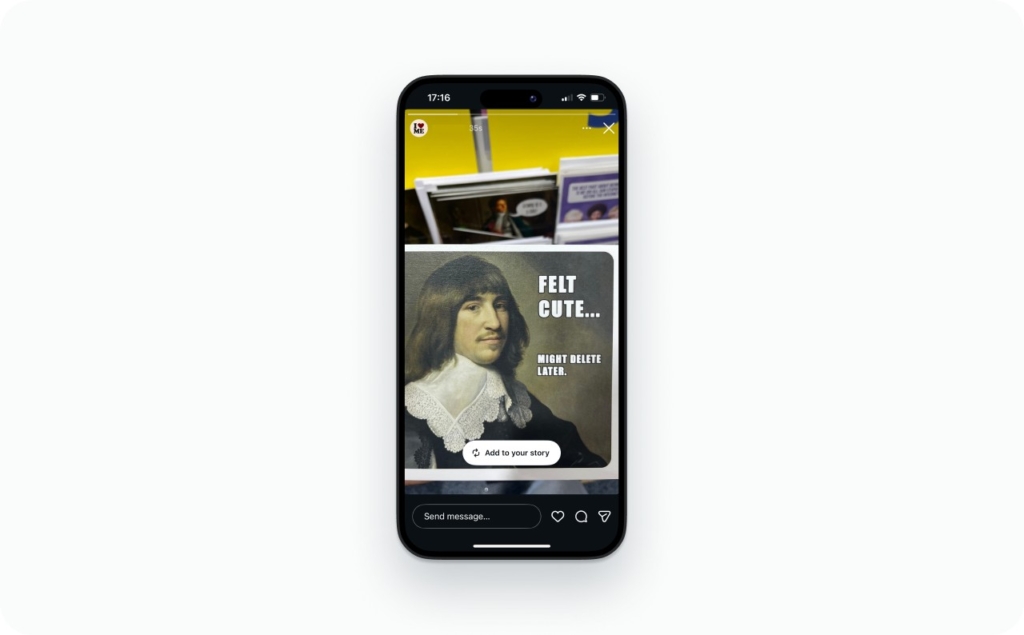
Open Instagram and go to your Direct messages. You will see a notification that someone mentioned you in their story. Tap that message, then tap the story itself. On the story, look for the option “Add to your story” at the bottom. Tap it.
If you are already viewing the story on top of your feed, you can tap the username, then tap “Add to your story.”
Step 2
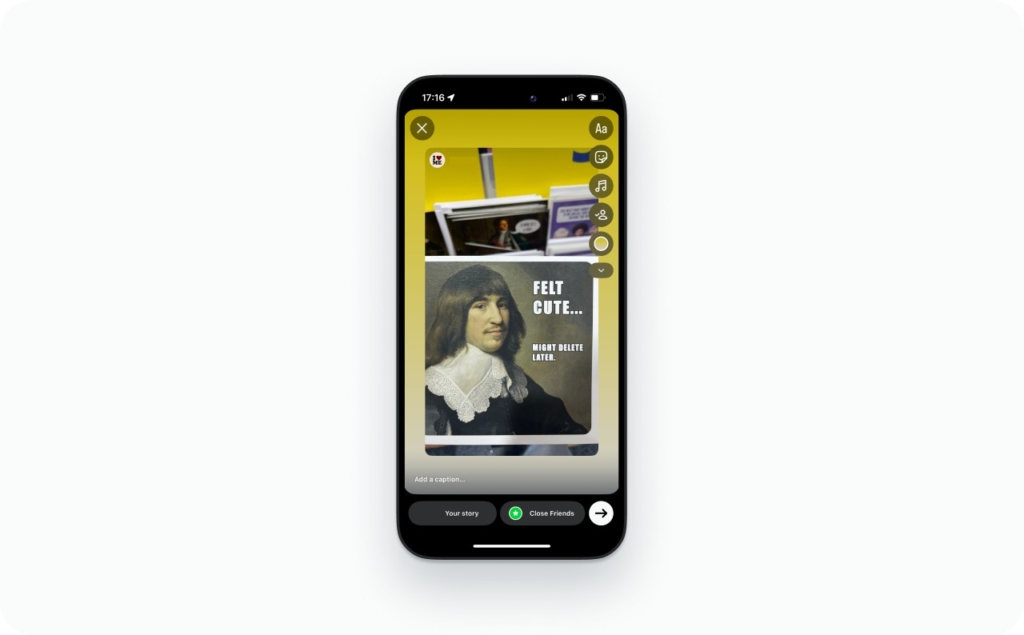
Now you are in the story editor. The original story will appear as a sticker in the middle of your screen.
Do this now:
- Resize and position the original story so it sits in the center
- Keep all your extra text and stickers inside a “safe zone”: avoid the very top and bottom 250 px and the outer 60–120 px on each side. This prevents UI elements like profile name, reply bar, and buttons from hiding your discount or CTA
- Add a short caption, for example: “Thanks for sharing, Sarah” or “Real client results from last night”
If you are adding a Link sticker to a landing page or product:
- Place it in the lower central area, where a thumb can easily tap
- Make sure it has strong contrast so people can read it fast
Step 3
Check that the original creator is credited. This happens automatically when you use “Add to your story,” but you can also tag them manually in text.
Then tap “Your story” or “Close friends” to publish. If this is an important testimonial or user generated content that sells, add it to a Highlight on your profile so it keeps working after 24 hours. Tagged reposts are your lowest effort social proof. When you share them quickly and add a clear Link sticker, you turn casual mentions into traffic and sales.

How to repost a story on Instagram when you’re NOT tagged
This is where most people get stuck. You see a great story that fits your brand, but you are not mentioned in it. There is no “Add to your story” button.
You have three main options:
- Ask the creator to share the file with you or tag you
- Use a screenshot or screen recording
- Use a repost tool that pulls the story and reuploads it
Always ask for permission when it is not your content and give clear credit in the story. The 2025 user generated content statistics from Backlinko show that UGC earns meaningfully higher engagement than brand-only content, so putting in a simple, permission based repost workflow is worth it if you want those higher response rates, as shown in their 2025 UGC statistics breakdown.
Step 1
Choose the method that fits the situation. Here’s the order I usually recommend for small businesses:
- Start by asking for a quick tag or the original file. A simple reply like “Love this, ok if I repost and tag you?” works almost every time
- If they say yes but forget to retag you, grab what you need: a screenshot for a static story or a screen recording if it’s video
- Before you upload, trim and crop the file so the only thing on your screen is the actual story. Clean inputs make cleaner reposts

Step 2
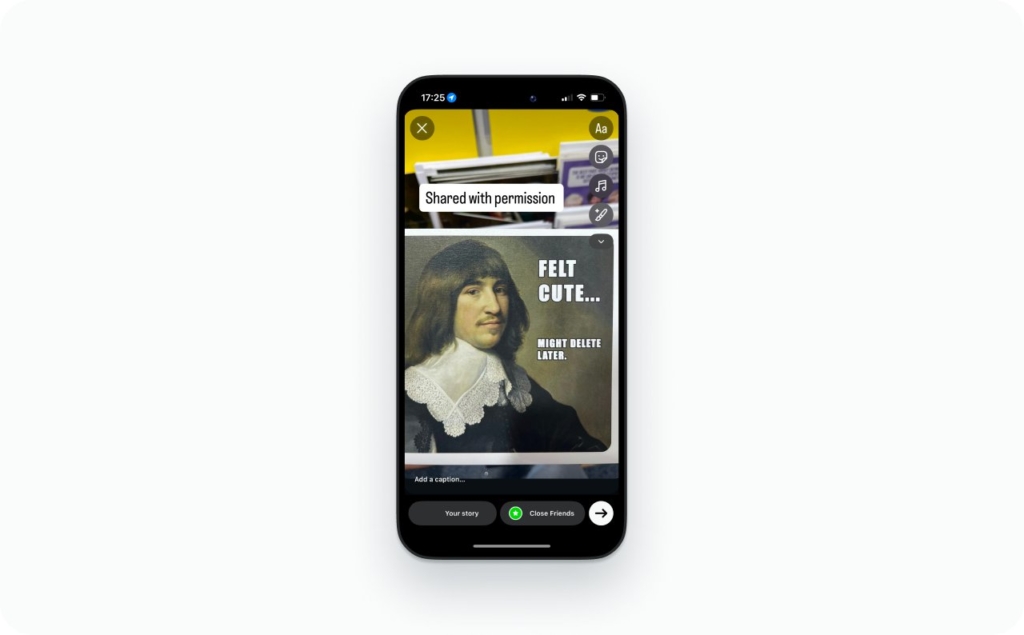
Open Instagram, tap the plus icon, and pick Story. Upload the screenshot or video from your camera roll.
Add:
- A simple caption explaining what people see
- A clear credit line, for example “Shared with permission from @username”
- A Link sticker if this story should send people to a product or booking page
Avoid clutter. Keep text inside the safe zone so UI elements will not cover your CTAs. Read also how to post a story on Instagram.
Step 3
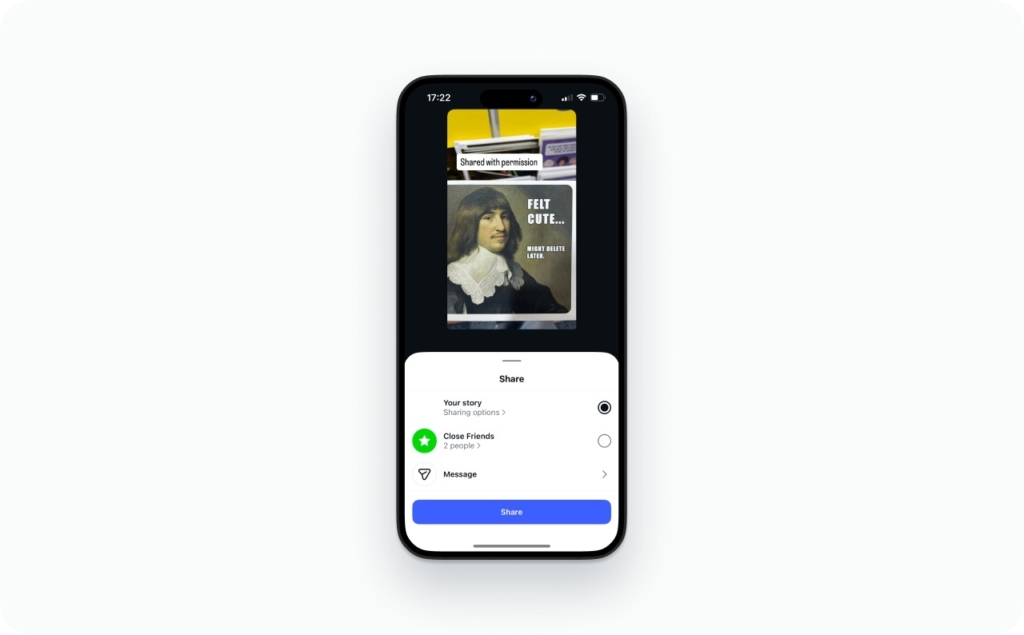
Publish to Your story or Close friends. If this is a core testimonial, pin it to Highlights and name the Highlight something simple like “Results” or “Reviews.”
You can also recreate the story in your own brand style using Zeely templates so your static ad creatives match your visual identity. You may also like finding out more about the 6 ways story templates make your Instagram faster.
Methods for reposting when you are not tagged
| Method | Pros | Cons | Best for |
| Ask creator to tag you next time | Fully native, looks clean, 2-tap repost | Depends on their reply and timing | Ongoing partners, influencers |
| Screenshot and upload | Fast, no extra tools | Lower quality if you zoom, cannot show motion | Simple quotes, static testimonials |
| Screen recording and upload | Keeps motion and sound | Larger file, can look soft after compression | Tutorials, before/after videos |
| Third party repost app | Auto pulls content and credits creator | You rely on external apps and must check rights | Agencies or managers with many accounts |
| Recreate story in Zeely templates | On brand, sharp text, controlled quality | Takes a few extra minutes to rebuild | Product promos, evergreen testimonials |
Pick one main method for your team and write it into your internal “how we repost stories” note so everyone follows the same process. Use our AI Instagram ads maker to generate scroll-stopping creatives and ad copy that drives sales.
How to repost your own Instagram story
You posted a story that did very well. People replied, clicked, and bought. Now you want to use it again for a new offer or audience. You can repost your own stories from Archive. Hootsuite’s 2025 Instagram Stories guide showed how brands now use Stories as a core space for behind the scenes content and quick offers, which makes reusing your best stories a smart habit, not a shortcut, as explained in their Instagram Stories guide for 2025. Read the complete guide on how to find old Instagram stories.
Step 1
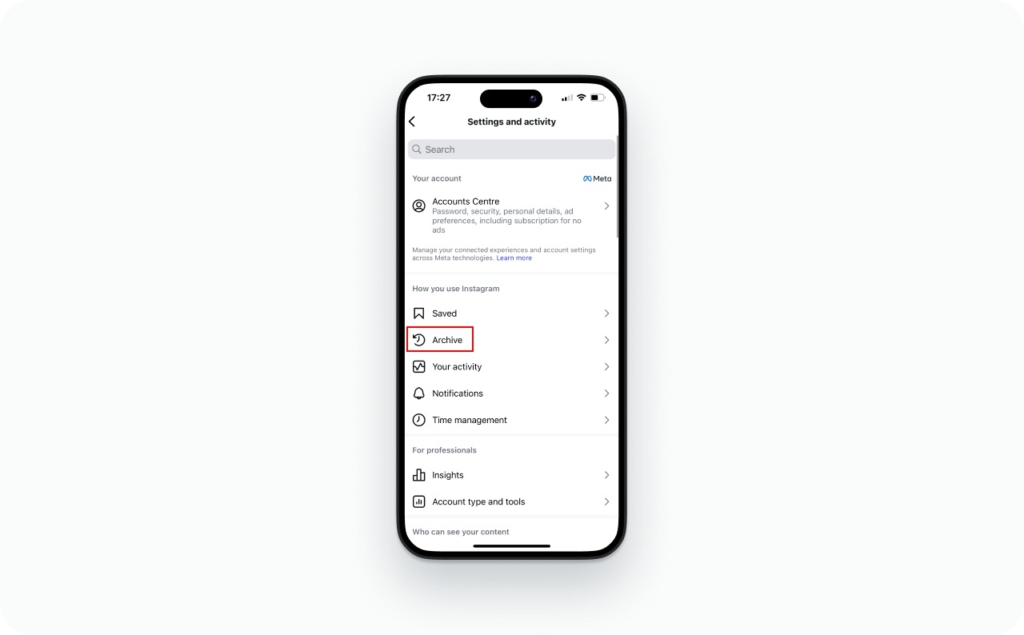
Go to your Instagram profile and tap the menu in the top right. Tap Archive, then choose Stories Archive. Scroll to find the story you want to use again.
Step 2
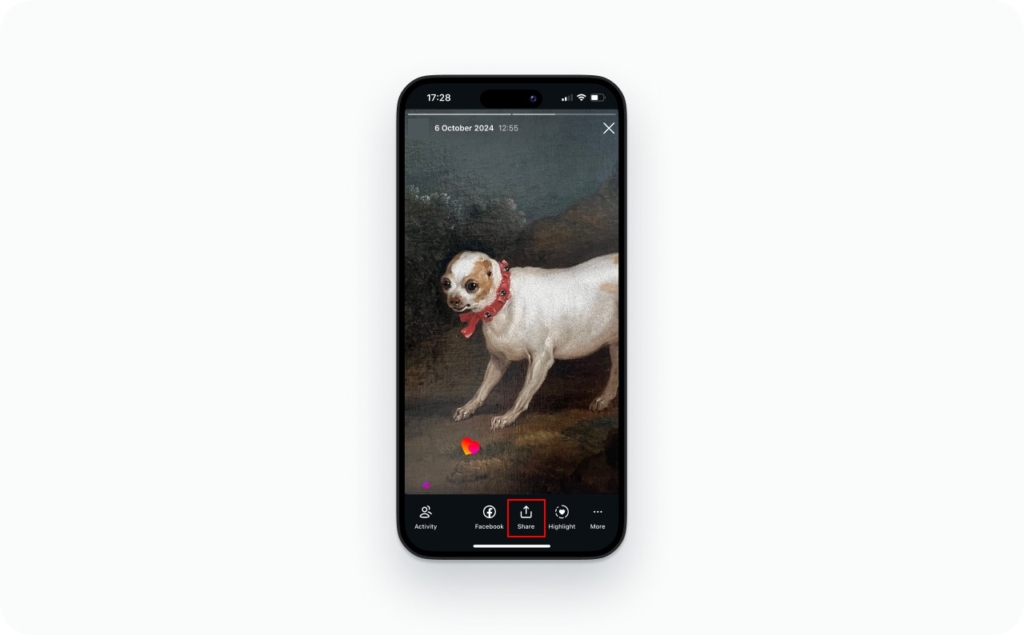
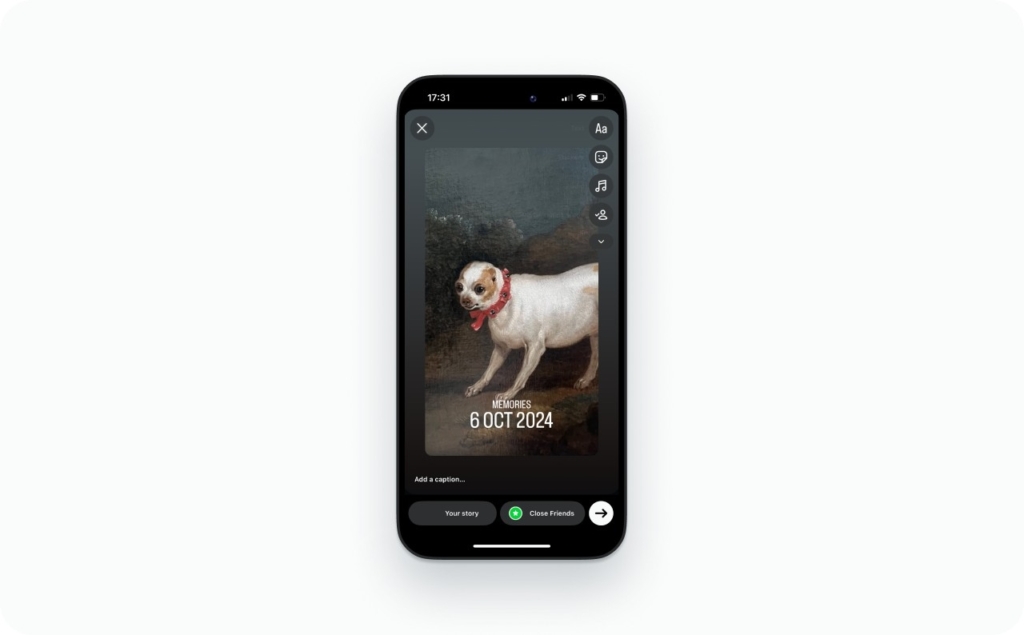
Tap the story. At the bottom, tap Share or Add to story. You are now in the story editor again.
Do this now:
- Update the date or price if it changed
- Refresh the CTA so it matches your current offer
- Add a new Link sticker with proper UTM tags so you can track this new round of clicks in your analytics tool
Step 3
Tap Your story to publish. If this story works as a “mini ad,” consider turning it into a proper ad creative. A proven story that already performed once now works again as fresh content and as a base for ads.
How to share stories from other accounts
Sometimes you do not want to repost to your own story. You just want to share someone’s story with a friend, a customer, or a small group.
This is where the paper plane icon helps.
Step 1
Open the story you want to share. At the bottom, tap the paper plane icon. If the account is private, you can only share the story with people who also follow that account.
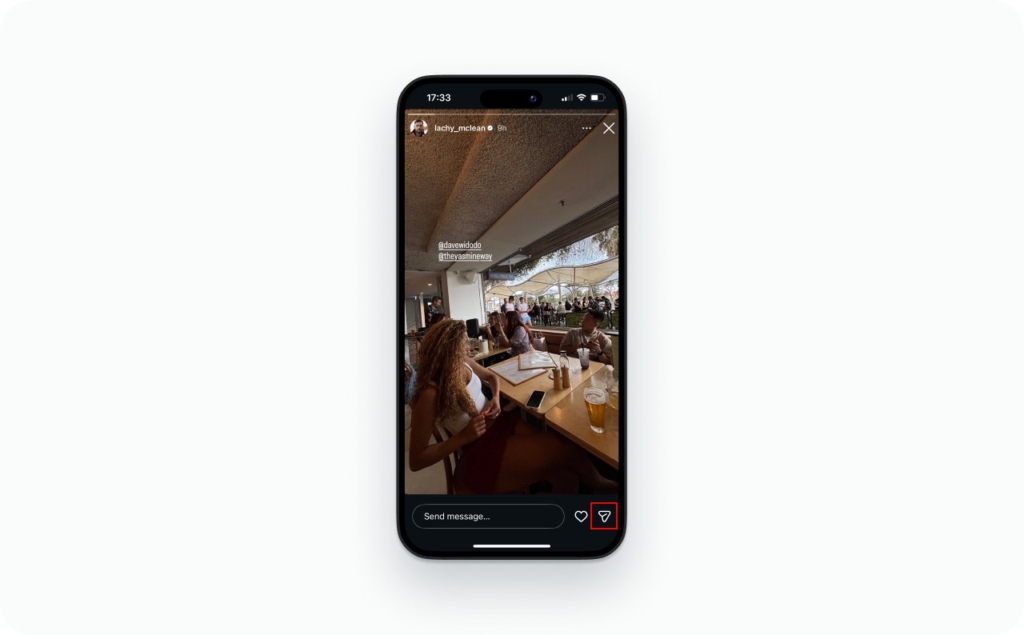
Photo source: @lachy_mclean on Instagram
Step 2
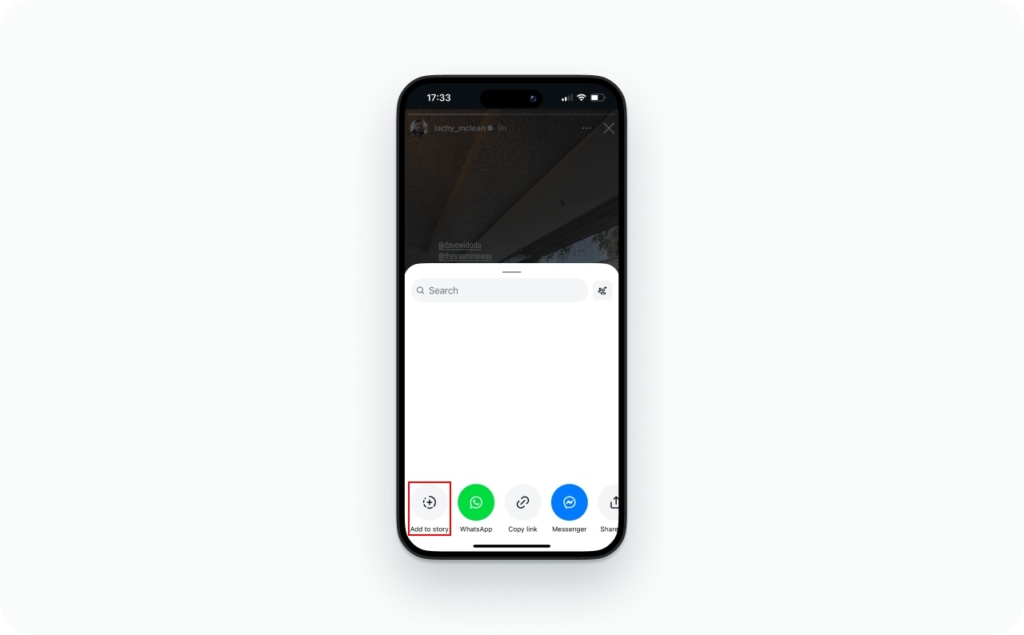
Choose how you want to share:
- Send the story as a DM to individuals or groups
- Share it to your own story, if the option “Add to your story” appears
If you share to your story, remember the same rules: keep text in the safe zone, add a short caption, and tag the original account.
Step 3
Tap Send for DMs or Your story to post publicly.
Advanced: making reposts work for sales
You now know how to repost Instagram stories when you are tagged, when you are not tagged, how to reuse your own best stories, and how to share content from other accounts. If you add basic quality checks and track simple metrics like CTR and ROAS, reposts stop being random and start supporting your sales.
If you want to go one step further, you can take your top performing stories and rebuild them as ads with Zeely AI ad builder, so you get the same message, just with more reach.
Reposting checklist
Use this quick checklist every time you repost a story on Instagram.
Before you repost
- Do I have permission to use this content or a clear tag from the creator
- Is the account public so my audience can see the original profile
- Did I pick the right method (native repost, screenshot, screen recording, rebuild)
In the story editor
- All key text and CTAs sit inside a central safe zone, not near the edges
- Link sticker is easy to tap, high contrast, and clear in its wording
- Fonts are bold, readable, and do not sit on noisy backgrounds
- Gradients or solid backgrounds look smooth, not full of bands
For video quality
- Footage is bright enough, not full of noise from low light
- Export is vertical 1080×1920, 30 fps, H.264 MP4. Read about Instagram story size and dimensions to keep your content crisp across devices.
- Bitrate is in a reasonable range, around 3.5–8 Mbps, not extremely low or extremely high
- Colors are in sRGB so they will not look washed out after upload
After publishing
- I added the story to the right Highlight if it sells or educates well
- I tagged the original creator where needed
Fewer blurry or cut off stories, more people who actually read and tap.
Metrics to track for reposted stories
When you turn reposted stories into a repeatable growth channel, track these numbers:
CTR (click through rate)
- What it is: how many people who saw your story tapped a Link sticker
- What to check: CTR by frame. Compare first frame CTR versus later frames to see if your hook works
CPA (cost per acquisition)
- What it is: how much you pay per purchase or lead from story ads
- What to check: do story ads based on your top organic reposts bring cheaper results than fully new ads
ROAS (return on ad spend)
- What it is: revenue divided by ad spend for story based campaigns
- What to check: how much revenue each ad set with story creatives returns for every 1 dollar spent
Pick one reposted story that performed well this week. Turn it into an ad creative, run it with a small budget, and compare CTR, CPA, and ROAS with your current best ad. Then repeat what works.
If you want more breakdowns like this, you can always explore guides on the Zeely blog, see what our product can do on our main page, compare paid plans on pricing, and get step by step help in Help Center.
FAQs
Yes, but not natively. You’ll need to ask for permission, then use a screenshot or screen recording, and credit them clearly.
Most often the creator disabled story sharing, or they have a private account. In those cases, the Add to your story button won’t appear.

Emma blends product marketing and content to turn complex tools into simple, sales-driven playbooks for AI ad creatives and Facebook/Instagram campaigns. You’ll get checklists, bite-size guides, and real results, pulled from thousands of Zeely entrepreneurs, so you can run AI-powered ads confidently, even as a beginner.
Written by: Emma, AI Growth Adviser, Zeely
Reviewed on: January 9, 2026