How to find old Instagram Stories in 2026
Can't find an old Instagram Story? I'll show you exactly where Instagram keeps them, how to access your Story Archive on the current app layout, and what to do when your archive shows up empty.
I get this question from clients at least twice a week. The answer hasn’t changed much since 2023, but Instagram keeps moving the buttons around.
Key takeaways
- You can find your old stories in Story archive, Highlights or memories
- The archive toggle had to be on when you posted. If it wasn’t, those Stories are gone and Instagram won’t recover them
- Someone else’s old Story? Highlights are your only option. No workaround exists
- Recently Deleted holds deleted Stories for 30 days. After that, permanently wiped
- Empty archive usually means the toggle is off, you’re viewing Posts instead of Stories, or you’re logged into the wrong account

Where Instagram actually keeps your old Stories
Three places. That’s it. No hidden folders, no secret cache buried in Settings.
- Story Archive saves every expired Story automatically. Private, date-sorted, only you can see it. The catch is that it only works if your Save Story to Archive toggle was on at the time. More on that below
- Highlights are the circles pinned under your bio. You pick which Stories go there, and they stay visible to anyone who visits your profile
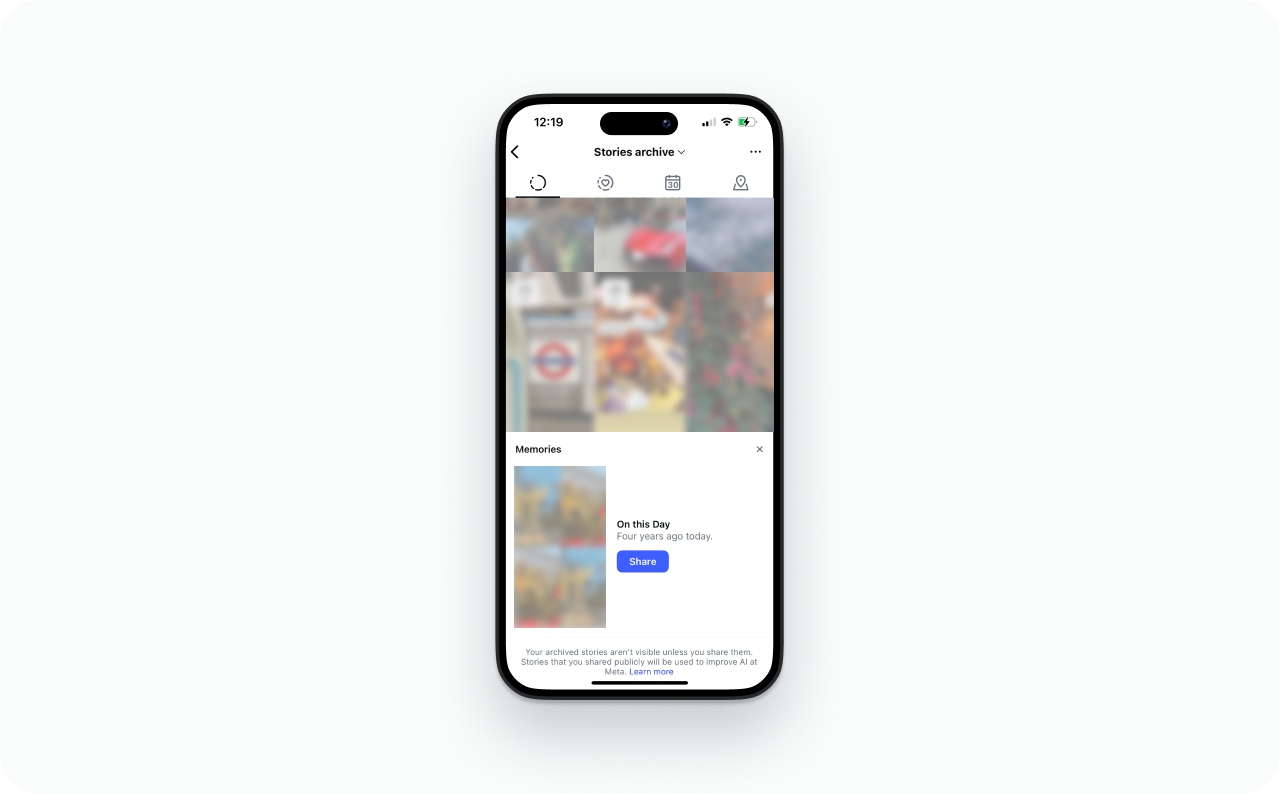
- Memories resurfaces old archived Stories on the anniversary date. Instagram calls them “On This Day” prompts. They appear at the top of your Stories tray and stay private unless you reshare
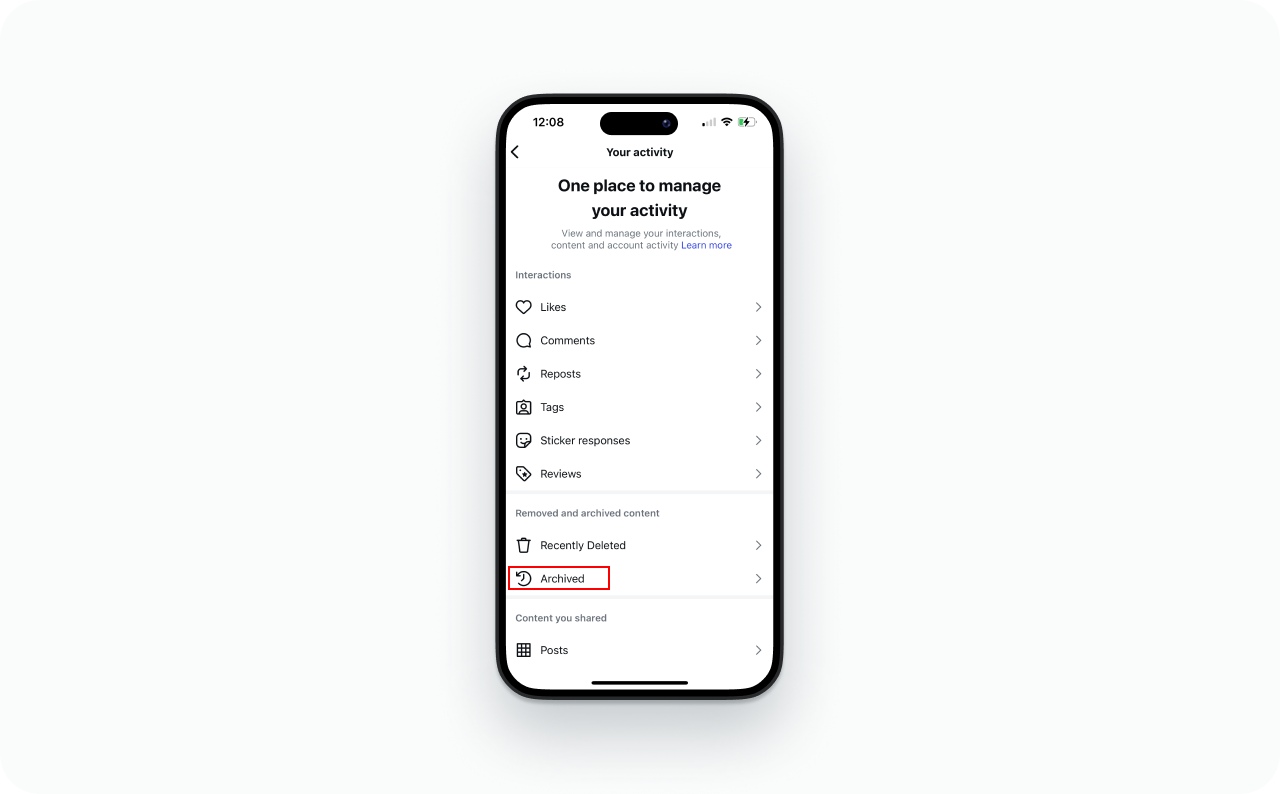
Go to your profile, tap the three-line menu button, open Archive, and check the dropdown says Stories Archive. That’s the fastest route. Also check your Highlights. I’ve had clients spend twenty minutes looking through the Archive only to realize the Story they wanted was sitting in a Highlight they’d made six months earlier.
Not in any of those three places? It wasn’t saved. Instagram’s help page confirms there’s nowhere else to look.
Archive vs Highlights vs Memories: What goes where
| Feature | Story Archive | Highlights | Memories |
| What it stores | Every expired Story (if archiving is on) | Stories you manually save to your profile | Past Stories resurfaced on anniversaries |
| Who can see it | Only you | Anyone who visits your profile | Only you, until you share |
| How long it lasts | Indefinitely | Until you remove it | Temporary “On This Day” prompt |
| How to access | Profile, three-line menu, Archive, Stories Archive | Highlight circles below your bio | Stories tray at the top of your feed |
Go to Archive when you want your own old content. Go to someone’s Highlights when you want theirs.
How to open your Story Archive
Instagram shuffled the menus around in 2025 and the archive path landed somewhere less obvious. Even people who post daily get confused by this.
On iPhone and Android (same steps):
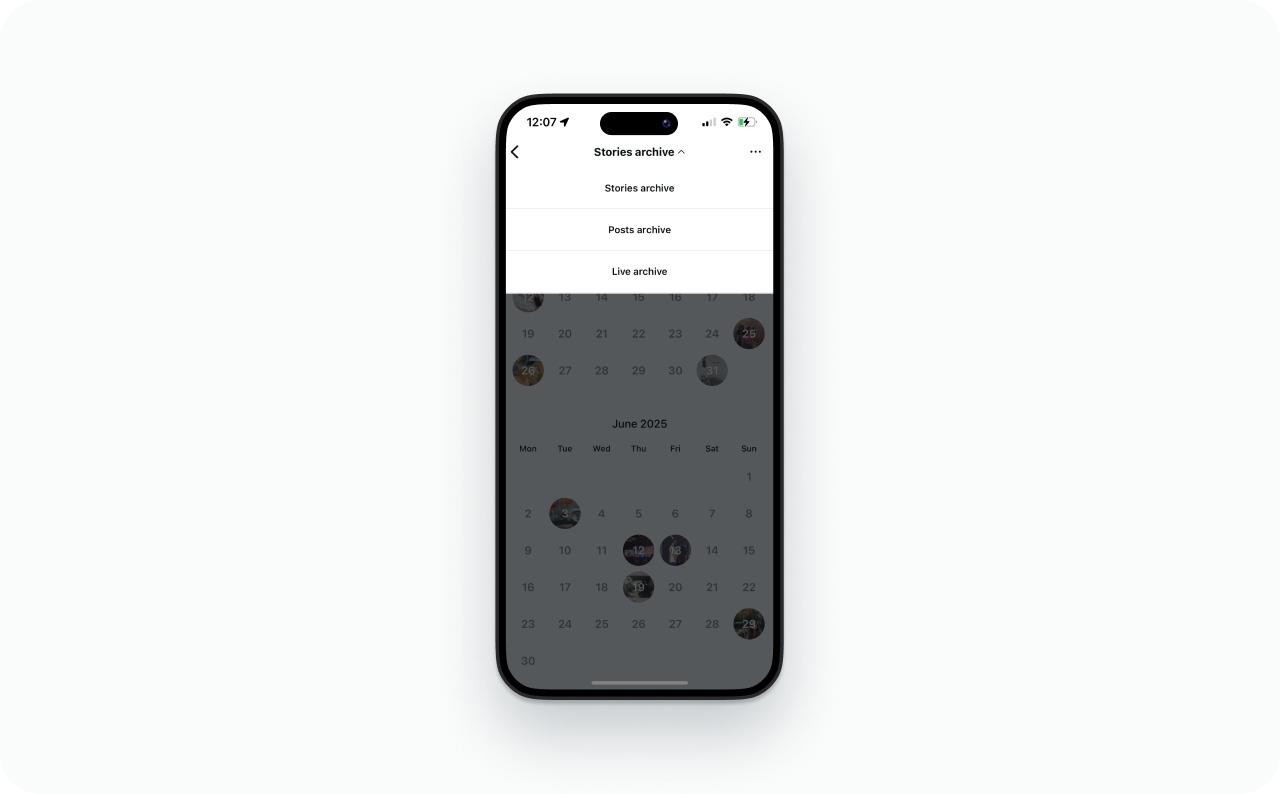
Check the dropdown at the top. Switch it to Stories Archive if it’s showing Posts or Live instead
- Open your profile
- Tap the three-line menu button in the top right
- Tap Archive
- Check the dropdown at the top. Switch it to Stories Archive if it’s showing Posts or Live instead
Stories are sorted newest first. Scroll down to go further back in time.
If your archive is blank, the Save Story to Archive toggle was almost certainly off when you posted. Instagram doesn’t save Stories retroactively. Whatever you posted while the toggle was off is gone.
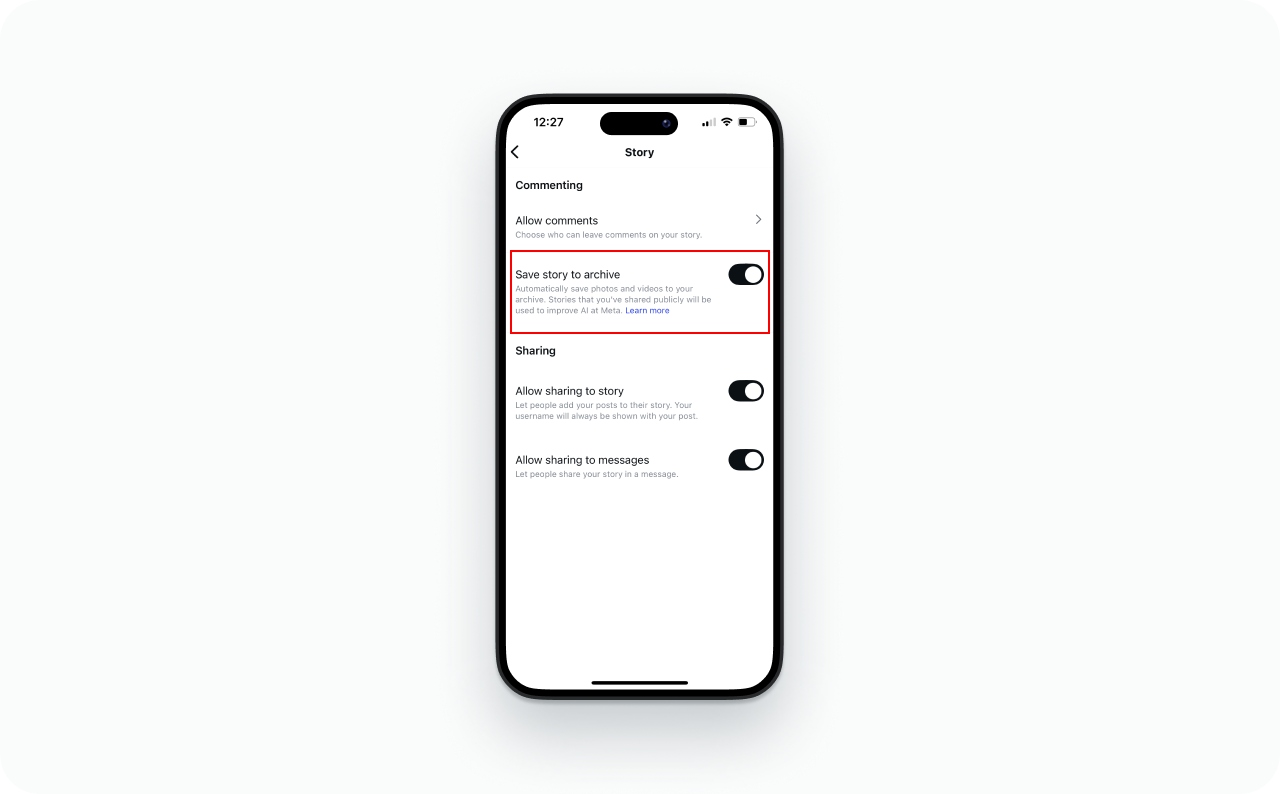
To turn it on for future Stories: go to your profile, tap the three-line menu, open Settings, find Your Activity, tap Archiving and downloading, and switch on Save story to archive. If you need a refresher on the posting process itself, here’s how to post a Story on Instagram.
Calendar and map views
Inside your archive there’s a calendar layout that shows Stories by month. Faster than endless scrolling when you roughly know the date.
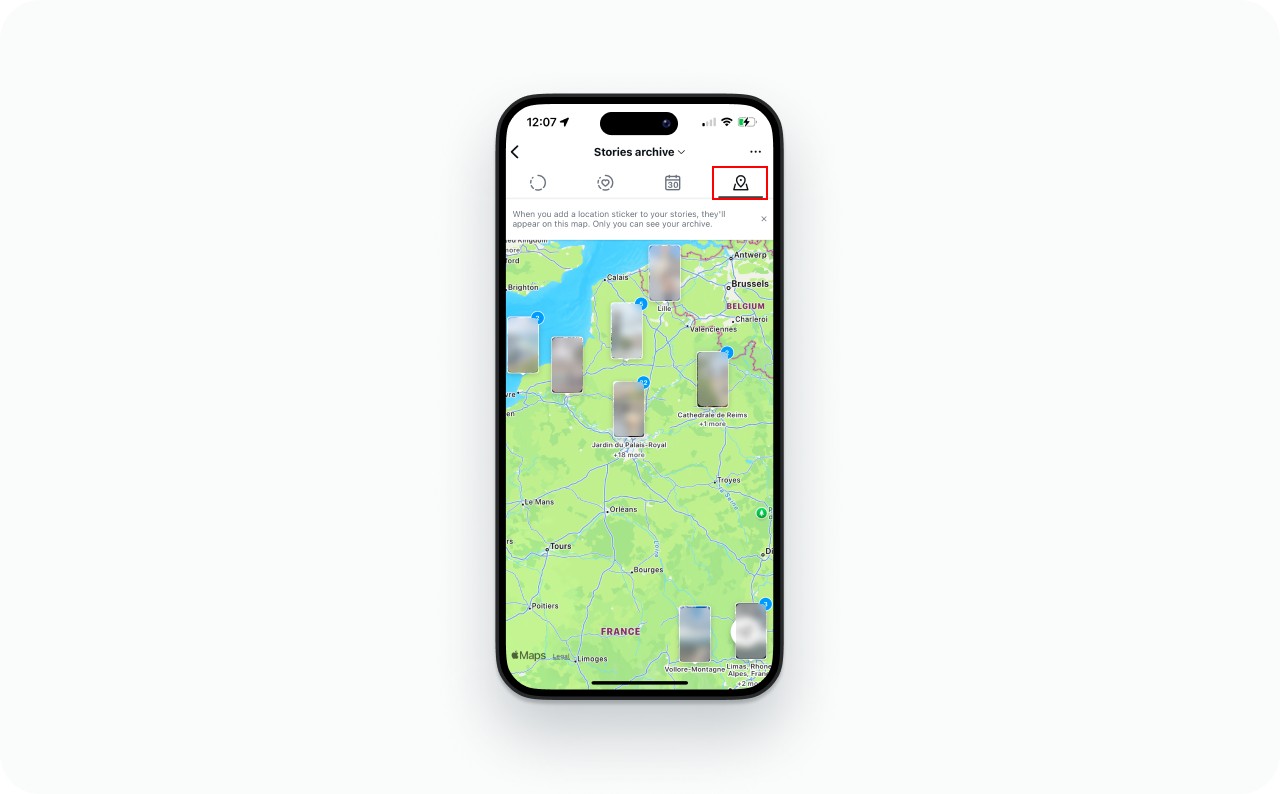
There’s also a map view if you used location tags. I use the map view with local business clients to pull up content from past events.
Old Stories might look or sound different
According to Instagram’s help center, archived Stories can get modified over time. Music gets muted. Some videos freeze into stills. If an old Story plays without sound, Instagram probably stripped the audio to save storage. The images should still be intact. Before creating new Stories, it’s worth checking the current Instagram Story size and dimensions.
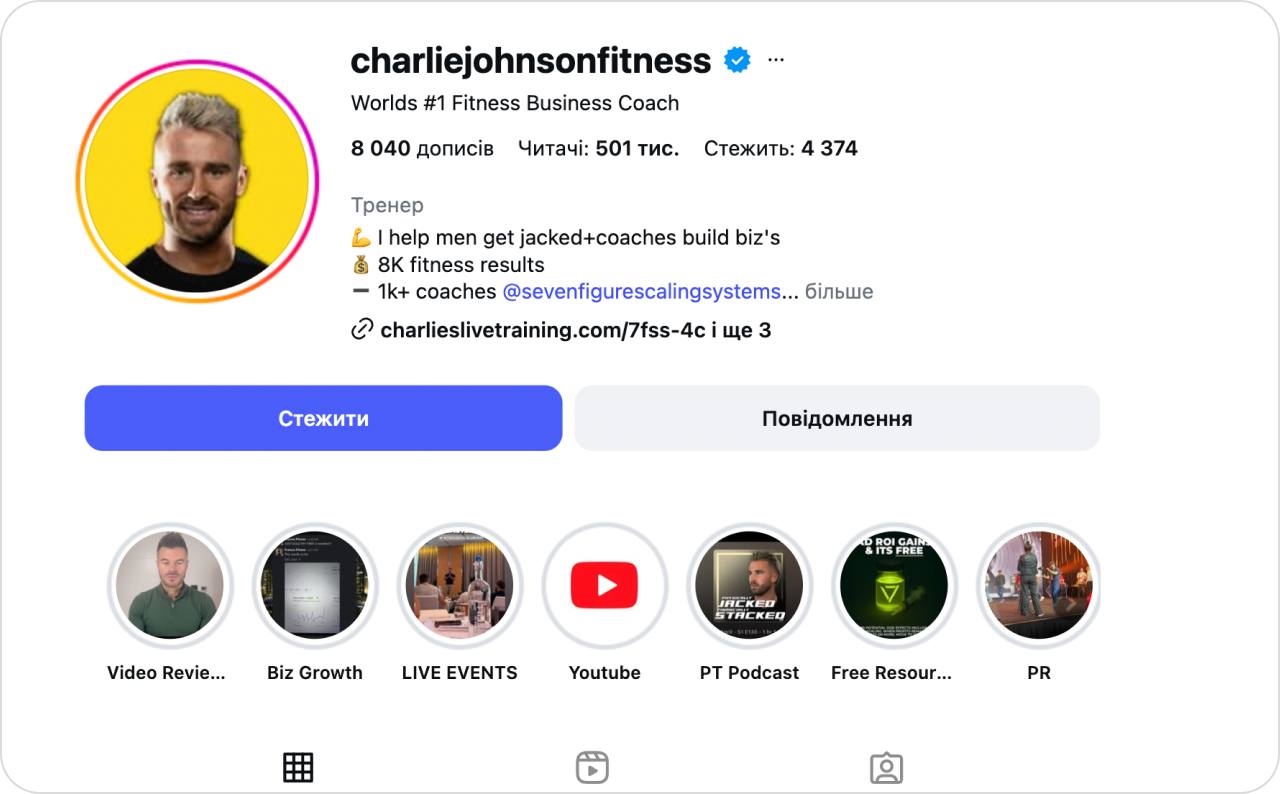
Photo source: @charliejohnsonfitness on Instagram
Save to Archive vs Save to Camera Roll
Two toggles, similar names, completely separate functions.
- Save Story to Archive stores a copy on Instagram’s servers after your Story expires. Still accessible inside the app. You can reshare, download, or put it in a Highlight later
- Save Story to Camera Roll sends a copy to your phone’s gallery the moment you post. Lives on your device. Instagram can’t touch it
I always tell clients to turn both on. One protects you inside the app, the other protects you outside it. Both off means the Story vanishes after 24 hours, full stop.

Viewing someone else’s old Instagram Stories
Only one way: their Highlights. If they didn’t save the Story to a Highlight, you can’t see it. Doesn’t matter what app you use, what browser you try, or what some Reddit thread claims.
When someone pins a Story to a Highlight, it stays on their profile as long as they leave it there. Tap any circle to open it. On private accounts, you’ll need an accepted follow request first.
Three situations where you’ll hit a wall:
- No Highlight exists. The Story expired and wasn’t pinned. Gone
- Private account, you’re not following. Highlights are hidden until they accept you
- Close Friends Story. Locked to the selected list. Even adding it to a Highlight later doesn’t open it up
About “third-party story viewers”: these tools scrape public Highlights and active Stories. That’s all. They have zero access to anyone’s private archive. The browser version of Instagram doesn’t help either. It actually shows less content than the mobile app.When you remove the myths, the experience becomes predictable. If a user saved their Story, you’ll see it. If not, you won’t.
How to bring back an archived Story
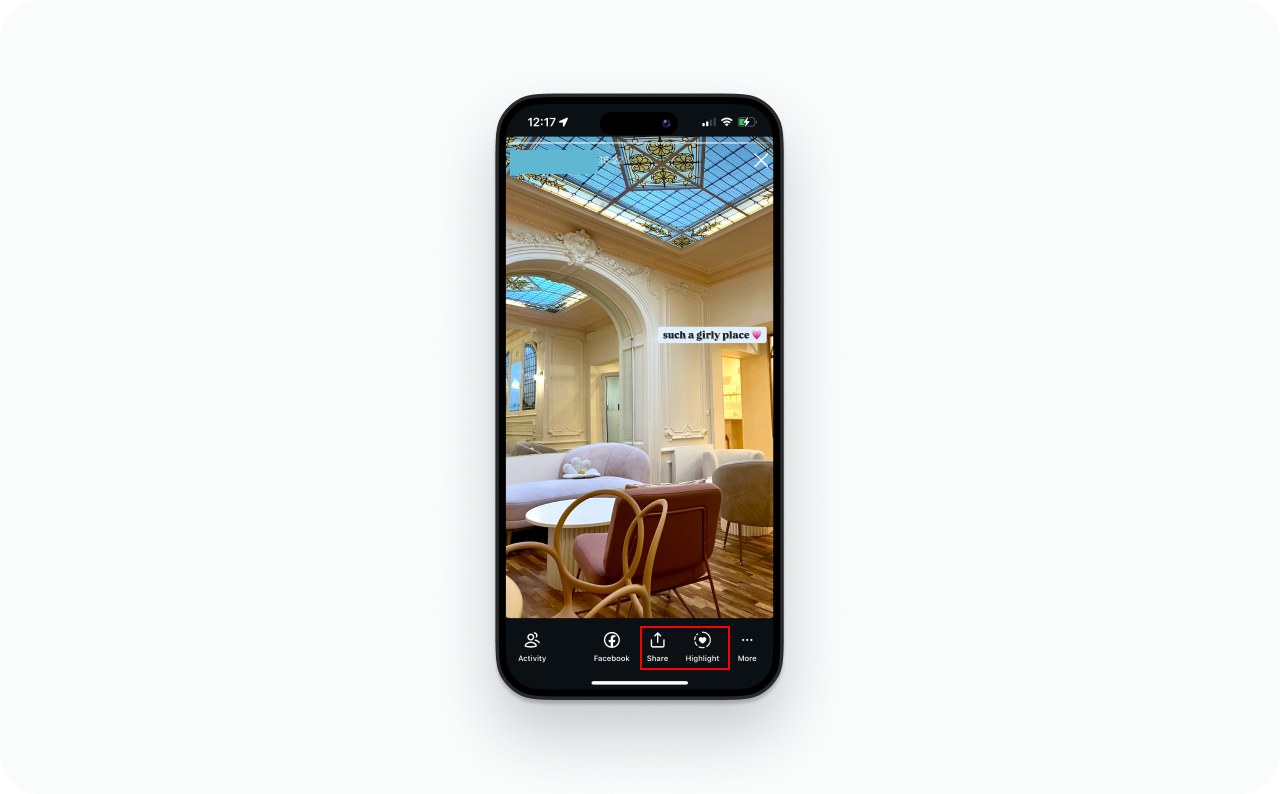
Expired Stories can’t go back to your 24-hour feed. You have two options: reshare as a new Story, or pin it to a Highlight.
- Open your profile
- Three-line menu, then Archive
- Switch to Stories Archive
- Find the Story
- Tap Share to repost, or Highlight to pin it to your profile
Highlights give old Stories a permanent home on your profile. That’s the closest Instagram offers to “unarchiving.”Feed posts return to your grid when unarchived. Stories don’t. They only reappear if you share them again or save them to Highlights.
Memories: When Instagram resurfaces old Stories for you
Memories is the “On This Day” feature. Instagram scans your archive and serves up Stories from the same calendar date in previous years. Shows up at the top of your feed, stays private unless you choose to reshare.
I’ve watched business owners rediscover old product launches and customer shoutouts through Memories. Saves them from digging through the archive when they want to repost seasonal content.
Fixing an empty Story Archive
Almost always the same thing: the archive toggle.
- If the toggle is on but nothing appears: restart the app, clear cache on Android or reinstall on iOS, log out and back in, or update the app. Instagram doesn’t limit how many Stories your archive can store. Storage space on your phone doesn’t affect it because the archive lives on Instagram’s servers
- Check the toggle first. Settings, Your Activity, Archiving and downloading. If Save story to archive is off, that explains it. And anything posted while it was off can’t be recovered after the fact
- Check which archive you’re viewing. The dropdown at the top of the Archive screen lets you switch between Stories, Posts, and Live. Make sure it says Stories Archive
- Check your login. Archive follows your account, not your phone. Different device or browser? Confirm you’re signed in to the right account. And skip the web version of Instagram for this. It doesn’t show the full archive
Recovering deleted Instagram Stories
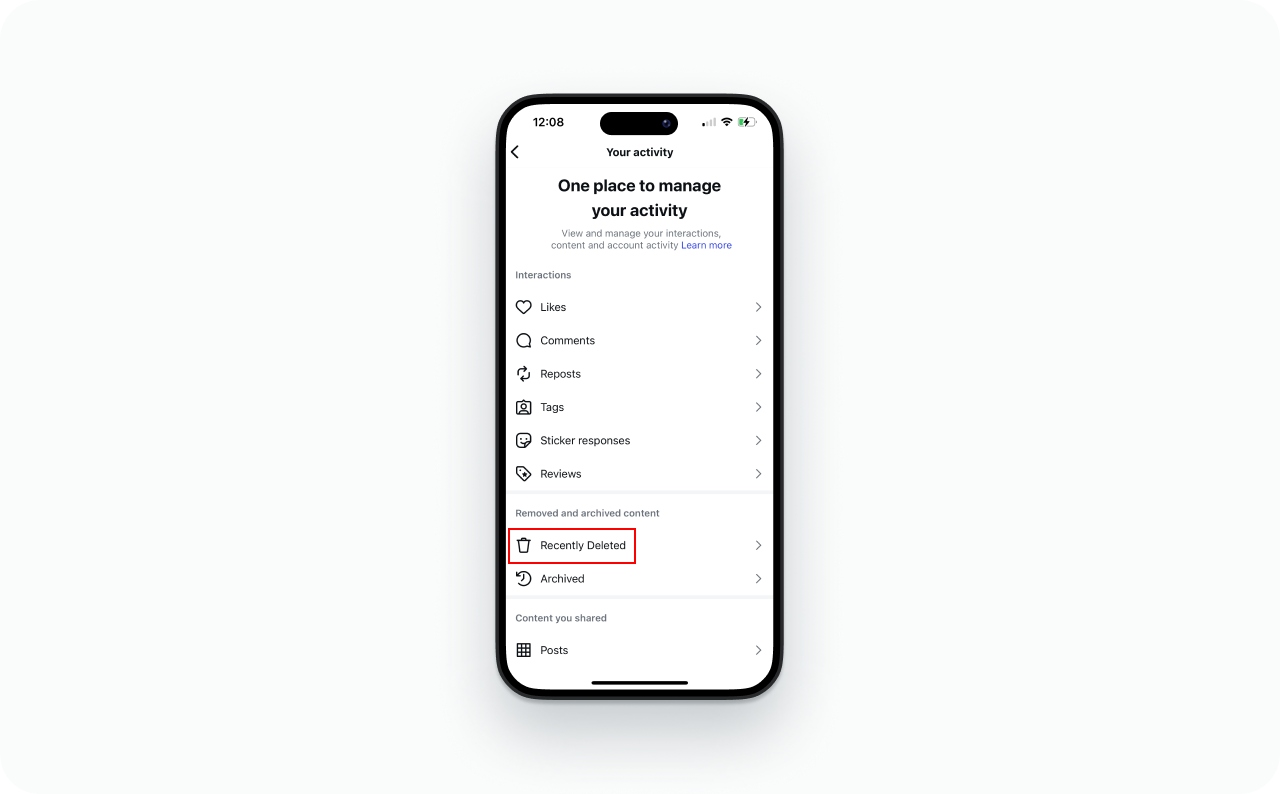
Recently Deleted is the only option. Instagram keeps deleted Stories there for 30 days, then erases them from its servers.
Open your profile, tap the three-line menu, go to Your Activity, and open Recently Deleted. Find the Story and tap Restore. It goes back into your Story Archive. You’ll need to reshare or Highlight it separately if you want it visible on your profile.
Hard limits: 30 days is the cutoff, no extensions. You can only restore your own content. Stories that expired normally without archiving don’t end up in Recently Deleted because Instagram never saved them in the first place. Same situation if you deleted a Story manually before the 24 hours were up while Archive was off.
Doing an account cleanup? Here’s how to see who unfollowed you on Instagram.
Create Story content worth saving with Zeely
Putting together polished Stories every week is a grind when you’re running a business. Zeely builds full Story sets: scripts, visuals, frames, and ad-ready formats designed within proper Instagram safe zones. Paste a product link, choose your industry, and the Instagram ad maker handles the rest. Save those sets as Highlights so they keep working long after the 24-hour window closes.our Story Archive, not your profile. You’ll need to re-share them or place them in a Highlight if you want visitors to see them.This flow works well for owners who want consistent Stories but don’t want to edit video or build layouts from scratch.



FAQ
No limit. A client of mine pulled up Stories from early 2020 last month. They looked fine visually, but Instagram had muted the background music on a few of them. That seems to happen with older content as Instagram manages storage on its end.
Not right now. The archive only lives inside the mobile app. Desktop Instagram and browser versions don’t have it. Annoying, but that’s how it works.
The individual viewer list hangs around for maybe 24 to 48 hours after the Story disappears. After that window, the names are gone. You might catch the total view count for a little longer, but the per-person breakdown won’t be there.
Archiving keeps the Story in your private archive. Still accessible, still yours. You can reshare or Highlight it whenever. Deleting removes it. Instagram holds it in Recently Deleted for 30 days as a safety net, then permanently wipes it.

Emma blends product marketing and content to turn complex tools into simple, sales-driven playbooks for AI ad creatives and Facebook/Instagram campaigns. You’ll get checklists, bite-size guides, and real results, pulled from thousands of Zeely entrepreneurs, so you can run AI-powered ads confidently, even as a beginner.
Written by: Emma, AI Growth Adviser, Zeely
Reviewed on: September 28, 2026