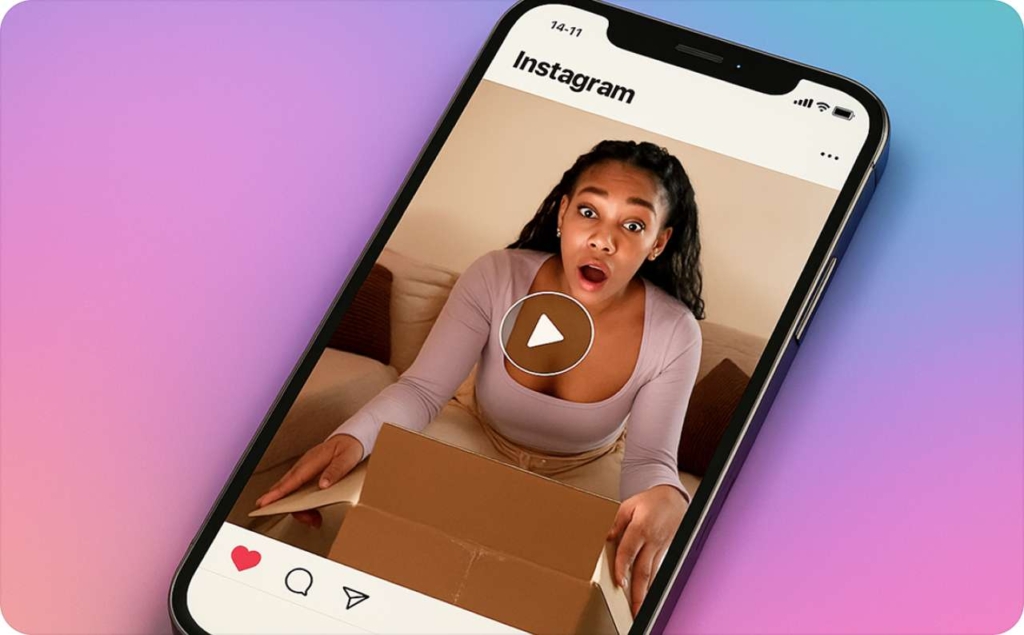
How to make a collage on Instagram story: 3 fast methods I recommend
Need to put multiple photos into one Story without making it look cramped? I help with real Story-creative workflow, where fast layouts, clean branding, and quick fixes matter more than fluff.
A colHow can you make a collage on Instagram Story
To make a collage on Instagram Story fast, use Layout for a neat grid or photo stickers for a freer, layered look. If you need brand colors, reusable design, or video, build your collage in Canva first and upload it as one Story. The best method depends on whether you want speed, control, or a cleaner branded result.
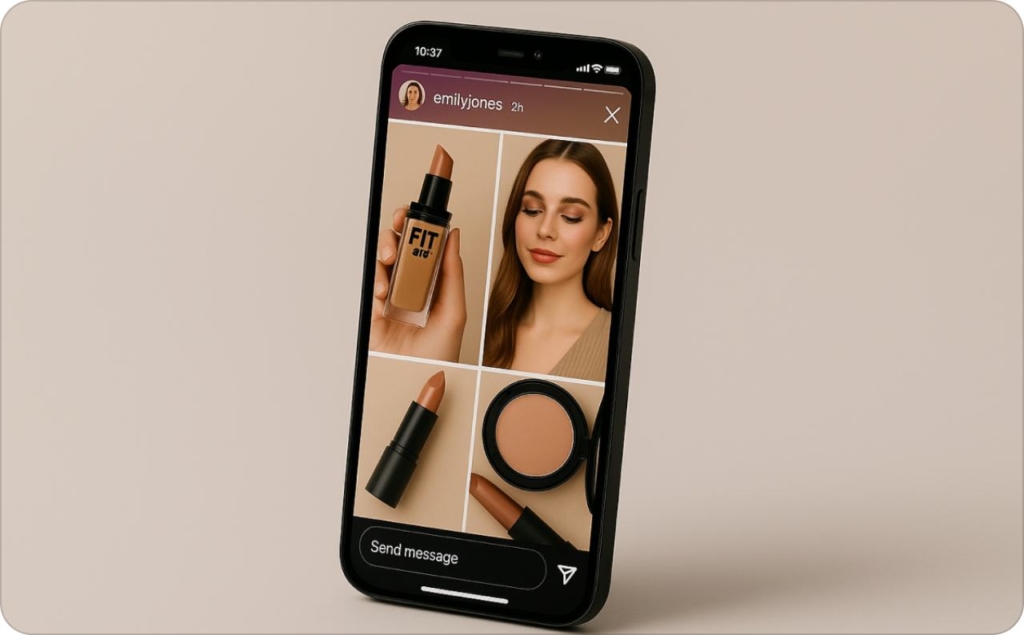
Most people searching this want one thing: multiple photos in one Story without posting separate slides. Fair. Nobody opens Instagram hoping to wrestle a stubborn sticker tray like it’s a raccoon in a tote bag.
At Zeely, we build Story creatives around speed, clarity, and brand fit. That is why this guide does not stop at “tap Layout.” I’ll show you the fastest built-in options, how to make a collage on Instagram Story without Layout, and how to keep the final Story sharp instead of blurry mush.
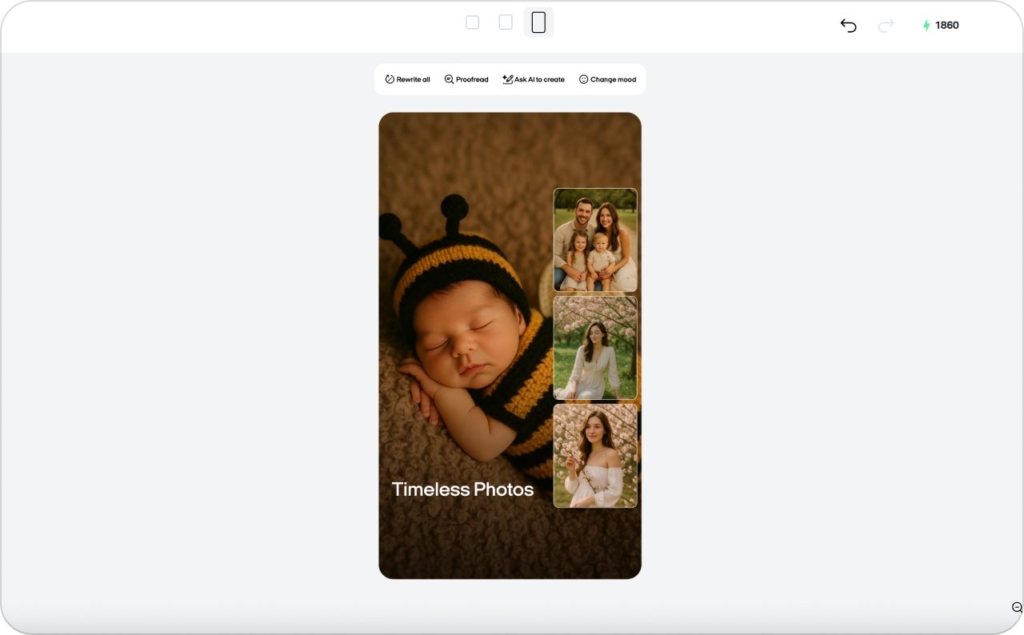
How to make a collage on Instagram Story with the 2 fastest built-in methods
If your goal is simple, Instagram already gives you two solid ways to make a picture collage. The first is Layout, which works best when you want a tidy grid. The second is photo stickers, which work better when you want to move, resize, rotate, and layer pictures more freely.
This matters because Stories are not a side alley anymore. Meta reported that its Family of Apps reached 3.58 billion daily active people in December 2025, and ad impressions across the Family of Apps rose 18% year over year in Q4 2025. More eyes means your Story collage has to do its job quickly.
Use Layout when you want a clean 2-photo, 3-photo, or 4-photo grid
If you want a fast answer to how to make a collage story on Instagram, Layout is the easiest built-in tool.
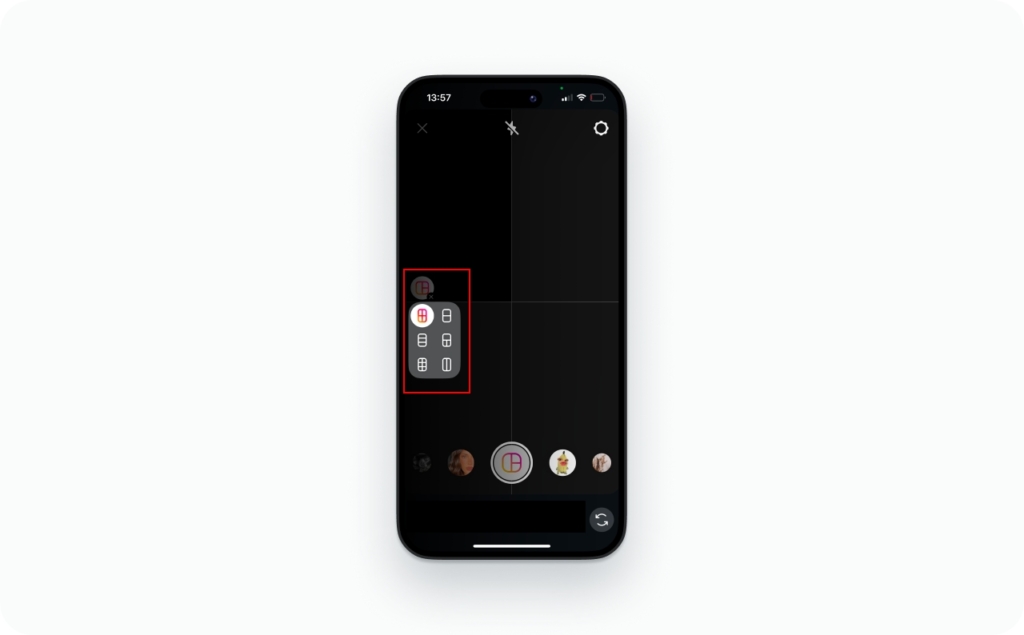
Here is the quick path:
- Open Instagram and swipe into Stories
- Tap Layout in the Story camera tools
- Pick the grid you want
- Add each image from your camera roll or shoot live
- Post, or keep editing with text, GIFs, or music
Layout is best for product sets, before-and-after shots, event recaps, and any 4-picture collage on Instagram Story where symmetry helps. It is not great when you want overlap, scattered placement, or a more scrapbook-style look.
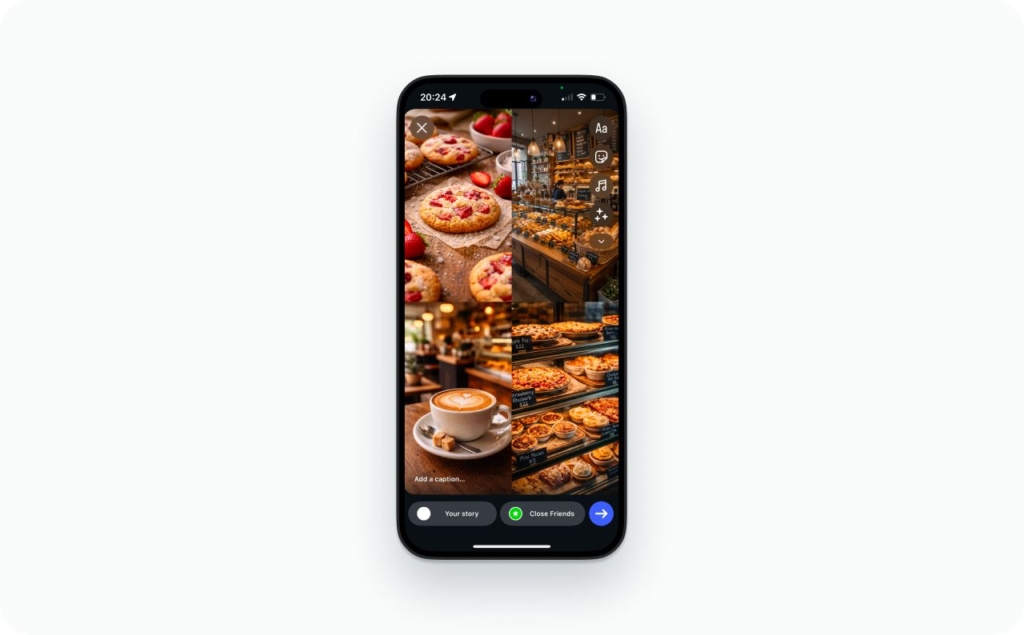
Use photo stickers when you want a collage on Instagram Story without Layout
This is the answer to how to make a collage on Instagram Story without Layout, and honestly, it is usually the better one.
Start with any Story background. That can be a color, a photo, or a video. Then open the sticker tray, choose Photo, and add images from your camera roll one by one. After that, you can drag each photo, pinch to resize it, rotate it, and layer it over the others.
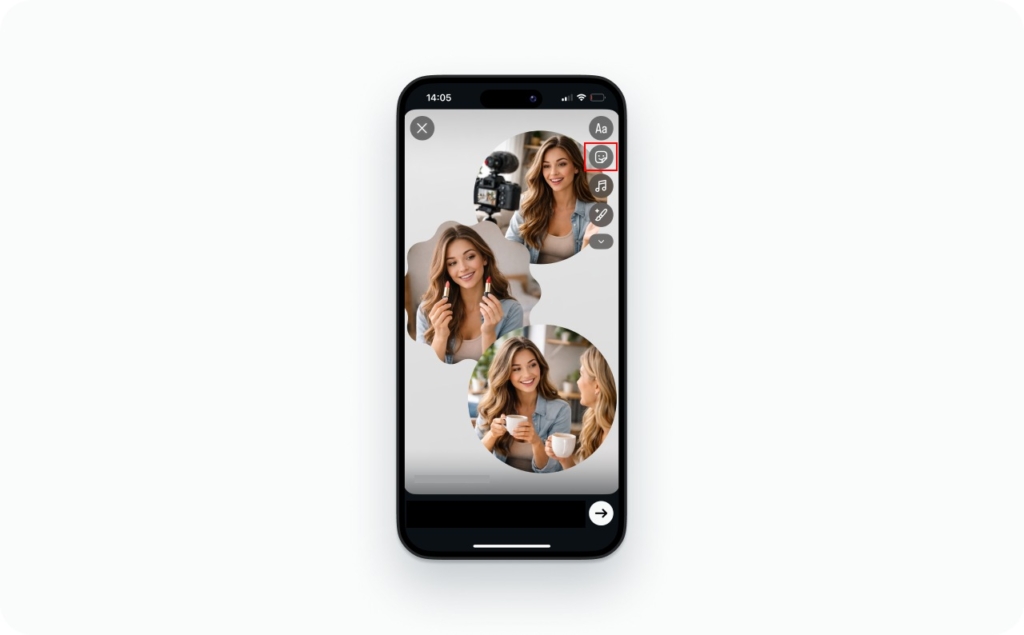
That method is better when you want to:
- overlay pictures on Instagram Story
- make a more aesthetic or minimal collage
- place one hero image bigger than the rest
- mix photos with text, GIFs, or music
- avoid the rigid grid look
Instagram is clearly leaning into stickers as flexible creative tools for Stories and posts, not just decoration. When your search is really how to add multiple photos to Instagram Story without posting separate slides, this is the built-in method that gives you the most control.
Layout vs photo stickers: which Instagram Story collage is better?
Use Layout when speed matters more than style. Use photo stickers when style matters more than symmetry.
Here is the simplest rule I use:
- Layout: fastest, neatest, least flexible
- Photo stickers: slower, more flexible, better for layering
- Canva or another collage maker: best for branding, templates, and repeat use
That split matters more in 2026 because creative quality is pulling in two directions at once. Canva’s 2026 Design Trends report says 80% of creators see 2026 as the year to regain creative control, while 77% describe AI as an essential partner in their workflow. That tracks with what actually performs in Stories: people want speed, but they still want work that feels human, not template sludge with a pulse.
If you are posting casually, Layout is fine. If you are posting for a brand, a product launch, a creator page, or anything that needs polish, photo stickers or Canva usually win.
How to make a photo collage on Instagram Story with Zeely
If you want more control than Instagram gives you, Zeely Instagram Stories creator is the better next step for branded Story creatives. This is where how to make a photo collage on Instagram Story stops being a quick sticker trick and starts becoming a cleaner workflow you can reuse for promos, launches, offers, and product posts.
Instead of building a picture collage by hand inside Instagram, you can start with a ready-made static template in Zeely, add your product or lifestyle images, adjust the text and spacing, and export a Story-ready visual that already feels polished. That makes more sense when your Story needs to look consistent, carry a clear offer, or match the rest of your campaign.

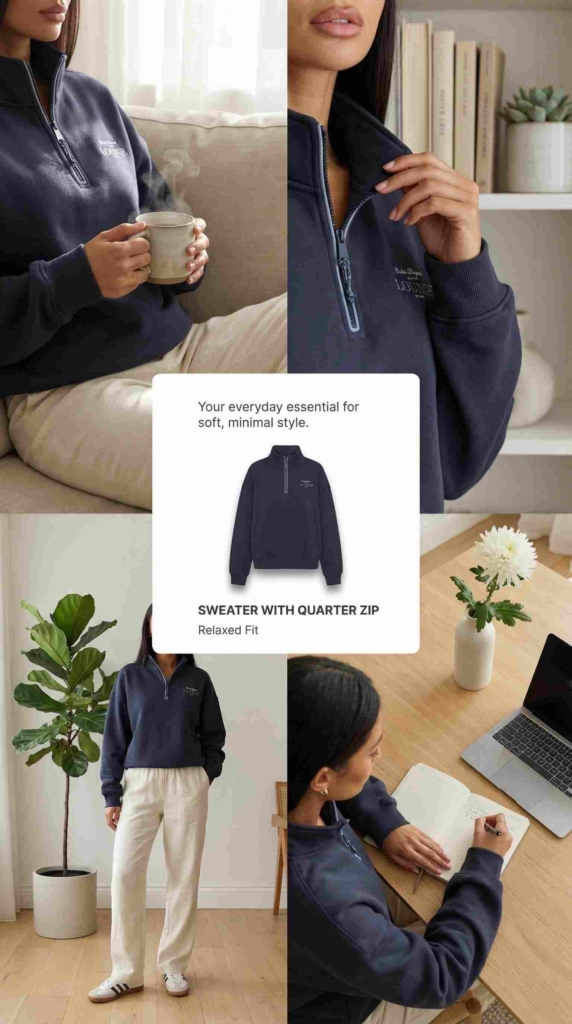

The workflow is simple:
- Open Zeely and go to Image ads in the app or Image Studio on web
- Choose Template ad
- Select the product you want to promote, or import a new one by pasting a product link or uploading product or service images
- Pick a template that fits your Story goal
- Customize the creative by updating text, swapping images, changing colors, and switching the format to Story
- Create the ad, then download it
This is the better route when you need:
- fixed spacing
- cleaner typography
- on-brand colors
- reusable templates
- a picture collage you can save before posting
- a design that looks consistent across campaigns
If your goal is casual, Instagram’s built-in tools are still fine. But if the Story collage needs to sell something, explain something, or look like part of a real brand system, Zeely is the stronger fit.
When Zeely helps more than Instagram
Instagram works well when you just want to add multiple photos to Instagram Story fast. That is great for quick personal posts, event recaps, or informal updates.
Zeely works better when the Story needs structure. For example, if you are promoting a beauty product, a limited-time sale, or a service offer, you may want one hero image, one supporting image, a short headline, and a simple CTA. You can force that together with photo stickers, but Zeely gives you a cleaner way to build the same collage without making it feel crowded or improvised.

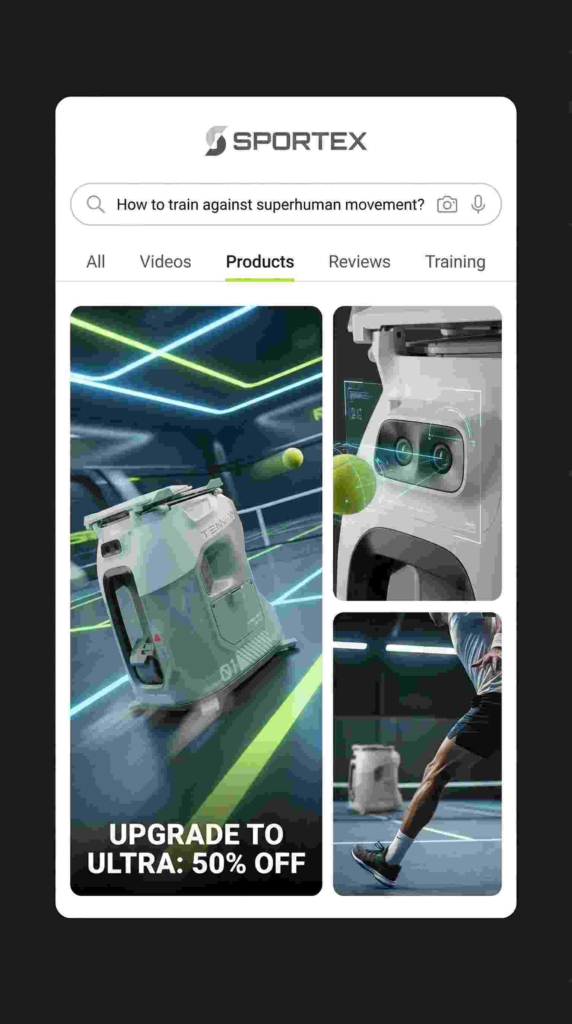
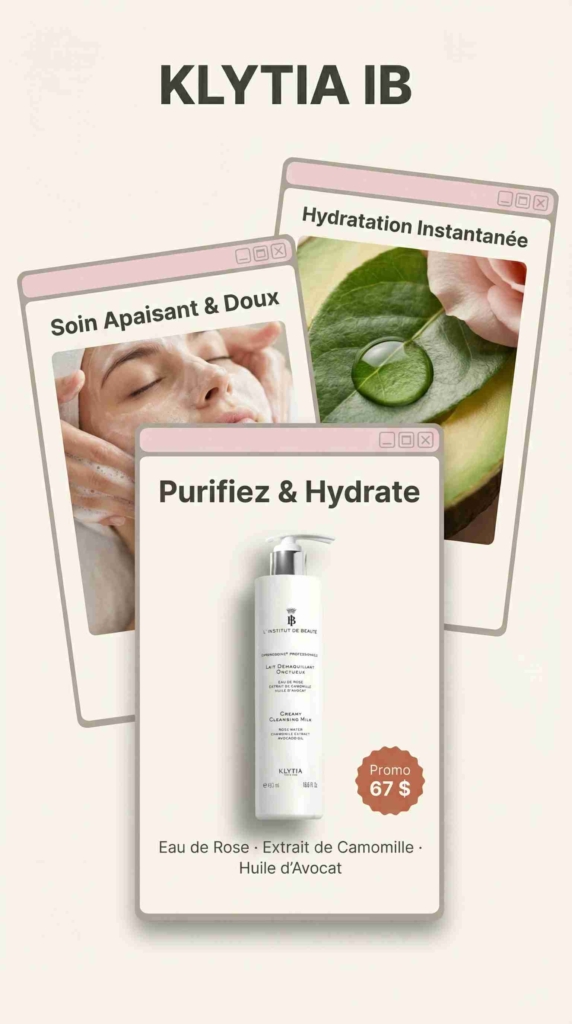
That is the real difference. Instagram is fast. Zeely is cleaner.
When a Canva Instagram post template still makes sense
A Canva Instagram post template can still help if your team already has Canva assets or if you are adapting an older design. But a feed post template is not automatically Story-safe. If you drop a square design into Stories without rebuilding the layout, you usually end up with awkward margins, cramped text, or weak spacing.
For a Story-first workflow, Zeely makes more sense because you are building for the format from the start. That gives you a cleaner result and less manual fixing before you post.
No matter which tool you use, keep the final Story vertical and full-screen. Build for the standard Story size, keep important text away from the very top and bottom, and avoid saving the same file over and over again before uploading.
That is the easiest way to keep your collage sharp, readable, and ready for Instagram.
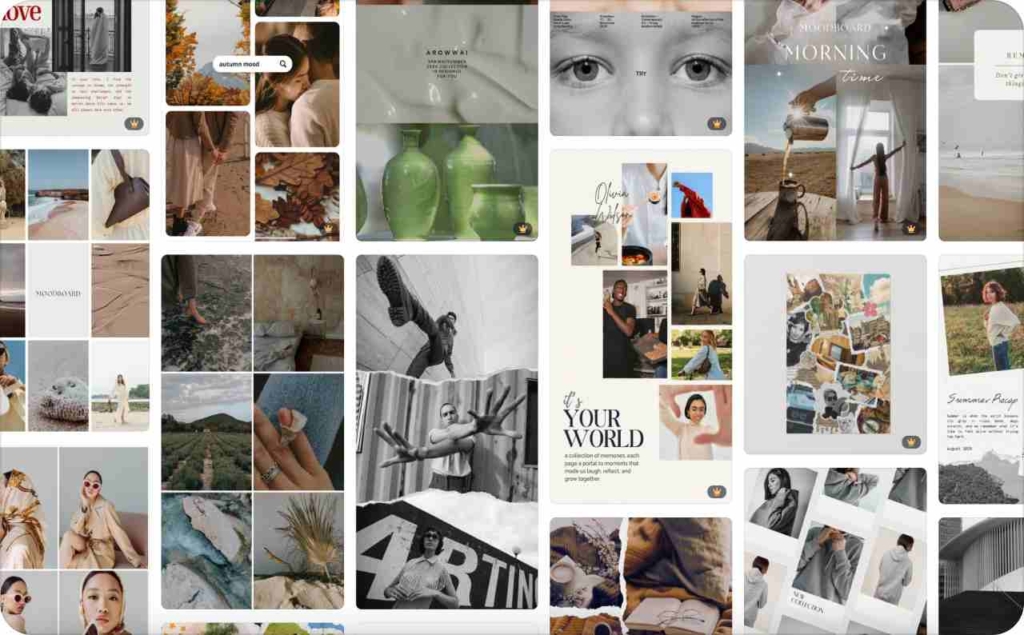
Photo source: Canva
How to make a story collage on Instagram that looks clean, not crowded
A collage is easy to make. A collage that does not look like a yard sale exploded inside your Story is harder.
The first fix is structure. Pick one image to be the hero. Let the other photos support it. Then use spacing, background color, and text hierarchy to keep the design readable.
Here is what usually works best:
- use 2 to 4 images, not 9 tiny thumbnails
- keep one dominant image
- leave breathing room between elements
- use one background color, not a rainbow food fight
- limit yourself to one font pair
- add music only if it supports the vibe
- keep stickers selective, not everywhere all at once
Background color, layering, and spacing
If you are using photo stickers, set the background first. A neutral background makes it easier to see the edges of each image. Then place your biggest photo first and build around it. This is the fastest way to make a photo collage on Instagram Story that still feels intentional.
Overlap can work, but only when it creates depth. If overlap hides faces, products, or your main text, it is not “editorial.” It is just messy. Read an article on how to change a background color on an Instagram story.
Text, GIFs, music, and brand colors without clutter
Text should clarify the collage, not fight it. Use a short headline, not a paragraph. One accent color is usually enough. If you add GIFs or music, do it last so you can judge whether the collage already says enough on its own. You may also like to read how to add music to an Instagram story.
For branded Stories, match your usual palette and keep the same spacing rhythm across slides. That helps your Story sequence feel like one campaign instead of six unrelated thoughts that happened to wear the same shoes.
Why you can’t add multiple photos to Instagram Story and how to fix it
This is where most tutorials get thin. They tell you the happy path, then vanish into the shrubbery when Instagram decides not to show the button you need.
If you cannot make a collage on Instagram Story, the usual causes are:
- Instagram needs an update
- the feature rollout has not fully hit your device yet
- photo permissions are off
- the app cache is being weird
- you are using the wrong method for the effect you want
The first fix is simple: update Instagram. After that, restart the app and check photo permissions. If that does not work, reinstalling the app often helps reset missing Story tools. The problem can also be that your Stories don’t work in general. Read this guide to find out how to fix it.
Why is the Layout option missing on Instagram Story?
If Layout is missing, first make sure you are in the Story camera, not trying to build the collage from another screen. Then update Instagram. If it still does not show, switch methods and use photo stickers instead. That solves the actual problem, which is “I need multiple photos on one Story,” not “I must use this one specific button because the app gods demand tribute.”
Why is the photo sticker not showing on Instagram?
If the photo sticker is missing, open the Story background first, then check the sticker tray again. Make sure Instagram has access to your photos. Some feature rollouts can also vary by app version or device, which is why you may see a tool on one phone and not another.
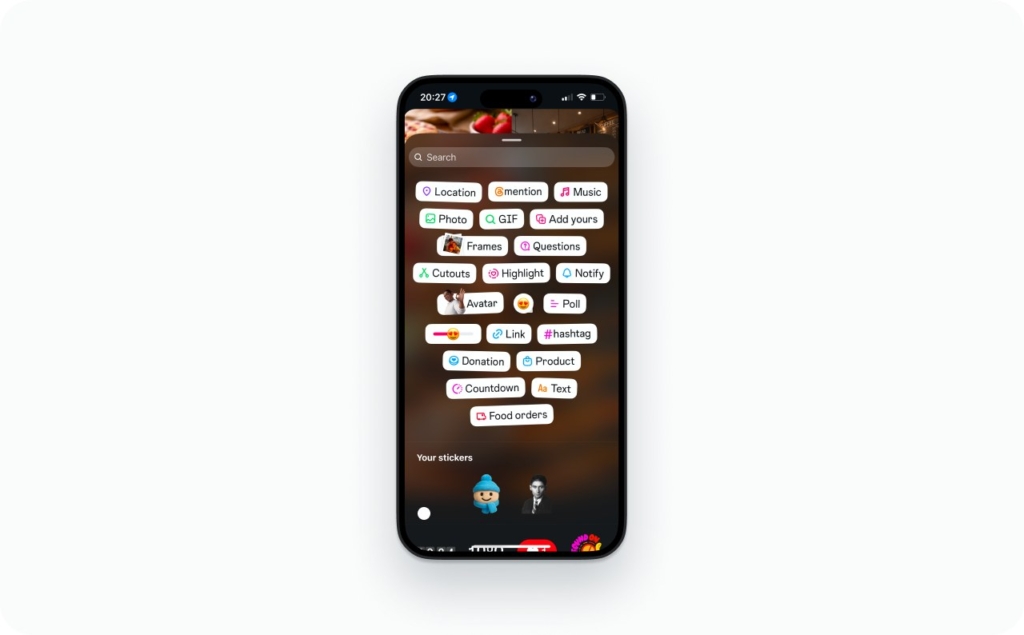
Instagram’s product coverage has also been rolling out new creative tools across Stories, including sticker-focused updates, which helps explain why availability can feel inconsistent between accounts or devices.
Why can’t I move photos freely in Instagram Story?
If you used Layout, that is the reason. Layout gives you a fixed grid. If you want to move photos freely, you need the photo sticker method or a third-party collage maker like Canva.
Why does my Instagram Story collage look blurry?
Blurry Story collages usually come from the wrong canvas size, repeated saves, or compressed uploads. Start at 1080 by 1920, export once, and upload the final file. Canva’s Story docs recommend that size specifically to keep uploads sharp and avoid cut-off content. Read an article about Instagram Story size and dimensions.
How to make a video collage on Instagram Story
Yes, you can make a video collage on Instagram Story. The easiest method is to use a video as the background and then layer photos over it with photo stickers. That gives you motion without turning the whole Story into visual soup. Read now how to change the Instagram story background without hiding a video.
This matters because short-form video is still pulling creative budgets hard. A 2026 Forbes piece citing Emplifi research says 73% of marketers are prioritizing short-form video and 47% are prioritizing UGC video heading into 2026. So if your Story collage needs more energy, mixing video and still images is a smart move.
Keep the motion simple. One background clip is enough. Then add one or two photos, short text, and maybe music. If everything moves, nothing stands out.
If you need more control, build the video collage in Canva or Adobe Express first. Adobe’s current Express documentation highlights a broad template collection across social and creative formats, which makes it a reasonable second option when Canva is not your thing.
Checklist
- Choose Layout if you want a fast grid
- Choose photo stickers if you want freeform layering
- Use Canva if you need templates or brand control
- Build static Stories at 1080 x 1920
- Keep one hero image and clean spacing
- Update Instagram if Layout or photo sticker is missing
- Export once to avoid blur
- Use video only when it adds clarity, not noise
Metrics to watch
For Story collages used in marketing, track:
- tap-forward rate
- exits
- sticker taps
- link clicks
- profile visits
- replies
- saves from linked Story assets
- downstream CTR, CPA, and ROAS when Stories feed ads or landing pages
Emma blends product marketing and content to turn complex tools into simple, sales-driven playbooks for AI ad creatives and Facebook/Instagram campaigns. You’ll get checklists, bite-size guides, and real results, pulled from thousands of Zeely entrepreneurs, so you can run AI-powered ads confidently, even as a beginner.
Written by: Emma, AI Growth Adviser, Zeely
Reviewed on: April 2, 2026