How to fix if Instagram Stories are not working?
Instagram Stories not working today, stuck loading, or missing music, filters, and stickers? I’m Emma from Zeely, and this guide uses the same quick diagnosis flow we use to debug Story issues before we ship creatives.
If Instagram Stories aren’t working, check Downdetector first. If reports are suddenly spiking, the problem is probably on Meta’s side rather than yours. If Instagram seems to be working for everyone else, try these fixes in order:
- force close and reopen the app
- switch between Wi-Fi and mobile data
- turn off your VPN
- update Instagram
- restart your phone
- clear the cache if you’re on Android
- check camera and microphone permissions
- free up at least 2–3 GB of storage
- log out and back in
- reinstall Instagram only as a last resort
In most cases, Story problems are fixed within the first four steps.
First things I do when Instagram Stories do not work
Before you touch settings, do a 30-second status check. If the platform is having an outage, you can waste 20 minutes “fixing” a problem that lives on Meta’s side of the screen.
How to check if Instagram is down
- Look for a spike on Downdetector, the curve matters more than the exact number
- Test Stories in two places: your phone and a browser
- Test a second account if you have one or ask a friend to try
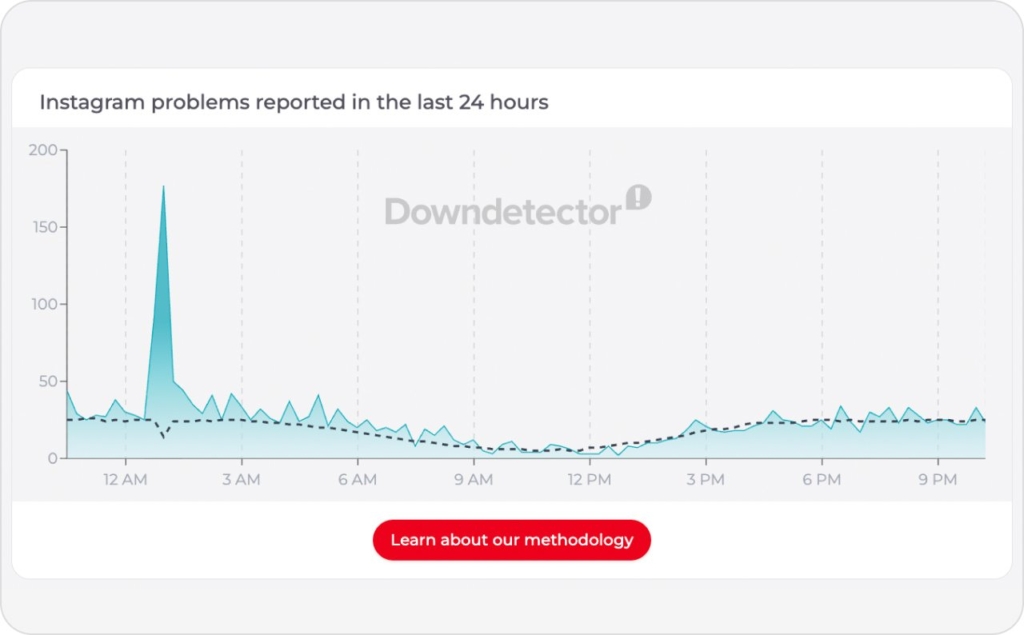
Photo source: Downdetector
If it’s down, keep it simple:
- Wait it out
- Don’t reinstall during an outage
- Don’t change your password unless you have a real security reason
- Write down the time window, helpful if you report the bug later
How to diagnose your Instagram Story problem in 15 seconds
Here’s the same triage flow we use before we publish Story creatives. It stops you from hopping between random tips that don’t match your bug.
Symptoms
A) Viewing/Loading issue
- Stories won’t load, black screen, buffering, tap doesn’t respond, Stories row disappears
B) Posting/Uploading issue
- Story stuck on posting, upload fails, slow posting, Story looks blurry after upload
C) Feature-specific issue
- Instagram story music not working, Instagram story filters not working, stickers on Instagram story not working, Instagram story mentions not working, Instagram story camera not working, Instagram Stories sound not working
If “it works for others but not me,” that usually means:
- Account issue: one account breaks, another one works on the same phone
- Device issue: the same account works on a different phone
- Network issue: Wi-Fi works, but mobile data fails or the other way around
Outages feel louder than they used to because the user base is huge.
Mini decision tree
- Loads on Wi-Fi but not mobile data: network bucket
- Loads on one account but not another: account bucket
- Only music/filters/stickers are missing: feature bucket
Now we fix the right thing.
Instagram Stories not working? 10 quick fixes that solve most problems
If Instagram Stories are crashing, freezing, stuck loading, failing to upload, or suddenly missing features, work through these fixes in order. Most take less than two minutes.
Before you start: Don’t reinstall Instagram until you’ve tested your connection and tried the simpler fixes below. And avoid resetting your password if Instagram appears to be experiencing a wider outage.
1. Force close Instagram and reopen it
Helps with: Freezes, black screens, unresponsive buttons, and a stuck interface.
Fully close Instagram from your recent apps, then reopen it. Give it about 30 seconds. If the problem returns immediately, move to the next step.
2. Switch between Wi-Fi and mobile data
Helps with: Buffering, Stories that won’t load, stalled uploads, and features failing because of a bad network route.
Turn off Wi-Fi and try mobile data, or do the reverse. Then load three Stories in a row to see whether the connection is stable.
3. Turn Airplane Mode on for 15 seconds
Helps with: Stale or unstable network connections.
Enable Airplane Mode for about 15 seconds, turn it off, wait for your connection to return, and reopen Instagram.
4. Disable your VPN or secure-browsing app
Helps with: Missing music or stickers, region-related feature problems, and connection errors.
Temporarily turn off any VPN, private DNS, or secure-browsing service. Reopen Instagram and test Stories again.
5. Update Instagram
Helps with: Bugs caused by an outdated or problematic app version.
Check the App Store or Google Play for an Instagram update. Install the latest available version, then reopen the app.
6. Update iOS or Android
Helps with: Camera and microphone permission glitches, system compatibility problems, and general stability issues.
Check your phone for pending system updates. Mobile operating systems receive regular bug-fix releases, and an outdated version can sometimes interfere with Instagram’s camera, audio, or upload features.
7. Restart your phone
Helps with: Stuck camera sessions, audio-routing problems, memory issues, and background processes that aren’t behaving correctly.
Restart your phone once, then open Instagram and test Stories before launching lots of other apps.
8. Check your free storage
Helps with: Failed uploads, slow video processing, export problems, and corrupted temporary files.
Try to keep at least 2–3 GB of free storage available. If your phone is almost full, clear some space and try posting the Story again.
9. Log out and log back in
Helps with: Account-session glitches, authentication problems, and features stuck in an incorrect state.
Log out of Instagram, close the app, reopen it, and sign back in. You only need to try this once.
10. Reinstall Instagram
Helps with: Corrupted app data, damaged local files, broken filters, and effects that refuse to load.
Use this as the last step, after trying fixes 1–9. Delete Instagram, reinstall it from the official app store, sign back in, and test Stories again.
What Instagram Story error messages actually mean
If the basic fixes didn’t solve the problem, the exact error message can help narrow down what’s going wrong. Here’s what the most common Instagram Story errors usually mean—and what to try next.
| Instagram Story error | What it usually means | What to do |
| “Couldn’t refresh feed” | Network route or session issue | Toggle Airplane Mode for 15 seconds, then switch between Wi-Fi and mobile data |
| “Action Blocked” / “Try Again Later” | Temporary rate limit caused by too many posts, follows, or DMs | Stop all activity for 24–48 hours. Reinstalling the app usually won’t help |
| “Posting…” never finishes | Upload stalled during transfer | Switch networks, then try posting a shorter clip |
| “Something went wrong” when opening the camera | Camera permission issue or stuck camera session | Turn camera permission off and back on, then restart your phone |
| Story posts but disappears within minutes | Content may have been flagged by automated review | Check Account Status for a removal notice |
| Music sticker is missing entirely | Regional restriction or business-account licensing limits | Turn off your VPN. Business accounts may also have access to a smaller music catalog |
Instagram Stories not loading, buffering, or black screen? Fix viewing issues
Viewing problems are usually network, cache, or a stuck app session. I like to isolate the cause before I “fix.”
Wi-Fi works but mobile data doesn’t and vice versa
iPhone checks
- Turn off Low Data Mode for the active network
- Turn off any data saver setting your carrier app added
- If you’re using iCloud Private Relay or a VPN, disable temporarily
Android checks
- Turn on Background data for Instagram
- Check Private DNS and disable if you recently changed it
- Disable VPN or “secure DNS” apps
No speed test needed. Just time how long it takes to load three Stories in a row.
Stories not showing at the top
This often looks like “Stories on Instagram not working,” but it can be simpler:
- Pull down to refresh the feed
- Log out and log back in (quick fix #9)
- Confirm you didn’t mute the accounts you’re expecting to see (I have a full guide on muting Stories on the Zeely blog)
Instagram Story stuck on posting? Fix upload, slow posting, and blurry Stories
Posting bugs feel personal because you did the work and Instagram refuses to take it.
First, separate the symptom
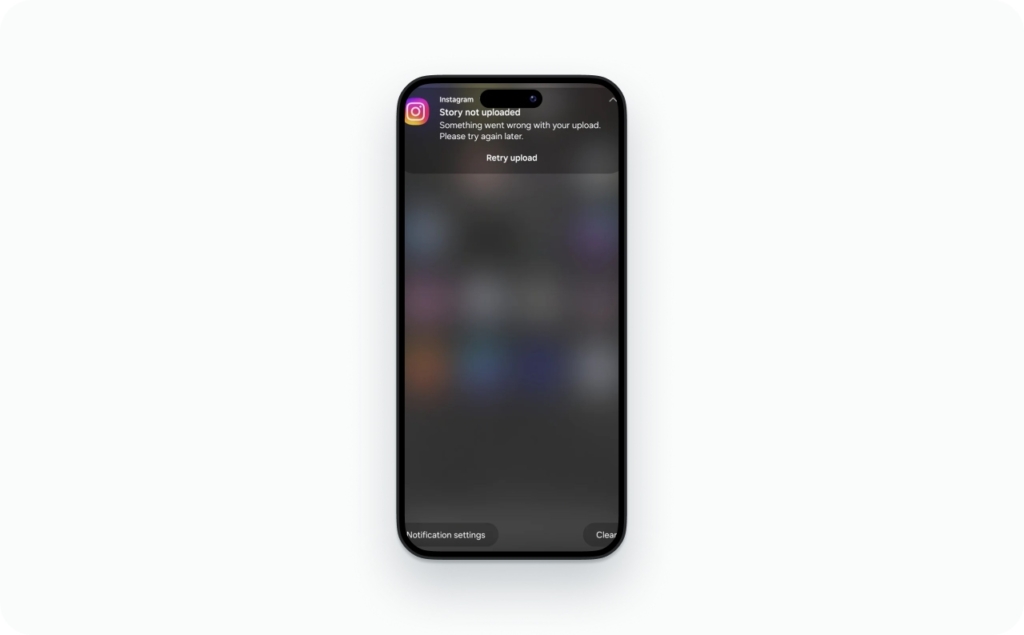
- Upload failure: “Posting…” forever, error message, Story disappears
- Slow posting: takes a long time, especially on video
- Blurry/cropped: it posts, but looks broken
Posting fails or is painfully slow
Run this stack:
- Switch networks (Wi-Fi ↔ mobile data)
- Disable VPN
- Check storage (2–3GB+)
- Restart phone
- Try a shorter clip (split into multiple Story slides)
I also like a low-stakes test: post to Close Friends first. It doesn’t fix the bug, but it helps you verify whether posting works without the pressure of a public fail.
Why won’t stickers stay pinned on my Instagram Story?
If you can’t “pin” something, like a sticker element staying where you place it, treat it like a local UI bug:
- Force close the app, reopen, rebuild the Story
- Avoid rapidly resizing/rotating right after adding multiple stickers
- If it keeps happening, reinstall is a reasonable last step
Blurry after upload
A lot of “Instagram is broken” reports are actually heavy compression.
- Export at 9:16 and keep text inside safe zones
- Avoid re-saving the same video through multiple apps
- Turn off “data saver” type settings for Instagram if you enabled them
Instagram Story camera not working, sound not working, mic blocked? Fix permissions
When people ask “why is my Instagram not working,” it’s often a permission flip that happened after an OS update or a rushed tap on a pop-up.
iPhone: check camera and microphone access
Go to Settings → Privacy & Security and review Camera and Microphone access for Instagram.
Quick permission reset routine:
- Turn Instagram’s Camera/Microphone access off
- Force close Instagram
- Turn access on
- Reopen Instagram and test Story camera
If the Story camera still fails, restart your phone. If it still fails after a restart, move to reinstall.
No sound on Stories
If Instagram Stories sound not working, run this checklist before you panic:
- Check silent mode and media volume
- Disconnect Bluetooth headphones and speakers (audio routing gets weird)
- Open one Story from a different account. If only one creator is silent, they likely posted it muted
Microphone works everywhere except Instagram
That’s usually a permission state issue:
- Toggle Microphone permission off/on
- Restart phone
- Reinstall only after toggles + restart fail
Instagram Stories not working on Android? Cache, updates, and system patches
Android has an extra lever that fixes a lot of Story weirdness: cache control.
Clear cache
- Settings → Apps → Instagram
- Storage → Clear cache
- Reopen Instagram and retry Stories
Clear data
Clear data is more aggressive:
- It logs you out
- It wipes local settings
- It can fix deeply stuck behavior
Use it only after cache and force stop fail.
Also, Android stability is tied to keeping your system patched. The Android Open Source Project posted the Android Security Bulletin for February 2026, reinforcing that staying current is part of keeping modern apps stable.
One more Android-specific gotcha: some phone makers ship battery optimization that blocks background activity. If Stories load only when the app is open and then fail later, check Instagram’s battery setting and allow background use.
Instagram story music not working, filters missing, stickers broken? Fix feature bugs
This is the stuff that makes you feel like Instagram is messing with you on purpose. Stories load, but the music sticker is gone, filters won’t show up, effects won’t load, or stickers and mentions won’t behave.
Here’s the annoying truth: Instagram doesn’t roll out features evenly. Two people can sit side by side, on the same Wi-Fi, with the same phone model, and still see different sticker options. So the goal isn’t to “try everything.” The goal is to figure out whether this is a rollout, a network signal issue, or a glitch on your account.
If Instagram Story music isn’t working
Music usually breaks for one of three reasons:
- A VPN (or weird routing) makes Instagram think you’re in a different region
- Instagram’s music catalog is having a temporary hiccup
- Your app version is behind, so the sticker behaves badly
Try this in order:
- Turn off your VPN (if you use one)
- Force close Instagram and reopen it
- Update Instagram
- Log out, then log back in
- Test the music sticker on another account (even a spare one)
If music works on another account on the same phone, you’ve got an account-level problem, not a phone problem.
If filters or effects are missing or won’t load
When filters fail, it’s often because the effect assets didn’t download correctly, or they got corrupted.
Do this:
- Update Instagram
- Force close and reopen the app
- On Android, clear Instagram’s cache
- If effects still fail across multiple sessions, reinstall Instagram
Reinstalling is annoying, but it’s one of the few fixes that resets broken effect downloads.
If stickers are missing or broken
If your sticker tray suddenly looks empty or certain stickers don’t work:
- Update Instagram first
- Turn off VPN
- Log out and back in
- Check that your account isn’t in a limited state (business restrictions, age settings, or other account flags can quietly remove features)
Also, remember the rollout thing. Sometimes stickers disappear because Instagram is testing something and your account got put in the “not today” group.
If mentions won’t tag
Mentions are usually simple, but they fail for boring reasons:
- A typo, or the account doesn’t exist
- The person has settings that limit who can mention them
- Instagram is glitching and the mention tool won’t “stick”
If mentions fail on every Story you try:
- Force close Instagram
- Update the app
- Log out and log back in
When should you stop troubleshooting and just wait?
Stop and wait when:
- Multiple friends see the same broken behavior at the same time
- Downdetector is spiking
- Everything works except one feature, and it started today
If it’s clearly only your account, check Account Status inside Instagram. You don’t need to diagnose it like a detective. Just look for anything flagged that might be limiting features.
More Instagram Stories guides
Now that you know why Instagram Stories may stop working and how to fix the issue, it’s worth learning a few extra features and rules that can help you use Stories more effectively. The articles below answer common questions and show useful tricks that will help you become a true Instagram Stories pro.
- Does Instagram show screenshots of Stories — explains whether Instagram notifies users when someone screenshots their Story and what privacy limits actually exist.
- How long do Instagram Stories last — covers how long Stories stay visible, how Highlights extend their life, and what happens after the 24-hour limit.
- Can you schedule Instagram Stories — shows whether scheduling Stories is possible and which tools or built-in features allow you to plan content ahead.
- How to see old Stories on Instagram — guides you through accessing archived Stories and viewing past content you’ve already posted.
- How to add music to Instagram story: music & audio guide — explains how to add songs, audio clips, and music stickers to make your Stories more engaging.
- How to repost a story on Instagram — explains different ways to share someone else’s Story or repost a Story where you were tagged.
FAQ
Sometimes Story views take a while to catch up, especially during busy periods or partial Instagram outages. The count doesn’t always update in real time, so give it 30–60 minutes, then refresh the app. And if you posted when most of your audience was offline, a slow start may be completely normal rather than a technical issue.
The link sticker should be available to all accounts, but it can occasionally disappear if your Instagram app is outdated, your account has a temporary restriction, or a VPN is interfering with features.
Start by updating Instagram and turning off your VPN. If the sticker is still missing, check Account Status to see whether any restrictions are affecting your account.
First, make sure you selected Close Friends before posting. Instagram can default back to your regular Story audience, so it’s easy to share to the wrong group without noticing.
It’s also worth checking that your Close Friends list isn’t empty and that the person you expect to see the Story is still on it.
A Story can disappear early if you deleted it, if Instagram removed it after an automated review, or if a viewer no longer has access to your private account.
If you didn’t remove the Story yourself, check Account Status for a notice explaining whether Instagram took it down.
Instagram-to-Facebook sharing can stop working if the two accounts become disconnected in Accounts Center. This sometimes happens after a password change, login verification, or other security check.
Open Settings → Accounts Center, make sure your Instagram and Facebook accounts are still connected, then turn Story sharing back on for the correct account.
Reinstalling Instagram won’t delete Stories you’ve already posted, your Highlights, or your Story archive because those are stored on Instagram’s servers.
What you can lose are unsaved drafts and local edits. If you have anything in progress, save it to your camera roll before deleting the app.
Audio drift often comes from editing, re-exporting, or heavy compression. Upload the original file, keep it under 15 seconds per slide, and avoid re-saving through multiple apps. Switching networks can reduce stutter that feels like sync issues.
Captions can disappear if the feature is rolling out, your language isn’t supported, or the app build is behind. Update Instagram, switch your phone language to English (US) temporarily, and retry. If it’s account-based, wait 24 hours.
They may have limited replies to Close Friends, turned off replies, or restricted you. Test by replying to a different account’s Story. If replies fail everywhere, log out/in and check for an Instagram-wide outage.
Sharing can be disabled by the original poster, blocked by a private account, or restricted for certain content types. Try sharing a public post from a major account. If the option is missing everywhere, update the app and restart.
Reposting requires the original Story to still be live and that sharing settings allow it. Ask the poster to tag you again, then check your DMs for the “Add to your story” prompt. If prompts never appear, reinstall. Or check full Zeely’s guide on Instagram reposting.
Viewer lists can lag during heavy usage or partial outages. Give it 30–60 minutes, then refresh the app. On weak connections, the list may freeze while the Story loads. Switching networks often fixes it.

Emma blends product marketing and content to turn complex tools into simple, sales-driven playbooks for AI ad creatives and Facebook/Instagram campaigns. You’ll get checklists, bite-size guides, and real results, pulled from thousands of Zeely entrepreneurs, so you can run AI-powered ads confidently, even as a beginner.
Written by: Emma, AI Growth Adviser, Zeely
Reviewed on: September 16, 2026