Schedule Instagram Stories in 2026: What works
Can you schedule Instagram Stories in 2026 without babysitting your phone? I tested Meta’s native options and common schedulers so you can pick the fastest, lowest-risk workflow.
You can schedule Instagram Stories in 2026. Most setups fall into two buckets: auto-publish (it posts for you) or reminders (you tap to publish). Meta Business Suite is the native choice for eligible accounts. Third-party tools can help you plan, collaborate, and batch content, but they may rely on reminders depending on your account type and permissions. Watch for the usual snags: Business/Creator requirements, sticker and music limitations, and occasional publishing errors.
Instagram Stories are top-of-screen real estate, and consistency beats inspiration. Scheduling turns Stories into a system: plan, queue, publish, review. I’ll walk you through the native Meta workflow and the most common tool-based workflows, with the 2026 gotchas spelled out. You’ll leave with a setup that fits your time, risk tolerance, and account type.
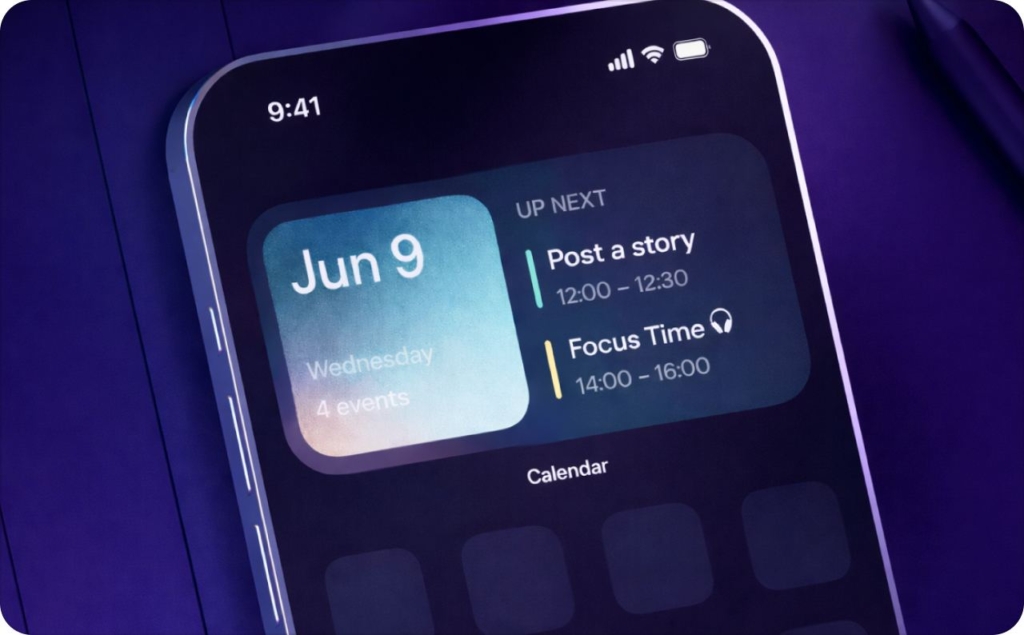
The real answer to scheduling Instagram Stories in 2026
Can you schedule Instagram Stories in 2026?
Yes, but you’re choosing between auto-publish and reminder/notification publishing. Auto-publish means the Story posts at the time you set, with no tap. Reminder publishing means the tool alerts you, and you tap to post inside Instagram.
Can you schedule in advance? Yes. Most schedulers and Meta Business Suite let you queue content ahead.
Specific date/time? Yes. You pick the exact day and time for publishing or the reminder.
Multiple Stories at once? Yes. You can pre-schedule Instagram Stories as a batch, then order them.
From desktop? Yes for planning and scheduling in Meta Business Suite and many tools, but some Story features still require mobile at publish time.
Without third-party tools? Yes. Meta Business Suite is the native option, but capabilities vary by account and Story elements.
The 3 misunderstandings I see constantly
- “Scheduling means it will always auto-post.” No. Many tools schedule a reminder notification, not an auto-publish
- “If I can schedule posts, I can schedule Stories the same way.” Stories have different feature limits, especially with music and stickers
- “Desktop scheduling means I never need my phone.” In reality, some Story formats still push you back to mobile for final publish
Native scheduling: Meta Business Suite vs Instagram app vs Creator Studio
Native scheduling to schedule Stories on Instagram typically happens in Meta Business Suite, not through “regular posting” inside the Instagram app. The Instagram app is great for filming, drafts, and last-minute edits. It is not where most accounts reliably schedule Story posts in advance. For context, Meta’s apps are operating at massive scale (Family daily active people averaged 3.54B in Sept 2025), so Meta keeps more publishing controls inside its managed tools and permission layers. You may also like finding out how to find old Instagram stories.
Where is the scheduling option?
In Meta Business Suite Planner, the path is usually:
- Content or Planner → Create → Story → Add media → Schedule (pick date and time)
If you do not see Story or Schedule, it is almost always an account, permission, or connection issue, not a “hidden button.”
Instagram app: what it does well
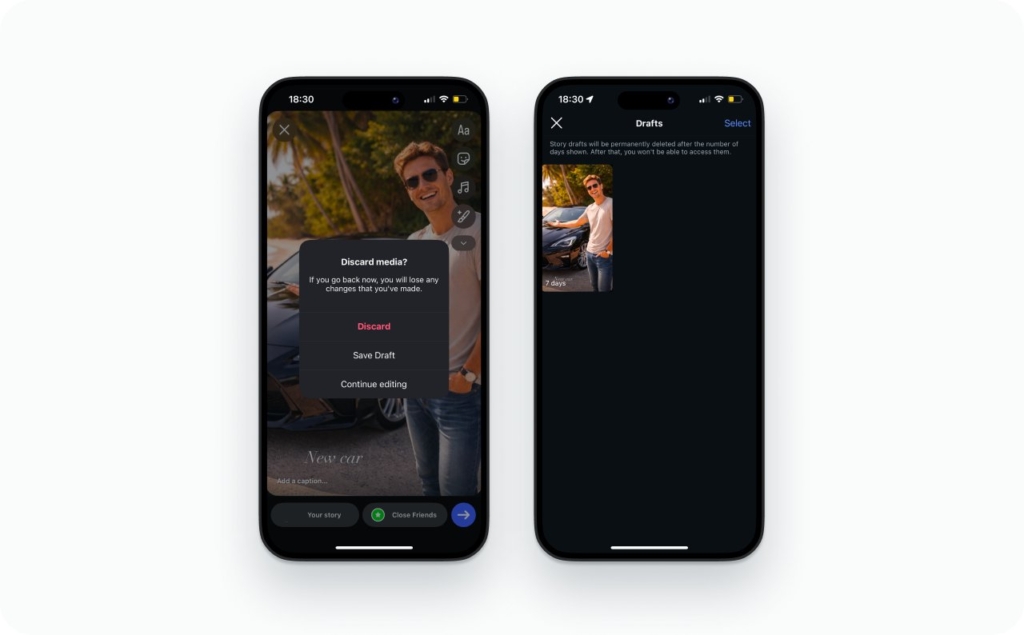
Inside the Instagram app, you can build the Story exactly how you want it. You can save drafts. But native scheduling is not consistently exposed there the way it is in Meta Business Suite. This is why people search “schedule stories on Instagram” and end up in Business Suite anyway according to Social Sprout.
Creator Studio: why people look there, and why it disappoints
People look for schedule Instagram stories in Creator Studio because that used to be the “creator publishing hub.” The problem is that Creator Studio tools have largely moved into Meta Business Suite, so it often does not solve Stories scheduling now.
Creator Studio vs Meta Business Suite: Creator Studio was creator-first and content-focused, but Meta Business Suite is business-first and asset-focused. Business Suite is built around a Facebook Page connection plus a permissions layer that lets teams manage publishing, roles, and access across accounts. Creator Studio is where you went to “post content.” Business Suite is where you go to “manage the account that posts content.”
Photo source: Instagram Creators
Account requirements
- Business or Creator account: you are eligible for most native scheduling features
- Personal account: scheduling is limited, and you may only get drafts or reminders
When a Facebook Page connection is required: Meta Business Suite often uses the Facebook Page as the management layer for permissions and publishing access across Meta assets. If the Page is not connected, Business Suite cannot always “see” your Instagram account as a schedulable asset, so Story scheduling options can disappear. Read also how to post a story on Instagram.
How to schedule Instagram Stories in Meta Business Suite
How do you schedule an Instagram Story in Meta Business Suite? You do it from desktop, inside the Meta Planner / Content flow, then confirm it’s sitting in your scheduled queue, not drafts. Buffer and Sprout both document the same core path: open Business Suite on a computer → go to Planner/Content → Create story → upload media → Schedule.
Step list for desktop
- Open Meta Business Suite on desktop
- In Business Suite, go to Content or Planner, then choose Create story
- Select your IG account and FB destination if asked
- Upload media in a single frame or sequence. You can select up to 10 images/videos
- Choose Schedule and confirm using the blue Schedule button
- Your scheduled Story should appear on the publishing calendar / planner view after you schedule it
How to schedule multiple frames?
- Upload all frames first, then reorder them before you schedule. Sprout notes you can preview the set before you publish
- If your UI won’t keep them as one sequence, schedule each frame as its own Story with tight spacing (example: 10:00, 10:02, 10:04). That’s the most reliable way to schedule multiple Instagram Stories at once
- If you don’t see it on the calendar/planner after scheduling, treat it as not scheduled yet. Go back, re-open the Story, and schedule again
What happens if my phone is off?
If the Story is in the scheduled queue from desktop, your phone being off usually doesn’t matter. The publish job isn’t “running on your phone.” What will break it is a disconnected account, lost permissions, or a failed upload.
Meta Business Suite Story scheduling is documented as desktop-based in Buffer’s guide.
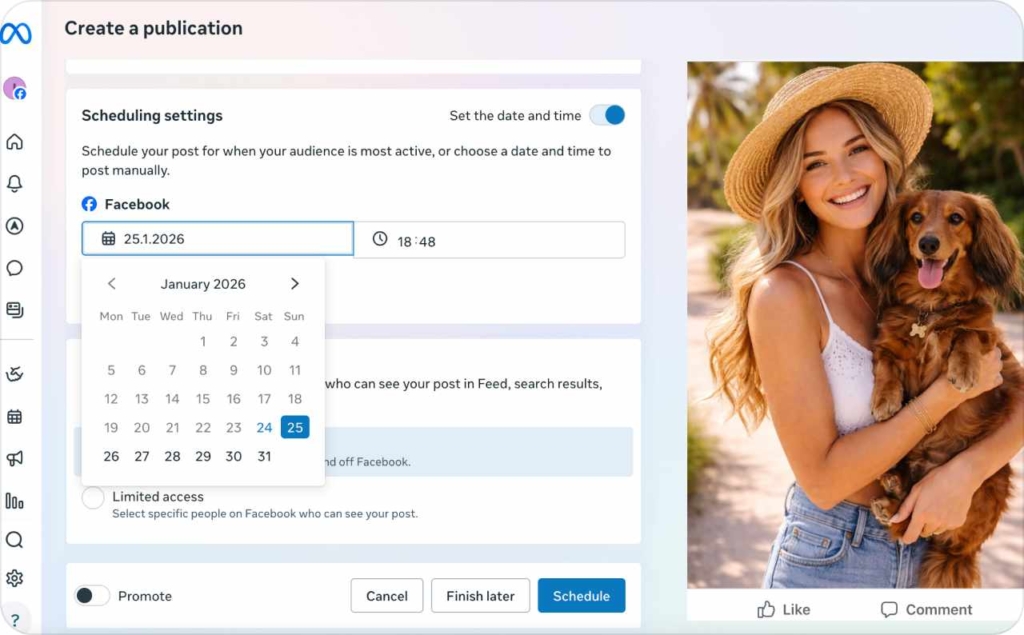
Photo source: Meta Business Suite Planner
Scheduling with third-party tools: Buffer, Hootsuite, Canva
Can you schedule Instagram Stories on Buffer, Hootsuite, or Canva?
Yes, but the rule is simple: a third-party scheduler can only auto-publish what Instagram allows it to publish through its publishing connection.
When Instagram does not allow the tool to complete the Story (common with certain Story elements and account setups), you get notification publishing: the tool reminds you and you tap to post in Instagram.
Instagram is huge and tightly controlled. TechCrunch reported Instagram hit 3 billion monthly active users in 2025, and Meta keeps many publishing controls gated behind account type, permissions, and product limits.
Buffer: best for batching sequences, clear about auto vs reminder
Buffer is strong when your job is to batch 10 Stories and keep your week sane. Buffer explicitly supports both automatic and notification-based publishing for Stories.
How it decides what you’ll get:
- If your Story is mostly clean media (image/video) and your setup supports it, Buffer can auto-publish
- If your media format is off, Buffer may force notification publishing. Buffer calls out that unsupported aspect ratios can trigger this
Creator vs Business behavior is where people get confused. If a platform or account setup can’t publish your Story automatically, Buffer still lets you schedule it, but you finish in the Instagram app via a reminder. That’s not Buffer being annoying. That’s Buffer staying inside Instagram’s rules.
Photo source: Buffer
Hootsuite: why “reminder only” is common, and when it’s a real problem
Hootsuite is built for teams, approvals, and shared calendars. It’s also very clear about when Stories require the mobile workflow.
Hootsuite states:
- If you have a Creator profile, you’ll need the Instagram mobile notification workflow
- If you want to publish a Story with more than one image or video, you’ll also need the mobile notification workflow
- Direct publishing is only available for Instagram Business profiles
So here’s the clean diagnosis:
- Expected reminder behavior: Creator profile, multi-frame Story, or anything that needs final assembly in-app
- Permissions problem: you are a Business profile but still cannot direct publish any supported content. In that case, check your connection and notification setup. Hootsuite’s mobile workflow doc walks through the notification requirements

Photo source: Hootsuite
Canva: design-first, scheduling second
Canva Content Planner is great for designing fast, keeping brand assets consistent, and getting non-designers shipping. But Canva’s own Instagram scheduling help says, “for now,” Stories and Reels can’t be scheduled through that connection, and it points you to sharing via the Canva mobile app instead.
The simplest workaround I use:
- Design in Canva
- Export your frames
- Schedule in Meta Business Suite or Buffer (where Story scheduling is actually built for it)
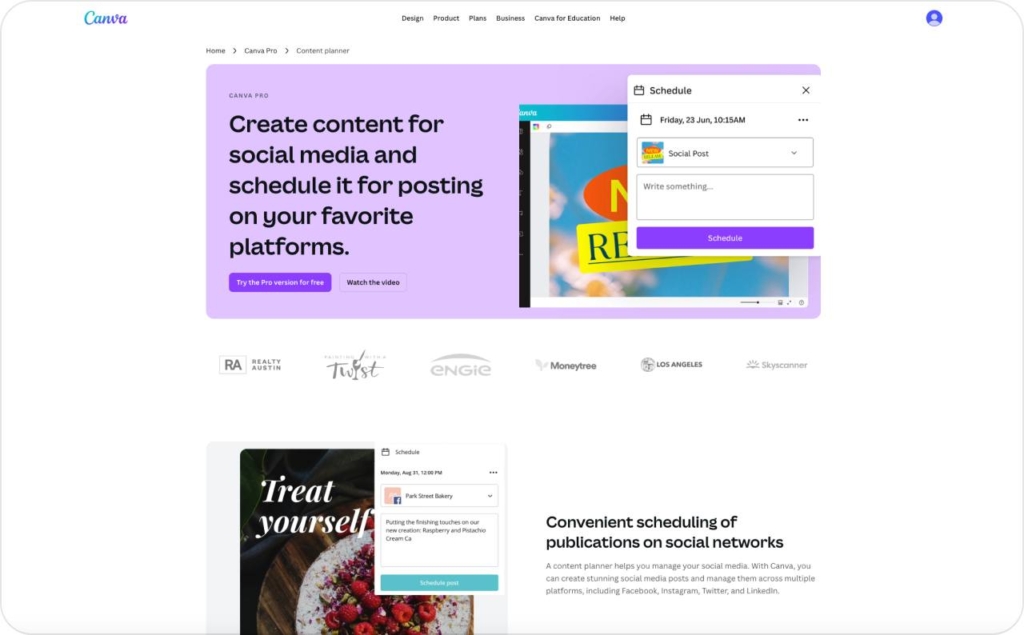
Photo source: Canva Content Planner
Compact comparison box
Can you schedule Instagram Stories for free?
You can schedule Instagram Stories for free, but only one option stays truly native: Meta Business Suite. Everything else is either a limited free tier or a “planned manual” workflow. Read also about different story templates for Instagram.
Option 1: Meta Business Suite
This is Meta’s own Planner. If you’re on a Business or Creator account, it’s the cleanest way to put Stories into a scheduled queue without paying.
Option 2: Free tiers of schedulers
Free plans usually let you schedule a small number of posts, with key features locked (multiple accounts, approvals, analytics, and sometimes auto-publish). Expect reminders to be common when Stories include interactive elements.
Option 3: Manual but planned
Use Story drafts, a calendar, and alarms. It’s boring, but it works, especially when you need music, polls, or link stickers.
Minimum viable scheduling stack:
- Meta Business Suite for scheduling
- Google Calendar reminders for tap-to-post days
Music, stickers, links, polls: what can be scheduled and what breaks auto-publish
Interactive Story elements are the usual reason auto-publish fails. Most schedulers can auto-publish the base media, but anything that relies on Instagram’s native sticker system often forces notification publishing so you can add it inside the Instagram app at publish time. Read also how to add music to Instagram story.
This isn’t a tool problem. It’s a platform constraint. Instagram’s publishing access is gated by account type, and Stories publishing via the Instagram API is limited to Business accounts, not Personal or many Creator setups.
Scale is also part of the story: DataReportal reports Instagram ads reached 1.74B people in January 2025, so Meta keeps tighter control over what gets posted programmatically.
Safe-to-auto-publish Story types
These formats are most likely to stay in auto-publish, tool-dependent:
- Single photo or video frames
- Simple sequences of frames
- Basic text overlays that do not depend on sticker libraries
If your goal is consistency, keep these frames “clean” and let the scheduled queue run.
Often reminder-only
These elements commonly push you into reminders because they require native, in-app assembly:
- Music library audio
- Link sticker
- Polls, quizzes, questions
- Product tags
- Some sticker overlays and interactive UI elements
Even when you schedule the time, the final publish step often needs the Instagram app to attach the interactive layer.
Troubleshooting: why you can’t schedule
Scheduling failures are usually boring. That’s good news, because boring problems have repeatable fixes.
Quick troubleshooting flowchart
Start here → What are you seeing?
- No scheduling option anywhere
- Personal account → switch to Business or Creator
- You’re in the Instagram app → move to Meta Business Suite desktop, where Meta documents scheduling for posts and Stories
- You can schedule, but it never published
- Disconnected Facebook Page / permissions → reconnect and recheck roles (Meta uses the Page layer for management and permissions)
- Asset spec issue → re-export media to standard Story specs, then re-upload
- It only offers reminders
- Expected when your Story needs interactive elements or in-app assembly
- Problem when you expected auto-publish but reminders are failing because notifications are off
- You missed the reminder
- Turn on push notifications in your scheduler app. Hootsuite’s mobile notification workflow shows the exact settings path and the “publish through Instagram” handoff
Creator Studio confusion and why you don’t see it there
Creator Studio is where people think scheduling lives because it used to feel like the creator hub. In practice, Meta’s documented scheduling flow for Stories is in Meta Business Suite desktop, so Creator Studio won’t reliably show what you need.
- Use a Business or Creator account
- Confirm your IG is connected in Meta Business Suite
- Confirm Page/admin permissions (avoid “partial access”)
- Do one test Story and verify it appears as Scheduled with a timestamp
- Keep auto-publish frames “clean” (save interactive stickers for publish-time)
- Enable push notifications for reminder workflows
- Keep one weekly asset folder with final exports only
- Recheck the correct account selector before you hit Schedule
Scheduling Stories is easier when you stop treating Stories as random. Anchor the week with scheduled Reels, then reuse the same Story wrap every time. Consistency starts feeling automatic.
Create, schedule, and scale your Instagram ads with Zeely AI
With Zeely AI Instagram ad creator, you can effortlessly design eye-catching ads for Stories and collages that grab attention and drive engagement. Zeely helps you create visually strong, scroll-stopping creatives tailored for Instagram’s most effective formats. On top of that, Zeely AI’s viral campaign feature lets you plan and schedule Reels made by AI reels maker in advance, so your content goes live at the right time without manual posting. Together, these tools make it easy to stay consistent, boost visibility, and scale your Instagram advertising with confidence.

Emma blends product marketing and content to turn complex tools into simple, sales-driven playbooks for AI ad creatives and Facebook/Instagram campaigns. You’ll get checklists, bite-size guides, and real results, pulled from thousands of Zeely entrepreneurs, so you can run AI-powered ads confidently, even as a beginner.
Written by: Emma, AI Growth Adviser, Zeely
Reviewed on: January 27, 2026