Website to video AI in 2026: Best tools and URL-to-video workflow
Want a video from a landing page without learning editing or hiring an agency? My team at Zeely mapped the 2026 URL-to-video workflows that keep your messaging accurate and your exports ready for ads.
Yes, AI can turn a URL into a video. But the best tool depends on what kind of page you’re starting with.
If it’s a product page, use a tool that pulls real ecommerce details and lets you lock those details so the video doesn’t invent anything. If it’s a blog or landing page, use a tool that turns your headings into scenes, writes a script, adds voiceover and captions, and lets you edit quickly before you export.
Most URL-to-video tools either grab content from the page or rebuild it from screenshots. Either way, you still need to QA the script, pricing, and claims before you publish.
What website-to-video AI means in 2026
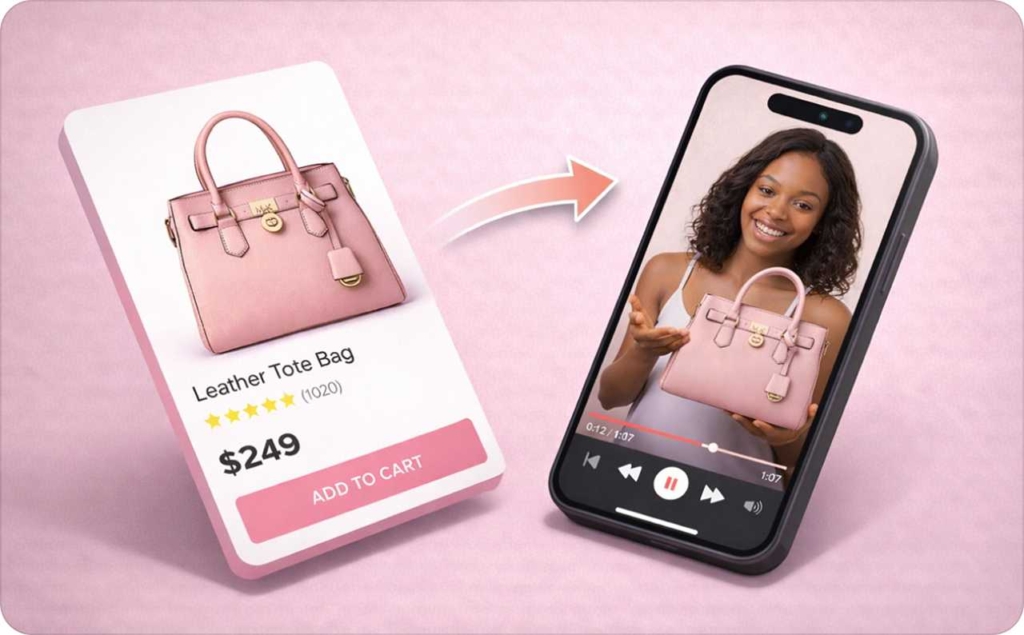
Website to video AI is software that turns a webpage URL into a short video by drafting scenes, writing a script, adding voiceover and captions, and exporting formats like 9:16 for TikTok and Reels.
You’re here because you want speed without hiring an editor. In this guide, I’ll show you how URL to video tools actually work, how to choose the right one for your page type, and how to keep your video accurate. Result: ad-ready variants you can test this week.
The better tools take your headline, key sections, images, and product details, then turn them into a storyboard you can edit before export.
Most small businesses use AI tools for three outputs:
- Summary video, which is a quick recap of a page
- Promo/ad cut, which include hooks, proofs, offers, CTAs
- Explainer/story, usually a problem, solution, or how it works
AI can draft fast, but it cannot know your compliance rules or product nuance unless you lock the inputs and review the script. That’s why accuracy control matters more than fancy transitions.
Still posting flat product shots? Make it move with Zeely. Animate any image and give people that wow feeling about what you create.
📧 12h only: RT, reply, follow & like for 500 credits in DM pic.twitter.com/vX5Gln8BSj
— Zeely AI (@zeely_ai) February 11, 2026
The 3 input modes you’ll see everywhere
Scrape mode pulls headings, paragraphs, images, and metadata to draft script and scenes.
Screenshot mode sees the page layout like a human. Looks closer to your design, but can miss structured details.
Feed mode uses catalog fields like SKU, price, variant, specs. Best for ecommerce accuracy and scaling.
If your page is ecommerce, feed mode usually wins. If your page is a blog post, scrape mode is fine. If your page is design-heavy, screenshot mode can help.
Best website to video AI tools in 2026
Best website to video AI tools in 2026 are easiest to choose when you match the tool to your page type, then judge two things: how easy it is to edit the script and how fast you can export ad-ready versions. Read also now about multimodal AI models for product ads.
Product page like Shopify or Amazon listing
You need a URL-to-video tool that can pull your product details and keep them locked. That means your product name, variants, price, shipping, and key specs stay the same every time you render. You also want fast ad outputs like 9:16 Shorts cuts and quick variant exports because ecommerce wins come from testing volume.
Best-fit tools:
- Creatify when you want a product URL to video ads with lots of variations, including avatar-style ads and multiple versions fast
- Zeely when you want a simple URL-to-video ad maker that pulls product info from your link and generates UGC-style video ads and static creatives you can use in campaigns
- Higgsfield when you want a product URL turned into a video ad with avatars and captions (another “URL to ad” style workflow)
Simple example:
You sell a $39.99 hoodie. The tool should keep “$39.99” and your shipping line unchanged. If it rewrites the price or invents “free shipping,” you’re buying clicks that won’t convert.
Where Zeely fits best: small businesses and ecommerce owners who want product link to ad creatives without editing, plus quick variations you can run on Facebook and Instagram right away. Read now about AI generated social media posts for Instagram and Facebook.
Landing page like SaaS, local service, creator, course
You need a tool that understands page flow and can turn it into scenes. The basic flow is problem, solution, proof, CTA. The make-or-break is script editing. If you can’t quickly fix the hook, proof line, and CTA, your video will sound generic. Clean captions matter because most people watch without sound.
Best-fit tools:
- Pictory when you want a clear URL-to-video workflow that builds a script and storyboard from a web page, with Brand Kit controls and formats like 16:9, 9:16, and 1:1
- PlayPlay when you want a broader video toolkit for teams, especially if you care about things like subtitle translation and ongoing editing across many projects
- Zeely when your landing page is really a sales offer and you want to turn that offer into ad creatives fast, with simple edits and ready-to-run outputs
Simple example:
You run a local dentist office. Your landing page says “Whitening in one visit.” Your video should keep that exact promise, show proof (rating or review), then end with “Book now.” If the video starts with a generic intro, you lose the scroll.
Where Zeely fits best: offer-driven businesses that want to launch ads quickly without learning editing or hiring help, especially if you want UGC-style video ads and multiple creatives per offer.
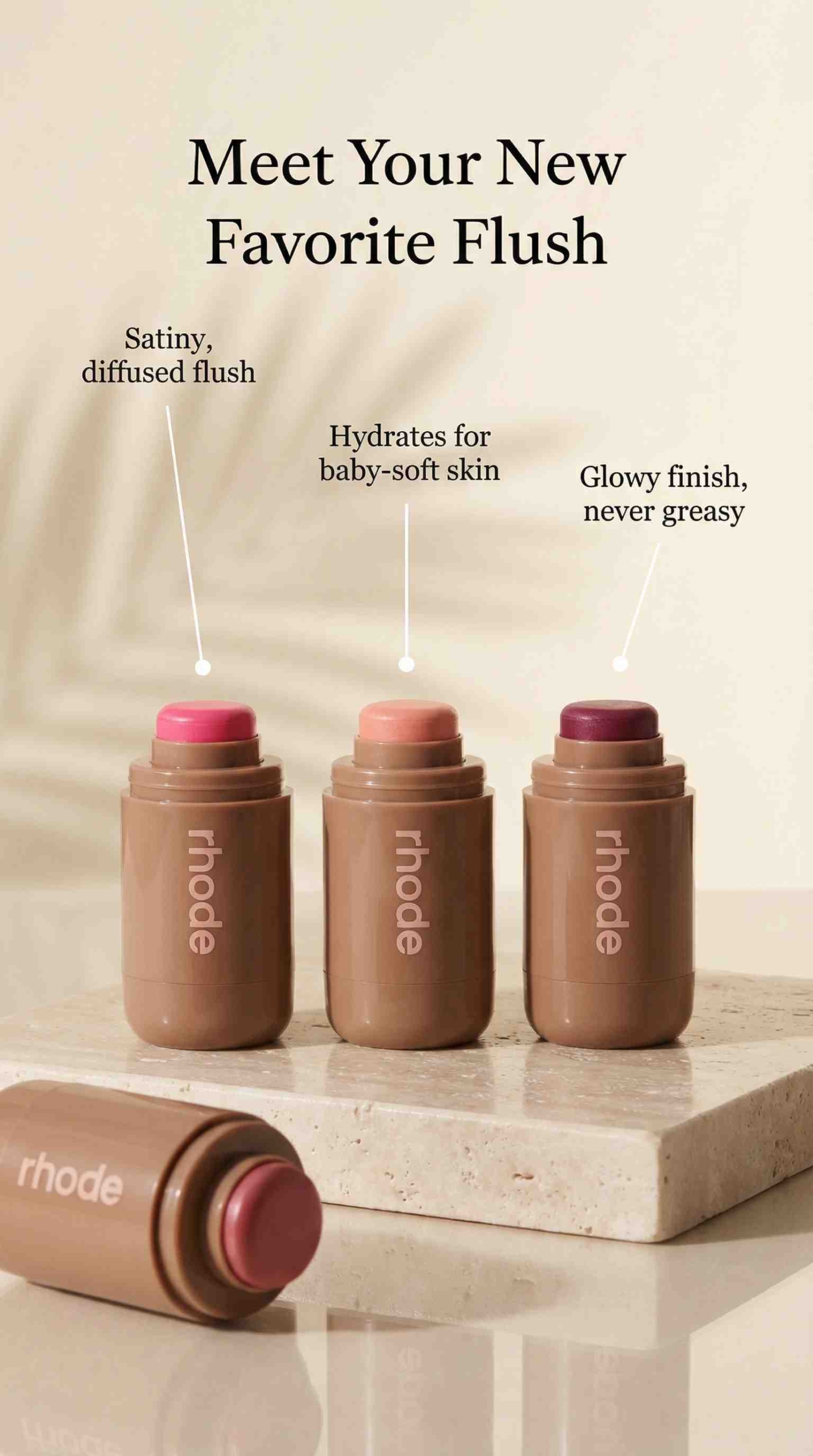
Blog post
You need a blog to video generator that turns H2 and H3 headings into scenes and lets you repurpose fast for Shorts. The goal isn’t perfection. It’s speed. Pull the structure, create a “3 takeaways” cut, add captions, export 9:16, post.
Best-fit tools:
- Pictory for URL/blog to video repurposing, because it’s built around turning a web page into a script and storyboard, then exporting in the formats you need.
| What you need | Must support | Why it matters |
| Ecommerce product videos | URL + structured fields (price/specs), variant generation | Prevents “hallucinated” specs and keeps offers consistent |
| SaaS/local service explainers | Section detection + easy script editing | Your page flow becomes your video flow |
| Agencies | Multiple brand kits + approvals + batch generation | Keeps teams sane at scale |
When NOT to use URL-to-video
Skip URL-to-video when:
- You’re in a tightly regulated category and claims require legal review
- Your page is a complex UI flow that needs a true product demo
- Your site blocks scraping heavily (paywalls, heavy JS, aggressive bot protection)
In those cases, record a short demo and use AI for captions, cutdowns, and variants.
How website-to-video AI works
Website to video AI is like a fast assistant that reads your page and tries to turn it into a short ad.
It usually does eight things, in this order:
- You paste a link
- It grabs your text and images
- It writes a first draft script
- It breaks that script into scenes
- It picks visuals from your page
- It adds voiceover (optional)
- It adds captions
- It adds music
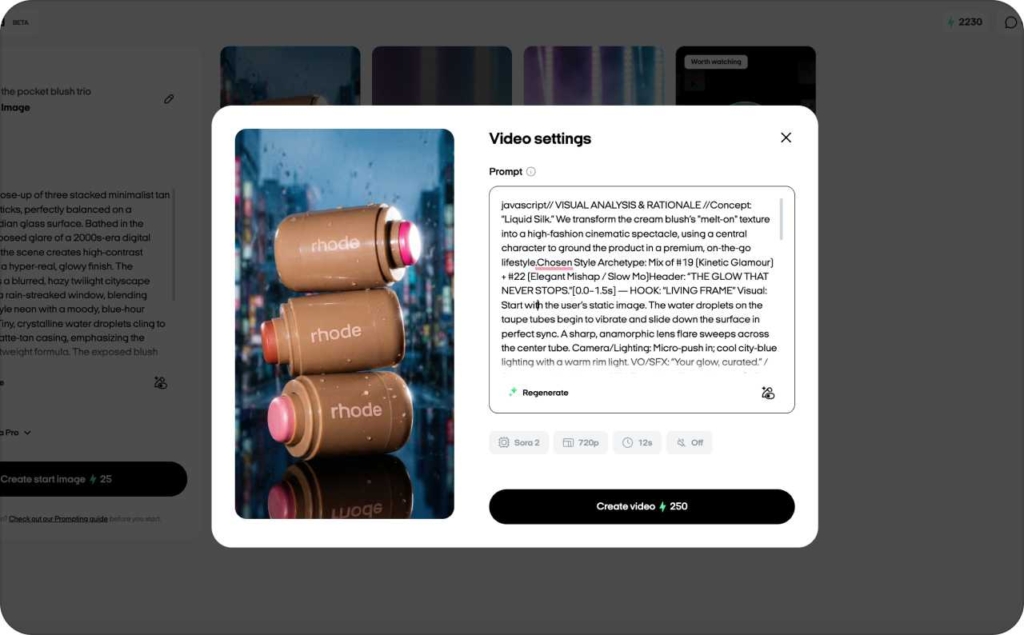
Before you touch design, read the script like a customer. This way you catch the weird wording parts early.
Why the first draft sometimes looks wrong
- It missed your product photos
Some sites load images only after you scroll. The tool grabs the top of the page and never sees the rest.
What you’ll notice: your video repeats one image or uses random stock photos.
Fix: upload your best 5-7 product photos and replace the first scene visual.
- Your site is “too fancy” for simple import
If your page is built with heavy JavaScript, the tool might not see the real content.
What you’ll notice: the script is missing sections, or it’s mostly menu text.
Fix: switch to a screenshot-style import or copy/paste the key sections (headline, benefits, proof, offer).
- The page is blocked
Login walls and bot protection stop the tool from reading the page.
What you’ll notice: import fails, or it pulls a blank shell.
Fix: use a public page link or provide assets manually.
- Your page doesn’t tell social platforms what to show
OG tags are the title and preview image that show up when you share a link. If they’re missing, the tool guesses.
What you’ll notice: wrong title, weird hero image, awkward first scene.
Fix: set a clear headline and swap the first visual to your real hero image.
If your video looks “thin,” it usually means the tool didn’t get enough usable content from the page. Change the import method or add your key assets manually.
Step-by-step: turn a landing page or blog URL into a promo video
This is the workflow I recommend if you use Zeely AI.
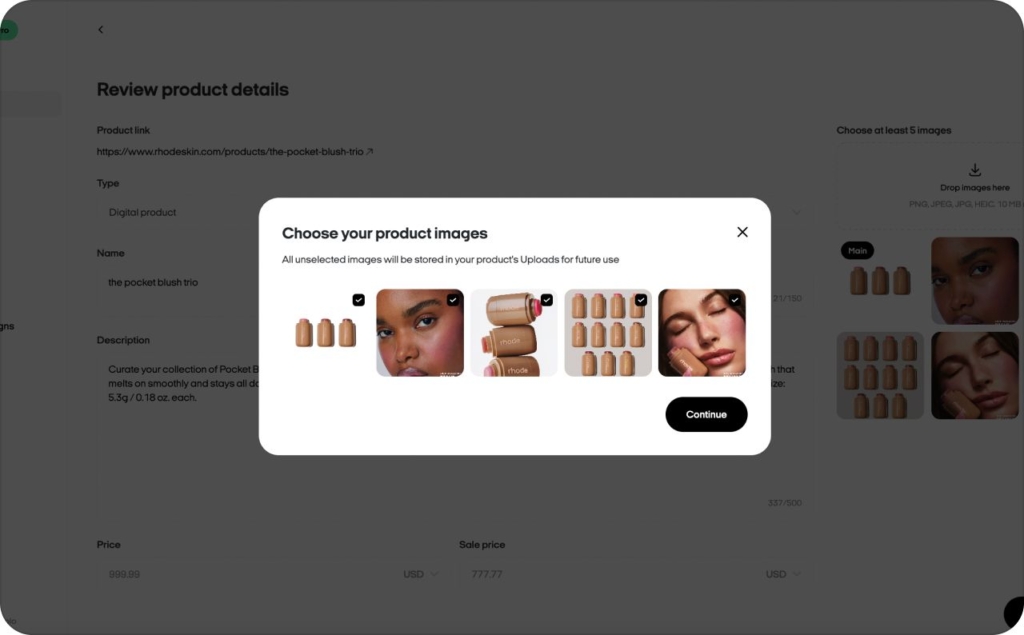
Step 1: Add your product link or your store link
Paste your product URL and Zeely will pull your product details and images automatically. If you don’t have a website, you can enter product details manually.
If you have Shopify, drop your store link, pick the product type, select Shopify as the platform, and continue. Zeely can pull your product images, then you can add up to ten items at a time and manage them in your Products tab.
Step 2: Choose the product you want to feature
Pick one product and build the first video around it. Once it works, you can repeat the process for the rest of your catalog fast. Read now a details guide on how to sep up your first Zeely project.
Step 3: Choose a video template that matches the platform
Pick a template designed for short-form ads. Fast scene changes usually work better on TikTok, Reels, and Shorts. You may like to read how to create Instagram Reels with AI!
You can also reorder photos inside the template, so the strongest visual shows up first.
Step 4: Choose an AI avatar
An avatar keeps attention and makes the ad feel like someone is talking to you, not at you. Zeely offers a range of realistic ad avatars so you can match your audience and brand tone.
Step 5: Choose or edit the script like a marketer
Zeely can generate scripts using proven frameworks like AIDA, PAS, Before-After-Bridge, 4U, and FAB. Treat that script as a first draft.
Before you export anything, lock these four things:
- Offer (price, discount, bundle, deadline)
- Differentiator (why you, not them)
- Proof (review, result, stat, guarantee)
- CTA (shop now, book now, learn more)
If the script has generic lines, cut them. Your script should sound like your best salesperson.
Simple examples you can copy:
- Product: “This is the only water bottle that doesn’t leak in your bag”
- Service: “Book a haircut in 30 seconds, no phone call”
- SaaS: “Follow up with leads instantly, even while you sleep”
Step 6: Choose background music
Pick music that matches the product mood. Upbeat works for fitness and fun impulse buys. Calm works for beauty, luxury, and wellness.
Step 7: Render, then export variants for testing
Click Render. Your video is typically ready in about minutes, then you can launch immediately.
How to stop AI videos from looking generic
Generic AI videos happen when the tool has to guess. If you don’t lock the offer and the hard facts, the AI fills gaps with filler lines and random visuals. That’s why two brands in totally different niches can end up with the same polite intro and the same stock footage vibe.
Start with pacing, because pacing is what people feel first. Most AI videos lose viewers in the first five seconds, not because the product is bad, but because the opening is slow. Cut the intro and make the first line sound like a real person selling a real thing.
A simple before and after you can steal.
Generic: “Welcome to our store, today we’re introducing…”
Better: “Teeth whitening in one visit.”
Or if you sell a product: “This water bottle doesn’t leak in your bag.” That one change alone usually lifts CTR because the viewer understands the promise instantly.
Then make it feel creator-native without lying. Creator-native means you start with the result, show something real, and get to proof early. Use your real product shots, a quick demo clip, or a real review screenshot. When the video shows proof by scene 2 or 3, it feels less like an ad and more like something worth watching.
Now the budget-protection move. This is where refunds and angry comments come from. If the AI rewrites your price, shipping time, ingredients, or warranty, you end up paying for clicks that were never going to convert.
Pricing, licensing, and legal reality checks
Most tools change these things between free and paid plans:
- Watermarks
- Export resolution
- Voice options
- Brand Kit access
- Commercial usage terms
Converting competitor pages into videos is a high-risk shortcut. Copyright and AI training disputes are actively being tested in US courts, and Reuters flagged 2026 as a pivotal year for how “fair use” gets applied in AI.
FAQ
The best website to video AI depends on your page. For a Shopify or Amazon product page, pick a URL to video tool that can lock price, specs, variants, shipping, and claims. For a landing page or blog post, prioritize script editing, brand kit controls, captions, and fast export variants.
Yes, AI can convert a URL into a video by turning the page into scenes, a draft script, voiceover, captions, and formats like 9:16. “Automatic” still needs review. You should always check the offer, product details, and CTA before you publish or run ads.
Use a URL to video generator with templates and guided steps. Paste the link, pick a goal, then make three edits: tighten the hook, swap in real brand visuals, and set one CTA. Export, then create two more variants so you can test instead of guessing.
Import the landing page URL, then follow the page flow: headline promise, top benefits, proof, offer, CTA. Keep one idea per scene and keep on-screen text short. Export a 9 to 15 second hook cut and a 20 to 30 second proof cut, then test both.
Use a blog to video generator that imports the URL and builds scenes from headings. Turn the post into a hook, three takeaways, one example, and a CTA. Add captions, export 9:16, and publish Shorts and Reels first.
Start with the Shopify URL, then use an ad structure: hook, product result, proof, offer, CTA. Use real product photos and real reviews, not random stock visuals. Generate three hooks and two CTAs, then test the variants.
Yes, AI can generate a video script from a webpage by using your headings and body copy as a draft. Treat it as version one. Tighten the hook, remove filler, and lock offer language, product specs, and claims before voiceover or export.
Yes, many tools produce a storyboard as scene cards with on-screen text and voiceover lines. Your job is to make it convert: one promise per scene, proof early, and a CTA that matches the page intent.
You should edit it every time. Editing is where performance comes from. Keep the page’s core promise, add one proof point, and delete generic lines. If script editing is hard in a tool, it’s not built for serious marketing use.
Create a “do not invent” list and lock it: features, certifications, pricing, shipping, guarantees, and anything compliance-related. Then cross-check the script against your page and product data before export. If the tool lets you lock key fields, use that.
Not perfectly by default. Accuracy improves when you provide structured inputs and review the script. Always verify product names, variants, specs, pricing, shipping, and compliance claims. If a tool cannot lock these details, expect drift.
Yes, most website to video AI tools export vertical 9:16 and can generate short cuts from the same URL. Create three hook versions, keep captions on, and end with one CTA. Make a 9 to 15 second version and a 20 to 30 second version for testing.
Emma blends product marketing and content to turn complex tools into simple, sales-driven playbooks for AI ad creatives and Facebook/Instagram campaigns. You’ll get checklists, bite-size guides, and real results, pulled from thousands of Zeely entrepreneurs, so you can run AI-powered ads confidently, even as a beginner.
Written by: Emma, AI Growth Adviser, Zeely
Reviewed on: February 20, 2026