How to set up your first Zeely project
Wondering how to launch your first Zeely project without wasting your budget or guessing what to click? In this guide, I combine Zeely’s product workflows and real campaigns to show you how to set up your first project the right way.
I’ve walked dozens of small business owners through their first Zeely project. The pattern is always the same: they overthink it, click around for a while, then realize the whole setup takes about ten minutes when you know the order. This guide is that order.
You’ll create an account, add a product, configure your brand settings, and generate your first ad. That’s the full scope. Nothing about campaign strategy or ad budgets here. Just getting your project built so it’s ready when you are.
What is a Zeely project
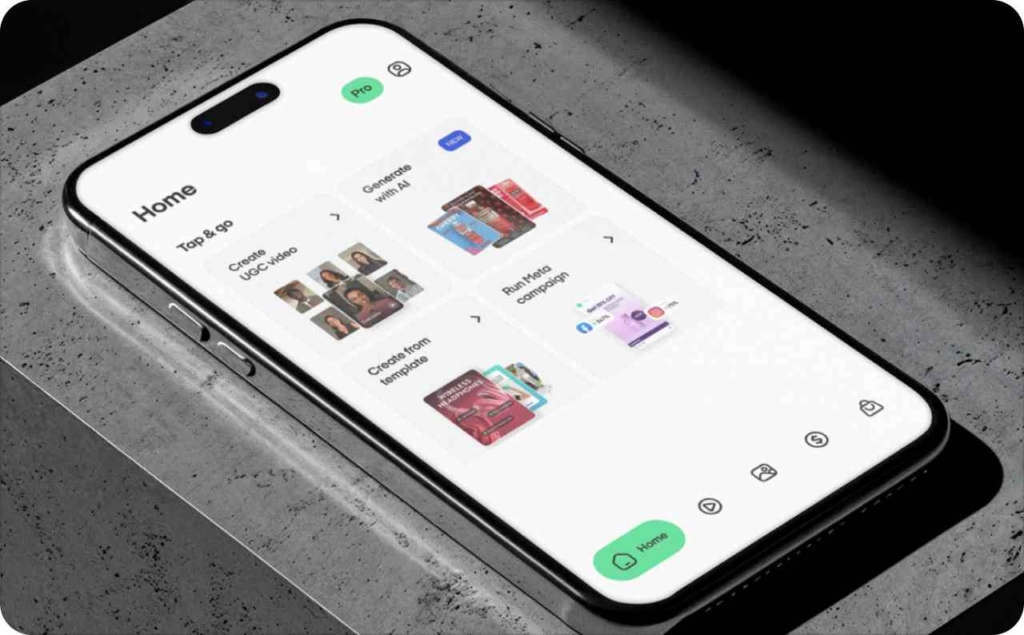
Your Zeely project is where your products, ad creatives, and campaigns live inside the app. Add a product, generate an Image ad or Video ad from it, and everything gets saved in the Projects section. Image ads show up under the Image tab. Videos go under Videos. Simple filing system.
Before you open the app, pull together a few things. You’ll need your product name, a short description, and your price. One good product photo at minimum (well-lit, clean background). Your website URL if you have one. And your brand colors or logo if they’re handy. None of these are hard requirements except the photo, but having them ready keeps you from bouncing between the app and your files.
Step 1: Create your Zeely account
- On your phone: download Zeely from the App Store or Google Play. Open it. Tap Sign up. Email, name, password
- On a computer: go to app.zeely.ai. Same process
Either way, the app immediately puts you through a short quiz. I know quizzes feel like busywork, but this one actually matters. Zeely uses your answers to figure out your niche and customize what you see on your Home screen. Don’t just tap through it.
After the quiz you land on the Home page. That’s where the real work starts.
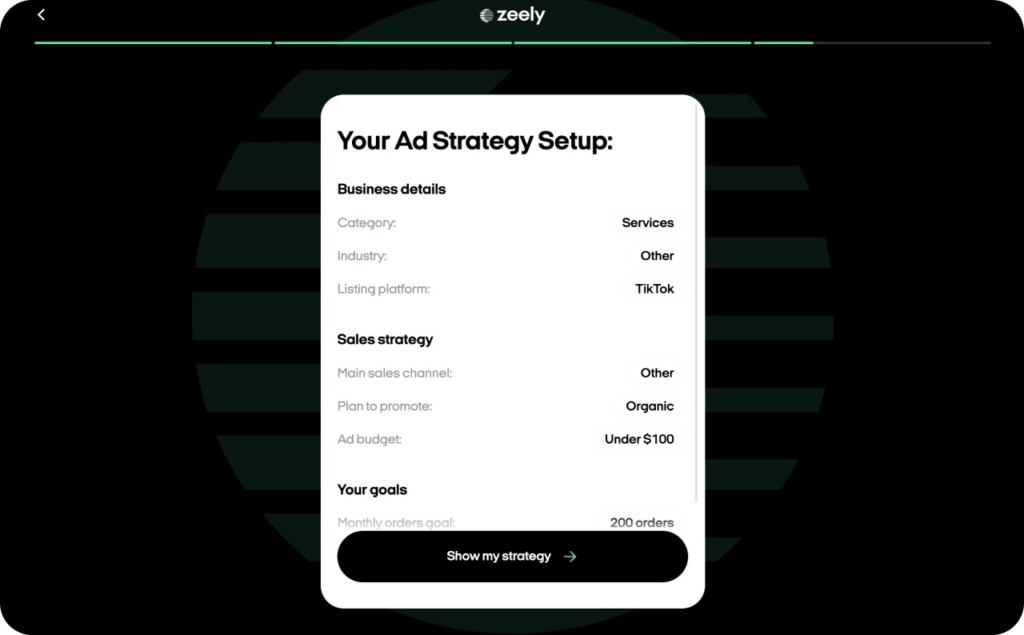
Step 2: Add your first product
The AI can’t make ads for something it doesn’t know about. So before you touch any creative tools, you need to give Zeely a product or service to work with.
On the Home page, look under the Products tab. Tap + Add new.
What happens next depends on whether you have a website.
You have a website
Paste your product page URL and tap Generate from link. Zeely scans the page and imports what it can find: titles, images, descriptions. Select up to 5 products from the results and tap Continue.
Now here’s the part people rush. Tap Review to open the Review product page. Look at what Zeely actually pulled in. The Name might be a URL slug. The Images might be thumbnails. The Description might be truncated. Fix all of that now. You can upload better photos, drag images to reorder them, or tap × to remove ones that don’t work.
Scroll down to pricing. Put your current selling price in the New price field. Put the original (higher) price in Old price. When both are filled in, your ads automatically show the discount. If you only have one price, just fill in New price.
Pick your product type, tap Save, and then verify the product link. Click it yourself. If it goes to a 404 or the wrong page, fix it before you move on. This is where people land after they click your ad.
Last thing: describe your target audience. Who buys this? What do they care about? If you can’t think of what to write, tap Generate and the AI drafts something based on your product info. Read what it wrote, edit anything that feels off, and save.
Done. Product’s in.
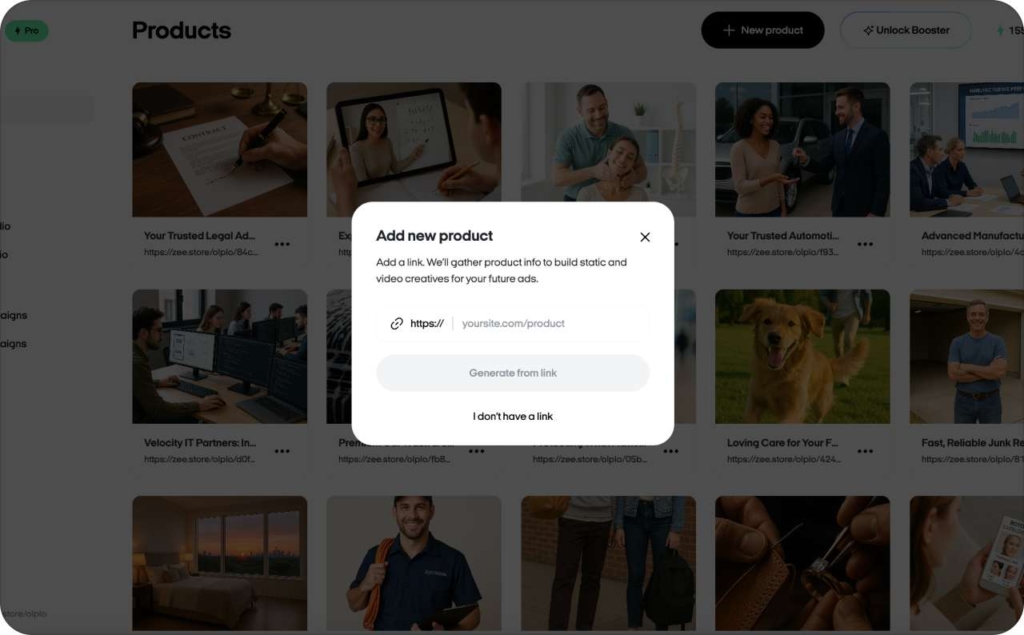
You don’t have a website
Totally fine. A lot of service businesses and local shops start this way.
Tap + Add new, then choose I don’t have a link. Instead of scanning a URL, Zeely gives you a form.
Pick your product type (physical product, digital product, or service). Type the product name. Write a description that actually explains what someone is buying. Set the New price, Old price, and currency. Pick a call to action for the button on your ads. Tap Continue.
Upload photos next. Five is ideal. One works. If you don’t have anything on your phone, tap Take a photo and shoot something right there.
Describe your target audience. Or tap Regenerate and let the AI take a first pass. Edit it. Tap Create product.
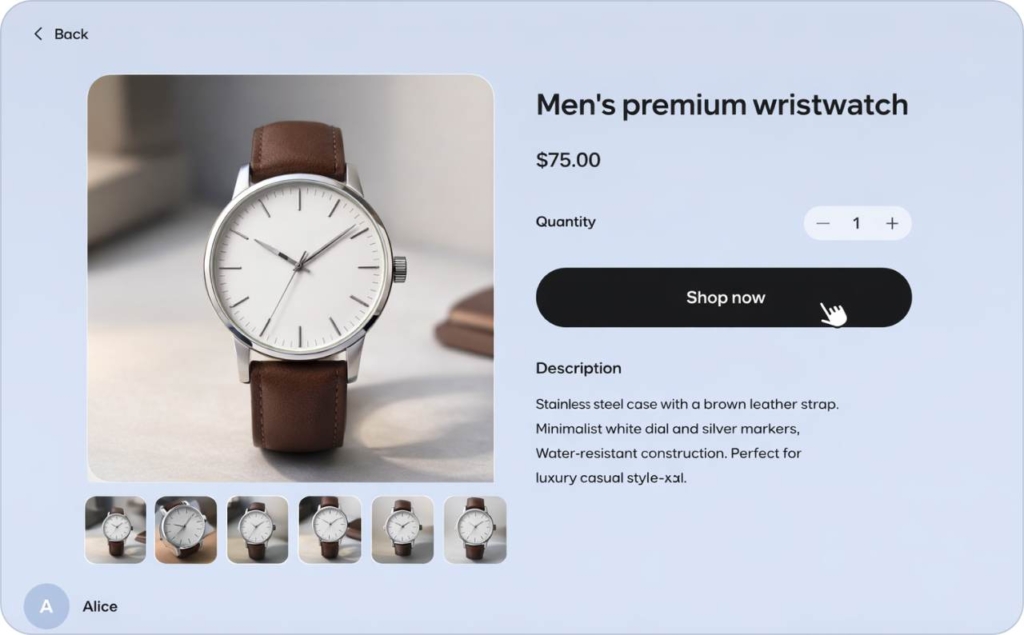
Zeely builds a product page for you automatically with a shareable link. It includes your photos, pricing, and description. Think of it as a mini landing page you can point ads to, even without a website.
Getting the product right matters more than people think
The product details you enter here flow directly into every ad the AI makes. Weak description, weak ads. Dark blurry photo, dark blurry creative. Put in five extra minutes on this step. Write a description that calls out real benefits. Upload the best photo you have. If you’re selling a service, use a real photo of you doing the work, not a stock image.
Also: if something about your product should never change in an ad (a book cover, a logo, specific label text), mention that in the description. The AI tries to enhance your visuals, not redesign them, but being explicit helps.
Step 3: Set up Brand DNA
This step is technically optional. But I always recommend doing it before you generate your first ad, because the quality difference is real.
Brand DNA tells Zeely how your brand looks and sounds. Colors, fonts, logo, tone of voice. Without it, the AI makes reasonable guesses. With it, your ads look like they came from your business instead of a template.
Here’s the path: tap the Profile icon in the top right corner of the app. Go to Profile & account, then tap Brand DNA.
You’ll see fields for everything your brand identity includes. Upload your logo by tapping the image placeholder at the top. Fill in your business name and website.
Tap the Edit icon to write a quick brand description. Don’t overthink this. What do you sell, who buys it, what makes you different. Two or three sentences.
Scroll down and pick your brand values from the suggestions Zeely offers. If nothing fits, tap + New and type your own. Then set your four brand colors: Primary, Secondary, Background, and Text. Match these to whatever you use on your website or packaging.
Pick your fonts. Add your tagline if you have one (keep it short; it shows up in creatives). Choose a tone and style. Zeely gives you options like professional, friendly, playful, bold.
When you’re done, tap the Back arrow. That’s it. Brand DNA gets applied automatically to Image ads from this point forward. You don’t have to configure it again each time.

Step 4: Create your first ad
This is the payoff for all the setup. Your product is in the system. Your brand identity is configured. Now you turn those into something visual.
Zeely recommends starting with an Image ad because it’s faster. But if you want video, skip to that section below.
Creating an Image ad
Tap the landscape icon at the bottom of the screen. Select Image ad.
Tap Image to choose your product. Pick the one you just added, or add a new one on the spot.
Select an image from the product photos you uploaded, or grab a new one from your gallery. You can also tap Take a photo.
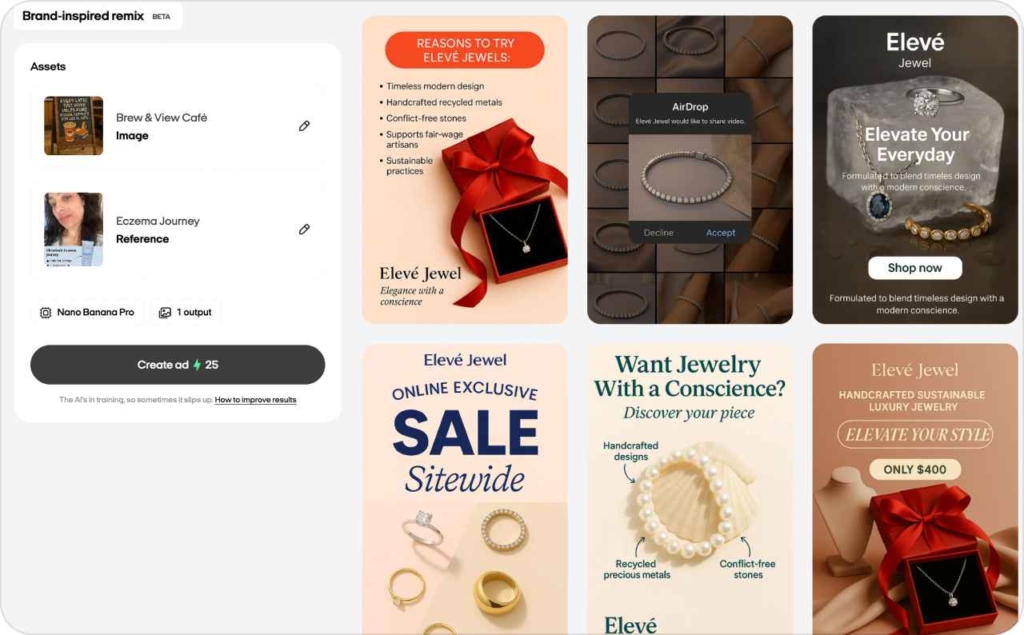
Next comes references. This part is worth slowing down for. A Reference is an example ad that tells the AI what style to aim for: the composition, the color treatment, the general layout. Use the category filters to browse, or upload a reference of your own. You can pick up to 10 at once. Zeely creates one Image ad per Reference, which is a great way to test different directions fast.
Don’t want to pick references? That’s fine. Skip ahead and describe your idea in the Prompt field instead. Tell the AI what mood you’re going for (“natural light, outdoor setting, minimal text”) or what angle to use (“overhead flat-lay with warm tones”). Be specific. Vague prompts make generic ads. You can also tap the rhombus icon in the top left corner to have AI write the prompt for you.
The Prompt is optional. You can leave it completely blank and let AI figure it out.
Before you generate, tap Settings. Toggle Brand DNA on or off. Pick the AI model. Choose your Format (Post, Story, or Reel). Set the number of variations. Tap Apply.
Then tap Create ad. Wait a couple minutes. Your creative shows up on the right side of the screen. Tap to see it full screen.
It’s saved automatically in Projects under the Image tab.
Creating a Video ad
Tap the play button at the bottom of the screen. Select Video ad.
Pick your product and tap Continue. Select an image (same options: existing photo, gallery upload, or camera).
Choose a reference that sets the style and pacing you want. Browse the categories until something feels right. Or leave it blank and let the AI decide.
Then choose the concept. This changes how the AI avatar presents your product:
Fashion try-on works for clothing and accessories. Digital demo for apps and software. Service showcase for salons, coaches, agencies. Product showcase for any physical product. Street interview for social-first conversational content. Podcast for educational or trust-building pieces.
Pick the one closest to how you’d naturally pitch what you sell.
Zeely assigns an avatar automatically. Want a different one? Tap the pencil icon and filter by gender, age, or ethnicity. You can also create a custom AI avatar from your own photo.
Write a Prompt telling the avatar what to say. Or leave it blank. The AI pulls from your product details either way.
Tap Settings and pick your AI model: Nano Banana Pro, Nano Banana 2, or GPT Image 2. Tap Apply.
Tap Create start image. Give it a minute. Review what comes back. If it looks right, tap Create video. Before the final render, you can still adjust the Script (edit or regenerate), the Prompt (toggle on/off, add detail), and the Audio (voice, accent, emotion).
Your finished video lands in Projects under the Videos tab.
Step 5: Check your project in Projects
Tap the folder icon at the bottom of the screen to open Projects. Switch between the Image tab and the Videos tab to see what you’ve made.
From here you can preview, download, share, or delete creatives. And if you go back to the Home page and tap Explore all tools, you’ll find the rest of what Zeely offers: Animated images, Viral videos, Talking-head videos, Competitor spy, Social posting, and more.
Your first project is built.
Mistakes I see all the time
- Rushing the product setup. People paste a link, glance at the import, and immediately start generating. Then they wonder why the ads have a weird product name or a blurry photo. Spend the extra two minutes on the Review product page
- Skipping Brand DNA. Yes, it’s optional. But your first batch of Image ads will look noticeably more polished with it turned on. Five minutes of setup pays off across every creative you make
- Writing vague prompts. “Make it look good” gives the AI nothing to work with. “Close-up on clean white surface, soft shadow, pastel accent colors” gives it a lot. The difference in output quality is night and day
- Burning through Credits on regenerations. Every time you tap Create ad again, it costs Credits. Review your Prompt and Settings before generating, not after. One thoughtful attempt beats five random ones
What to do next
Your project is set up. Here’s where it goes from here.
When you have a few creatives you like, you can turn them into a live Meta campaign on Facebook and Instagram without leaving the app. The campaign launch guide walks through that step by step. Before you spend any budget, run through the pre-launch checklist first.
You can also use Social posting to share creatives organically on Instagram or TikTok. And Competitor spy is worth browsing for inspiration before you generate your next batch.s → adjust creative or audience → retest
FAQ
About 10 to 15 minutes if you have your product details and photos ready. Longer if you need to photograph your product or write descriptions from scratch.
No. Choose I don’t have a link when adding a product and Zeely creates a shareable product page for you.
Image ad. It’s faster, uses fewer Credits, and gives you a finished creative in a couple minutes. Try Video ad once you’re comfortable with the basics.
At least two or three for your first project. Use different References or Prompts each time so you can compare what works.
The currency for AI generation inside Zeely. Included with your plan, refreshed each billing cycle. The lightning icon on each button shows the cost before you confirm.
Yes, but edits use Credits too because the AI reprocesses the content.
The Projects section. Image tab for Image ads, Videos tab for videos.
You don’t have to. But your Image ads will be more consistent and more on-brand if you do. It takes about five minutes and applies automatically after that.