How to add a link to an Instagram Story
Trying to add a clickable link to your IG Story but the Link sticker is playing hide-and-seek? This guide shows the exact taps and the fixes when Instagram glitches out. My team and I mapped the fastest linking workflow plus the click-driving design and tracking setup that actually converts.
How to add a link to Instagram story: use the Link sticker to place a tappable URL on your Story. In 2026, it’s a quick flow: build your Story, open Stickers, tap Link, paste your URL, change the sticker text to a clear CTA, place it above the reply bar, and post. If the sticker is missing or your link won’t open, it’s usually an app update issue, an account restriction, or a URL Instagram doesn’t trust.
Stories can send people to your site fast, but only when the link is easy to tap and the next step is obvious. In this guide, I’ll show you the exact taps on iPhone and Android, the fixes that actually solve the common errors, and the small design choices that lift link taps. I’ll also show you how to tag your link with UTMs so you can track clicks and conversions instead of guessing.
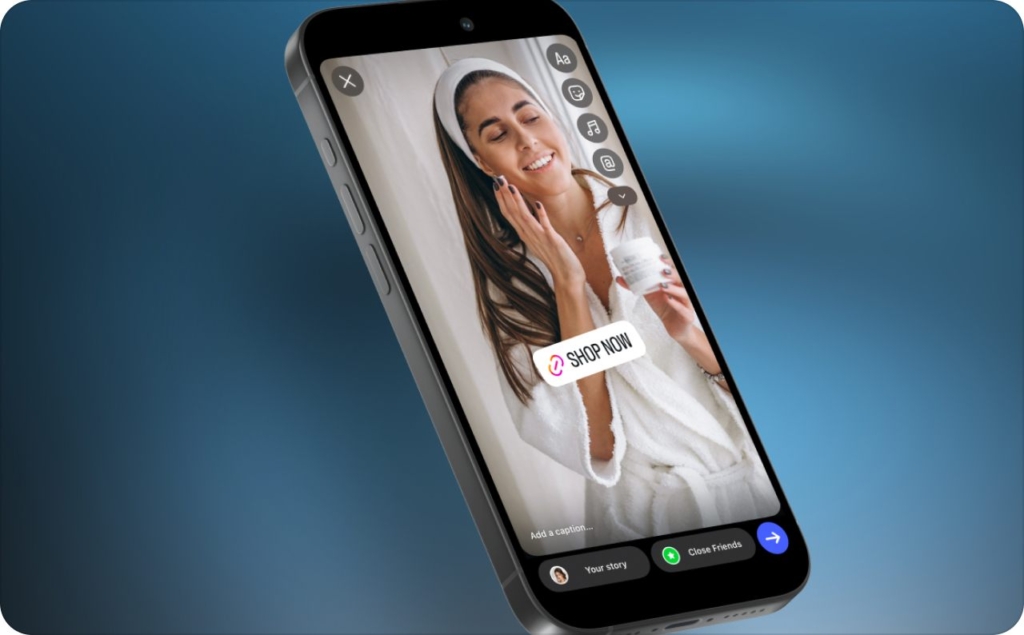
A step-by-step guide to add a link to an Instagram Story
If you’re trying to add link on Instagram story and you’re hunting for swipe up, stop there. Swipe-up is legacy. The current method is to add link sticker Instagram story using the sticker tray. If you’ve ever asked how do you add a link to Instagram story, this is the exact tap path, written like UI instructions.
Fast path to add a link to Ig Story
- Open Instagram and start a Story
- Add your photo or video
- Tap the Sticker icon (square smiley)
- Tap Link
- Paste your URL
- Edit sticker text (optional but recommended)
- Place it above the reply bar and post
7-step tap-by-tap walkthrough
Step 1: Open the Story editor
- Open Instagram
- From the Home feed, swipe right to open IG Stories
- Or tap your profile photo with the +
- Read now how to post a story on Instagram correctly
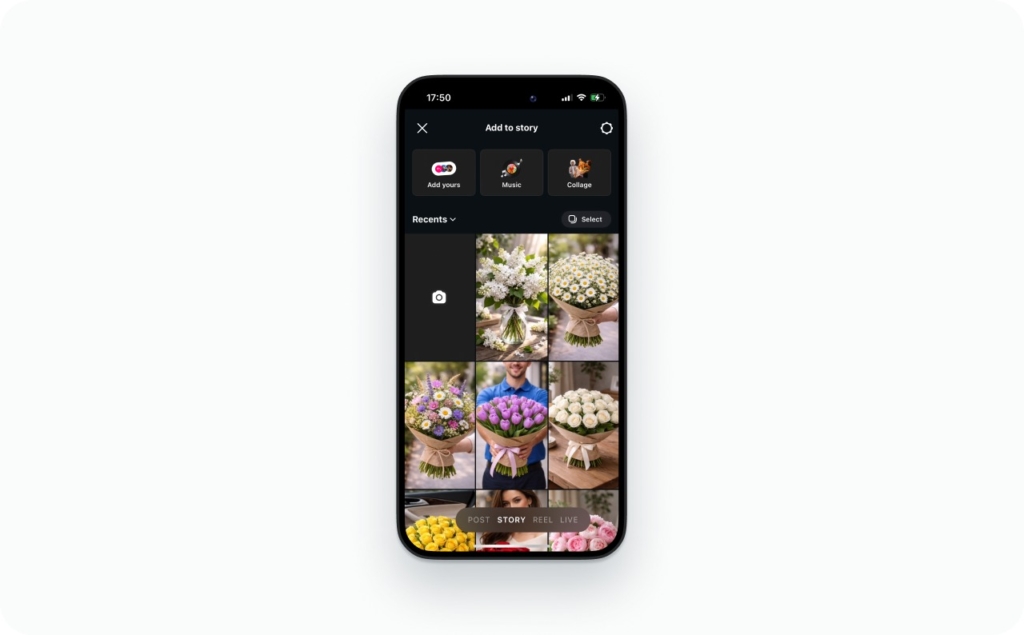
Step 2: Create your Story content
- Take a photo/video, or tap the gallery thumbnail (bottom left) to upload
- If you’re using a story draft, you can also swipe up to pick it
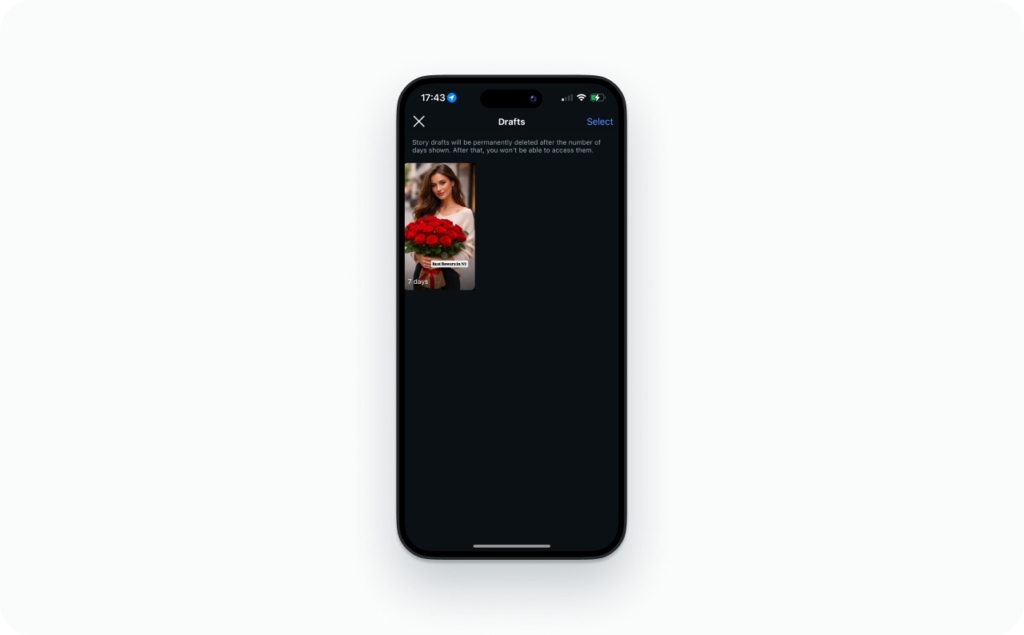
Step 3: Find the sticker tray (this is where most people get stuck)
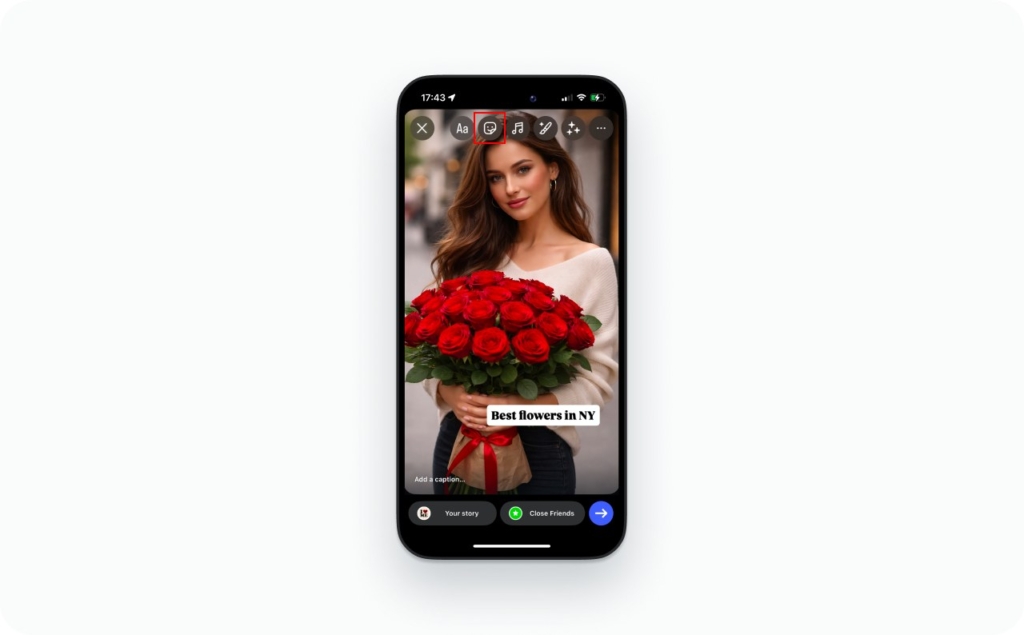
- Look at the top row of icons
- Tap the Sticker icon (square smiley face)
If you’re thinking “where do I tap to add stickers?” it’s that square smiley at the top. If you don’t see it, you’re not in the Story editor yet.
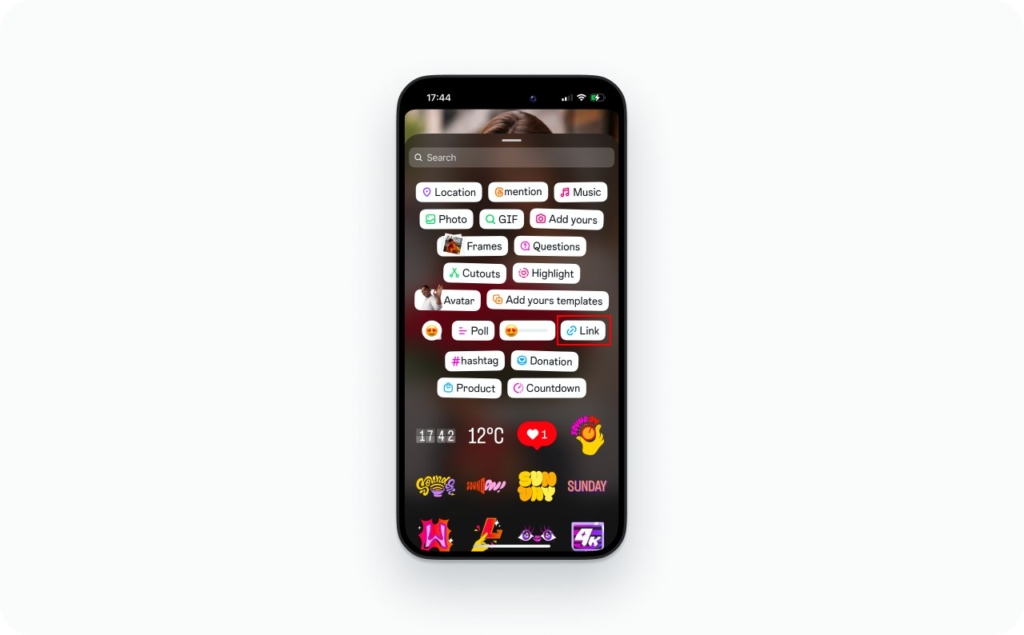
Step 4: Open the Link sticker
- In the sticker tray, tap Link
- If Link isn’t there, skip ahead to the troubleshooting section (“link sticker not showing”)
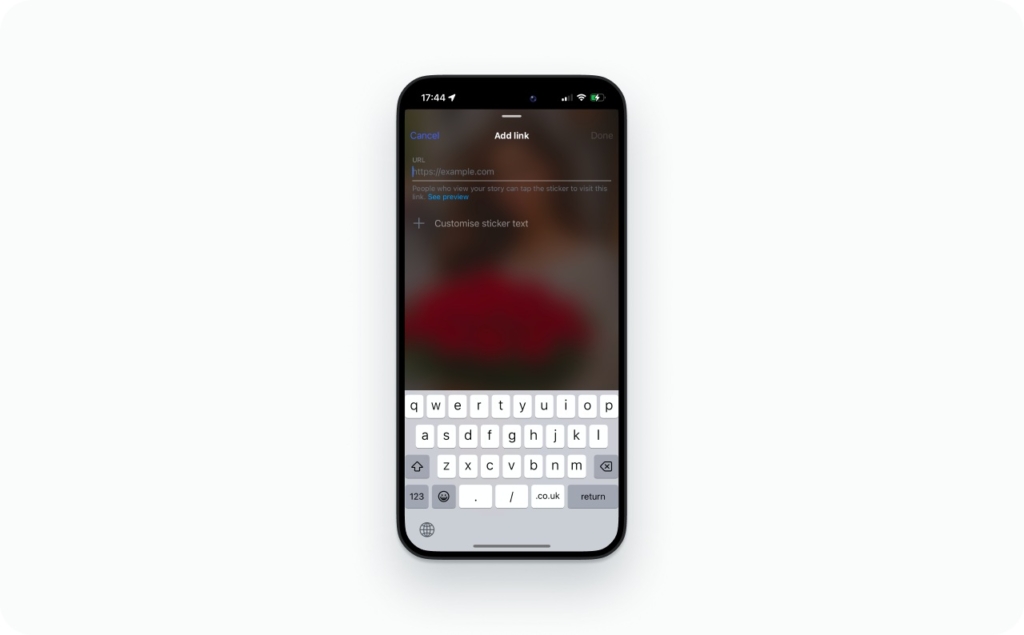
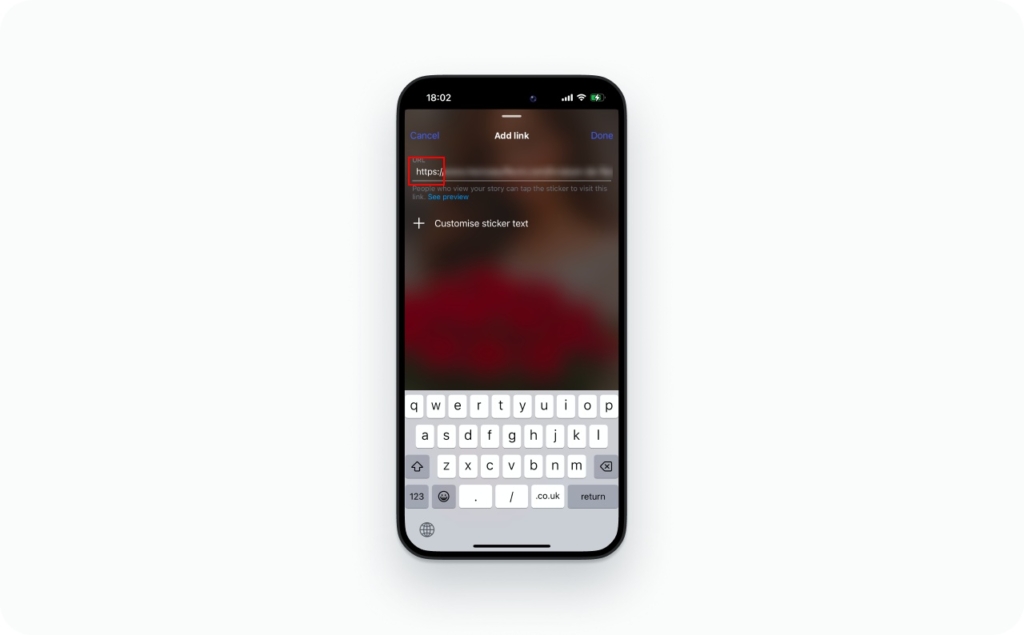
Step 5: Paste your URL
- Paste the exact URL you want people to visit
- Use a clean https link
- Tap Done
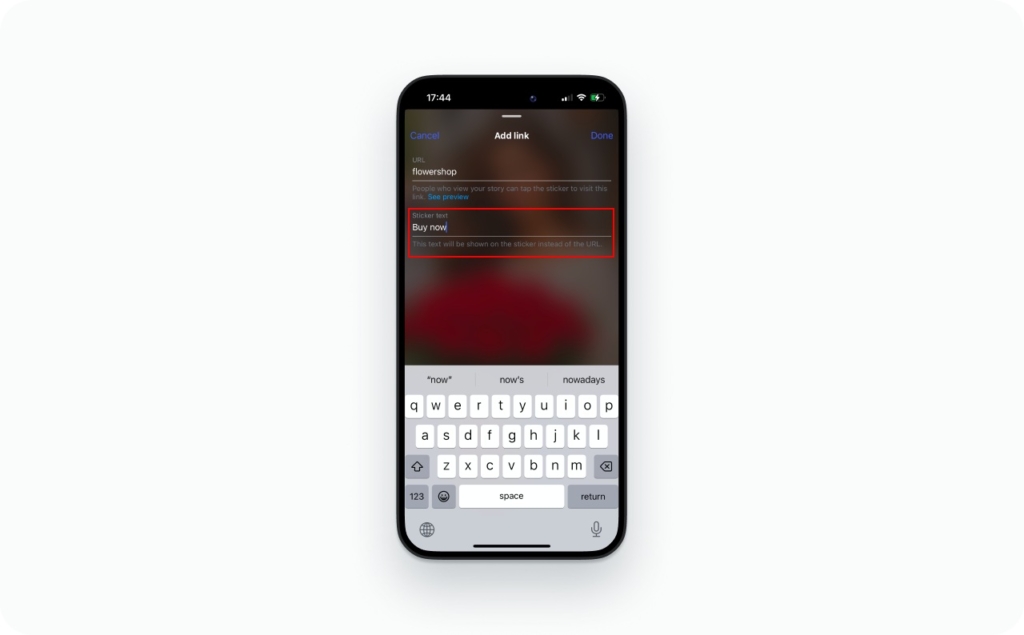
Step 6: Set the sticker text (don’t leave it as a raw domain)
- Tap Customize sticker text
- Replace the domain with a clear CTA like “Shop now,” “Book,” or “Get the guide”
- Tap Done again
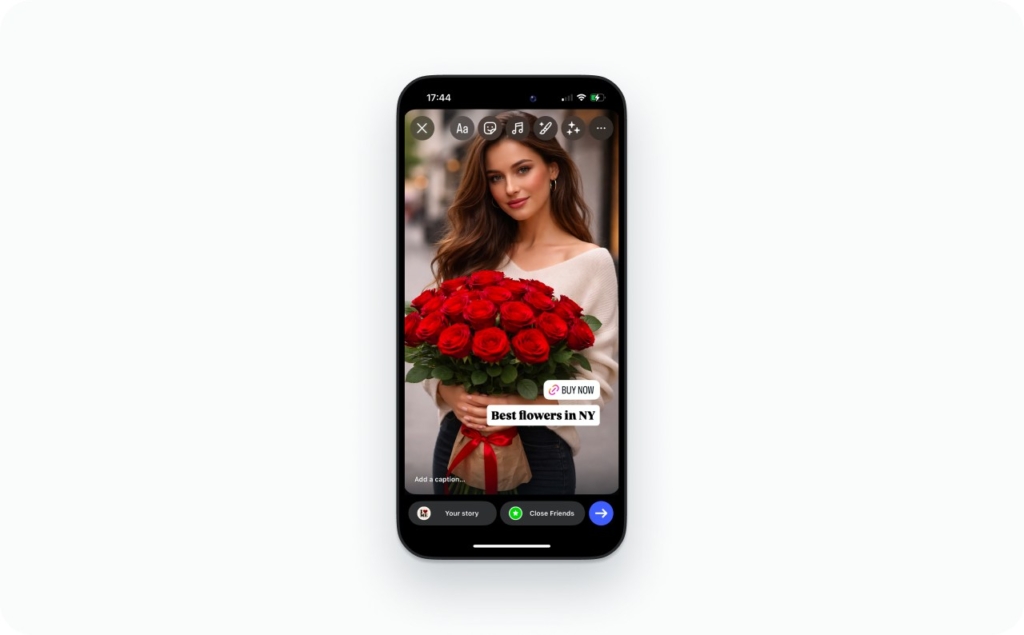
Step 7: Place it where it can be tapped
- Drag the sticker into a clean, thumb-friendly area
- Keep it above the reply bar so it stays clickable
- Pinch to resize if it’s too small to tap easily
Then post your Story.
Why your link gets ignored or doesn’t work
- You placed the sticker under the reply bar, so taps do nothing
- Your sticker is tiny, low contrast, or buried under other stickers
- You used a sketchy short link or a redirect chain that triggers “Link not allowed”
- You linked to your homepage instead of the exact page your Story promised
- You forgot to change sticker text, so it looks like a random URL
Checklist before you post
- URL opens on your phone (test in a private browser tab)
- Sticker is visible and not covered by UI (reply bar, edges, sticker stacks)
- CTA text is set so people know what happens after tapping
Customize the link sticker
If you’re wondering how do you add a link to an Instagram story and still get people to actually tap it, this is the part that matters most. In IG Stories, the Link sticker is your button, so treat it like one.
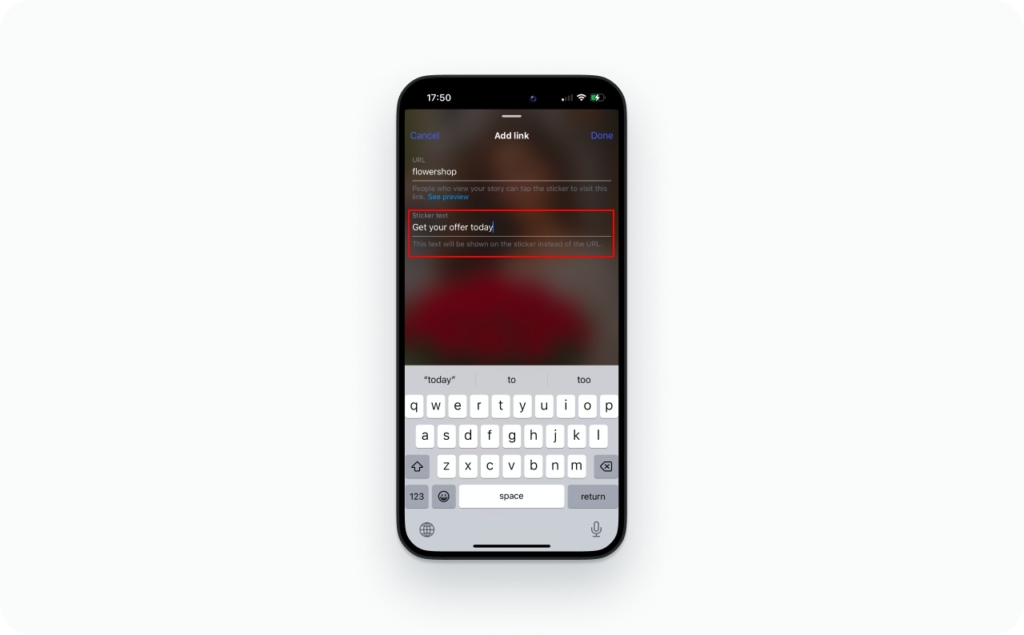
People ignore stickers that look like a random URL. Tap your Link sticker and change the label into a real CTA that matches the next step. “Shop the drop” beats “myshop.com” because it tells your viewer what happens after the tap.
Then make it easy to hit. Resize the sticker until it feels thumb-friendly. If someone has to aim, they won’t try twice. Keep it readable by placing it on a clean part of the frame, using strong contrast (light on dark or dark on light), and leaving space around it so it’s the obvious tap target on stories ig.
Add links for different story types
The tap path doesn’t change. What changes is how much context your viewer needs before they tap.
Photo Story: A photo is a single moment, so your CTA has to do more work. Add one short line of text that matches the link destination. Example: if the link goes to today’s menu, write “Today’s menu is live” and make the sticker text “See the menu.”
Video Story: Video buys you attention, but only if the viewer understands the point fast. Put the CTA in the first second, then let the Link sticker do the job at the end. Example: show a quick demo, then finish with “Get the full walkthrough” plus the sticker.
Reposts: Treat reshares like a “maybe.” Sometimes the frame shows up differently and your tappable area isn’t as reliable as you expect. If the link matters, post your own Story frame with the Link sticker and drive taps from there. Let people reshare that version, not your only working link. Read now how to repost a story on Instagram.

Multiple links
One Story frame can’t carry five different links without turning into a cluttered mess. If you need more than one destination, you have two clean options:
Option 1: Multi-frame sequence
Give each frame one job and one link. Frame 1 links to Product A, Frame 2 links to Product B. This is the simplest way to keep taps clean.
Option 2: One link hub page
Link to a single landing page that lists 2 to 5 choices. This is basically a “link in bio” alternative for Stories.
My rule: if you want conversions, go direct. Every extra click is a drop-off point, especially inside IG Stories where attention is already fragile.
Instagram Link sticker basics in 2026: what it is, who gets it, limitations
The Instagram Link sticker is the feature that lets you add a tappable link to Stories so viewers can open an external URL from your Story frame. If you’re asking where is the link sticker on Instagram stories, it lives inside the sticker tray in the Story editor (the square smiley sticker icon). Once it’s on your Story, the link opens in Instagram’s in-app browser, not in whatever browser your phone normally uses.
A lot of people still think you need 10,000 followers. That was the old swipe-up rule. In 2026, the Link sticker is broadly available, and the swipe-up era is over. When you can’t access it, it’s usually a rollout delay, an outdated Instagram app version, or an account restriction, not your follower count.
Here are the limitations that matter in real life:
- Link formatting: use a clean https URL when you can. Messy redirects and sketchy short links get blocked more often
- Links per frame: you’re working with limited space. One clear link per Story frame is the practical limit if you want taps
- Viewer experience: it opens inside the Instagram app, which can behave differently than Safari or Chrome. Always test your page on mobile
Account types matter less than people think. Personal, creator, and business accounts can often use the Link sticker. The main difference is Insights access and reporting depth. Creator and business accounts typically give you cleaner Story insights like link taps, reach, and exits.
Link sticker vs swipe-up
Instagram replaced swipe up with link sticker so links could be added through the same sticker system as polls, questions, and other Story tools.
The practical difference is control and visibility. A Link sticker is a tappable element you can move, resize, and label with CTA text. That means your clicks depend on placement and design, not just the fact that a link exists.
Supported link types
Most links work in Instagram Stories as long as they’re simple, secure, and mobile-friendly. Think “a normal web page that opens fast on a phone.” If you’ve seen the search phrase “what link types are supported in Instagram stories,” this is what people are trying to figure out.
These link types usually work well:
- HTTPS web pages (your website pages, blog posts, landing pages)
- Product pages (Shopify product URLs, direct product pages on your site)
- Forms (newsletter signup pages, booking forms, Google Forms)
- Video pages (YouTube links, or a landing page that embeds a video)
- App store pages (Apple App Store and Google Play)
These are the usual troublemakers:
- Non-HTTPS links (if it doesn’t start with https, expect problems)
- URL shorteners that look spammy (some are fine, many get filtered)
- Redirect chains (links that bounce through multiple pages before landing)
- Pages that load slowly or break inside Instagram’s in-app browser
- Domains with a bad reputation (reported for spam, phishing, or malware)
A quick rule I use: if your link looks like it’s wearing a fake mustache (random strings, multiple redirects, weird tracking), Instagram may treat it as risky. In the Safety section later, I’ll show you how to “clean” a link so it’s less likely to get blocked.
If your account is private or restricted here’s what happens
A private account link sticker still works for the people who can actually view your Story. Private just limits who can see the Story, not whether the link functions.
Restricted or flagged is different. If your account gets limited for spam-like behavior, you might see features disappear, including the Link sticker, or you might get errors like account restricted link not allowed. Instagram does this to protect users, so the fix is usually about trust: normal posting patterns, clean URLs, and avoiding anything that looks like automation or mass linking.
If your sticker vanishes suddenly, don’t assume it’s a bug. Check your account status, then run the “missing Link sticker” checklist in the troubleshooting section.
Why you can’t add a link: fixes that actually solve it
When a Story link fails, it’s rarely a mystery. It’s usually one small thing in the setup that quietly breaks the whole flow. That matters more than people think. Buffer’s 2026 Instagram benchmarks are based on 27M+ posts from 273k active accounts with 13B+ engagements, which shows how tiny execution details scale into big losses when repeated.
Below is the same diagnostic I use myself. Read it top to bottom, or jump straight to the symptom you’re seeing:
- Symptom: The Link sticker is missing
Likely cause: app version, rollout delay, or account limitation
Fast fix: update the app, log out and back in, reinstall
Prevention: keep the app updated and avoid spammy posting patterns - Symptom: The Link sticker shows, but taps do nothing
Likely cause: sticker placed under Instagram UI or crowded by other elements
Fast fix: move it higher, make it bigger, simplify the frame
Prevention: one clear tap target per Story frame - Symptom: Instagram says “Link not allowed”
Likely cause: redirect chains, shorteners, non-HTTPS, low-trust domains
Fast fix: swap to a clean HTTPS URL on a reputable domain
Prevention: keep links boring, predictable, and transparent - Symptom: The link opens the wrong page
Likely cause: redirects, broken UTMs, in-app browser caching
Fast fix: test in a private browser, simplify tracking, remove auto-redirects
Prevention: test every link on mobile before posting - Symptom: You can’t edit the link after posting
Likely cause: Stories don’t reliably allow destination edits post-publish
Fast fix: delete that frame and repost
Prevention: always run a quick pre-post check
Missing Link sticker
If the sticker vanishes or never shows up, work through this once. Don’t guess.
- Update the Instagram app
- Force close the app
- Reopen and check the sticker tray
- Log out, then log back in
- On Android, clear the app cache
- Reinstall Instagram
- Only if needed, switch account type (personal to creator or business)
- Check Account Status for restrictions or limitations
- Wait for rollout if everything looks clean
For new accounts, missing features can be normal for a short time. Post normally for a few days, avoid repetitive linking, and let the account age a bit.
Link not clickable
Most “not clickable” complaints come down to placement, not bugs. Instagram Stories have safe zones, and the bottom reply bar sits on top of your design.
Fix it fast:
- Move the sticker above the reply bar
- Keep it away from the edges
- Don’t stack other stickers on top of it
- Increase size and contrast so it’s clearly tappable
If people are tapping and nothing happens, assume the sticker is blocked by UI until proven otherwise.
Link not allowed
When Instagram blocks a link, it’s usually a trust issue.
Common triggers:
- Redirect chains that bounce through multiple domains
- URL shorteners that look spammy
- Non-HTTPS links
- Landing pages flagged for spam or phishing
- Pages that throw security warnings or load poorly
What works:
- Use a clean HTTPS URL
- Remove unnecessary redirects
- Link to a domain you control or one with a solid reputation
- Keep the landing page simple and fast
Instagram filters links to protect users. Make your link look safe at a glance, and you’ll avoid most problems.
Link opens the wrong page
If your Story link lands somewhere unexpected, redirects or tracking are usually the culprit. Instagram’s in-app browser also caches aggressively.
Fix checklist:
- Test the link in a private browser tab
- Test on Wi-Fi and mobile data
- Temporarily remove UTMs to isolate the issue
- Turn off auto-redirect rules (device, location, language) if they misfire
Get the destination stable first. Add tracking back only after the link behaves correctly.
Tracking and analytics: how to measure Story link clicks
Posting a link is easy. Knowing whether it actually did anything is where most people lose confidence.
There are two layers to tracking Story links. First, what happens inside Instagram. Second, what happens after the tap. You need both, or you end up celebrating clicks that never turn into sales.
Instagram shows you behavior. Analytics shows you outcomes.
Google’s Analytics Help explains how to build campaign URLs using UTM parameters like utm_source, utm_medium, and utm_campaign so Story traffic shows up correctly in Traffic acquisition reports.
Once this is set up, tracking becomes boring in the best way.
Find Link taps
Open your Story, swipe up, and you’ll see Story insights. When a Link sticker is present, Instagram shows Link taps.
Link taps answer one question: Did someone care enough to tap? They do not tell you whether someone bought, signed up, or booked.
To understand what’s really happening, compare:
- Reach: how many people saw the frame
- Link taps: how many acted
- Exits: how many left on that frame
There’s no universal “good” number. A warm audience should tap more. A cold audience often needs more context first. What matters is consistency and direction, not chasing a perfect rate.
UTM examples for Instagram Stories
UTMs are short labels added to your URL so GA4 knows where traffic came from. Keep them simple. Fancy naming schemes break faster than they help.
Product launch
?utm_source=instagram
&utm_medium=story
&utm_campaign=hoodie_launch
Lead magnet
?utm_source=instagram
&utm_medium=story
&utm_campaign=checklist_signup
Event signup
?utm_source=instagram
&utm_medium=story
&utm_campaign=workshop_registration
This is enough to understand Story traffic in GA4 without overthinking it. If you’ve heard people talk about “UTM Instagram Stories,” this is all they mean.
Conversion tracking basics
A conversion is the finished action you actually care about. Not a tap. Not a visit.
In GA4, conversions usually map to events like:
- purchase
- generate_lead
- sign_up
If you’re running ads, the Meta Pixel can help with attribution, but it’s optional. One thing to watch for: Instagram’s in-app browser behaves differently than Safari or Chrome. Always test links on a real phone before trusting the numbers.
Clicks are interest. Conversions are proof.
Alternatives: still drive traffic without the sticker
If the Link sticker isn’t available, you can still move people off IG Stories. You just need to be clear about the next step.
Link in bio from Story
Use a simple on-screen line and say it the same way you would out loud: “Link’s in my bio. It’s the first one.” Then point visually to your profile photo so people know exactly where to tap.
DM me for the link
This works well when the offer needs a little trust. Use plain phrasing, not gimmicks: “Reply ‘link’ and I’ll send it.” Just make sure you actually reply fast, or automate it responsibly.
Highlights
Save a Story Highlight like “Start here” or “Offers.” That keeps your main link live beyond 24 hours and gives new viewers a clear entry point without hunting.
More about Instagram features
Instagram is constantly evolving, offering new tools to help you create, customize, and share content in more engaging ways. From interactive Stories to creative editing features, understanding how to use these options can help you stand out, grow your audience, and express your brand more effectively.
Now that you know how to add a link, you might also be curious about other Instagram features that can elevate your Stories and make your content even more dynamic.
- How to change background color on Instagram Story
A step-by-step guide on customizing your Story background to match your brand aesthetic or mood. - How to add Music to Instagram Story: music & audio guide
Learn how to add songs, trending sounds, and custom audio to make your Stories more engaging. - How to change background color on Instagram Story
Discover different creative methods to adjust background colors, including hidden tips and design tricks. - How to make a collage on Instagram Story
Explore easy ways to combine multiple photos into one eye-catching Story layout. - Story templates
Find out how to use built-in and custom templates to create consistent, professional-looking Stories in seconds.
FAQ
Create your Story, tap the sticker icon, choose Link, paste your URL, and tap Done. Rename the sticker to a clear CTA, then place it above the reply bar so it’s easy to tap.
The steps are the same as any account. The real difference shows up after posting. Business accounts usually get cleaner access to Insights, so you can review link taps, reach, and exits.
Personal and creator accounts use the same Link sticker flow. If the sticker is missing, it’s usually an app update, rollout delay, or account limitation, not your account type.
Sometimes. New accounts can have limited features while Instagram checks for spam signals. Post normally, avoid repetitive linking, use clean HTTPS URLs, and give the account a few days to settle.
Tap the Link sticker to edit the text or URL. To remove it, drag it to the trash. If you need to change the destination, remove the sticker and add a new one.
Two to three times works best. Tease it once, show value once, then pair it with the sticker. More than that feels pushy and trains people to skip.
Yes. Extra stickers compete for attention and make it harder to know where to tap. Keep the link area clean with one clear CTA and strong contrast.
Add UTMs to the Story link, then measure completed actions in your analytics tool. Taps show interest. Conversions show results.
Paste the YouTube URL into the Link sticker. For better results, link to a mobile page that embeds the video and explains what to do next.
Use the exact product URL, not your homepage. Make sure it loads fast on mobile and matches what the Story promises. Add UTMs so you can track results.
Use the clean product URL and add it via the Link sticker. Test it in Instagram’s in-app browser. If it redirects oddly, try a simpler link version.
Paste the TikTok share link into the Link sticker. If drop-off is high, link to a lightweight page that previews the video and adds context.
Use a WhatsApp click-to-chat link (wa.me format). Keep the sticker text direct, like “Message us,” and test on both iOS and Android.
Link to a short, mobile-first signup page with as few fields as possible. Use a value-based CTA and make the confirmation instant and clear.
Copy the public share link and add it via the Link sticker. Keep the form short, readable on mobile, and free of unnecessary sign-in steps.
Host the PDF at a stable URL, then link that page. A preview page with a download button usually converts better than a raw file link.
Use the App Store or Google Play link. If you serve both platforms, link to one page that routes users by device. Always test inside Instagram.
Link to the registration or booking page, not a long explainer. Keep it mobile-first with one clear action, and add UTMs to track signups.
Warnings usually appear when a link looks risky. Clean HTTPS URLs, minimal redirects, and reputable domains reduce this fast.
Most of the time it’s placement. The sticker is under UI, blocked by other elements, or too small. Move it higher, simplify the frame, and test the link in a private browser.
Not always. Reshares can change how the frame renders. If the link matters, post your own Story with the sticker and verify it works.
Blank pages usually come from slow loads, heavy scripts, or redirect loops in Instagram’s in-app browser. Simplify the page and test on weak mobile connections.
Story links work best for simple, high-intent offers. DMs convert better when people need reassurance or a custom answer. Services often win with DMs. Products usually win with links.
Simple frames with strong contrast, one clear CTA, and a visible sticker in a thumb-safe zone. Before-and-after shots, quick demos, and a final “tap here” frame consistently perform well.

Emma blends product marketing and content to turn complex tools into simple, sales-driven playbooks for AI ad creatives and Facebook/Instagram campaigns. You’ll get checklists, bite-size guides, and real results, pulled from thousands of Zeely entrepreneurs, so you can run AI-powered ads confidently, even as a beginner.
Written by: Emma, AI Growth Adviser, Zeely
Reviewed on: February 23, 2026