How to pause Reels on Instagram in 2026
Trying to freeze an Instagram Reel so you can read text, copy a recipe, or grab a clean screenshot? At Zeely, we turned Meta and Google’s help docs into a quick pausing playbook that actually works.
To pause an Instagram Reel, try a single tap. If tapping only shows controls or mutes, use the most reliable method: tap-and-hold anywhere on the video to pause. On desktop, click the video to toggle pause/play. To avoid accidentally liking, don’t double-tap. Press-and-hold is safest. If pausing won’t work at all, update Instagram, restart the app, and troubleshoot touch and cache issues.
Instagram Reels are built to keep playing because doomscrolling is a business model, not a bug. The annoying part is that pausing doesn’t look the same on every account. This guide covers every common tap, hold, and UI weirdness on iPhone, Android, and desktop, plus fixes when pausing suddenly stops working.
How to pause an Instagram Reel on iPhone, Android, and web
How to pause an Instagram Reel depends on which gesture your app currently supports. Pause Instagram Reels works across iPhone, Android, and web, but the interaction can vary by rollout or app version, even when the interface looks the same.
Before troubleshooting, match yourself to one of the three situations below. One of them will work.
Pick your situation
- Tap once if your app supports tap-to-pause
- Tap and hold anywhere on the video (most reliable fallback)
- Click on desktop/web for a true pause toggle
Most people watch Reels from the Reels tab, their home feed, or Explore, and the same pause behavior applies in all three places.
How to pause an Instagram Reel
- Open the Reel
- Tap once in the center of the video
- If it pauses, tap again to play
- If it doesn’t pause, press and hold anywhere on the video
- On a computer, click the video to pause or play
Pausing is supported on every device. The only thing that changes is the gesture.
Option 1 — tap to pause
Tap once in the center of the video to pause.
Tap again to resume playback.
This is the cleanest experience when it’s available. If tap doesn’t pause on your account, don’t fight it. Use Option 2.
This usually covers searches like tap to pause or where do you tap to pause a Reel?
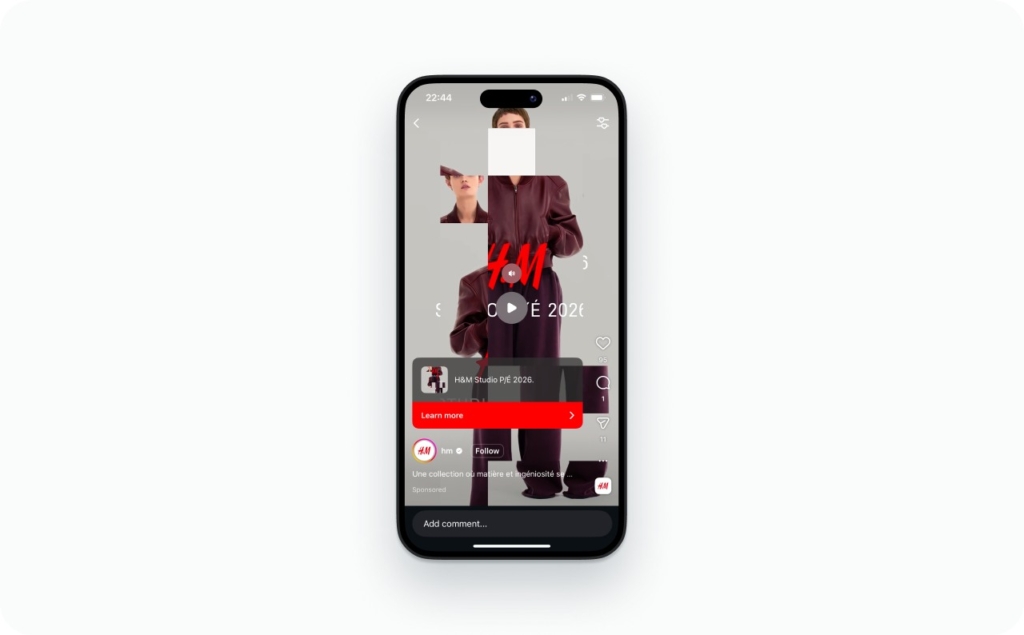
Photo source: @hm Reels ad on Instagram
Option 2 — tap-and-hold
Press and hold anywhere on the video to pause. Release to resume.
This works on nearly every account and app version. It’s best when you’re reading on-screen text or when you want to pause without accidentally liking the Reel.
If you’re trying to pause without holding, I’ll cover the realistic alternatives later.
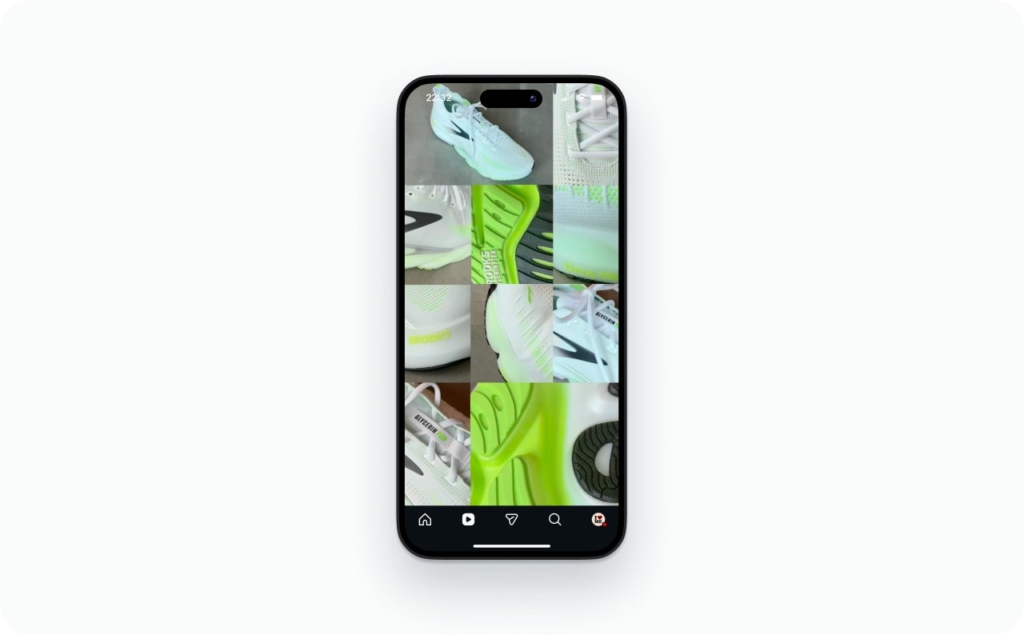
Photo source: @brooksrunningfr on Instagram

Option 3 — Desktop/web
On Instagram in a browser, click the video to pause or play.
This is the best option for analysis and repeated pausing, such as following tutorials or checking details. It also solves pausing on a computer without gesture guessing.
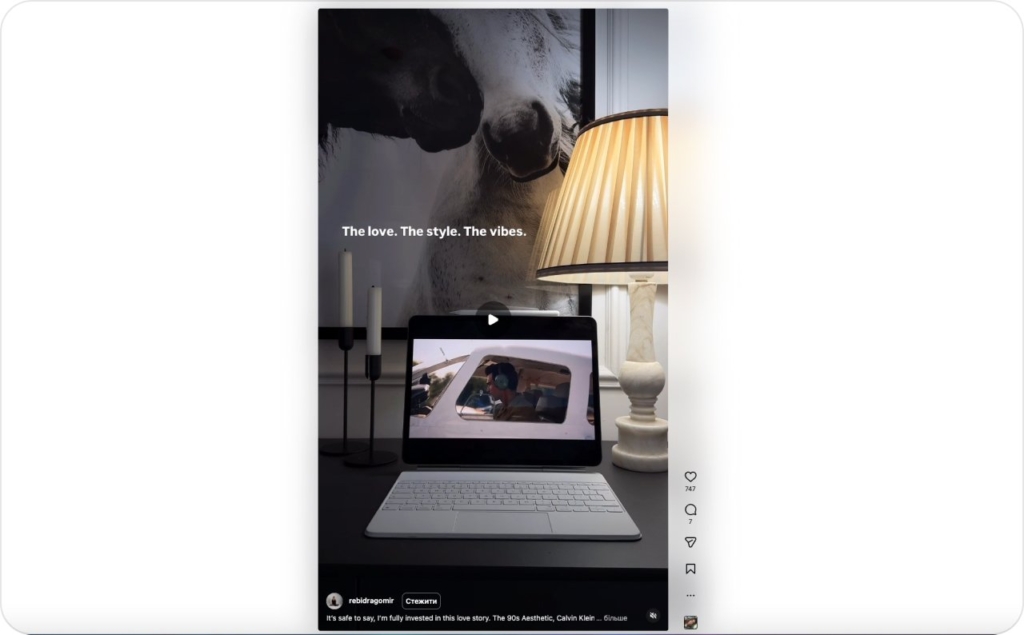
Photo source: @rebidragomir on Instagram
Where to tap to pause a Reel and what to avoid
Instagram Reels use different parts of the screen for different actions. Pausing only works in zones that are mapped to playback control, not engagement or navigation.
Where do you tap to pause an Instagram Reel?
The pause gesture is mapped to empty space in the middle of the video. That’s the only area consistently reserved for stopping playback.
Here’s how the tap zones behave:
- Center of the video: mapped to playback, best place to pause
- Right-side icons (like, comment, share): mapped to engagement actions
- Caption area: mapped to text expansion and navigation
If you’re tapping icons, you’re not pausing—you’re interacting.
Why does tapping open controls instead of pausing?
On some versions, a single tap is assigned to reveal or hide playback controls first. The pause command is either a second interaction or a different gesture. Quick fix that works regardless of version: aim for empty space in the middle.
Best tap zone: the “dead center”
The center of the video has the fewest conflicting actions. Tapping or pressing here avoids icons, captions, and overlays that intercept touches.
If you’re trying to tap screen to pause, the dead center gives the highest success rate.
How to pause without liking it
A double-tap is reserved for Likes. That’s why pausing can accidentally send engagement.
To pause without liking or pause a Reel without double tapping, use press-and-hold. Long-press pauses playback without triggering any engagement action.
Why tap sometimes shows UI instead of pausing
In some builds, the first tap is used to toggle on-screen controls, not to stop the video. This is intentional behavior during UI rollouts.
When tapping a Reel brings up controls instead of pausing, don’t repeat the tap. Switch to the fallback gesture that bypasses UI logic entirely: press and hold anywhere on the video.
Why Reels pause only sometimes
Instagram doesn’t change its interface all at once. Controls are adjusted gradually, often account by account, which is why one person can tap to freeze a Reel while another gets a mute icon instead.
That inconsistency usually leads to the same worries. The pause feature wasn’t removed, and it isn’t selectively disabled. What changed is how your app version interprets a tap. Meta regularly tests new Reels behaviors based on how people watch and interact with video, and gesture mapping is part of that testing.
Here’s the fastest sanity check: if press-and-hold still pauses the video, the feature is still there. Only the gesture changed.
Different Versions + Rollouts
When pausing feels unreliable, start by updating Instagram. Gesture logic is tied to app builds, and features are often tested through account-based rollouts.
That’s why pause works sometimes and then suddenly doesn’t. During tests, a gesture like tap-to-pause can appear, disappear, or behave differently without any visible warning.
Caption or comments open change what a tap does
Captions and comments sit on top of the video layer. When they’re open, taps are often routed to scrolling or text interaction instead of playback control.
If you want to pause while reading comments or pause while a caption is open, pause the video first. Once the video is frozen, open the text. This avoids overlays stealing the tap.
Tap mutes or does nothing instead of pausing
When a tap mutes audio or does nothing at all, you’re seeing an in-between UI state. During testing, a single tap is sometimes reassigned to volume or control visibility instead of playback.
Use a simple fallback order:
- Tap once
- Try a second tap
- Press and hold to pause
If tap mutes instead of pause, skip straight to long-press.
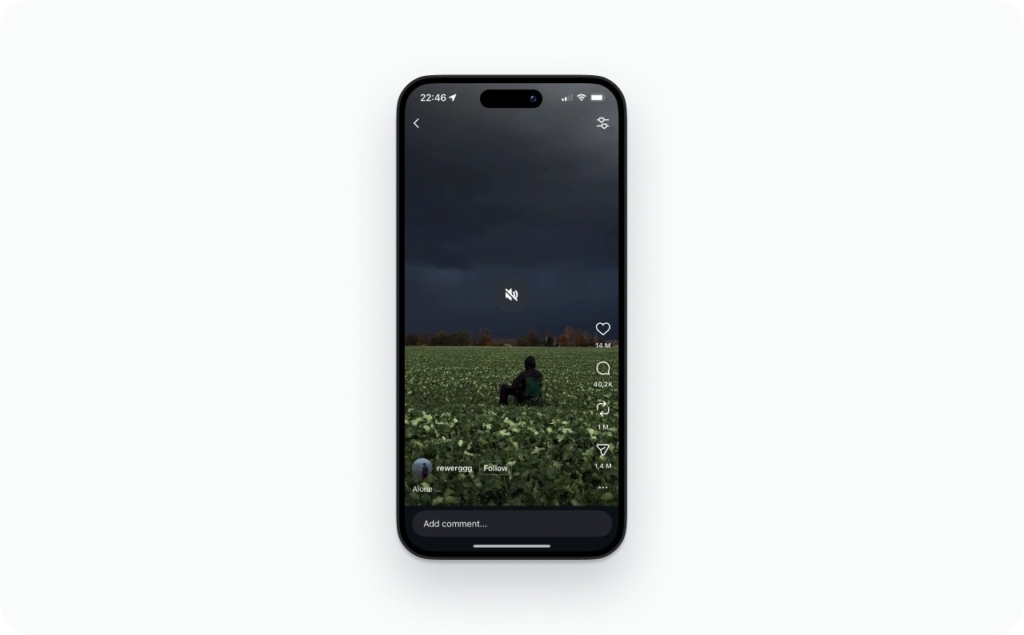
Photo source: @rewerggg on Instagram
Instagram Reels won’t pause: fixes that actually help
When a Reel won’t pause, the issue is almost never your timing. It’s usually the app failing to register a gesture correctly. If Reels keep playing when you tap, or don’t stop even when you tap and hold, pressing harder won’t help. Gesture recognition is software, not force.
What does help is working through fixes in order, stopping as soon as pausing works again.
Quick checklist that actually fixes it
- Restart Instagram by force closing and reopening it
- Update Instagram to avoid broken gesture handlers
- Check your screen for thick protectors that reduce touch sensitivity
- Clear the app cache on Android to remove laggy temporary files
- Reinstall the app if nothing else works
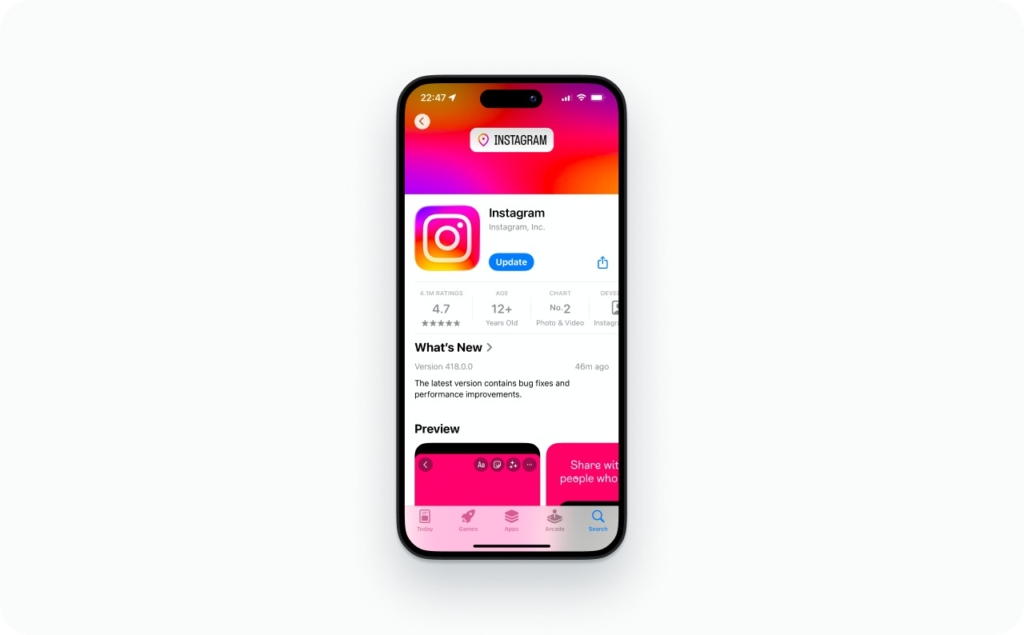
On Android, clearing the cache is especially effective when Reels ignore touch input or refuse to stop playing. It resets temporary UI files without affecting your account.
Quick resets
Most pause bugs are temporary UI glitches. Restarting the app resets the gesture handler and often fixes the problem immediately.
If pausing still doesn’t work, update Instagram. Small patches often fix unresponsive tap areas without any visible change to the interface.
Clear cache on Android or reinstall on iPhone
On Android, open Settings, go to Apps, select Instagram, then Storage, and clear the cache. This often fixes cases where Reels autoplay and won’t stop.
On iPhone, there’s no universal cache clear. Reinstalling the app refreshes system files and resolves most persistent gesture issues.
Accessibility and touch conflicts
If tap and hold doesn’t work at all, check external factors. Accessibility overlays, floating controls, or high-sensitivity screen protectors can interfere with long-press detection.
Make sure the screen is clean and no floating UI elements sit on top of the video area.
How to stop Reels from automatically playing
There is no universal switch to turn off autoplay for Instagram Reels. Continuous playback is part of how the format works.
Pausing a Reel and stopping autoplay are different things. You can’t prevent the next video from loading, but you can switch off auto-scroll.
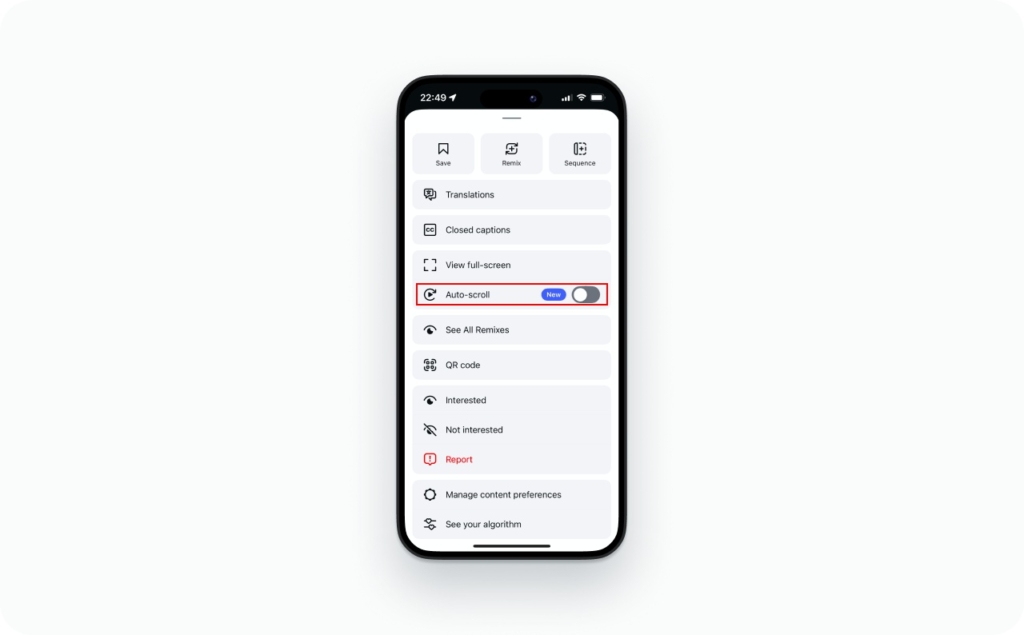
What you can control: recommendations and habits
Use Not Interested to train your feed away from content that keeps pulling you in. Resetting recommendations creates more natural exit points, so it’s easier to stop scrolling when you’re done.
Pause a Reel to screenshot, copy text, or scan a QR code
Most people pause Reels to extract information. Different goals need different workflows.
Clean screenshot workflow
Pause the video first so the frame stops moving. This gives your phone a stable image to capture instead of grabbing a blurred in-between moment.
If interface elements like usernames or music titles block the content, screen-record for a few seconds instead. When you pause the recording later, you can choose the exact frame you want, without buttons covering the screen or accidental likes.
Copying text without losing your place
Pause the video before opening the caption. This keeps the Reel frozen in the background while you read or copy text, instead of restarting the loop every time you touch the screen.
Once the video is paused, you can expand the caption, highlight the text, and copy it without rushing or losing your spot.
QR code scanning tips
QR codes need a still image to scan correctly. While the Reel is playing, the code changes position frame by frame, which makes scanning unreliable.
The simplest fix is to record the Reel, pause on the frame with the QR code, and scan it from your gallery using your phone’s built-in scanner. A static frame gives the scanner exactly what it needs.
Do this now
- Try one center tap. If it pauses, you’re set
- If tap shows controls, press and hold to pause reliably
- Need no-hold pausing? Use desktop/web or screen recording
- For clean frames, screen record then scrub and screenshot
- If pause breaks, restart the app and update Instagram
- On Android, clear cache if the app behaves strangely
- Reinstall Instagram if nothing else works
Learn more about Instagram Reels
Now that you know how to pause Instagram Reels, you might also be curious to find out more about other Reels features and how to create them effectively. From understanding technical requirements to improving reach and engagement, mastering these tools can help you create high-performing content and grow your presence on Instagram.
- How long can Instagram Reels be
A complete breakdown of Reel length limits, file size, format requirements, and other key technical details. - How to see who views your Reels
Learn what viewer insights Instagram provides and how to track Reel performance and engagement. - Best time to post Reels
Discover the optimal posting times to maximize reach, views, and audience interaction. - Reels dimensions & aspect ratio
Understand the correct Reel size, resolution, and aspect ratio to ensure your videos display perfectly. - How to post a Reel on Instagram
A step-by-step guide to creating, editing, and publishing your Reel successfully. - AI Reel maker
Explore how AI Instagram Reels creator can help you generate, edit, and optimize Reels faster and more efficiently.

Emma blends product marketing and content to turn complex tools into simple, sales-driven playbooks for AI ad creatives and Facebook/Instagram campaigns. You’ll get checklists, bite-size guides, and real results, pulled from thousands of Zeely entrepreneurs, so you can run AI-powered ads confidently, even as a beginner.
Written by: Emma, AI Growth Adviser, Zeely
Reviewed on: February 25, 2026