A guide on how to repost a video on Instagram in 2026
Want to know how to repost videos on Instagram when the button is missing? I have tested every in-app option and common workaround, then turned it into a clean, credit-safe guide you can follow fast.
To repost videos on Instagram in 2026, use the Repost button on public Reels and grid videos when it appears. If you don’t have it, share the video to your Story using the paper airplane icon and “Add to story.”
For a permanent repost without the feature, get permission, use the highest-quality file you can, and re-upload as a Reel or post with clear credit in the first line. Avoid screen recording unless nothing else works.
Reposting is one of the fastest ways to keep your Instagram active without forcing new filming. Instagram has a native Reposts feature now, but it still rolls out unevenly. In this guide, I’ll show you the cleanest repost methods for Reels, feed videos, and Stories, plus how to credit properly and keep quality sharp.
Why reposting Instagram videos is worth doing
Reposting works best when you’re sharing something your audience would have saved anyway. It also helps you stay consistent without forcing yourself to film new clips every day.
And yes, video is still the easiest format to spread. Buffer’s data found Reels get 36% more reach than carousels and far more than single-photo posts, mostly because Reels live in their own discovery feed.
How Instagram reposting works in 2026
Instagram rolled out a native Reposts feature that lets you repost public Reels and grid posts. Reposts can show in followers’ feeds and also live in a dedicated Reposts tab on your profile.
Two things to know before you start:
- Reposting is built for public content. Private account content should stay private unless you get explicit permission
- Rollouts are uneven. Some accounts see Reposts everywhere, others don’t
How to repost a video on Instagram using the Repost button
This is the cleanest option because it’s native, fast, and designed to keep attribution attached.
- Open the Reel or grid video you want to repost
- Tap the repost icon (if you see it)
- Optional: add a note in the “thought bubble” style field
- Save/share the repost
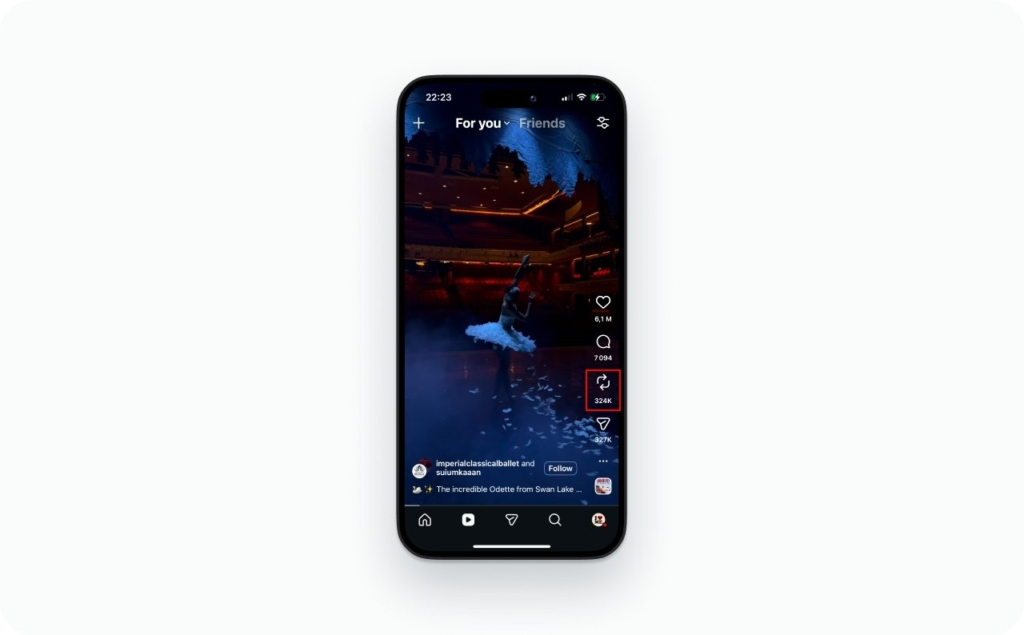
TechCrunch describes this flow as tapping the repost icon and optionally adding a note, and that reposts show in a Reposts tab on your profile. If you don’t see a repost icon, skip to the “missing Repost button” fixes below.
How to repost a video to your Instagram Story
Story resharing is still the most universal method. It’s also great when you want to add context, a link sticker, or a quick CTA.
Repost a feed video or Reel to your Story
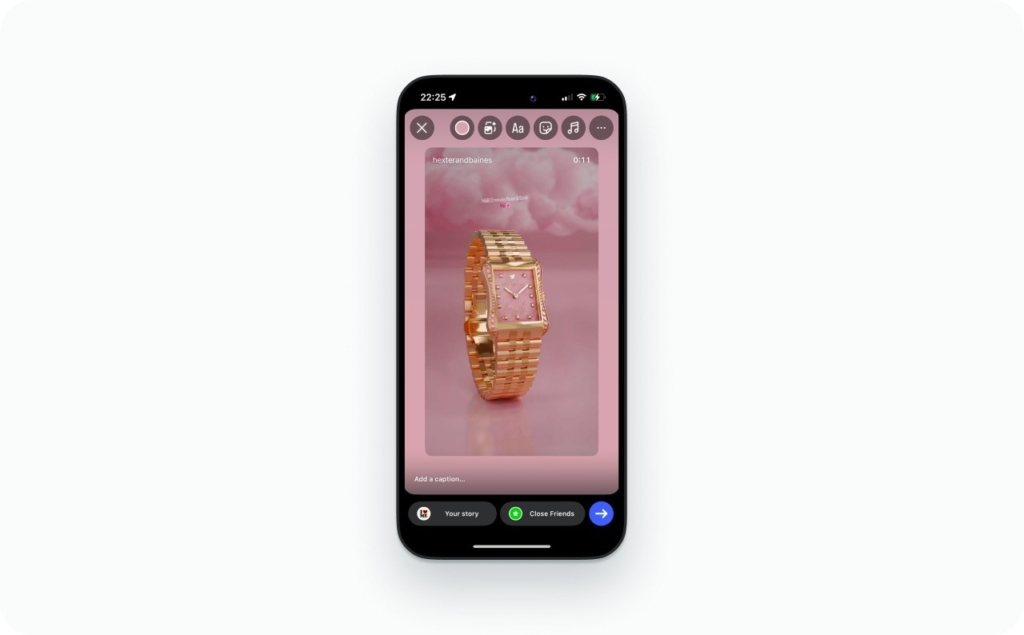
- Open the post or Reel
- Tap the paper airplane (share) icon
- Tap Add to story
- Resize the sticker, add text, stickers, or a link sticker
- Tap Your Story (or Close Friends)
HubSpot’s walkthrough matches this tap path and notes you can toggle the original caption on or off by tapping the sticker. Read now a detailed guide on how to repost a story on Instagram.
Repost someone else’s Story
Traditionally, you could repost someone’s Story only if they tagged you. HubSpot also notes this limitation in its reposting guide. Instagram keeps expanding resharing options over time, but “tagged in the Story” is still the most reliable trigger.
When the Repost button is missing
Instagram tests features and rolls them out in waves, so it’s normal if your teammate has Reposts and you don’t.
Here’s my quick checklist:
- Update Instagram in the App Store/Google Play
- Log out and back in
- Force close the app and reopen it
- Check if the post is from a public account (private posts usually won’t surface repost tools)
- Try another post type (some accounts see it on Reels first)
If none of that works, use Story resharing or the manual method below.
How to repost Instagram videos manually
Use this when:
- You need to edit the clip heavily (add subtitles, add a hook, crop to a new format)
- You don’t have the Repost button
- You have permission from the creator and want a permanent post that you fully control
Step 1: Get the video file
Instagram doesn’t provide a universal “download this other person’s video” button. Your options are:
- Ask the creator to send the file (best quality, clean permissions)
- Use a link-based downloader carefully
- Use a repost/downloader app carefully
My rule: Avoid anything that requires you to log in with your Instagram password inside a third-party app. That’s not a feature, it’s a risk.
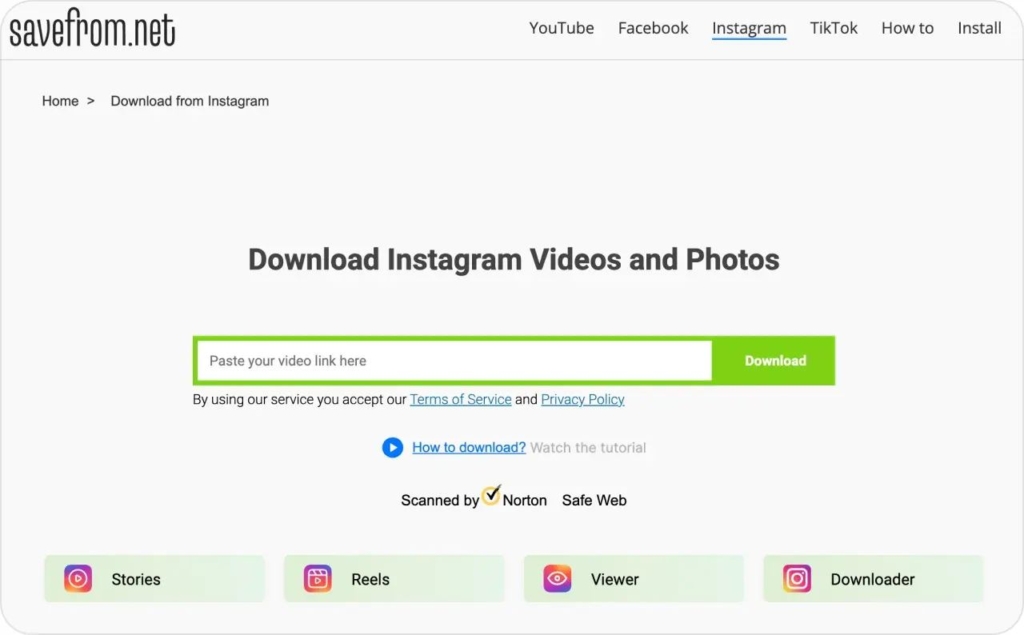
Photo source: savefrom.net
Step 2: Upload it as a Reel or grid video
- Tap Plus
- Choose Reel (best for vertical video) or Post
- Pick the video from your camera roll
- Trim and adjust
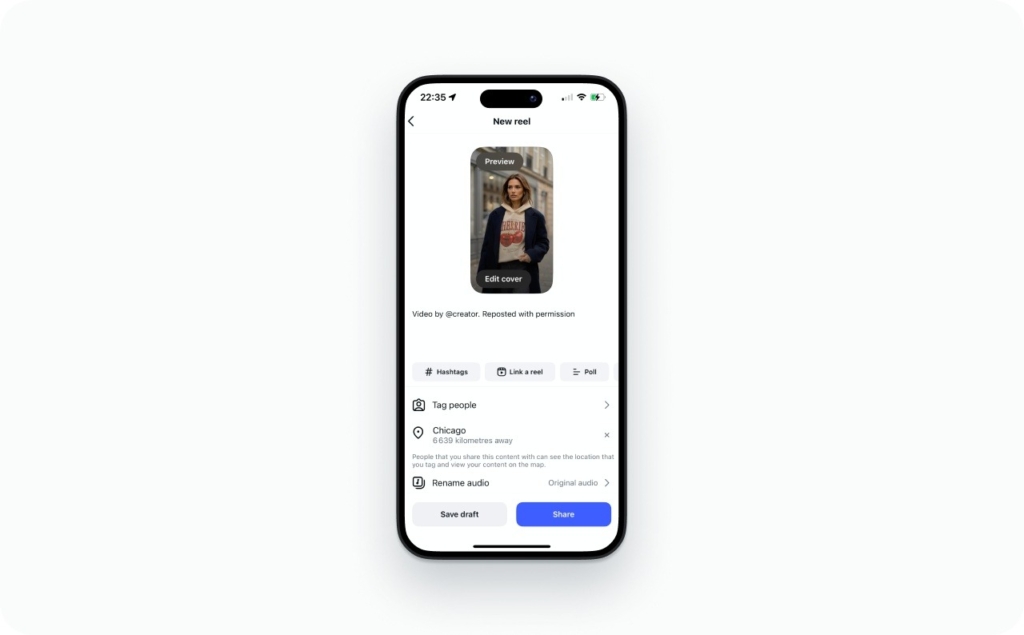
- Write a caption that clearly credits the creator
- Post
Read now a detailed guide on how to post a video on Instagram.
Step 3: Credit properly (and don’t bury it)
Even with repost culture being normal, creators still get burned by silent re-uploads. Instagram’s own repost tools are partly meant to reduce uncredited sharing.
Use one of these caption formats:
- “Credit: @creator. Shared with permission”
- “Video by @creator. Reposted with permission”
- “Featuring @creator (original post: [topic])”
If it’s brand UGC, I also add one line about what the customer is demonstrating, so the repost feels useful, not just recycled.
Third-party repost apps: when they help and when I skip them
Repost apps can be convenient because they pull the video and prep attribution. They can also break when Instagram updates things, and some are aggressive with ads or permissions.
I treat them like a convenience layer, not a foundation.
Use them when:
- You repost occasionally and need speed
- You want an auto-credit overlay
Skip them when:
- They require login credentials
- They slap a giant watermark on the video
- They feel like “free followers” bait
If you need simple editing after you download (cropping, subtitles, cover frames), a separate editor is usually cleaner than a repost app bundle.
Screen recording an Instagram video
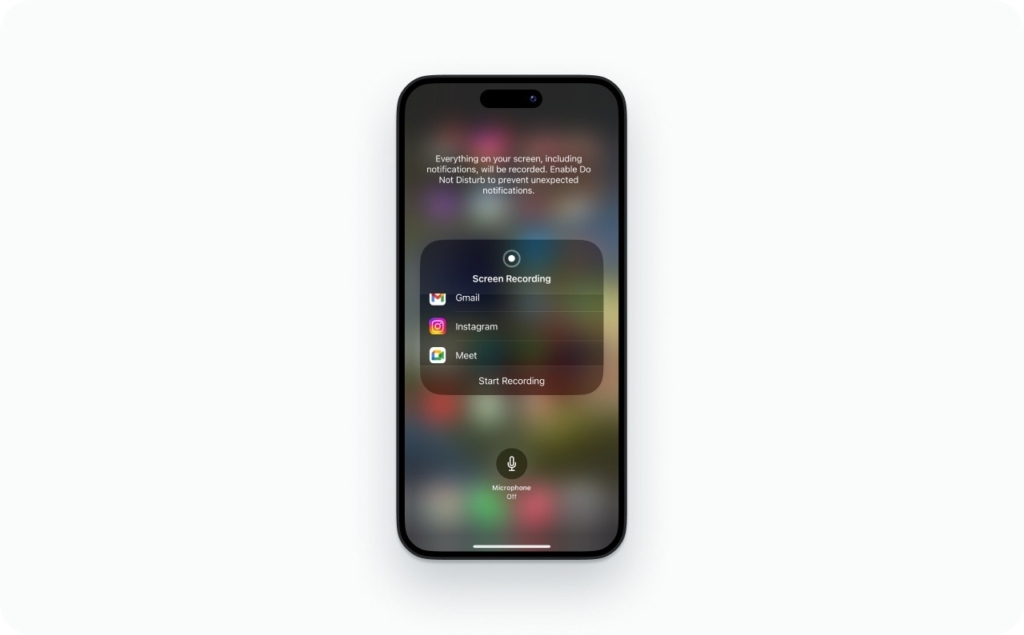
Screen recording is the “it’s 11:47 PM and I just need this clip” method.
- Start screen recording (iOS Control Center or Android quick settings)
- Play the video full screen
- Stop recording
- Crop out UI and trim dead time
- Upload and credit the creator
It works, but quality usually drops. It also takes longer because you’ll be cropping and trimming every time.
How I keep reposted videos from looking blurry
Instagram compresses video. If you download and re-upload, you can get hit twice.
Here’s what I do:
- Ask for the original file when possible (especially for UGC)
- Repost as a Reel when the clip is vertical and fast-paced
- Avoid reposting clips that already have platform UI baked in
- Upload on stable Wi-Fi
Expected result: cleaner motion, sharper text, fewer compression artifacts.
Giving credit and getting permission without making it awkward
For casual curation, tagging in the caption is the minimum.
For brand use (UGC, testimonials, product demos), I treat permission as required. A repost can be “public,” but usage rights are still a separate thing.
Here’s the DM template I use:
- “Hey [name], I love this video. Can we repost it on our Instagram with credit to you? We’ll tag you in the caption”
If they say yes, I screenshot the approval and keep it in a folder.
Best practices for reposting videos that actually earn engagement
Reposting works better when you add a reason to care.
My quick checklist:
- Pick videos that match your audience’s “save this” behavior
- Add one sentence of context in the caption
- Add a question that invites comments
- Keep the first line of your caption about the viewer, not you
- If you’re reposting UGC, explain what result the customer got
And if you’re reposting regularly, mix formats:
- One repost for social proof
- One original for authority
- One story reshare for speed
Buffer’s data also shows carousels still earn strong engagement, so you don’t have to be video-only to keep the account active.
What else should you know about Instagram videos
Now that you know how to repost a video on Instagram, you may also like exploring other ways to get more out of your content. From understanding video formats to optimizing engagement, there are a few key things that can make a real difference. These guides will help you level up your Instagram video strategy.
- Short Instagram video guide. A quick overview of creating engaging short-form videos that capture attention fast.
- How long can Instagram Reels be: technical specifications. Learn the exact time limits and format requirements for Reels.
- How to pause Instagram Reels. Simple steps to control playback and view content at your own pace.
- How to see who views your Reels. Find out what insights Instagram actually gives you about your audience.
- Best time to post Reels. Discover when to post to maximize reach and engagement.
FAQ
You can repost public content using Reposts or Stories, but for anything commercial (brand pages, ads, product pages), get permission first. HubSpot also calls out that reposting works best with public profiles, and permission matters when content may be licensed.
If you don’t see the Repost option, your account may not have the feature yet. Instagram tested reposts before rolling them out more broadly.
Tap the paper airplane icon, then tap “Add to story.”
It can if you re-upload low-quality, watermarked, or clearly stolen content. If you repost with permission and clear credit, you’re in a much safer zone.
Tag them in the caption and make it obvious in the first line. If you used the native Repost feature, attribution is built into the repost experience and the repost is collected in a dedicated tab.
They can, especially if you download and re-upload. Native reposting and Story resharing usually preserve quality better than screen recording.

Emma blends product marketing and content to turn complex tools into simple, sales-driven playbooks for AI ad creatives and Facebook/Instagram campaigns. You’ll get checklists, bite-size guides, and real results, pulled from thousands of Zeely entrepreneurs, so you can run AI-powered ads confidently, even as a beginner.
Written by: Emma, AI Growth Adviser, Zeely
Reviewed on: March 20, 2026