How to add music to Instagram Story: music & audio guide
Struggling with how to add music to Instagram Story, or how to use your own tracks, or add lyrics without any sound at all? I test thousands of Instagram creatives across Stories and Reels and distilled what actually works with Story music in 2026 into this practical, data-backed guide.
Adding music to Instagram Story is the simple act of attaching licensed or original audio to a 24-hour Story using Instagram’s music tools or a video you’ve already edited with sound. I look at Stories as quick “micro-moments” where your followers decide if they stay with you or move on. Music helps you hold their attention, lift watch time, and turn a simple slide into something people actually finish.
In this guide, you’ll learn how to add music from Instagram’s library, how to add your own tracks, and how to show lyrics even when you want the Story to stay silent. I’ll walk you through Spotify and Apple Music sharing, fix the missing-song issues many creators hit in 2026, and show you how Zeely AI can help you build Story videos that feel polished before you even open Instagram.
nstagram Story music in 2026: what has changed and why it matters
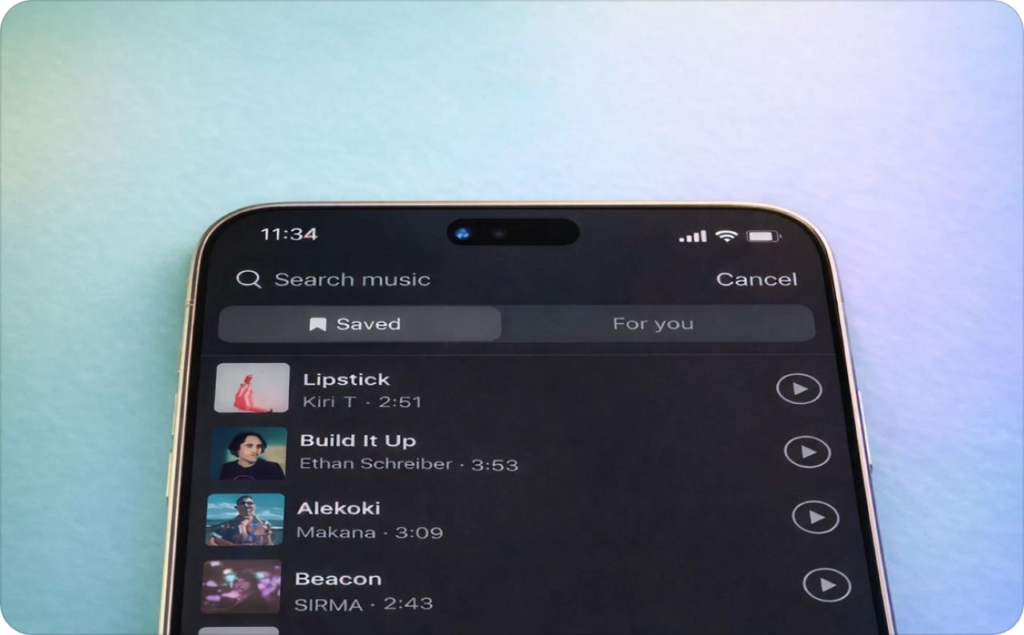
Music isn’t a cosmetic add-on anymore. In 2026, adding music to your Instagram Story works like a built-in retention tool. Stories move quickly, and most people decide in a single second whether they stay or skip. A clean beat or familiar intro can slow those forward taps, help more viewers finish the Story, and give your offer an actual chance to land.
Instagram’s scale makes this worth your time. According to Hootsuite’s 2025 Instagram Statistics Report, the platform still sits at 2 billion monthly active users, and 71.9% of brand content now appears in Stories. Average Story reach sits around 0.91 people per post, which tells you something important: Stories reach fewer new people, but they reach the people who already chose you.
Good Stories hold attention. Music gives them a stronger chance to do it.
How Instagram Story music works in 2026
The Instagram music sticker is still the easiest way to place a licensed track on top of a Story. You pick the song, choose the part you want, and set the style, whether that’s lyrics, album art, or a clean look. When you upload a Story that already has sound, Instagram treats it as original audio. Reels work a bit differently because viewers can tap your sound and reuse it, which doesn’t happen with Stories. Feed posts allow music too, but they sit closer to Reels than Stories in how the audio behaves.
Here are the only licensing basics you need:
- Commercial music lives inside the music sticker and covers the popular tracks you hear every day
- Royalty-free music gives brands a safe path when they want fewer limits
- Original audio comes straight from your video and gives you full control
What’s new for Story music in 2026
Story music feels smoother this year. Longer video Stories stay connected instead of splitting into choppy sections. Audio stays in sync across the entire sequence, which helps your Story feel more intentional. Instagram also improved its built-in templates. The transitions line up with the beat more often, so you spend less time adjusting things by hand. You may also like to know 6 ways story templates make your Instagram faster.
A few practical changes stand out:
- More regions now have access to a fuller music library
- The search tool is faster and surfaces relevant tracks with better accuracy
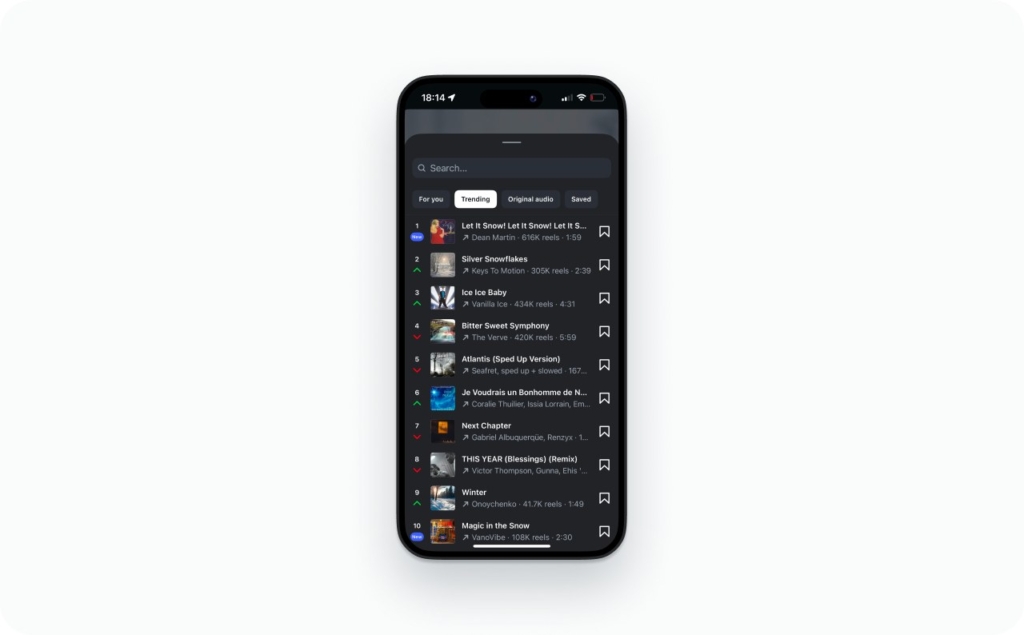
- Trending Story tracks get a clearer display, which helps you spot what’s working
- Meta’s scheduling tools let you prep Stories with music and publish them automatically
Step-by-step: how to add music to Instagram Story (2026 music & audio guide)
You can do it on both iOS and Android, and the steps stay almost the same. Stories are viewed by more than 500 million people every day, according to Descript’s 2026 guide. Small upgrades in how you place music can lift retention and help more viewers stay long enough to reach your offer.
Here’s the cleanest, screenshot-ready workflow you can follow on your phone:
- Open Instagram and swipe right to the Story screen
- Record a clip or upload a photo or video from your camera roll
- Tap the sticker icon and choose Music
- Search for a song or browse Instagram’s categories
- Pick the section you want. You can choose 5 to 15 seconds depending on the track
- Choose the visual style. You can show lyrics, album art, or a small label
- Place the sticker away from faces or UI elements
- Adjust your volume if your original audio and music compete
- Publish your Story
Instagram allows up to 15 seconds of music per Story, but the right slice depends on your goal. A clear lyric line helps when you want emotion or storytelling. A beat drop works better for product demos or quick transitions. A soft instrumental section helps viewers read text without feeling rushed.
If you’re using a previous Story as inspiration, it also helps to know how to find old Instagram Story to reuse the exact music timing that worked before.
A few small tips make your Stories feel smoother:
- Keep the sticker small and out of the way, especially if your Story includes talking
- Lower the music volume when you want your voice or ambient sound to stand out
- Choose a hook that fits the moment. You want viewers to immediately understand the mood
I treat this as a rhythm test. If the first one to two seconds feel aligned, viewers stay. If something feels off, they skip. Simple adjustments inside the music sticker can shift that outcome in your favor.
iOS vs Android: what actually matters
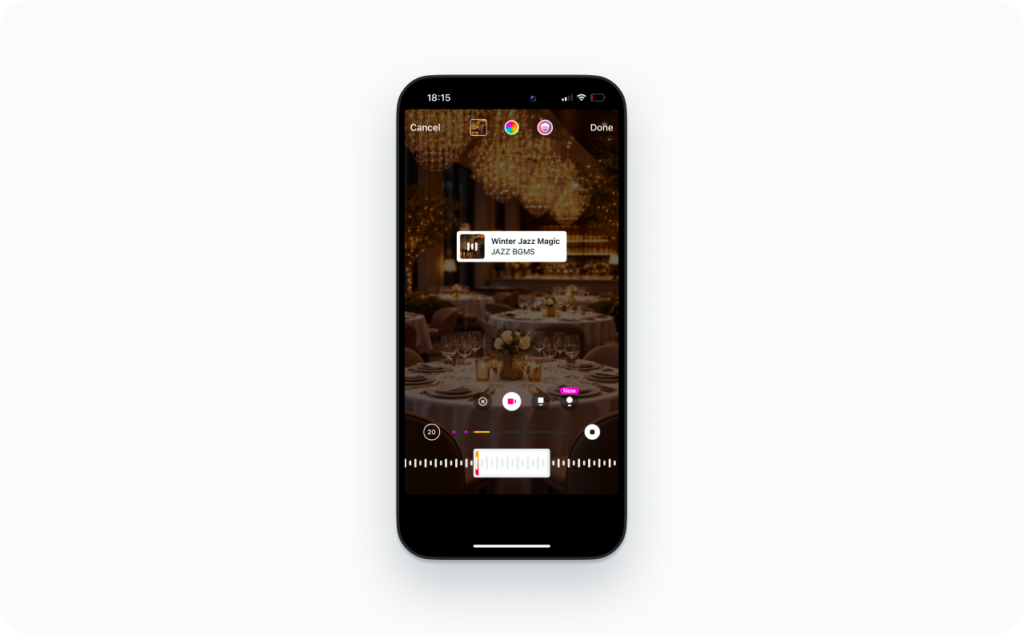
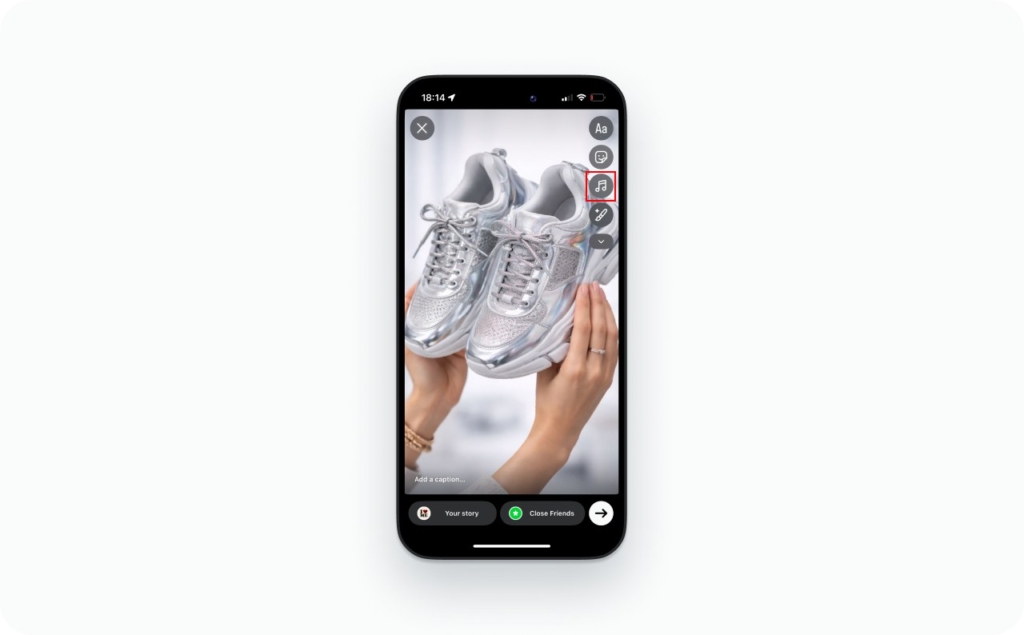
On iOS and Android, the core steps to add music to an Instagram Story are the same. You open the Story camera, record or upload a clip, then use the sticker or music icon to pick a track, choose the section you want, and publish. The layout and buttons can move around a bit between devices and app versions, but the flow is basically identical.
Some users notice small differences, like when the music icon appears or how quickly the library loads. Those differences come from app updates and tests, not strict rules by platform. So instead of relying on “iOS works this way, Android works that way,” it’s safer to:
- Make sure Instagram is updated on both devices
- Check where the music or sticker icon sits in your version of the app
- Do a quick test Story on each device to confirm the same steps work
The good news is this. If you can add music on one device, you can almost always repeat the process on the other. The real work is in your Story concept and music choice, not the phone you use.
How to add your own music to Instagram Story
You have a few reliable ways to add your own music to an Instagram Story. Each one fits a different type of creator or business. My goal here is to help you choose the path that actually works for your account, without guessing or fighting the app.
1. Distribute your track so it appears inside Instagram’s music search
If you’re an artist or you own the rights to your music, the cleanest method is to distribute your track through a service like DistroKid or TuneCore. When you upload a song and select Instagram & Facebook as destinations, your track is delivered into Meta’s music library.
DistroKid confirms two important things:
- Distribution to Instagram and Facebook is included at no extra charge
- Tracks delivered into Meta’s library can earn royalties when users select them in Stories or Reels
Your part is simple. You upload the track, tag Instagram and Facebook, and wait a few days for it to appear in the in-app search. This method is best when you want fans to use your sound inside the Instagram music sticker.
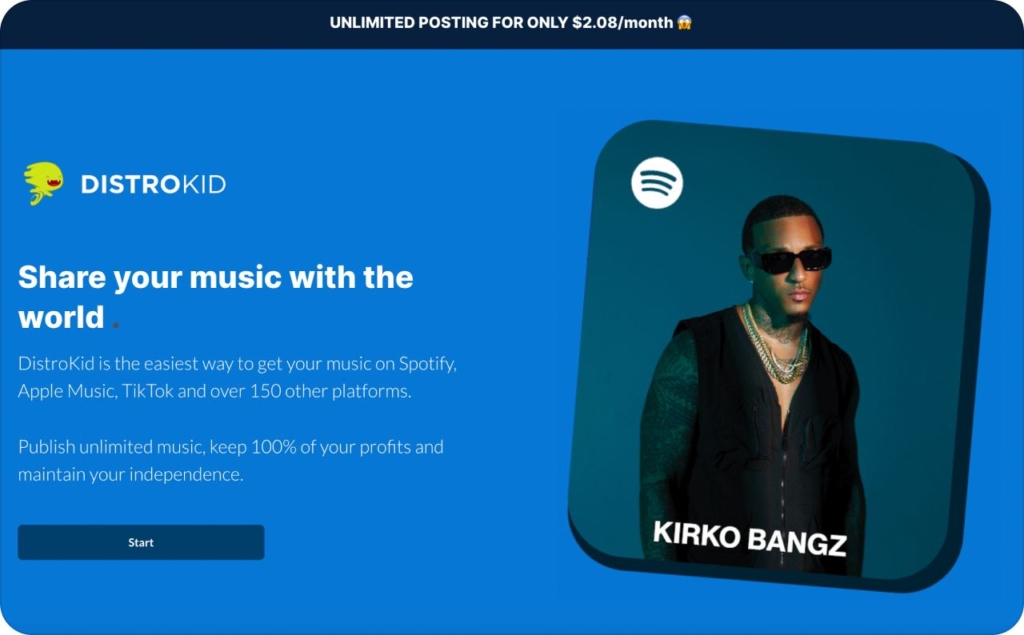
Photo source: DistroKid
2. Embed your audio into the video before uploading
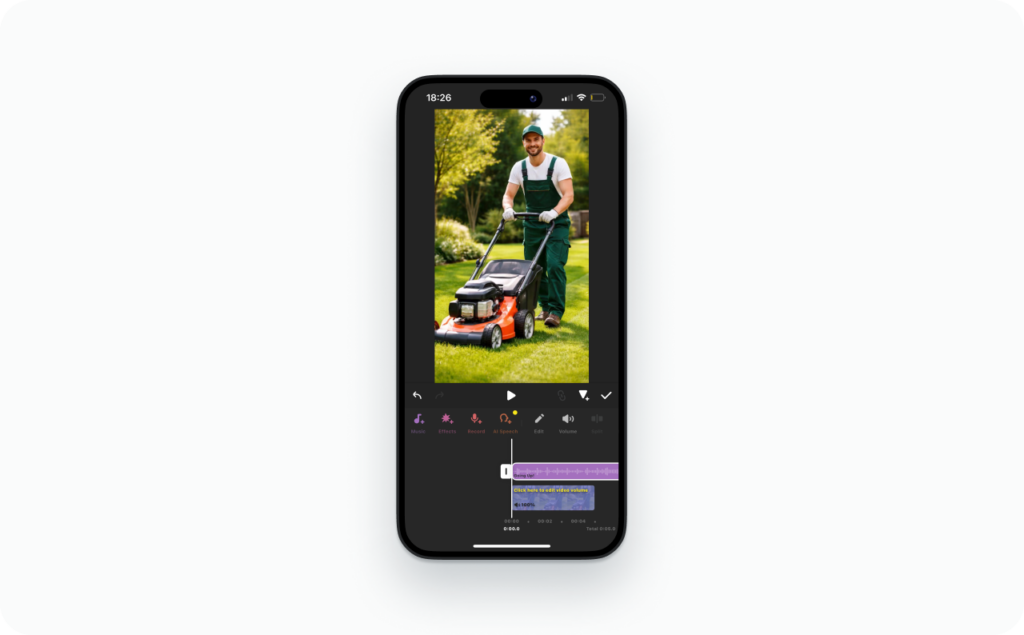
If you want full control, you can add your music in an external editor. CapCut, Descript, InShot, and your phone’s native editor all work well.
You:
- Import your video
- Add your music.
- Trim, balance volume, and export as a vertical 1080×1920 video
When you upload that video to Instagram Stories, Instagram labels the sound as original audio. This works for:
- AI-generated tracks
- Royalty-free music
- Custom beats or remixes you own
- Background scores you don’t want to distribute through a music service
Just remember that original audio does not override copyright. If the track contains copyrighted music you don’t have rights to, Instagram may mute it or limit visibility. That’s not a glitch. It’s the system doing its job.
3. Record your Story while the music plays in the background
This is the simplest method. You play your music from a speaker or another device and record your Story. Instagram captures whatever the microphone hears and marks it as original audio. It’s a clean option for natural moments, behind-the-scenes clips, or live environments.
The same copyright rule applies here: if the track is a copyrighted commercial song, Instagram can mute it after upload, especially on business accounts.
What your account type changes
Your account type shapes which method feels safest and most efficient:
- Creators usually see a wider in-app music library and can use most commercial songs directly
- Businesses often see a limited “commercial” library and need to rely on licensed, royalty-free, or original music for predictable results
- Artists benefit the most from distribution, because it puts their music inside the searchable Instagram library
A simple way to choose your path
- If you make music, distribute it so people can find it
- If you run a brand, embed music you own or have rights to
- If you’re a personal creator, pick the method that fits the moment
When the audio matches your goal and stays within Instagram’s rules, your Story feels cleaner, more intentional, and easier for people to watch all the way through.
How to add lyrics to Instagram Story without music
You can add lyrics to an Instagram Story without using any music at all. This helps when you want a quiet Story, when you’re teasing a new track, or when your viewers watch with sound off. It also keeps things accessible for people who rely on text to understand your content. The goal is to make your words clear, readable, and sized for vertical screens. Instagram published updated Story dimensions for 2025, and those specs help you place text that stays crisp on every device.
Here are the easiest ways to do it:
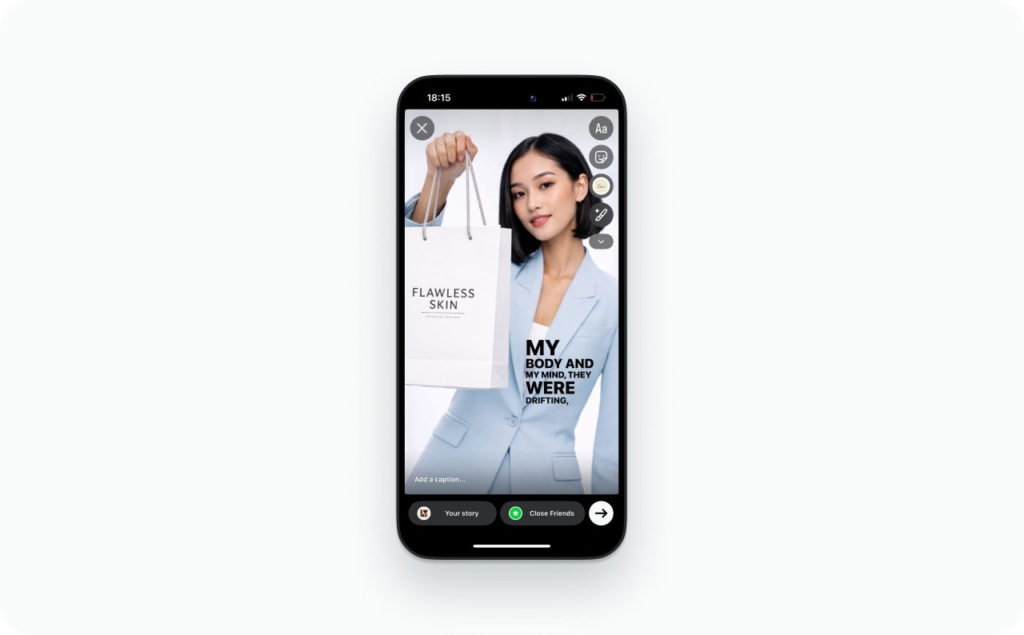
- Type your lyrics as text overlays. Choose fonts that match your brand and keep your lines short. Center the text or place it within safe margins so it reads well on small screens.
- Use the music sticker without sound. You can select a song, switch to the lyrics display, and then turn the volume slider to zero. This gives you a clean “silent lyric” overlay that still looks native to Instagram.
- Create a static lyric card. Use Canva, CapCut, or your phone’s editor to design a lyric slide. Export it as a vertical image and upload it as a Story with no audio. This works well for teasers or multi-part sequences.
Text-only lyrics help your Story reach viewers in quiet settings and keep your message clear even when the sound is muted. They also work as strong teasers when you’re building interest around a track or a release.
A quick layout reminder:
- Keep text inside the top and bottom safe zones so it doesn’t get cut off
- Use high contrast so words stay readable
- Keep your type size large enough to read at a glance
When your layout supports the words, lyric-only Stories feel intentional, not like a workaround.
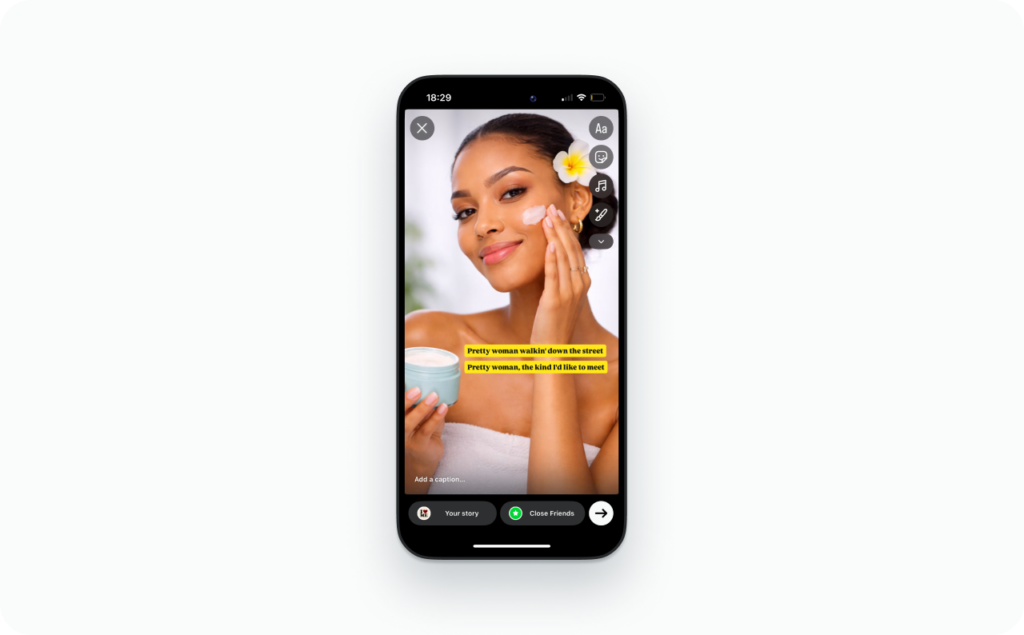
Accessibility, subtitles, and “sound off” behavior
A large share of viewers watch Stories with the sound off. That’s why clear lyrics and captions help people stay with you longer. If you use vocals in your video, turn on Instagram’s auto-captions. This keeps your content understandable even when viewers scroll in quiet spaces.
Lyrics support the same idea. They give shape to your Story even when the audio isn’t there. They also help people who rely on text for comprehension. When your Story uses both clear visuals and readable words, you’re building a smoother experience for every viewer.
The habit is simple. If your Story uses spoken words or singing, add captions. If your Story uses lyrics for mood, place them in a clean, readable space. This small step can lift retention and increase replies because people stay with your Story long enough to react.
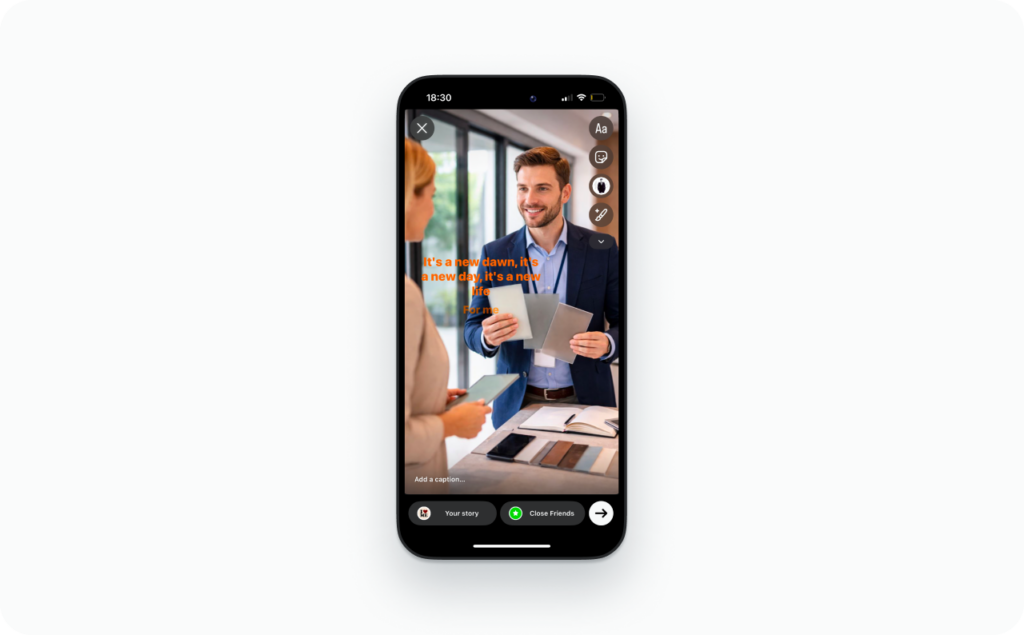
Advanced Story music: Spotify, Apple Music, TikTok audio, and other apps
Here’s how the share flows actually work:
Spotify
- Open a song
- Tap Share
- Choose Instagram Stories
- Spotify sends a Story card into Instagram
- You can often add music from Instagram’s library afterward. If the sticker icon is hidden, resize or move the card to bring it forward
Apple Music
- Open the track or album
- Tap More
- Choose Share
- Select Instagram
- Instagram loads the card inside your composer. You can usually add music on top the same way you do with regular Stories
These cards work well when your goal is discovery. Viewers see the track, the artist, and a link to listen. They’re helpful when you want people to know the exact song, not just the vibe.
If you want the Story to actually play sound, you’ll need a workaround. The cleanest method is to edit the Story before you upload it. CapCut, Descript, and InShot all let you drop in a track, trim the timing, balance volume, and export a vertical 1080×1920 video. Instagram reads that audio as original audio, which gives you full control but also follows normal copyright rules. If your track includes copyrighted music you don’t own, Instagram may mute it after you post.
You can also pair a Spotify or Apple Music card with Instagram’s own music sticker. This gives you both the branded card and the mood-setting sound. It helps viewers understand why you’re sharing the song and what you want them to feel in that moment.
TikTok clips are useful too, as long as you know the limits. Many TikTok edits already have clean, on-beat transitions. You can save your own TikTok video and upload it to Stories, but expect two things:
- The watermark will appear unless you remove it before exporting
- If the TikTok uses copyrighted music, Instagram may mute the audio
Think of external apps as your mood board. They shape pacing, energy, and timing. Instagram becomes the last layer where you add the track, the sticker, and the final polish. That’s how you keep your workflow quick without losing control of the sound.
External apps workflow checklist
Here’s a light workflow I use when I want a Story with embedded audio:
- CapCut: Best for beat-based edits. Add your track, sync your cuts, export at 1080×1920, and upload
- Descript: Ideal for voiceovers or cleaner timing. Drop in your video, place your audio under it, and export a vertical file
- InShot: Good for quick edits. Add your music, trim the video, adjust volume levels, and export at the correct size
A few simple rules keep your file Story-ready:
- Export at 1080×1920 for clarity
- Keep your audio peaks below clipping so Instagram doesn’t distort it
- Watch your first two seconds twice. If the timing feels right there, the rest usually follows
This checklist saves time and keeps your Stories consistent, even if you switch apps. Read about Instagram story size and dimensions.
Troubleshooting: when Instagram Story music is missing, restricted, or muted
Social Media Examiner’s 2025 report shows that only 1–8% of your followers watch your Stories on a regular day, but higher-quality slides and stronger engagement signals can double that reach after a simple reset. Here’s a simple decision tree you can follow.
1. Music sticker missing entirely
- Check your account type. Business accounts sometimes lose the music sticker because of licensing limits
- Log out and log back in
- Update Instagram to the latest version
- If you’re on a VPN, turn it off. Some regions block music libraries
2. Certain songs aren’t showing up
- You may be in a region where that track isn’t licensed
- Some artists remove or restrict songs on Meta platforms
- Business accounts often see a “commercial-only” library, which hides popular music
- Try searching by the artist name instead of the track title
3. Your account only shows commercial tracks
- This usually happens on business accounts
- Switch to a creator account if you need access to the full library. The tradeoff is lighter analytics and no access to certain business tools
- If switching isn’t an option, use royalty-free or original audio
4. Embedded audio gets muted
- Instagram mutes videos when the system flags copyrighted music
- Use original audio, licensed music, or royalty-free tracks
- Try reducing background noise so the audio is easier for Instagram to classify
Here are the “do this now” steps that help in most cases:
- Update your app
- Restart your phone
- Log out and back in
- Turn off your VPN if you use one
- Test your account on another device
- Try switching to a creator account if your library is restricted
- Use licensed or royalty-free tracks when your business account needs complete safety.
Region, account type, and copyright checks
Region, account type, and copyright rules shape what you can access. Start by checking your location settings. If the music sticker shows only a few tracks, or none at all, your region may not support Instagram’s full library. Try turning off your VPN or testing your account on a friend’s device in the same location. If their library is bigger, your account might have additional limits.
Account type also matters. Business accounts sometimes see a reduced “commercial” library. These tracks are cleared for branded use, but most popular music is hidden. If your work relies on trending music, consider switching to a creator account. You keep Reels bonuses, full music access, and most posting tools. The downside is less advanced business analytics and fewer integrations with external platforms.
Copyright rules control everything else. Instagram mutes or restricts audio when it detects copyrighted music on accounts that aren’t allowed to use it. If this happens often, stick to original audio, royalty-free tracks, or music you’ve licensed. It keeps your Stories visible and avoids random mutes.
When you understand these three levers, troubleshooting becomes faster. You stop guessing and start adjusting the exact setting that blocked your track.
Technical fixes
Most music problems are simple glitches. Updating your app clears many of them. Restarting Instagram is another quick fix. Logging out and back in forces the app to reload your music permissions.
If the sticker still isn’t working, clear your app cache. This removes old data that might be blocking the library. Check your device’s sound permissions too. If Instagram can’t access your microphone or speakers, audio tools behave strangely.
When all else fails, test your account on another phone. If the music library appears there, your device is the issue. If the library is still limited, your account or region is the source. This helps you narrow the problem fast.
Story music that converts: creator and small business playbook
Different stages of the funnel need different sounds. You can think of it as mood-matching. Awareness needs energy. Consideration needs clarity. Conversion needs calm focus so the viewer stays long enough to tap.
HubSpot’s 2025 data shows that 29% of marketers plan to increase their Instagram investment this year, and 23% get the best results from nano-influencers. Smaller, high-intent audiences respond well to Stories because Stories feel personal. Here’s how I break it down for different types of creators and small businesses:
Creators
A simple sequence that works well is:
- Behind-the-scenes clip with a soft vocal intro
- Trending audio on a short teaser video to catch attention
- Swipe-up or link sticker paired with a clean instrumental
The viewer gets a story: the setup, the feeling, and then the link. Each slide uses music to signal the energy of the moment.
Local businesses
A steady flow helps here:
- Offer reveal with upbeat but light music
- Product or service clip with calm background music so text stays clear
- Link sticker on a silent or near-silent slide to reduce distraction
This gives viewers a clear path and keeps the final CTA clean.
Ecommerce brands
These benefit from a repeatable sound.
- UGC-style video testimonial with soft ambient audio
- Product close-up with a matching sound motif
- Offer slide using the same motif again
Repeating the same audio motif creates familiarity, which makes the sequence feel more controlled and intentional.
When you look at conversion signals, focus on four numbers:
- Story taps forward (too many means the Story didn’t hook fast enough)
- Story exits (this tells you if a moment created friction)
- CTR on link stickers (your clearest conversion number)
- DM replies (Instagram treats replies as a strong engagement signal)
Compare the numbers from Stories with music to those without. You’ll often see that the right track improves retention and gives your CTA more time to land.
Building repeatable Story music templates
A simple template saves time and keeps your Stories consistent. One of my favorites is Hook + Problem + Solution. You start with a hook slide that uses a recognizable intro. You follow with a problem slide that uses softer music or none at all, so the viewer can read the text. Then you finish with the solution slide, where you bring the music back in and place your link sticker. You can also add music to your collages, for this, read how to make collages on Instagram story.
Another option is a three-part mini-series you repeat each week.
- Slide one: a quick teaser with higher-energy audio
- Slide two: the main content with a steady beat
- Slide three: a clean CTA with a quieter instrumental
You can reuse the same audio track across multiple sets. This builds a pattern your audience starts to recognize. It also shortens production time because you’re working with a template instead of starting from zero.
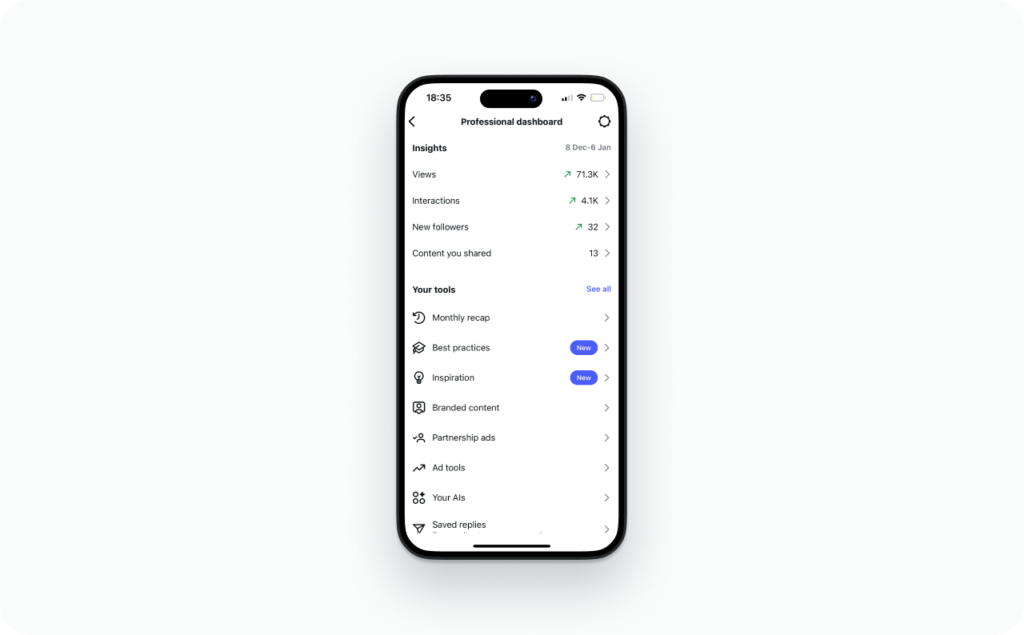
Measuring results in Instagram Insights
To see whether your music choices are helping, open Instagram Insights, go to Content, and tap Stories. You’ll see performance data for each slide. Compare two groups: Stories with music and Stories without. Look specifically at your first and last slide. The first slide tells you whether the hook worked. The last slide tells you if viewers stayed long enough to see the CTA.
Key numbers to watch:
- View-through rate (how many people completed the slide)
- Taps forward (a sign your music or pacing was too slow)
- Exits (a sign something didn’t feel right)
- CTR on your link sticker (your main conversion number)
- Replies (a strong signal that Instagram uses to show more of your Stories)
Set simple benchmarks. You want your completion rate to improve by at least a few percentage points when you add music. You want taps forward to drop. You want more people to reach your CTA slide.
Create scroll-stopping Stories with music using Zeely AI
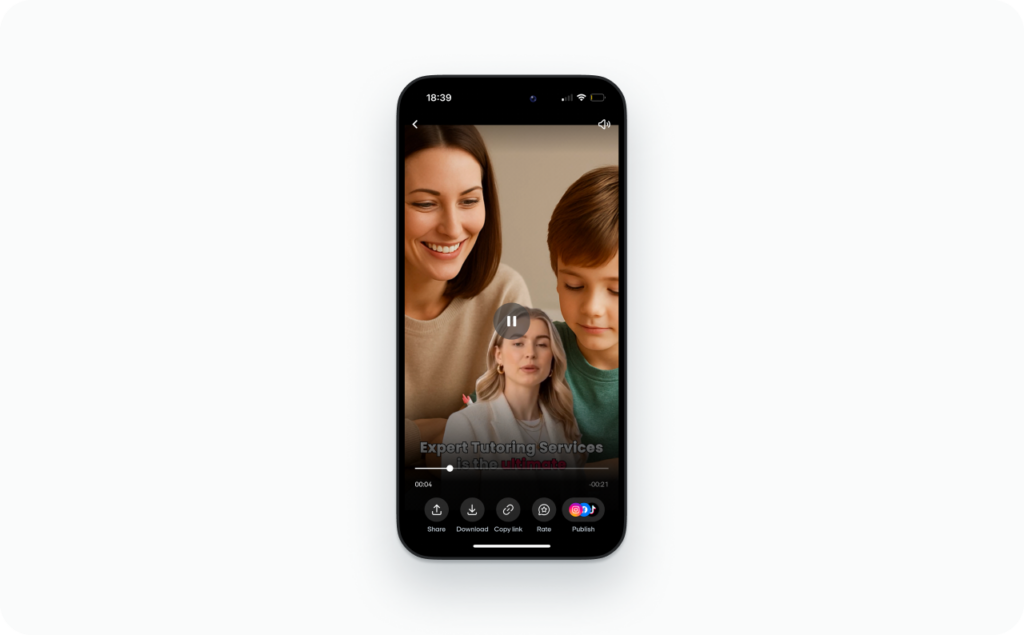
Zeely AI Ad Generator helps you build the video first so the music becomes the finishing touch. You start with something simple: a product link, a few images, or a short offer. AI Instagram ads generator turns that input into a vertical 9:16 high-converting video ad that already fits Instagram, TikTok, and Meta placements.
The tool writes your script, picks scenes, adds an AI avatar if you want one, and gives you background music options inside the editor. That means you’re not fighting format, pacing, or sizing before you even reach Instagram.
I like to treat Zeely as the “concept engine.” It builds the structure for you:
- A fast hook
- An AI avatar or on-screen text that explains the product
- Smooth scene changes sized for vertical
- Space for music that doesn’t clash with captions
Then Instagram becomes your “final touch.” If you want a trending song, upload your Zeely video to Stories and add the music sticker. If you want consistent sound across ads and boosts, export the Zeely file with baked-in audio and upload it through Meta Ads Manager. Both options work because the creative is already built to hold attention.
Music works best when the Story is already strong. Zeely helps you build that foundation so the audio becomes the polish, read how to post Instagram story and just try it!

Emma blends product marketing and content to turn complex tools into simple, sales-driven playbooks for AI ad creatives and Facebook/Instagram campaigns. You’ll get checklists, bite-size guides, and real results, pulled from thousands of Zeely entrepreneurs, so you can run AI-powered ads confidently, even as a beginner.
Written by: Emma, AI Growth Adviser, Zeely
Reviewed on: January 8, 2026