Best CapCut alternatives for ads in 2026
Need CapCut alternatives for ads because your videos take too long to edit, brand, resize, and publish? I wrote this with Zeely team input from real small-business video workflows, where the goal is simple: make cleaner ads faster, without turning you into a full-time editor.
If you want CapCut alternatives for ads, start with your real bottleneck.
- Choose Zeely AI when you need guided business videos with hooks, captions, and ad-ready structure.
- Choose VN when you want free manual editing.
- Choose Canva Video when your brand needs to stay consistent.
- Choose InShot for quick phone edits.
- Choose Splice for polished clips with music.
- Adobe Premiere Rush is only worth keeping for old projects because Adobe is discontinuing it.
CapCut is useful until your business video workflow starts asking for more. One product clip becomes five hooks, three aspect ratios, captions, a clean CTA, and a version for TikTok, Instagram, and Facebook.
That’s when I’d stop asking, “Which editor has more effects?” and start asking, “Which editor helps me finish better ads with less fixing?”
Below, I’ll compare the best apps like CapCut for business videos, with prices, use cases, and my honest notes on where each one fits.

Why businesses look for CapCut alternatives for ads
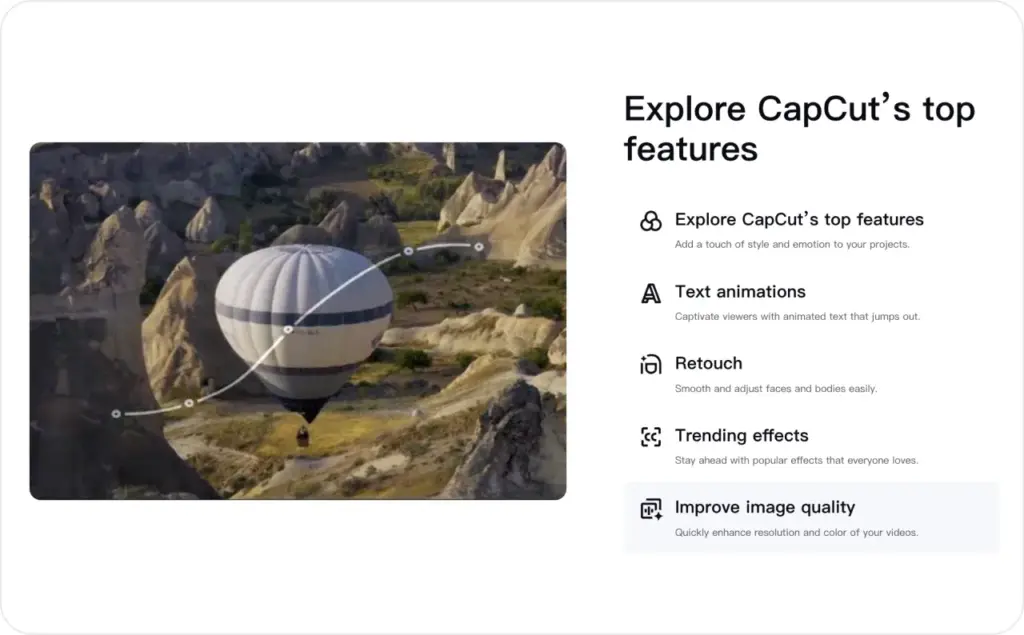
CapCut is not the problem. It’s a strong, familiar editor, especially if you make TikToks, Reels, Shorts, and quick social videos. CapCut says Pro pricing can vary by region, device, and promotions, so you need to check the exact price inside your account before you plan around it.
The problem starts when your videos need to sell, not just look good.
A personal video can be fun, messy, and still work. A business ad needs a clear offer, readable captions, product visibility, and a CTA people understand in two seconds. CTA means call to action, the line that tells your viewer what to do next.
Here’s the difference I see often:
Before: “New arrivals are here. Shop now.”
After: “Three summer dresses under $40. See your size before they sell out.”
That second version is not louder. It’s clearer. That’s the kind of editing help a small business actually needs.
When you use CapCut for business, the work usually gets repetitive fast. You need product videos, testimonial cuts, sale videos, founder clips, and retargeting ads. If your editor makes every version feel like starting over, you’ll post less than you planned.
How I picked these apps like CapCut for business
I compared these tools as if I were helping a small business owner pick one before a weekend sale.
I looked at:
- Speed to a usable first draft
- Caption tools
- Brand control
- Mobile editing comfort
- Timeline control
- Watermark and export limits
- Price clarity
- Fit for simple paid ads
I’m keeping this article focused on editor alternatives only. If you want a full ad creation platform, that’s a different page. Here, I’m comparing tools that help you edit business videos and ad creatives.
The Zeely team also helped me keep the list grounded in common small-business needs: “Can I make this quickly?”, “Will it look like my brand?”, and “Can I test another version without losing my whole afternoon?”
Quick price check for CapCut alternatives for ads
| Tool | Best fit | Starting price | My plain note |
| Zeely AI | Guided business videos and ad-ready creatives | Site plans from $29.95/month | Best when you need structure, not a blank timeline |
| VN Video Editor | Free manual editing | Free, with VN Pro listed at $7.99 and $69.99 on iOS | Strong free pick for hands-on editing |
| Canva Video | Branded videos and simple team work | Free plan, paid plans shown by account and region | Best for brand consistency |
| Adobe Premiere Rush | Old Rush projects | No longer a good new-user pick | Adobe is discontinuing Rush |
| InShot | Quick mobile edits | Free, Pro listed at $4.99/month or $19.99/year on iOS | Good for simple phone-first edits |
| Splice | Music-led mobile videos | Free, in-app purchases listed from $9.99 on iOS | Good when pacing and music matter |
Prices can change. I’d check the checkout screen before you subscribe, especially on mobile apps, because Apple, Google, region, tax, and promotions can change what you pay.
Zeely AI: the CapCut alternative for ads that need to sell
I’d start with Zeely AI if your main issue is not editing skill. It’s knowing what to say, how to structure the ad, and how to make the video feel ready for a customer.
A blank timeline can be stressful when you’re also running the store, answering messages, packing orders, or managing appointments. You don’t need another place to guess. You need a simple path from product to publishable video.
Zeely helps with that. You can work from templates, create business videos, add captions, and shape your message around the product or offer. I’d use it when the video needs a sales job, not just a nice edit.
Price: Zeely’s site pricing lists Starter at $29.95/month, Plus at $49.95/month, and Growth at $79.95/month. The same pricing page says app and website plans may vary, so I’d use the visible checkout price as your final number.
Here’s a simple example.
You sell skincare. In CapCut, you might start with a product clip and add text. In Zeely, I’d build the video around the buyer’s question: “Will this help my dry skin without feeling heavy?” That gives you a better hook, clearer captions, and a stronger reason to click.
Best for:
- Ecommerce brands
- Solo founders
- Local services
- Product-led ads
- Beginners who want guidance
Skip it if you want deep manual timeline control. VN or Splice will feel better for that.

VN Video Editor: the CapCut alternative for free manual editing
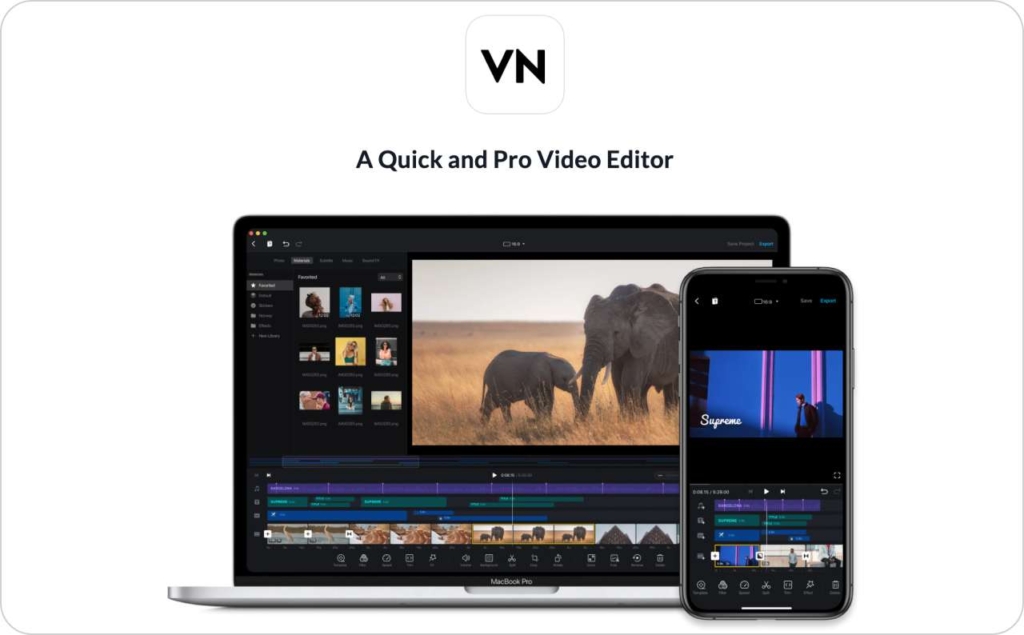
VN Video Editor is the tool I’d test if you like editing by hand and want a strong free option. VN’s website mentions tools like multi-track timeline, keyframe control, crop, speed curves, transitions, filters, auto captions, text to speech, and music tools. It also says VN offers pro-level editing with no watermarks for free.
That makes VN one of the strongest CapCut alternatives if you want control without paying right away.
Price: VN is free on the U.S. App Store and listed with in-app purchases. The App Store shows VN Pro at $7.99 and $69.99, plus credit packs from $1.00 to $10.00.
I’d use VN when you already know the edit you want.
For example, you filmed a candle-making process. You want a tight 18-second video: wax pour, wick trim, label close-up, final shelf shot. VN gives you enough control to cut the pace, add captions, match beats, and export without feeling boxed into a template.
VN is less helpful when you need the tool to guide the message. It edits well, but it won’t tell you that your first three seconds are too vague or that your CTA sounds like every other shop.
Best for:
- Free editing
- Hands-on creators
- Product demos
- YouTube Shorts
- Reels and TikTok cutdowns
My advice: use VN when the footage is good and your message is already clear.
Canva Video: the CapCut alternative for branded business videos
Canva Video is the easiest pick when your videos need to look like your brand every time.
That sounds simple, but it matters. Many small businesses lose trust visually. One video uses one font, the next uses another, the sale graphic is a different color, and the customer quietly feels the brand is less polished.
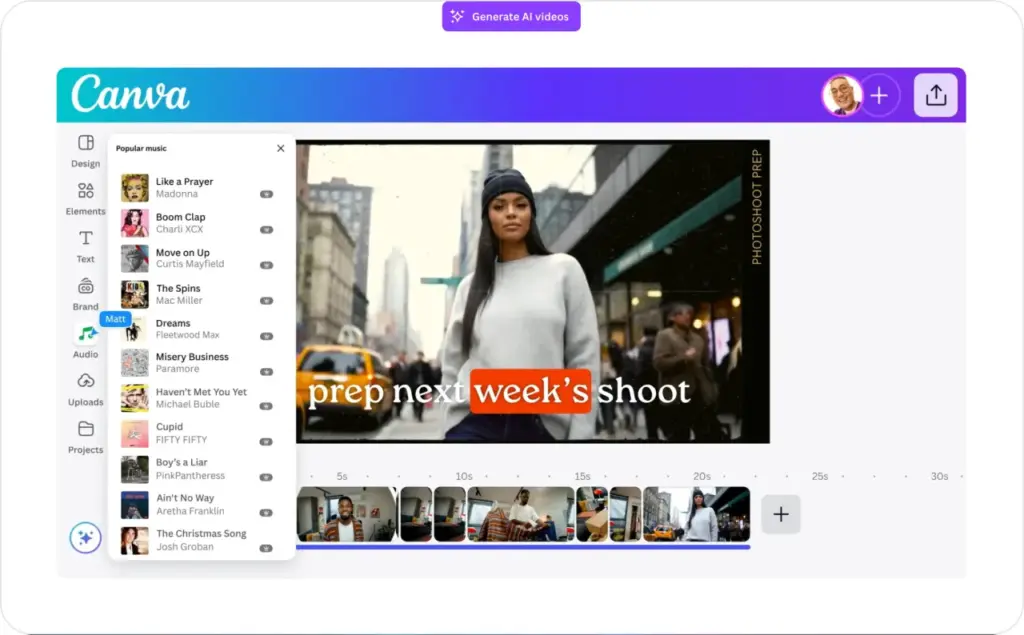
Canva helps fix that with templates, brand assets, social formats, and simple drag-and-drop editing. It’s not the most precise editor here. It’s the most forgiving one for brand consistency.
Price: Canva offers a free plan and paid plans such as Pro, Business, and Enterprise. Canva’s pricing page shows plan options, while exact paid pricing can vary by account, billing choice, and market. Independent U.S. pricing trackers commonly list Canva Pro around $15/month and Business around $20/user/month, but I’d verify inside Canva before publishing a final number in a pricing table.
I’d use Canva when you need business videos that match your posts, email banners, flyers, and product graphics. It’s also useful when more than one person touches content.
Example: you run a bakery. Your weekend offer needs a Reel, a Story, a Facebook post, and a printed sign. Canva keeps those pieces visually connected. CapCut can edit the Reel, but Canva keeps the whole promotion cleaner.
Best for:
- Branded ads
- Promo videos
- Team templates
- Sale announcements
- Simple product explainers
Skip it if you need detailed timeline edits with lots of layers and tiny timing changes.
Adobe Premiere Rush: a CapCut alternative only for old projects
I’m including Adobe Premiere Rush because it’s still part of many comparison lists, but I would not choose it for a new 2026 workflow.
Adobe says Premiere Rush stopped being available for download from Adobe.com and app stores on September 30, 2025. Existing users can keep using it on installed devices until the app is discontinued on September 30, 2026. Adobe also says technical support ends after that date, and Rush may no longer work.
Price: I would not treat Rush as a current new-user price option. Adobe says Rush subscription renewals stop after September 30, 2025. If you want the Adobe path now, Premiere is listed at US$22.99/month for individuals on an annual plan billed monthly, and US$37.99/month per license for teams.
Rush used to make sense for simple social edits. Now, the practical answer is clear: keep it only if you already have old projects there.
For new business videos, I’d look at Adobe Premiere, Adobe Express, Canva, VN, Zeely, InShot, or Splice instead. You don’t want your next year of ads sitting inside software that is already on its way out.
Best for:
- Existing Rush users
- Old projects
- Short transition periods
Skip it if you’re choosing a new editor today.
InShot: the CapCut alternative for quick mobile ads
InShot is a practical phone editor. It works well when you need to trim, crop, add text, add captions, remove a background, and publish without opening a laptop.
The U.S. App Store listing mentions auto captions, background removal, smart tracking, slow motion, trimming, merging, and sharing to social apps. It also says the Pro subscription removes watermark and ads while unlocking paid materials.
Price: InShot is free to download. On the U.S. App Store, InShot Pro is listed at $4.99/month, $19.99/year, and $49.99 lifetime. Remove ads is listed separately at $3.99.
I’d use InShot when speed matters more than fine control.
Example: your salon has a last-minute opening. You record a before-and-after clip, add a short caption, place your booking text, and post it in 10 minutes. That’s the right job for InShot.
It may feel limited if you’re building several ad versions with different hooks, offers, and formats. But for simple clips, it’s friendly and affordable.
Best for:
- Phone-first editing
- Small service businesses
- Before-and-after videos
- Quick promos
- Simple captions and text
My advice: use InShot for simple social ads you can finish in one sitting.
Splice: the CapCut alternative for polished mobile clips
Splice is the mobile editor I’d use when rhythm matters. If your ad depends on music, motion, pacing, and clean cuts, Splice can help you make the clip feel more polished.
Splice’s site positions it as a powerful mobile video editor, and its App Store listing describes trimming, cropping, slow motion, overlays, and custom videos on iPhone or iPad.
Price: Splice is free to download with in-app purchases. The U.S. App Store lists several $9.99 in-app purchases, including weekly subscription entries with a free trial.
I’d use Splice for fitness videos, food clips, event recaps, travel-style brand content, product montages, and creator-led ads where the edit needs to feel smooth.
Example: you sell activewear. You film three short clips: stretch, walk, close-up fabric shot. Splice helps you cut those clips to music, add text, and make the video feel like a mini promo.
Splice is less useful if you need business structure. It helps the video feel better, but it won’t fix a weak offer.
Best for:
- Music-led clips
- Lifestyle brands
- Fitness, food, and travel content
- Polished mobile edits
- Short promo videos
Check the subscription screen before you commit. Weekly pricing can add up quickly if you forget to cancel.
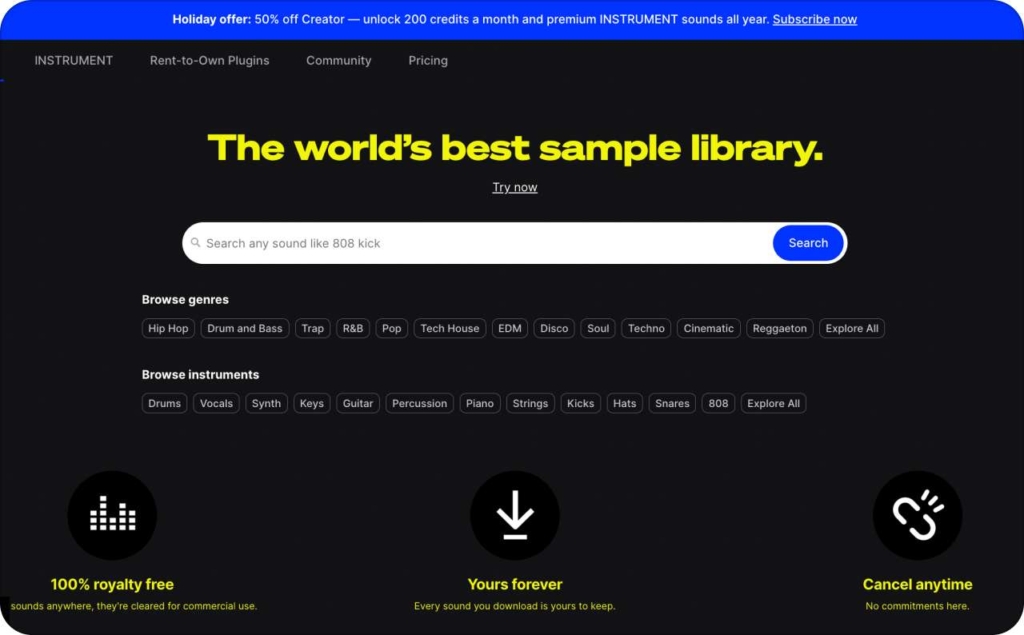
Which CapCut alternative should you choose for your ad budget?
If your budget is tight, start with VN. You can make strong videos for free if you’re willing to edit manually.
If your time is tighter than your budget, I’d look at Zeely. A guided workflow can save you from staring at clips and wondering what the ad should say.
If your brand visuals are messy, choose Canva. A clean brand kit can make every video feel more trustworthy, even before you spend money on ads.
If you publish from your phone every day, choose InShot. It keeps basic editing fast and simple.
If your content needs music and smooth pacing, choose Splice. It’s a good fit for visual-first brands.
Here’s the cleaner way to decide:
- Need structure: Zeely
- Need free editing: VN
- Need brand control: Canva
- Need quick phone edits: InShot
- Need music-led polish: Splice
- Need old Rush files: Adobe Premiere Rush
That’s it. Don’t make the choice harder than the work itself.
Mistakes I’d fix before you switch from CapCut for business
Switching tools helps, but it won’t fix a weak video idea by itself.
Here are the mistakes I see most often:
- The hook is too general
“Check out our new product” is easy to ignore. Try “This $29 bag fits a laptop, charger, and gym shoes.” - The product appears too late
Show the product in the first three seconds. Don’t make people wait. - Captions are hard to read
Use high contrast, short lines, and enough screen space. Many people watch without sound. - The CTA is vague
“Learn more” is fine, but “Shop the blue set before Friday” is stronger. - Every version says the same thing
Make one version about price, one about use case, and one about customer proof. That gives you better tests.
This is where CapCut alternatives for ads can help, but your message still matters. The tool should make the work easier. It should not become another place to hide an unclear offer.
FAQ
The best CapCut alternative for ads is Zeely AI if you want a guided business video workflow. VN is better for free manual editing. Canva is better for branded videos. InShot is better for fast mobile edits. Splice is better for music-led clips.
The best apps like CapCut for business are Zeely AI, VN Video Editor, Canva Video, InShot, and Splice. Each one solves a different problem: structure, editing control, brand consistency, speed, or polish.
Yes, Zeely can work as a CapCut alternative when your goal is business video and ad-ready content. It’s not the same kind of deep manual timeline editor. I’d choose Zeely when you want clearer hooks, captions, templates, and a more guided path to a finished ad.
VN is the cheapest strong option because it has a free editor with no watermark. InShot is also affordable if you want Pro features, with iOS pricing listed at $4.99/month or $19.99/year.
Canva is better when brand consistency matters most. CapCut is stronger for trend-led social editing. For CapCut for business, Canva can be easier if you need templates, brand colors, fonts, and matching campaign assets.
Only if you already have it installed and need old projects. Adobe is discontinuing Premiere Rush, so I would not build new business video work around it.
Final take
The best CapCut alternative is not the tool with the longest feature list. It’s the one that helps you finish the video you actually need.
For sales-focused business videos, I’d start with Zeely. For free hands-on editing, I’d test VN. For brand-safe videos, I’d use Canva. For fast phone edits, I’d keep InShot close. For polished clips with music, I’d try Splice.
Choose based on the work in front of you. A product launch, a weekend sale, and a customer testimonial do not need the same editing setup.
Make the video clear first. Then make it pretty.

Emma blends product marketing and content to turn complex tools into simple, sales-driven playbooks for AI ad creatives and Facebook/Instagram campaigns. You’ll get checklists, bite-size guides, and real results, pulled from thousands of Zeely entrepreneurs, so you can run AI-powered ads confidently, even as a beginner.
Written by: Emma, AI Growth Adviser, Zeely
Reviewed on: July 2, 2026