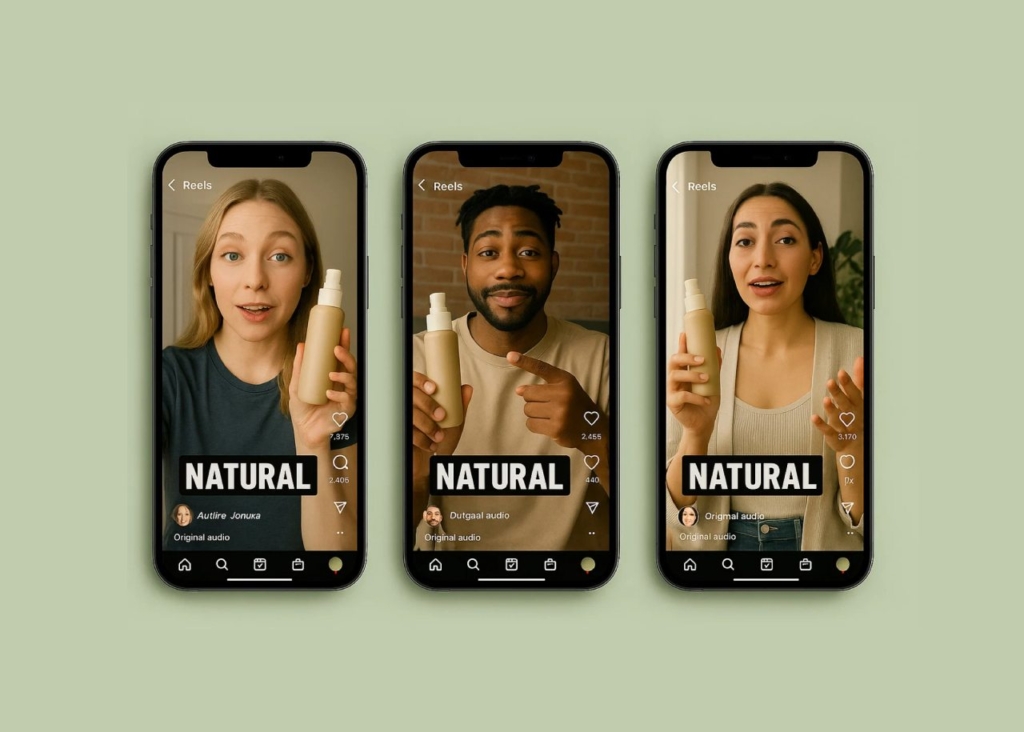
How to change Instagram Story background color without hiding video
Want to know how our clients keep Story videos visible while adding on-brand background color? I wrote this using the same Story editing workflows we use to ship clean, readable creatives fast.
To add background color without hiding your Instagram Story video, use the Draw tool’s Highlighter pen and press-and-hold to fill the screen with a translucent tint.
If you want a clean border or gradient, build a 1080×1920 background in Canva or Adobe Express, place your video on top, export, then upload as a Story. If you have Cutouts, you can turn a subject into a sticker and layer it on a colored background.
An Instagram Story background color can make your video look finished and on-brand. The tricky part is adding color without covering what you filmed. I’ll show you the fastest in-app method first, then a clean option for borders and gradients when you want more control.

Why change your Instagram Story background color?
Most Stories fail for boring reasons. The video is fine, but it looks unfinished.
A background color helps when you need any of these:
- Brand consistency: your “house colors” show up fast in the first second
- Readability: captions, stickers, and link CTAs are easier to see
- Mood control: warm, cool, dark, minimal, loud, whatever fits the clip
- A cleaner frame: especially when your video doesn’t fill the screen
Fastest in-app fix: add color without hiding video
This is the one I use when you want the video fully visible, but you want the background to feel on brand.
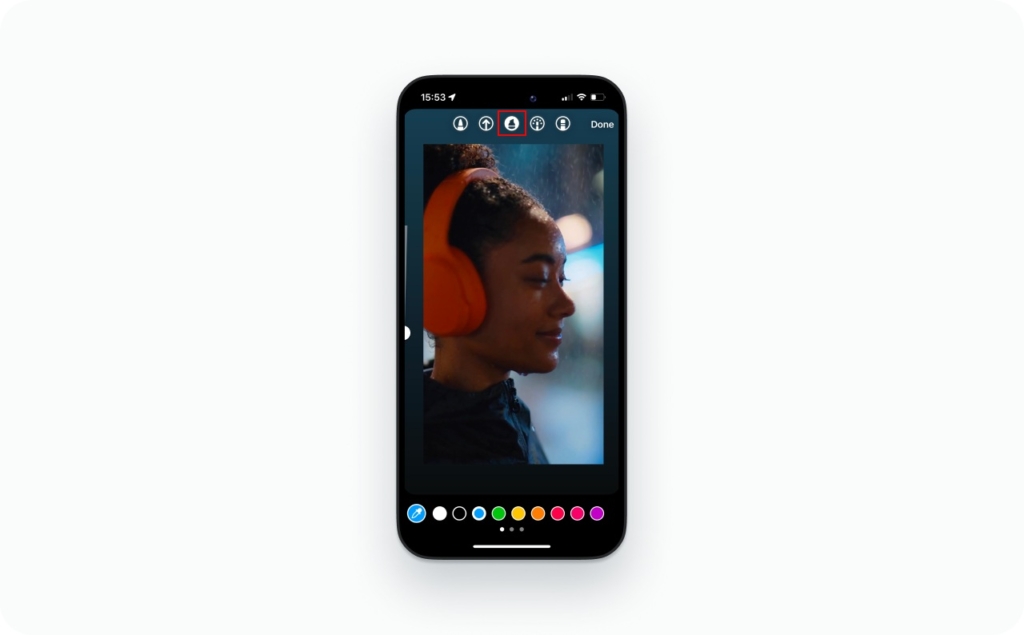
Method 1: Use the Highlighter fill for a translucent color wash
This does not “hide” your video because the highlighter is semi-transparent.
Do this now:
- Open Stories and upload or record your video
- Tap the Draw tool (the squiggle icon)
- Switch to the Highlighter pen (it’s usually the second pen style)
- Pick your color
- Use the color row for quick picks
- Press and hold a color to open the full slider
- Press and hold your finger on the screen for 1 to 2 seconds to fill
Expected result: your video stays visible, and the Story gets a tinted background layer that looks intentional.
Quick tweaks that make this look better:
- Choose a darker color for bright videos (it helps text pop)
- Choose a color pulled from your video with the eyedropper for a cleaner match
- Keep the tint subtle if you have faces or product details on-screen
Method 2: Solid color fill, then soften it
If you try the solid pen fill, it will cover your video. That’s expected. The clean workaround is to combine a solid fill with a lighter overlay style, or keep the color as a frame using the next method.
If your goal is “strong color but still visible video,” the highlighter method above is usually the cleanest.

Clean color border: put your video on a colored canvas
This is the look you see in polished creator Stories: video centered, color border around it, text on the border, link sticker placed safely.
Instagram can be inconsistent here because some accounts can resize Story videos more freely than others. When resizing is limited, the external canvas method is the reliable option.
Method 3: Build a 9:16 background, then place the video on top
Why this works: you’re exporting a finished Story layout, so Instagram is not trying to layer anything live.
Story canvas size to use: 1080 × 1920 (9:16).
Steps (Canva, Adobe Express, CapCut, or any editor):
- Create a new project at 1080 × 1920
- Set the background to a solid color
- Import your video and scale it down to leave a border
- Add text and stickers in the empty border space
- Export as MP4, then upload that final video to Stories
Expected result: a crisp color border with zero layering glitches.
Gradient background for Instagram Story video
Gradients are hard to do inside Instagram without hacks. External design is simpler and looks better.
Method 4: Make a gradient background first, then add the video
Use the same 1080 × 1920 canvas workflow. The only difference is you choose a gradient background instead of a flat color.
My rule: keep gradients subtle behind video, strong gradients belong behind text-only frames.
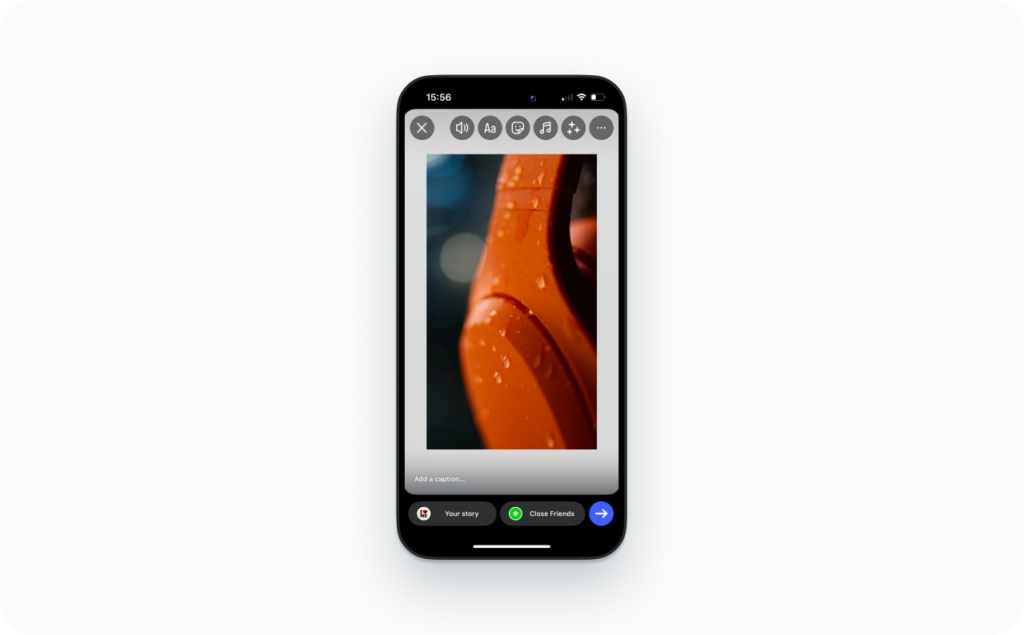
Optional: use Cutouts to create a sticker, then layer it
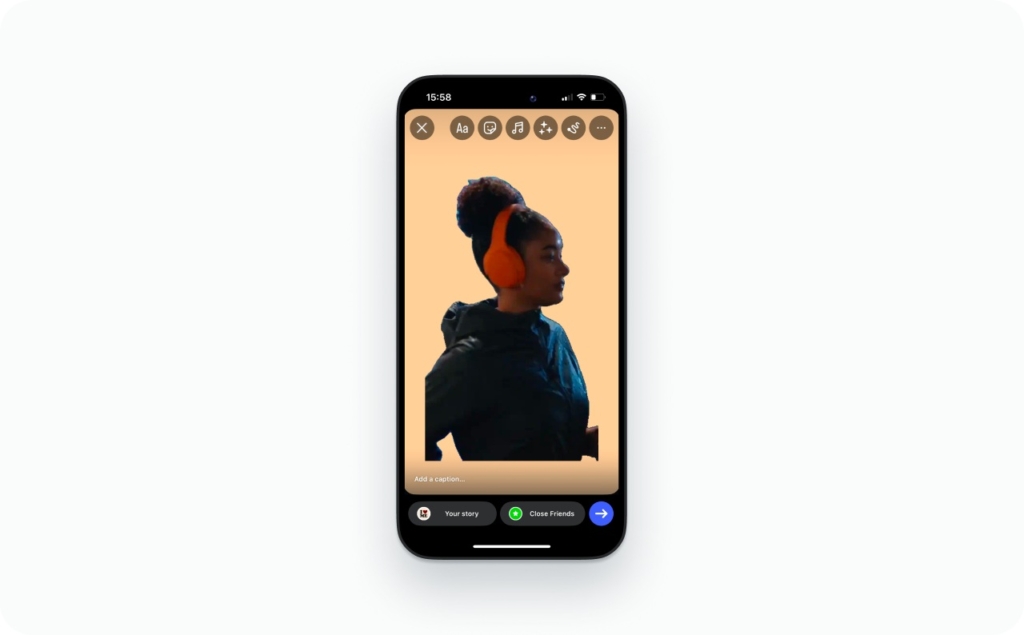
If your real goal is to keep the subject visible (you, a product, an object) while coloring everything else, Cutouts is useful.
Meta announced a Stories feature that lets you turn part of a photo or video from your camera roll into a custom sticker via Cutouts in the sticker tray.
How to use it:
- Start a Story with any background (solid color or gradient)
- Tap Stickers, then Cutouts (scissors icon)
- Pick a photo or video with a clear subject
- Place the cutout sticker on your colored background
Expected result: a clean, layered look where the background color is bold, but the subject stays sharp.
Best practices that keep it readable and not messy
Background color is there to help the message, not compete with it.
- Pick one job for the color: brand feel, readability, or mood
- Leave breathing room: keep text off the very top and bottom
- Use the border space: place captions and link stickers on the color border
- Check it with sound off: if it still makes sense, you’re good
How to troubleshoot background issues?
The color covers my video
- If you used a solid pen fill, switch to the Highlighter fill instead
- If you’re layering in-app and it glitches, back out, restart the Story editor, and try again
I can’t find Cutouts or it won’t use my video
Cutouts and other sticker tools roll out unevenly. Meta notes Cutouts is accessed in the sticker tray, but not every account gets every capability at the same time.
Fallback: use the external canvas method so you control the final layout.
My video quality drops after posting
Instagram compression is real. The best practical fix is exporting at the correct Story size (1080 × 1920), then uploading that final file.
What else should you know about Instagram Stories?
Now when you know how to change Instagram Story background color without hiding video, it makes sense to explore more features that can improve your content. There are many simple tools and tricks that can help you create more engaging and professional Stories. The articles below will help you get better at using Instagram Stories step by step.
- How to repost a Story on Instagram. Learn how to share someone else’s Instagram Story on your own profile quickly.
- How to change background color on an Instagram story. Diiscover different ways to customize your Instagram Story background for better visuals.
- How to add a link to an Instagram story. Find out how to add clickable links to your Instagram Stories to drive traffic.
- Instagram story size & dimensions. Understand the correct Instagram Stories size and format for best quality.
- How to make a collage on Instagram story. Learn how to combine multiple photos into one Instagram Story layout.
- Story templates. Explore ready-to-use Instagram Stories templates to make your content more creative.
FAQ
Yes. Build the gradient on a 1080 × 1920 canvas, place your video on top, export, then upload.
Use the Draw tool’s Highlighter fill. It tints without blocking the clip.
Yes. Use the eyedropper in the Draw tool to sample a color from the frame.
If you have Cutouts, yes. Meta describes using Stickers, then Cutouts, then selecting a photo or video.
The layering itself doesn’t, but uploads get compressed. Exporting at the correct Story dimensions helps.

Emma blends product marketing and content to turn complex tools into simple, sales-driven playbooks for AI ad creatives and Facebook/Instagram campaigns. You’ll get checklists, bite-size guides, and real results, pulled from thousands of Zeely entrepreneurs, so you can run AI-powered ads confidently, even as a beginner.
Written by: Emma, AI Growth Adviser, Zeely
Reviewed on: March 25, 2026