How to set up Shopify AI ads safely
Campaign Autopilot is not a switch you should flip blindly. This walkthrough shows what to check before Shopify starts recommending tactics.
To set up Shopify Campaign Autopilot, confirm early-access eligibility, activate Shopify Payments, and give the responsible staff member Marketing permission. Open Growth > Autopilot, connect at least one channel, define budget and targeting guardrails, and keep approval controls on.
Review each tactic in Pending actions before launch. Check product data, billing, tracking, audience, schedule, and creative before approving. Start with a budget your business can comfortably absorb, monitor results in Shopify and the connected platform, and stop one tactic or pause all channels when needed.
Shopify’s Campaign Autopilot can reduce setup work for email, Shop Campaigns, and Meta advertising. It still needs clean store data, careful permissions, and human review.
The timing makes sense. The U.S. Census Bureau estimated $326.7 billion in retail e-commerce sales during the first quarter of 2026, up 9.8% year over year. E-commerce represented 16.9% of total retail sales. More demand creates opportunity, but weak tracking and loose spending controls become more expensive.
This guide explains how to set up Shopify AI ads without handing over more control than you intended.
Shopify Campaign Autopilot setup starts with eligibility
Campaign Autopilot remains an early-access feature available only to selected merchants. According to Shopify’s current Campaign Autopilot requirements, your store must meet three conditions:
- Use an eligible Shopify subscription. Every plan qualifies except the Agentic plan
- Activate Shopify Payments on the store
- Give the person handling setup Marketing staff permission
The Shopify Payments requirement is easy to miss. Connecting Meta billing does not replace it. Shopify requires Shopify Payments for Autopilot, while Meta bills approved Meta ad spend through Meta Ads Manager.
I would also review the store data Autopilot uses. Shopify says it can access active products, customer segments, purchase history, subscriber lists, orders, revenue, conversion data, and existing campaigns. Fix outdated titles, missing images, incorrect prices, and inventory problems first.
Pre-setup checklist
- Confirm Autopilot appears for your store
- Activate Shopify Payments
- Assign Marketing permission
- Review active products and inventory
- Decide which channel to connect first
- Choose who will approve tactics
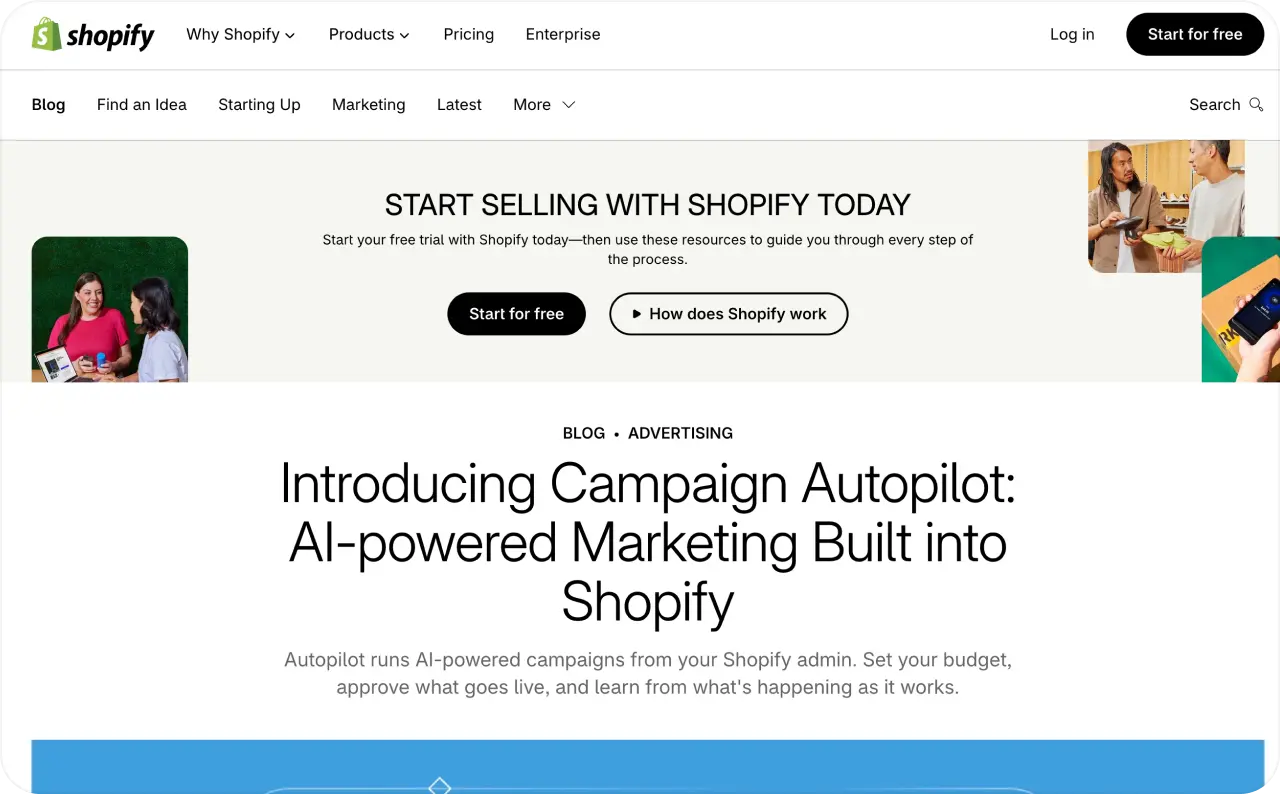
Find Shopify Growth Autopilot in the New Admin
Shopify renamed the Marketing tab to Growth on June 17, 2026. The Shopify Growth tab now contains Campaigns, Attribution, and the early-access Autopilot experience. Marketing automations now live in Shopify Messaging.
Some merchants search for Shopify Growth Autopilot, but the product appears as Campaign Autopilot inside the Growth area.
To begin your Shopify Campaign Autopilot setup:
- Sign in to Shopify admin
- Open Growth
- Select Autopilot
- Join or open early access when available
- Review the requirements before connecting a channel
If Autopilot does not appear, confirm feature availability first. Early access remains limited, so missing access does not always mean your staff permissions are wrong.

Connect channels before Shopify AI ads setup
Autopilot needs at least one active channel before it can create its first recommended growth plan. You do not need to connect every available channel at once.
From Growth > Autopilot, find Channels, click Connect, and follow the prompts in Shopify’s Autopilot setup guide. Some platforms require payment, identity, or authorization steps outside Shopify.
Shopify messaging
Shopify Messaging supports email automations and one-time campaigns. You need the Shopify Messaging app and an active subscriber list.
Review existing welcome, browse abandonment, cart abandonment, and checkout recovery flows before approving new email tactics. Otherwise, customers may receive overlapping messages.
Shopify specifically recommends comparing existing automation triggers and audiences with new Autopilot recommendations before approving them.
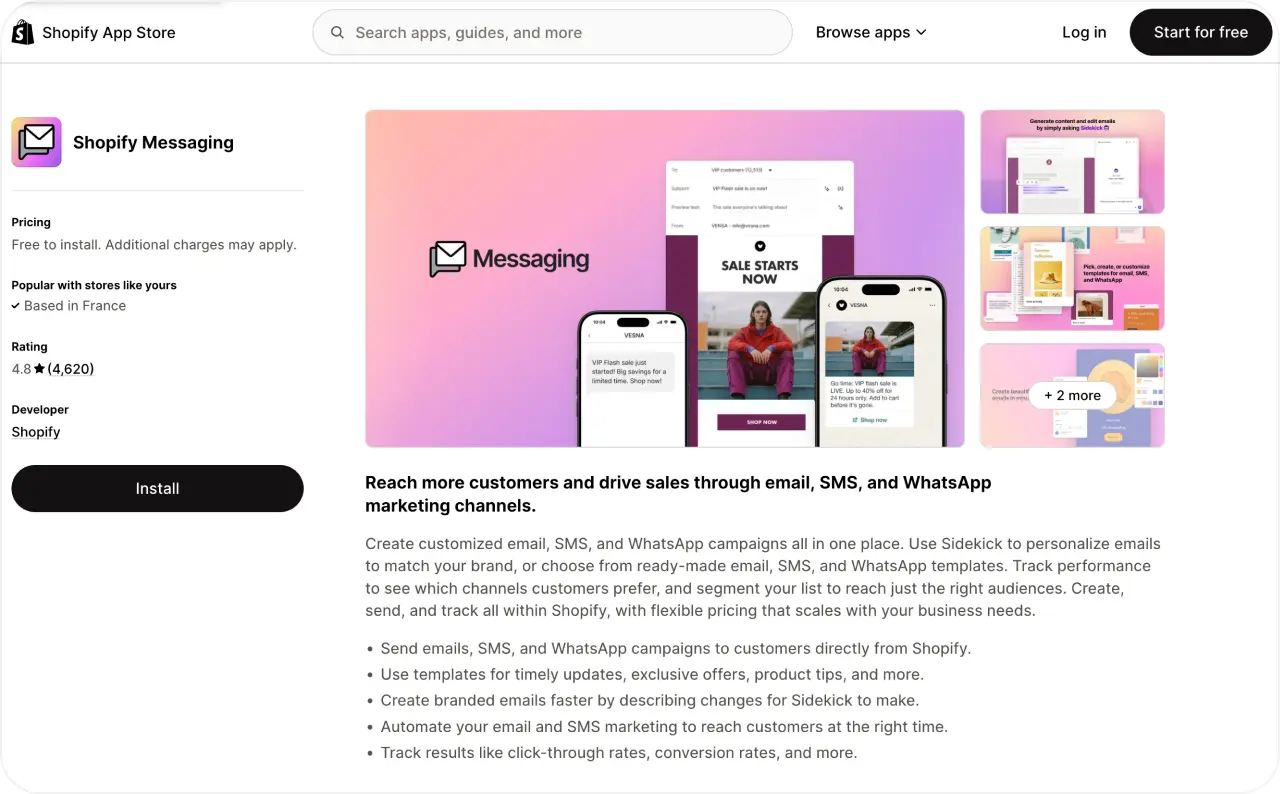
Shop campaigns
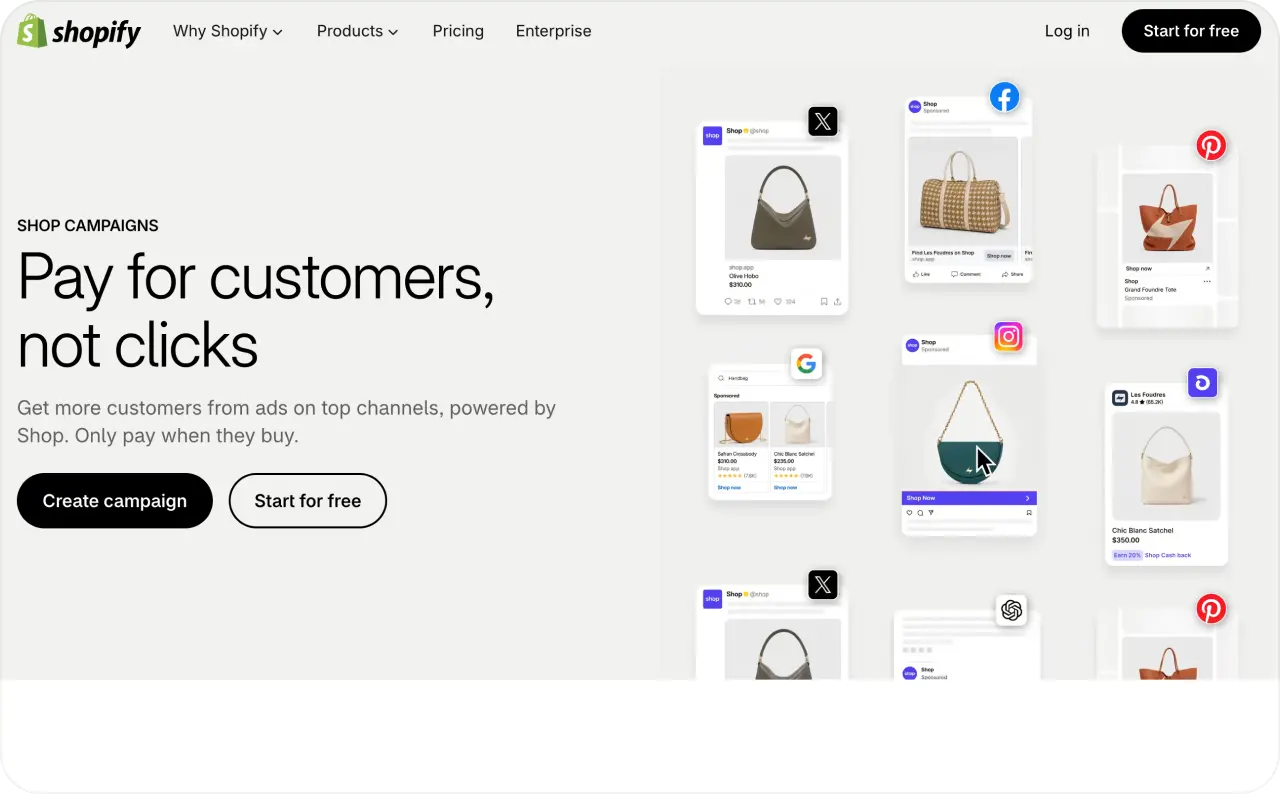
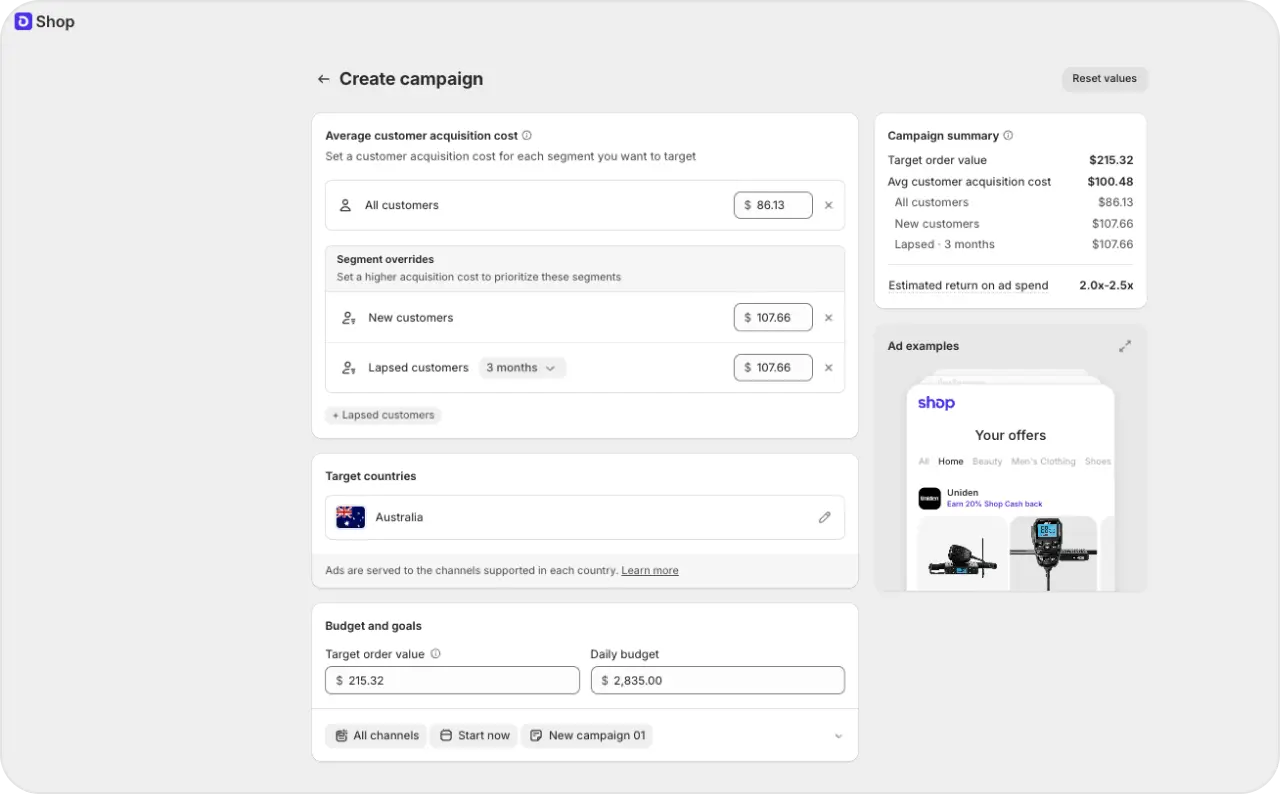
Shop Campaigns can acquire new or lapsed customers through supported Shop placements. Your store must meet separate Shop Campaigns eligibility requirements.
Review the acquisition cost, budget, offer, schedule, and eligible regions. If the selected segment does not fit your offer, dismiss the tactic rather than approving it and hoping the audience improves later.
Meta ads
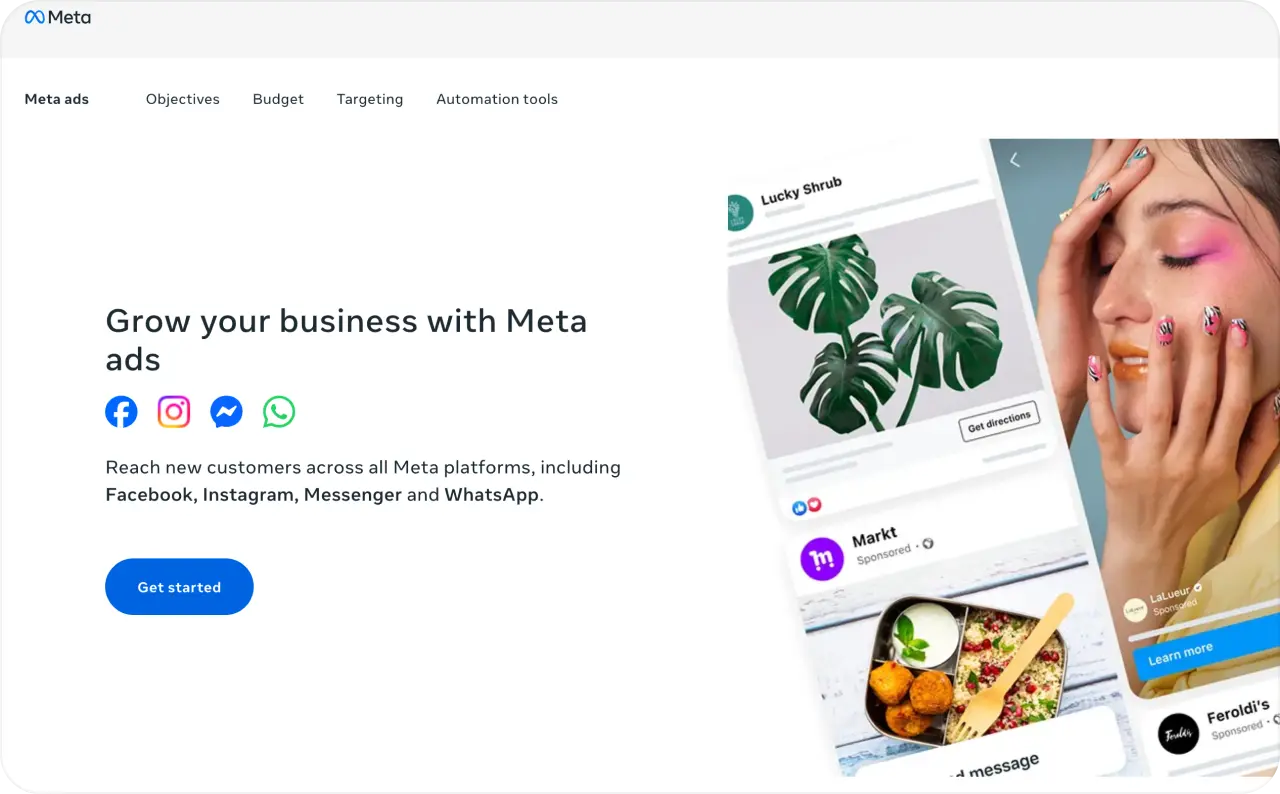
Meta Ads requires a Meta Business account. You must finish payment and permission steps inside Meta after starting the connection in Shopify.
According to Shopify’s Campaign Autopilot Meta ads guide, Autopilot creates a separate ad account and catalog path for its campaigns. It does not merge with your existing Facebook and Instagram by Meta setup.
Shopify also states that Autopilot configures Conversions API tracking and syncs active Shopify products to Meta.
I recommend connecting one channel first. That keeps the initial review focused and reduces the risk of overlapping campaigns across Meta, email, and Shop.
Set Shopify AI ads guardrails before spending
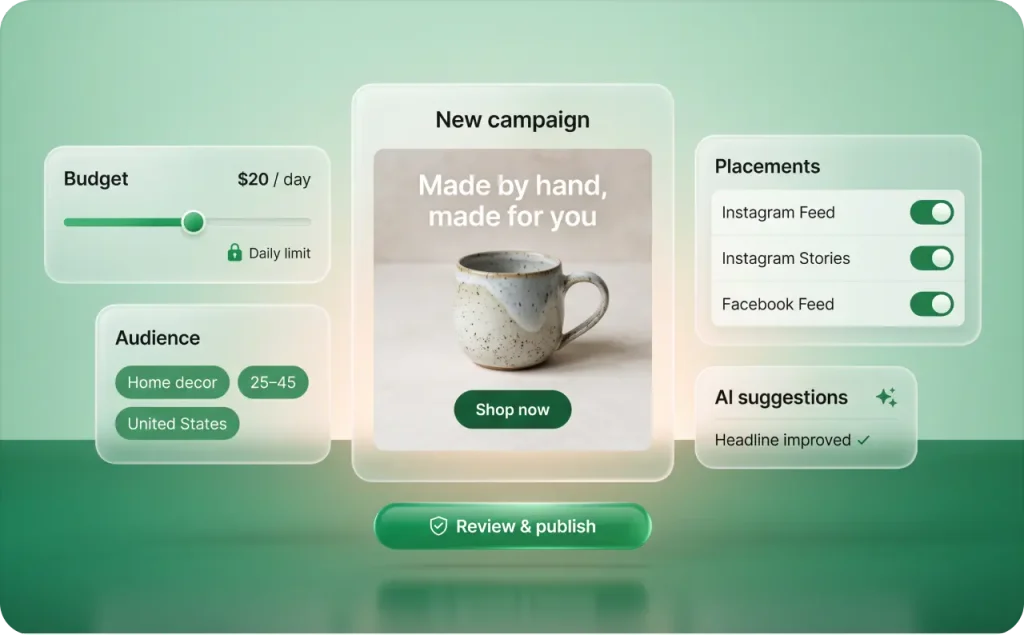
Guardrails define what Autopilot can recommend and spend. Configure them before approving paid tactics.
In Growth > Autopilot:
- Open Budget and click Edit
- Set the monthly ad-spend maximum
- Open Guardrails and click Edit
- Review return targets, regions, and languages
- Save the settings
The monthly budget is the maximum Autopilot can spend across connected paid channels. Shopify also lets you control settings such as target return on ad spend, target regions, and advertising languages.
That maximum does not guarantee profitable results.
Base the first limit on money already available for testing, not hoped-for sales. Protect cash needed for inventory, fulfillment, taxes, payroll, and refunds. The test should remain affordable even if it produces no profitable orders.
Match targeting to real operations. Exclude regions you cannot serve reliably. Do not approve languages your store and support team cannot handle. Set return targets using margin, average order value, refunds, and repeat purchases.
Keep an approval-first Shopify autopilot setup
Shopify’s early-access setup page describes permissions that control whether Autopilot creates campaigns independently or asks for approval first.
However, its current requirements page also says every tactic must receive approval in Pending actions before it runs.
Because this wording may change during early access, I would use the safest configuration:
- Select approval-first wherever Shopify offers it
- Treat Pending actions as the final launch gate
- Limit approval access to someone who understands budgets and offers
- Open the complete tactic before approving it
Permissions do not replace guardrails. Guardrails do not replace review. A campaign can stay under its limit while promoting the wrong product, region, audience, or offer.
Review every Autopilot tactic before launch
After connecting a channel and saving guardrails, Autopilot analyzes your store and creates recommended tactics in Pending actions.
Open each tactic and check:
- Channel and campaign type
- Audience or selected segment
- Product and offer
- Proposed budget
- Schedule
- Expected outcome
- Email or ad details
- Regional and language fit
Choose Approve or Dismiss. Dismissing removes that recommendation but does not prevent Autopilot from suggesting another tactic later.
Some fields cannot be changed. Shopify says Autopilot selects customer segments, while some content and visual elements can be regenerated or customized.
If a locked audience or campaign structure does not fit, dismissing the tactic is safer than trying to repair it after launch.
For Meta, review the budget, audience, active products, and payment status. For email, review content, sender details, consent, schedule, and existing automations. For Shop Campaigns, review acquisition costs, offers, regions, and timing.
Verify product data and tracking before approval
Autopilot works from your store and connected-channel data. Run this final check before approving your first paid tactic.
Product checks
- Product status, price, inventory, images, and description are current
- The landing page matches the advertised offer
- Shipping details are accurate
- Product claims can be supported
For Meta, Shopify sends active products through a one-way catalog sync. Shopify remains the canonical source, so direct Meta edits may be overwritten during a later sync. Draft, unlisted, and suspended products are excluded.
Tracking checks
- Meta has a valid payment method
- Required verification is complete
- Autopilot can manage Meta ads
- Conversions API finishes setup
- Shopify records sessions, orders, and sales
- Meta Ads Manager reports delivery, conversions, and spend
The Growth area shows high-level tactic results, including reach, sessions, orders, and sales. Shopify recommends using Meta Ads Manager for deeper reporting on impressions, clicks, conversions, and spend.
Compare spend with margin, refunds, and order quality before raising the budget.
Use safe first-budget rules for Shopify AI Ads
No universal starting budget fits every Shopify store. Margin, order value, conversion rate, returns, and cash flow differ too much.
Use these rules instead:
- Start with one paid tactic or one offer
- Keep the cap inside your existing test budget
- Fix tracking and catalog errors before scaling
- Review results through a normal sales cycle
- Compare orders with margin and fulfillment costs
- Raise the limit only when the data supports it
- Change one major variable at a time
Autopilot can recommend tactics. It cannot decide how much financial risk your business can carry.
Stop a tactic or pause Shopify Campaign Autopilot
Shopify provides two levels of control.
To stop one active tactic, open Growth > Autopilot, select the tactic, and click Stop. Your other tactics and Autopilot settings remain unchanged.
To pause everything:
- Open Growth > Autopilot
- Find the Autopilot configuration card
- Select More actions
- Click Pause all channels
Shopify saves your channel connections, guardrails, and permissions. You can resume later without repeating the complete setup.
Be careful with the pause command. Shopify says active Meta campaigns stop immediately, while scheduled email automations are canceled. You may need to resume a Meta campaign manually in Meta Ads Manager.
Add better creative without changing Shopify setup
Campaign Autopilot setup should remain Shopify-native. Keep permissions, billing, approvals, and tracking inside Growth > Autopilot.
Creative production is a separate job. Once a tactic identifies the product, offer, or placement, Zeely can help create supporting visual and video variations for the wider campaign plan.
Read Shopify AI ads explained for the difference between Campaign Autopilot, ad-platform automation, and creative-generation tools.
Then use the Shopify video ad maker to build product-focused video options before expanding a campaign or testing fresh creative.
Before increasing budget, confirm:
- The product looks accurate
- The price and offer match your store
- The opening frame explains the product quickly
- Every product claim has support
- The message fits the placement
- The landing page repeats the same promise
- Each variation tests a clear creative idea
Shopify Campaign Autopilot setup FAQs
Yes. Shopify currently requires Shopify Payments for Campaign Autopilot, even when Meta bills approved ad spend separately.
The responsible user needs Marketing staff permission.
Open Shopify admin, then go to Growth > Autopilot. Shopify renamed Marketing to Growth in June 2026.
No. Autopilot needs at least one active channel before it can generate recommendations. Starting with one makes review and troubleshooting easier.
Tactics appear in Pending actions. Review the audience, budget, schedule, channel, and content before selecting Approve or Dismiss.
You can stop one tactic or pause all channels. Pausing saves your settings but stops running Autopilot activity.
Campaign Autopilot can remove repetitive setup work. It should not remove your judgment. Set narrow controls, review the first tactics carefully, and increase spending only when store data supports the decision.
Publication note: Shopify still labels Campaign Autopilot as an early-access feature. Recheck its availability, interface labels, and Help Center steps before publication because the setup flow may change.