How to repost a story on Instagram: 4 simple ways
Someone mentions you in their Instagram Story? Open the DM notification and tap "Add to your story." You have 24 hours before the option expires. No tag means no repost button. Ask the creator for a mention or screenshot the Story and upload it with clear credit. Your own old Stories can be reshared anytime from Archive.

Got tagged in someone’s Story? Go to your DMs, tap “Add to your story,” and post. Not tagged? Screenshot it, credit the creator, and upload. Below are the full steps for every scenario, plus what to check when the button isn’t showing up.
Key takeaways
- The repost button only shows up when someone @mentions you in their Story. You get a DM, tap “Add to your story,” and you’re done. But the clock is ticking: 24 hours and that button is gone forever
- No tag means no button. Your move is to message the creator, ask them to tag you, or just screenshot the thing. Always give credit
- Want to share a feed post or Reel to your Story instead? That’s a whole different flow. Paper plane icon, then “Add to story.” Public accounts only
- Can’t find the repost option? Probably a private account, or the creator switched off resharing, or you waited too long and the Story expired
- Old Stories you posted yourself are sitting in Archive right now. Go grab whichever one you want and repost it. No time limit on those
How to repost someone’s Instagram Story when you’re tagged
You got mentioned, Instagram noticed, and now there’s a button waiting for you.
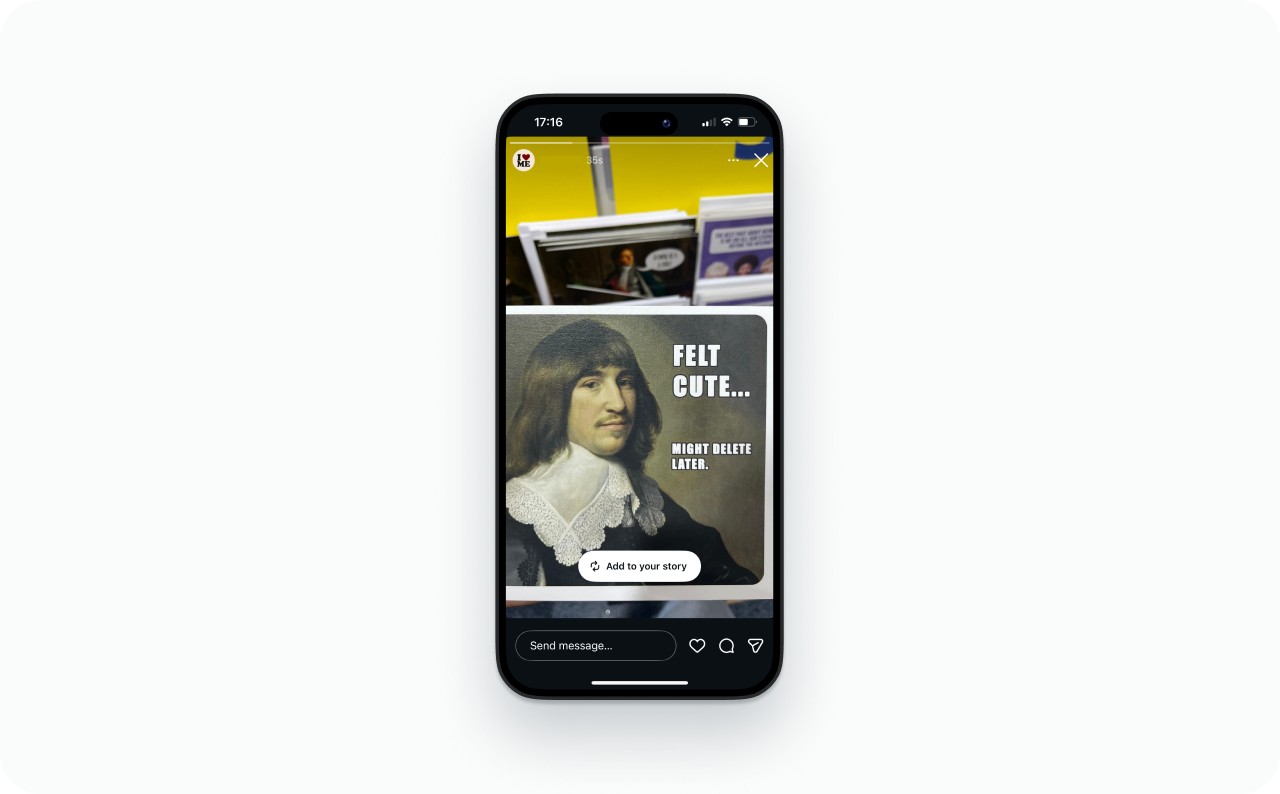
Step 1: Open the mention in your DMs
Go to your DMs. You’ll find a message telling you that someone mentioned you in their Story. Tap that notification, then tap into the actual Story. Down at the bottom, there’s an “Add to your story” button.
Spotted the Story from the bar at the top of your home feed instead? Just tap their username. You’ll get to the same place.
One thing to know: that button has a shelf life. The original Story lasts 24 hours, and once it’s gone, the repost option in your DMs vanishes too. Don’t sit on it.
Step 2: Customize in the Story editor
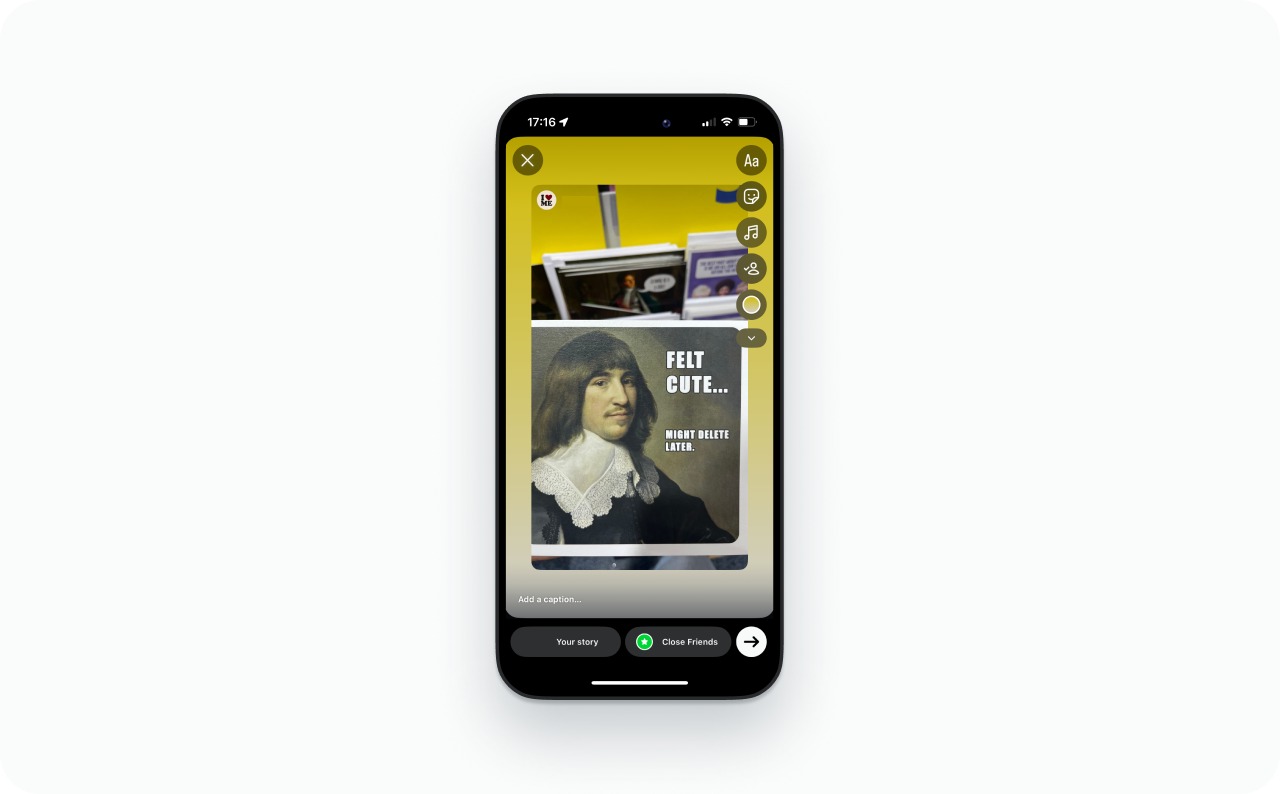
You’re in the editor now. The original Story shows up as a sticker that you can move around.
Pinch to resize it and get it centered. Keep your text and stickers away from the edges of the screen. Instagram’s UI covers the top, bottom, and sides, and anything placed there gets buried behind profile names, buttons, and the reply bar. My Instagram Story size and dimensions guide has the exact safe zone measurements.
Write something short. “Thanks for the shout-out!” is fine. So is “Real results from a real customer.” Whatever feels natural.
Using a Link sticker? Stick it in the lower middle of the screen. That’s where thumbs go. And crank the contrast up so nobody has to squint at it.
Step 3: Credit the creator and publish
You don’t need to worry about crediting them manually. Instagram puts the original creator’s username on the sticker automatically. You can always @mention them in your text too if you want to be extra.
Tap “Your story” or “Close friends” and it’s out there. Good testimonial? Customer tagging you in something that makes your product look great? Throw it into a Highlight so it outlives the 24-hour window.

How to repost a Story on Instagram when you’re not tagged
No tag, no repost button. The app only surfaces “Add to your story” when the creator puts your @username in their Story.
Instagram has been quietly testing a broader reshare feature for public accounts. It’s tied to a toggle at Settings → Privacy → Story → “Allow Resharing to Stories.” Some people are seeing the repost button on public Stories they weren’t even tagged in. If that’s you, go for it. But the rollout has been slow and spotty, so I wouldn’t build a workflow around it yet.
For the rest of us, three options:
Step 1: Ask for a tag or grab the content yourself
- Message them and ask for a tag. “Hey, this is great! Mind tagging me so I can share it?” That’s literally all it takes. Once you’re tagged, the native repost kicks in and you’re back to the easy flow
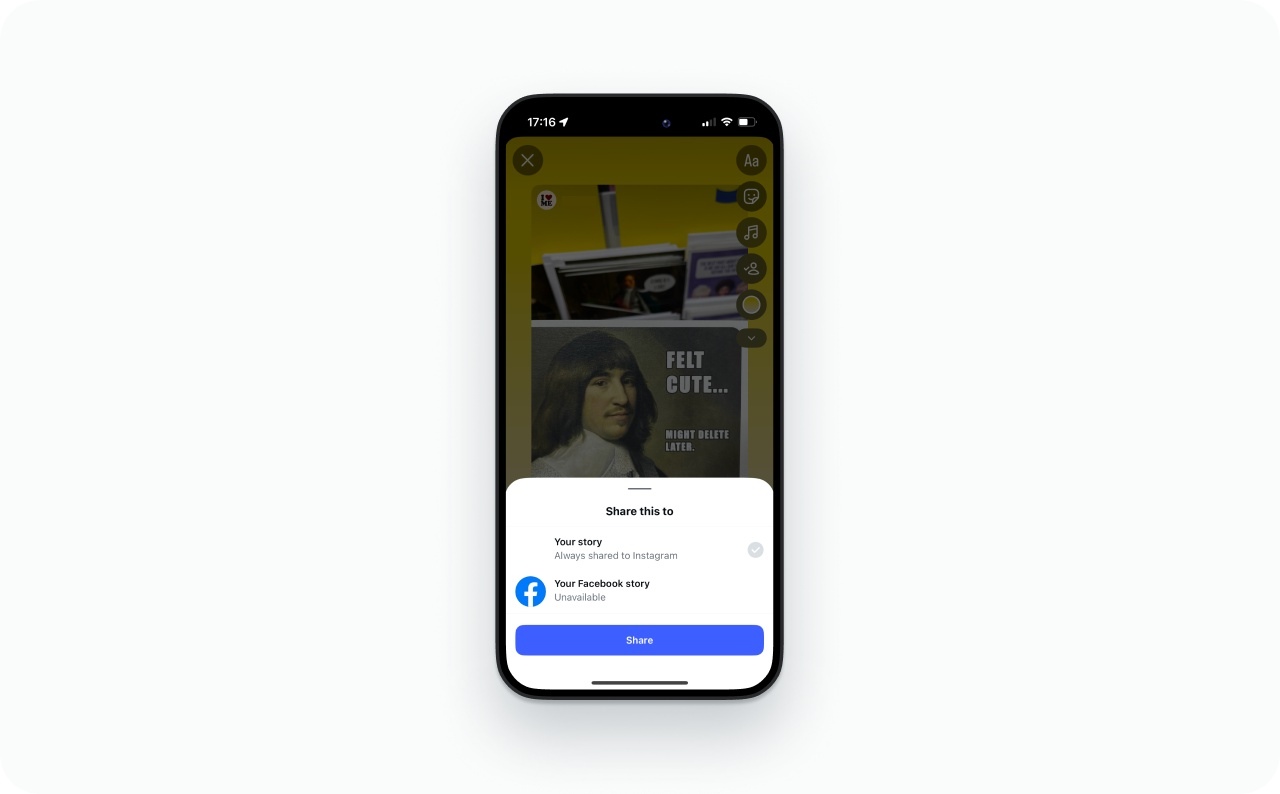
- Screenshot if it’s a photo. Got their okay but they didn’t bother re-tagging? Screenshot the Story. Crop tight. Get rid of the status bar and any Instagram chrome around the edges
- Screen-record if it’s a video. Trim the beginning and end so the recording looks intentional, not like you fumbled with the buttons
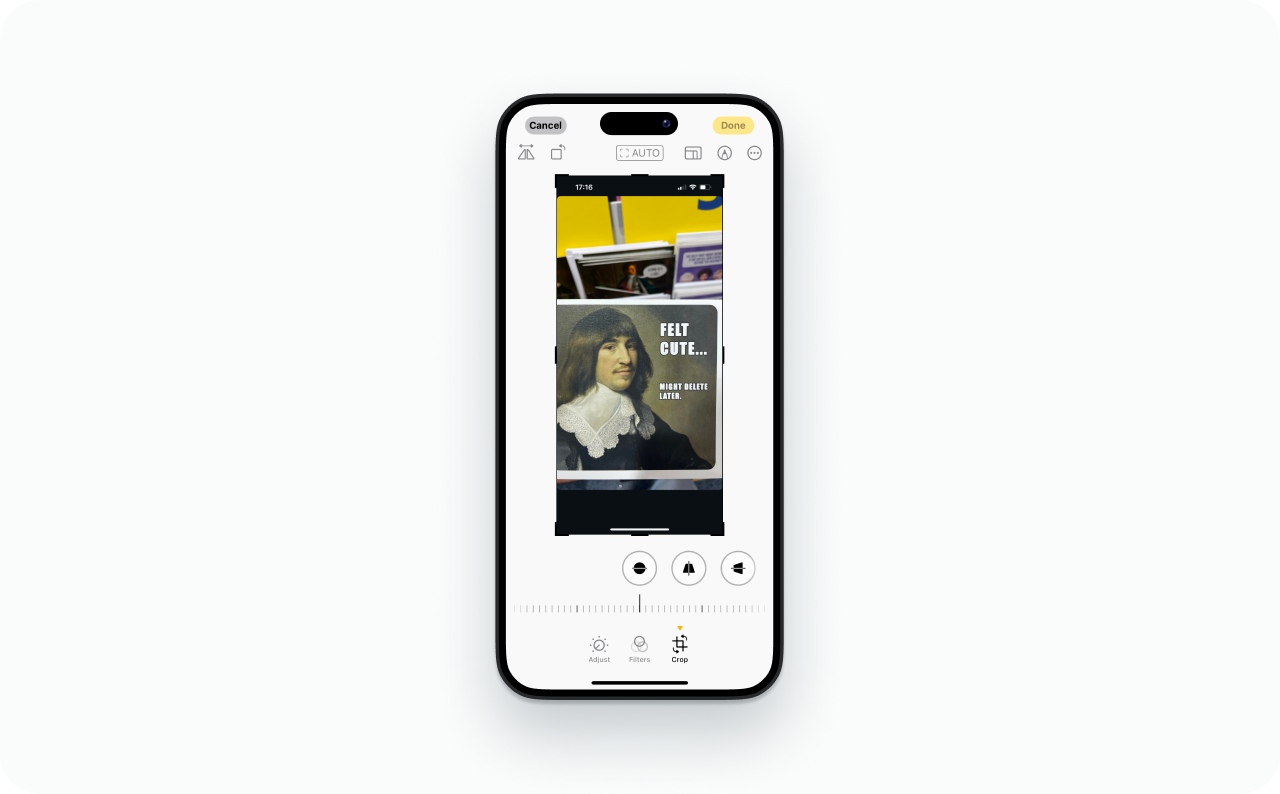
By the way, Instagram doesn’t send a notification when you screenshot or screen-record someone’s Story. Still ask first. It’s the right thing to do and it protects you if they ever have a problem with it.
Step 2: Upload and credit the creator
Back in Instagram, tap the plus icon and choose Story. Pull the screenshot or recording from your camera roll.
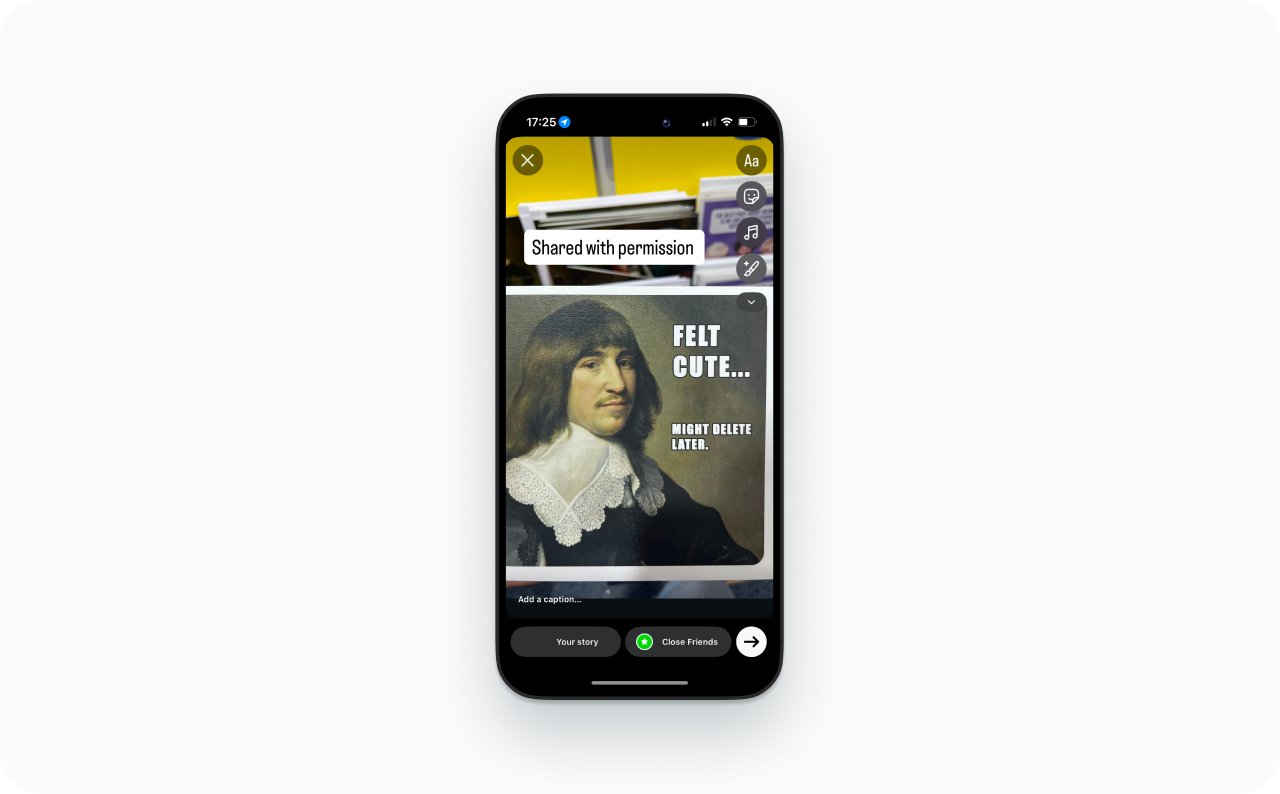
You’ll want to add a couple of things. A caption so people have context. A credit line that says who made the original, something like “Shared with permission from @username.” And a Link sticker if there’s somewhere you want to send people.
Stay inside the safe zone with your text. My guide on how to post a story on Instagram covers the layout basics.
Step 3: Publish and pin to Highlights
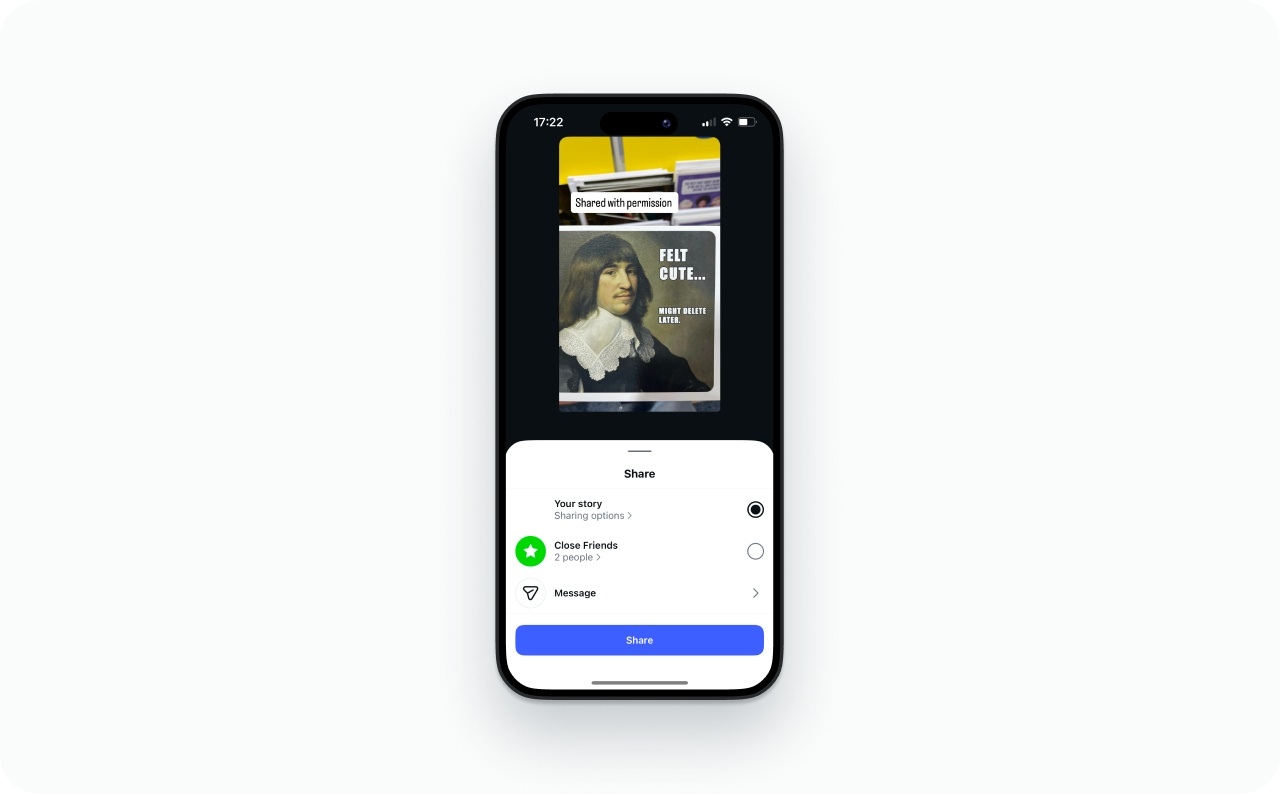
Tap Your story or Close friends and publish.
If that content is a solid testimonial, don’t let it evaporate in 24 hours. Add it to a Highlight. Call it “Results” or “Reviews” or whatever makes sense for your brand. And if you’d rather remake the Story in your own style, 6 ways Story templates make your Instagram faster has some good starting points.
How to repost your own Instagram Story
That Story from a few weeks ago that got all the replies and link taps? It’s not gone. Every Story you post gets saved to Archive automatically. You can pull any of them out and run them again. Full walkthrough here if you need it: how to find old Instagram Stories.
Step 1: Find the Story in your Archive
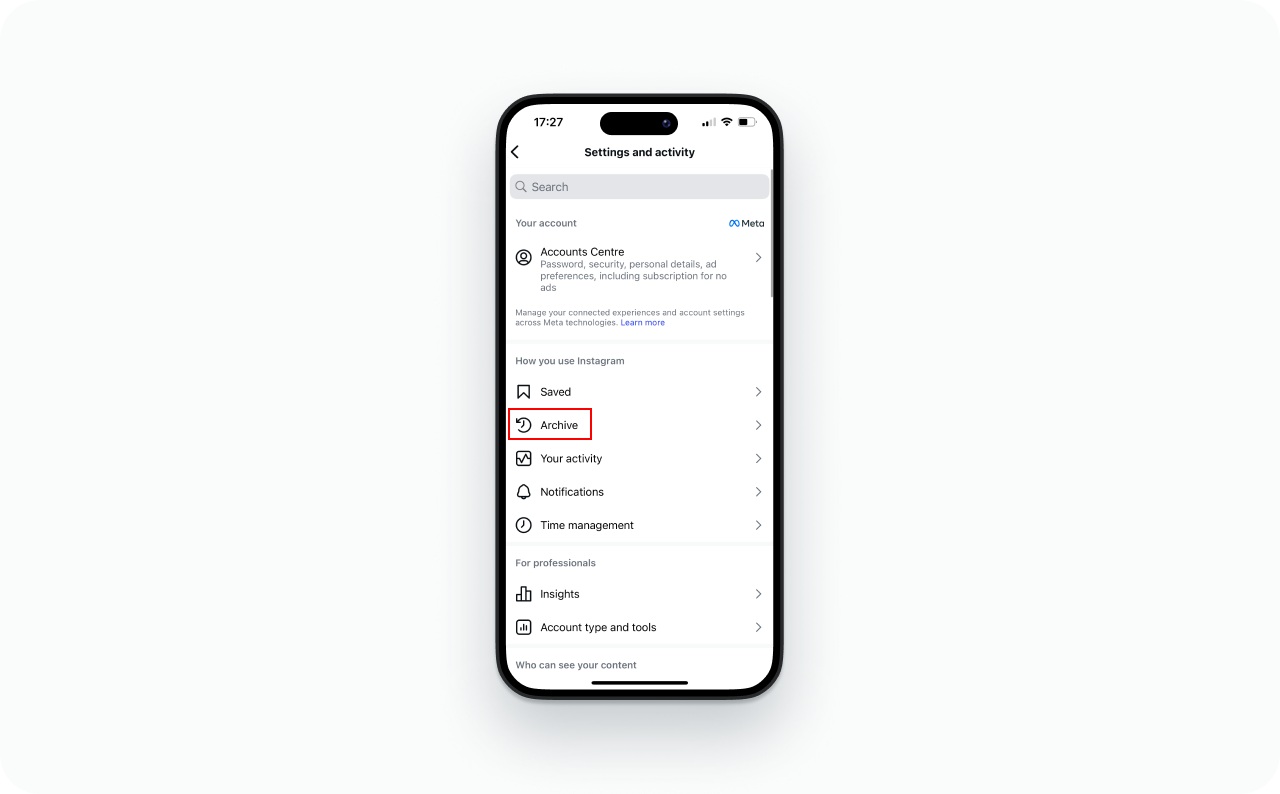
Open your profile, tap the three-line menu, and go to Archive. Switch to Stories Archive and scroll to whatever you’re looking for.
Small thing: double-check that Archive is actually turned on. Settings → Privacy → Story → “Save story to archive.” It’s on by default, but I’ve talked to people who somehow toggled it off without realizing.
Step 2: Update the details before reposting
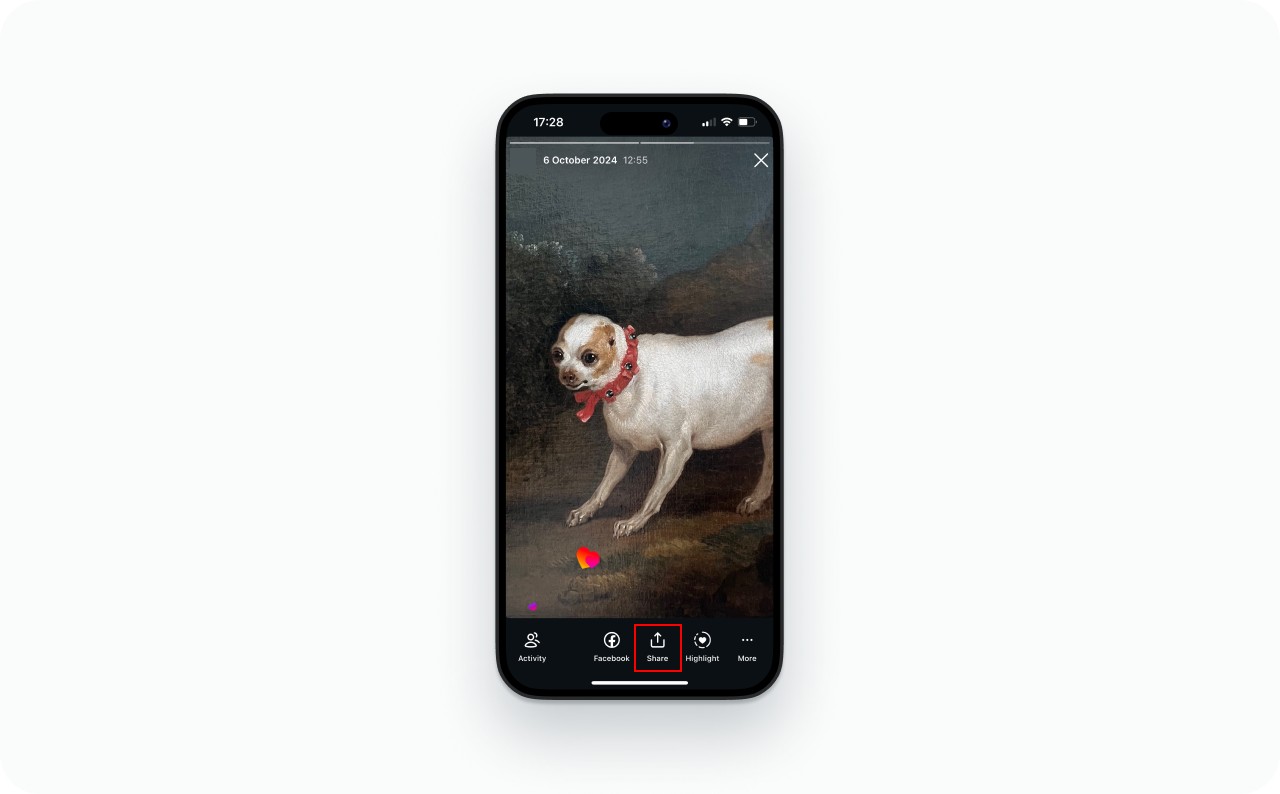
Tap into the Story and hit Share or Add to story at the bottom. That opens the editor.
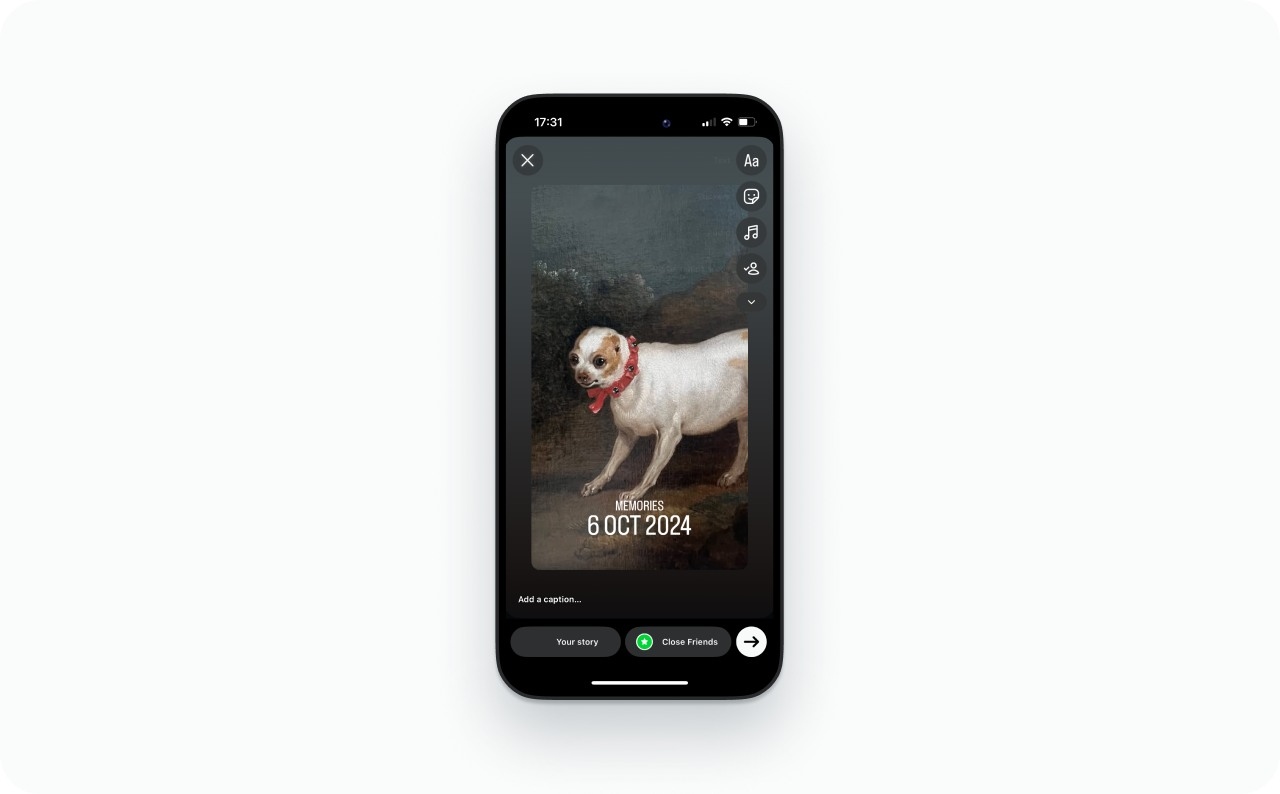
Go through it before you publish. If there’s a price or date in there, make sure it’s still right. Swap the CTA if you’re promoting something different now. And toss in a fresh Link sticker with UTM tags so this round of clicks shows up separately in your analytics.
Step 3: Republish
Tap Your story and it’s live again. If that Story sold well the first time around, think about turning it into a real ad and testing a few variations with actual spend behind it.
How to share a post or Reel to your Instagram Story
Sharing a feed post or Reel to your Story isn’t the same as reposting a Story, but people search for it the same way.
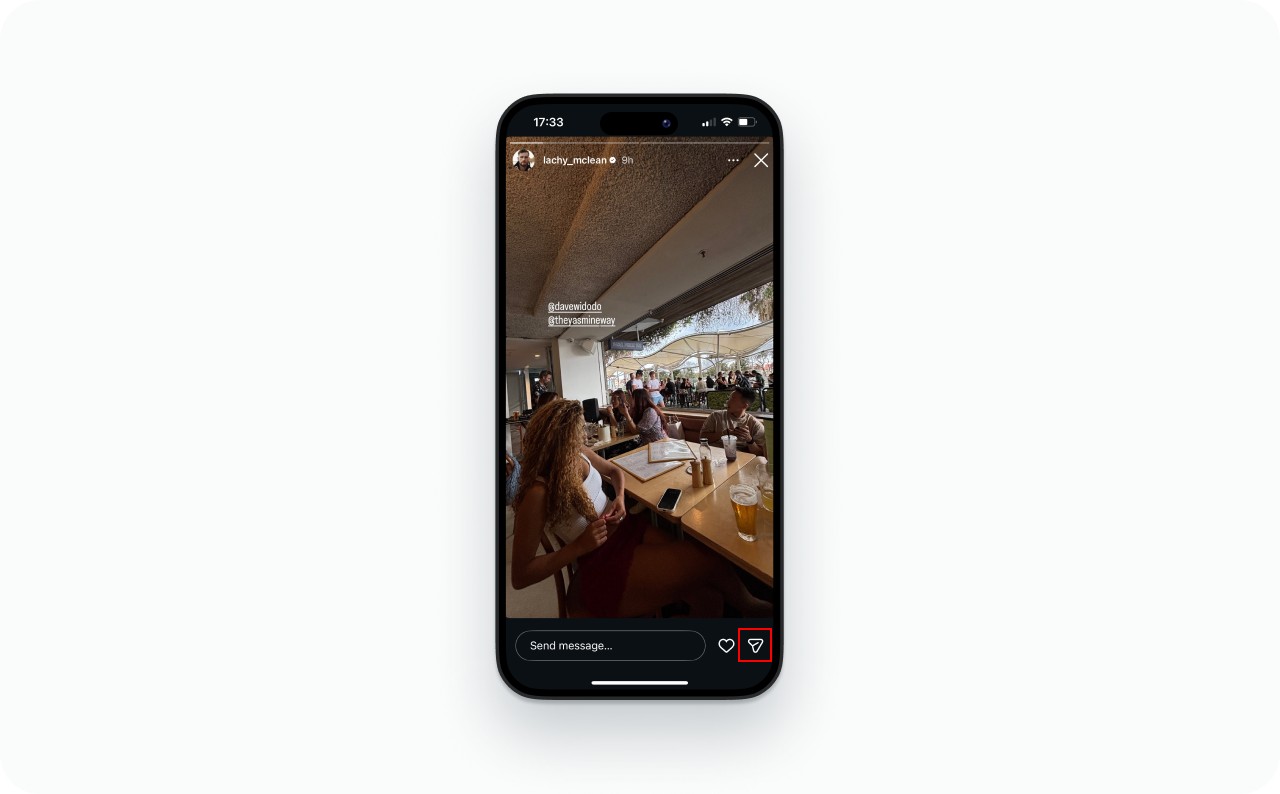
Photo source: @lachy_mclean on Instagram
- Step 1. Pull up the post or Reel. See the paper plane icon below it? Tap that
- Step 2. Hit “Add to story” or “Add Reel to story.” The content lands in your Story editor as a sticker that people can tap. They tap it, they see the original. You can drag it around, resize it, write on top of it
- Step 3. Post it to Your story
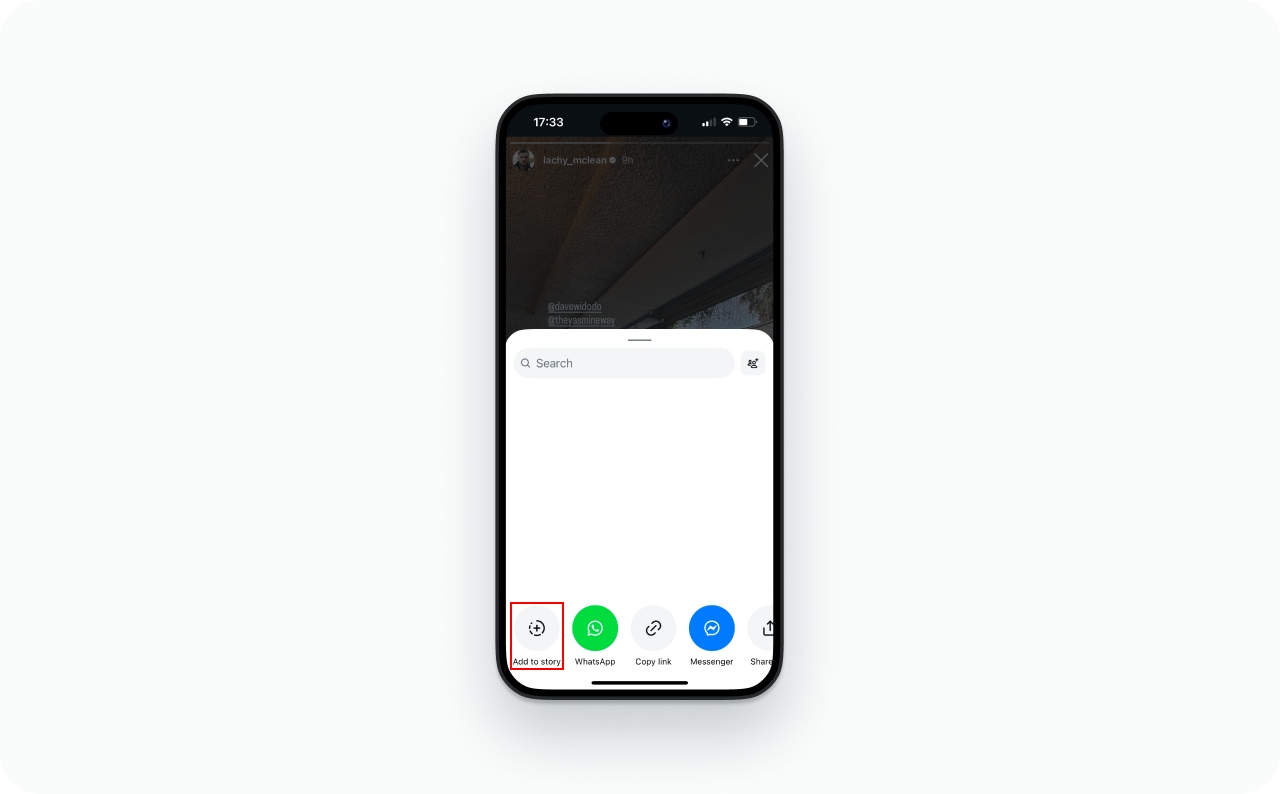
Two things will block you. A private account: you can’t share their content this way. Or the creator flipped the resharing toggle off. That’s either Settings → Privacy → Story → “Allow Resharing to Stories” or Settings → Privacy → Posts → “Allow sharing as story.”
And one more thing people mix up: since August 2025, there’s a “Repost” button on Instagram that puts someone’s public post straight onto your grid with a credit link. Completely different from sharing something to your Story.
How to share Stories from other accounts
Sometimes you just want to forward a Story to someone, not repost it. Open the Story, tap the paper plane icon at the bottom, and either send it as a DM or add it to your own Story if the option appears. With private accounts, you can only send the Story to people who already follow that account. If you’re adding it to your Story, tag the original creator and keep your text inside the safe zone.
Why can’t I repost a Story on Instagram?
The button should be right there and it’s just… not. Almost always one of these six reasons.
Resharing is off. There’s a toggle buried in the creator’s settings: Settings → Privacy → Story → “Allow Resharing to Stories.” Turned off means turned off for everyone. Creators can also kill the option for a single Story while they’re posting it. That’s the “Let people you mention add this to their story” switch in the Story editor. If either one is off, you’re out of luck. Instagram’s Help Center page on Story mentions confirms how these controls work.
Private profile. Doesn’t matter what else is true. Private account means no Story resharing. You can forward it through DM to someone who follows them, but “Add to your story” won’t show up.
They didn’t tag you. Your @username has to physically be in the Story. Typed out or added with the mention sticker. If they tagged you in a feed post caption but forgot the Story, the Story repost button won’t appear.
You ran out of time. Stories live for 24 hours. The repost button dies when the Story does.
App needs an update. I’ve seen older Instagram versions hide sharing buttons completely. Go update.
Just a glitch. Force-close Instagram, clear cache, log back in. If it’s happening on multiple devices, something is going on with Instagram’s servers and it’ll sort itself out in a few hours.
Advanced: Making reposts work for sales
Spending thirty extra seconds on quality makes the difference between a Story that gets skipped and one that gets tapped.
Reposting checklist
Before you repost
- Permission secured or clearly tagged?
- Is the source account public?
- Right method picked for the content type?
In the editor
- Nothing important hiding behind Instagram’s interface elements
- Working with multiple images? My guide on how to make a collage on Instagram Story can help
After it’s live
- Added to a Highlight if the content has legs
- Original creator credited
Any Story that already proved it could sell deserves paid reach. The Zeely AI Instagram Story maker lets you rebuild it as an actual ad, test a few hooks, and put budget behind the message that already resonated.


FAQs
Short answer: not natively. Instagram reserves the “Add to your story” button for people who were @mentioned. There’s a reshare test rolling out for some public accounts, but coverage is spotty. If you don’t see the button, ask the original poster for permission and go the screenshot route. Credit them clearly.
Check three things. Did the creator turn off resharing? Is the account private? Has the Story already disappeared? Any one of those kills the button. Also, some creators flip the reshare toggle off on specific Stories when they’re posting them. An app update sometimes fixes weird cases where the button is hiding for no obvious reason.
The native repost from a tagged mention does send a notification, yes. Going the screenshot or screen-recording route? Instagram stays quiet about that.
Yours, absolutely. Archive saves everything and there’s no expiry on resharing your own content. Reposting someone else’s Story after it’s gone? That option vanished with the original. You’d have to ask them to send the file.
Tap the paper plane icon under the post, then “Add to story.” It shows up as a tappable sticker that links back to the original. Public accounts only.
Nope. Desktop Instagram doesn’t have Story reposting or Story creation. Mobile app only.
Go into Settings → Privacy → Story and turn off “Allow Resharing to Stories.” There’s also a per-Story toggle you can flip when you’re posting. But all of that only disables the button itself. Screenshots and screen recordings are still fair game and there’s nothing Instagram can do about those. Making your account private gives you more control, though you’ll trade discoverability for it.