How to manage your Zeely account: Sign up, login, change password, update & delete
Locked out, need a password reset, or ready to delete your Zeely account without it becoming a whole project? I wrote this so you can fix it fast and get back to business. It follows the official Zeely app and web dashboard steps, so you’re not guessing.

This Zeely account guide gives you step-by-step instructions to sign up, log in, change your password, update your profile, or delete your account without guessing where menus live. This is the “account stuff” guide. Get into Zeely, stay in, and make the essentials changes without hunting through screens.
Here’s the shortest map:
- Sign up (app): Sign Up → quick business quiz → create password
- Change password (app): Account → Profile details → Password
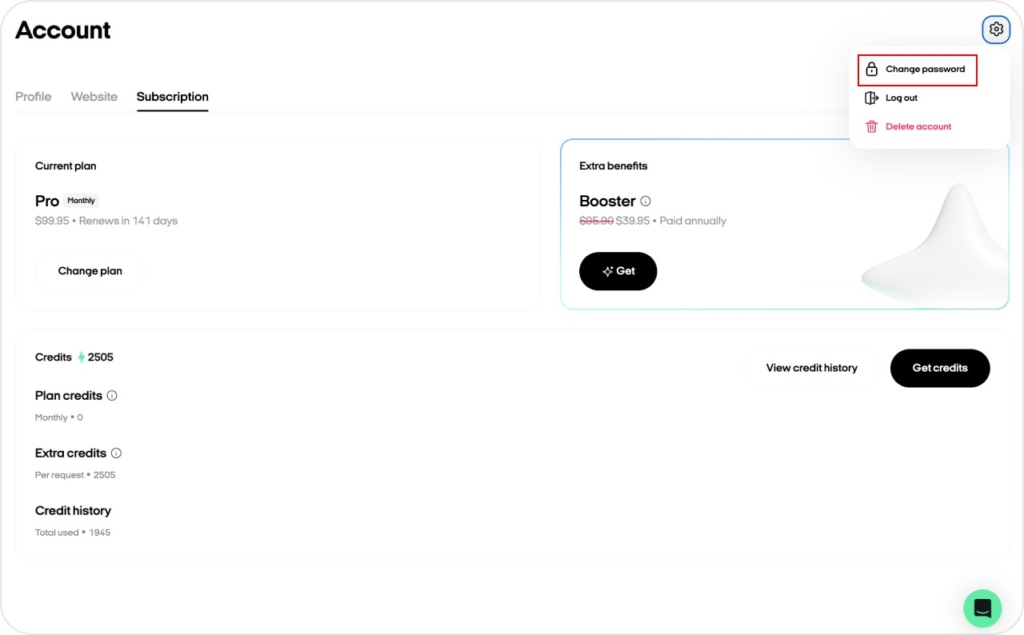
- Change password (web): Account → gear icon → Change Password
- Update profile (app): Account → Profile Details
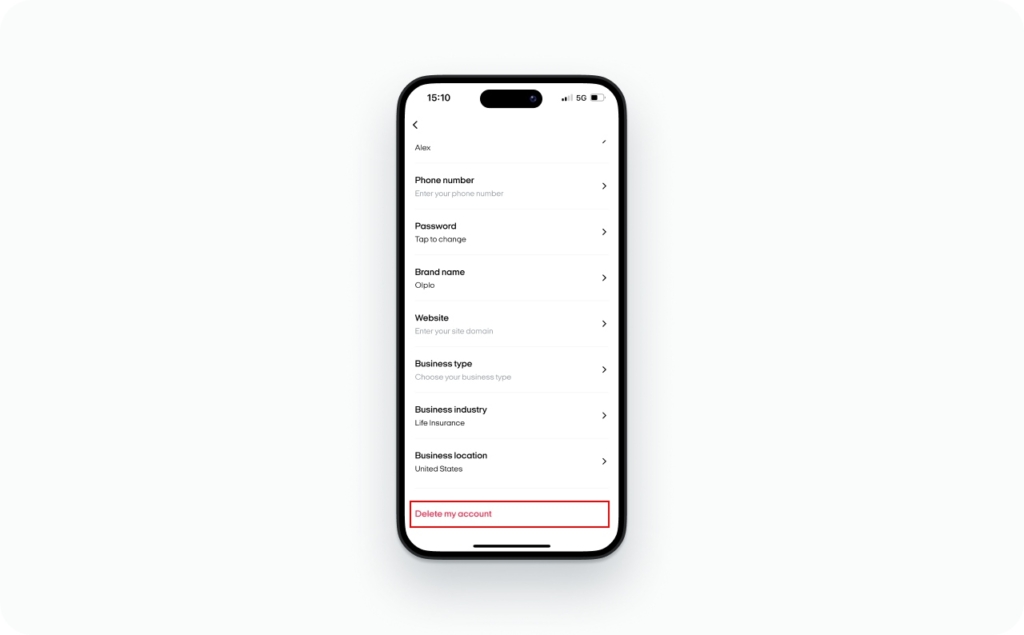
- Delete account (app): Account → Delete My Account
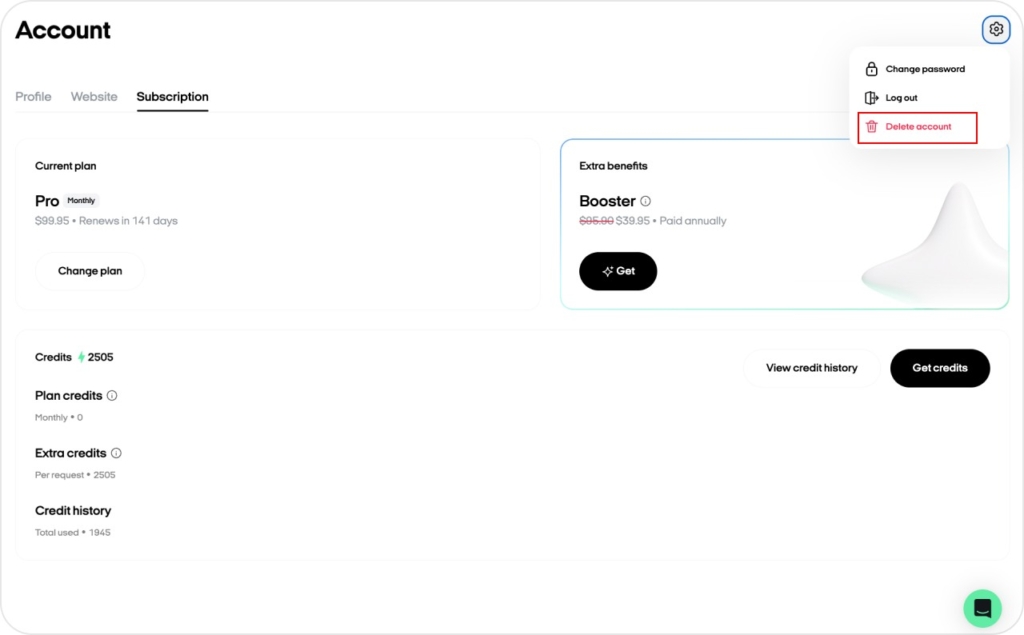
- Delete account (web): Dashboard → Delete Account
If login issues happen, start with the basics: confirm your email/phone and password, check Caps Lock, test your internet, disable VPN, reinstall the app, or clear browser cache and cookies.
How to sign up for Zeely
If you want the fastest path, use whichever device you’re already on. You can sign up in the Zeely app or from your browser, and both take a few minutes. Before we get started, make sure you download the Zeely app to access all features seamlessly. Follow our quick guide on how to install Zeely from the Apple App Store or Google Play and get set up in just a few minutes.
How to sign up in the Zeely app
- Download the Zeely app from the App Store or Google Play
- Open the app on your device and tap Sign Up
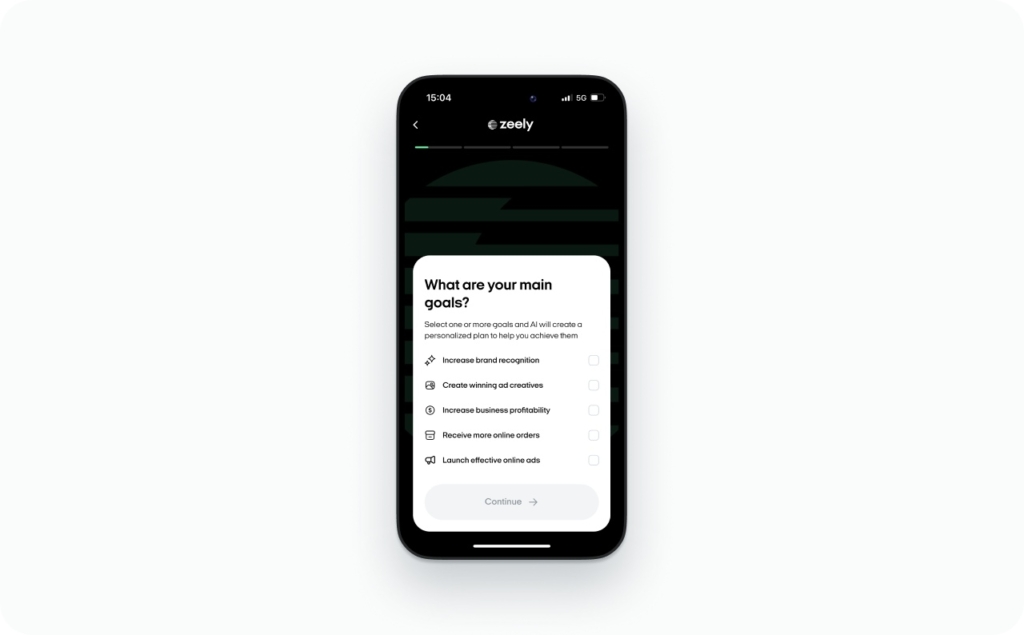
- Take a quick 3-minute business quiz to help us personalize your experience
- Enter your name and create a secure password
How to sign up on the web
- Go to https://app.zeely.ai
- Click next to Don’t have an account? Take a 3-min quiz to get started
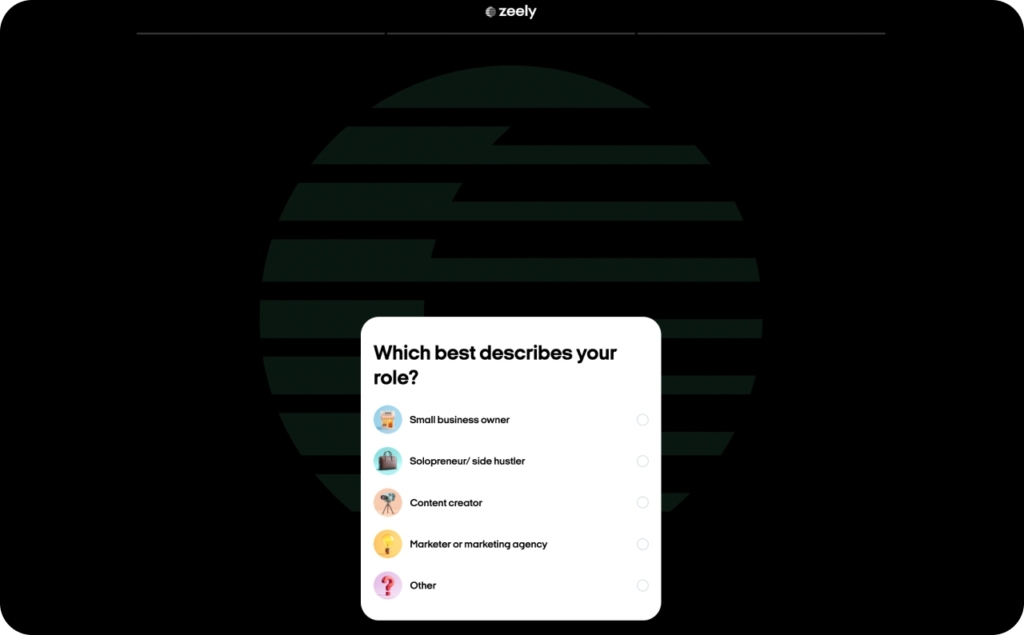
- Take a 3-minute business quiz to personalize your setup
- Enter your name and create a password
- Start using the Zeely AI ad generator to create high-performing video and static ads in minutes
You’ll get a new active account session, and your quiz answers help personalize what you see first. The quiz is there so you don’t start from a blank setup. Zeely uses it to personalize your experience right after signup.
Logging into your Zeely account
If you’re trying to get into Zeely or you keep getting logged out, this section walks you through the official login points first, then the fastest fixes. Start simple. Most login issues are resolved in the first few steps.
Where to log in (app vs web)
- Web: Log in at https://app.zeely.ai/login
- App: Open the Zeely app on your device and use your existing login details
If you can’t log in on one device, try the other. That alone often tells you where the issue lives.
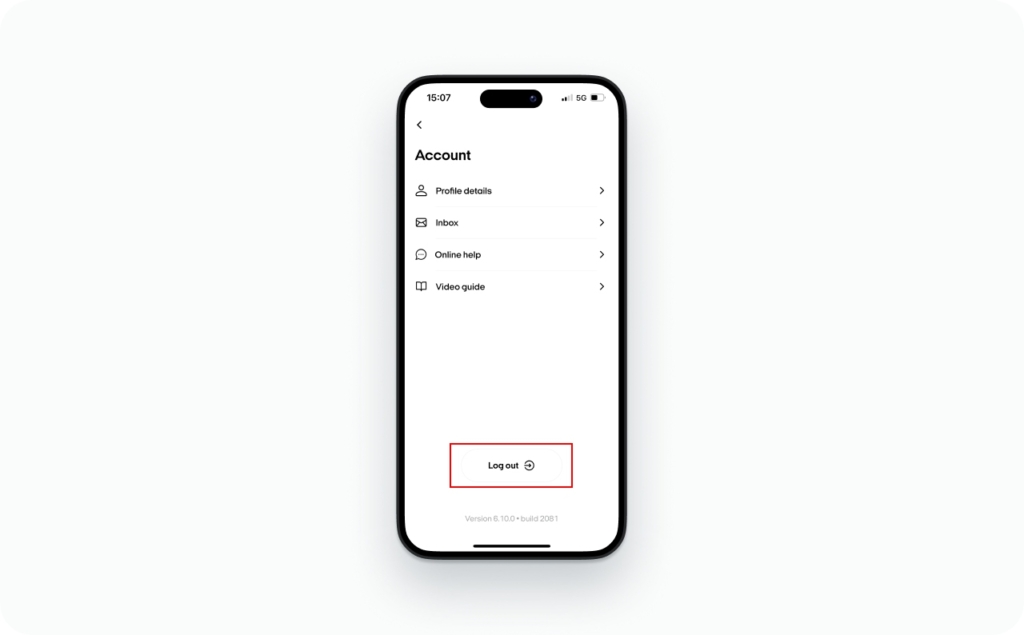
How to log out of my App account?
You can log out anytime from the app. This is useful if you’re switching devices or resetting a session.
Open the Zeely app and go to the Account section (bottom-right corner) and tap the Log Out button to sign out of your account.
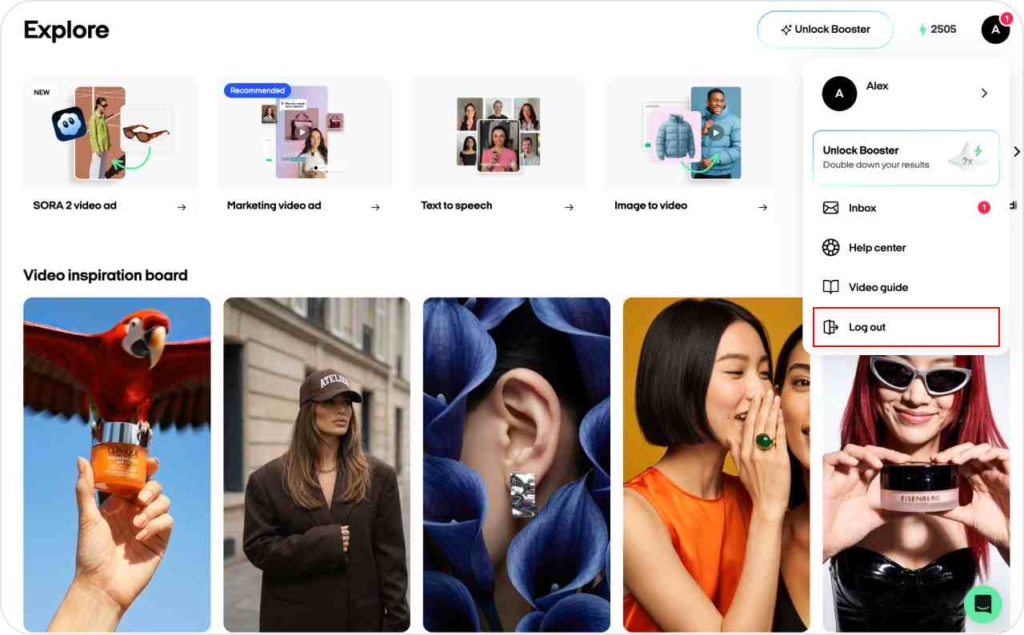
How to log out of my Web account?
Logging out on web fully ends your session and returns you to the login screen. Go to the Account section in the top-right corner of your Zeely web dashboard. Click the Log Out button and you’ll be signed out and redirected to the login page.
How to fix Zeely login issues when you can’t log in or keep getting logged out?
There can be several reasons why you can’t log into your Zeely account or why you get logged out unexpectedly. The most common causes include:
- Incorrect login credentials (email or password)
- Weak or unstable internet connection
- Outdated app version or browser cache issues
- Cache or cookie problems
Work through these fixes in order. Don’t skip ahead.

How to change your Zeely password
A strong password is basic account hygiene because breaches are real-world, recurring events, not movie plots.
How to change your password in the Zeely app
Use this when you’re logged in on mobile and want to rotate credentials:
- Open the Zeely app on your phone
- Tap the Account icon in the upper-right corner
- Go to Profile details, then select Password
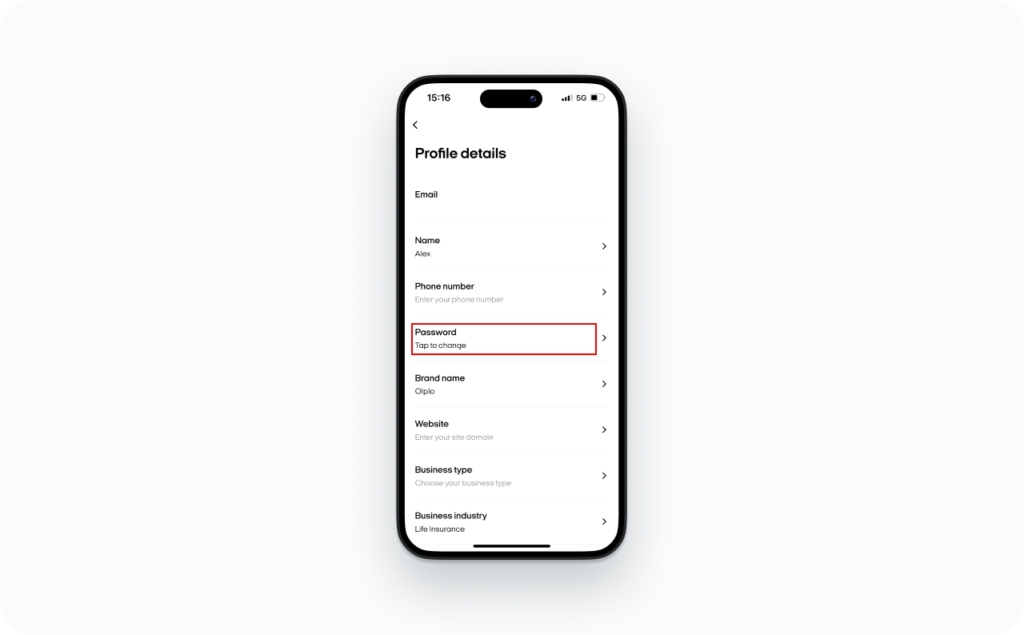
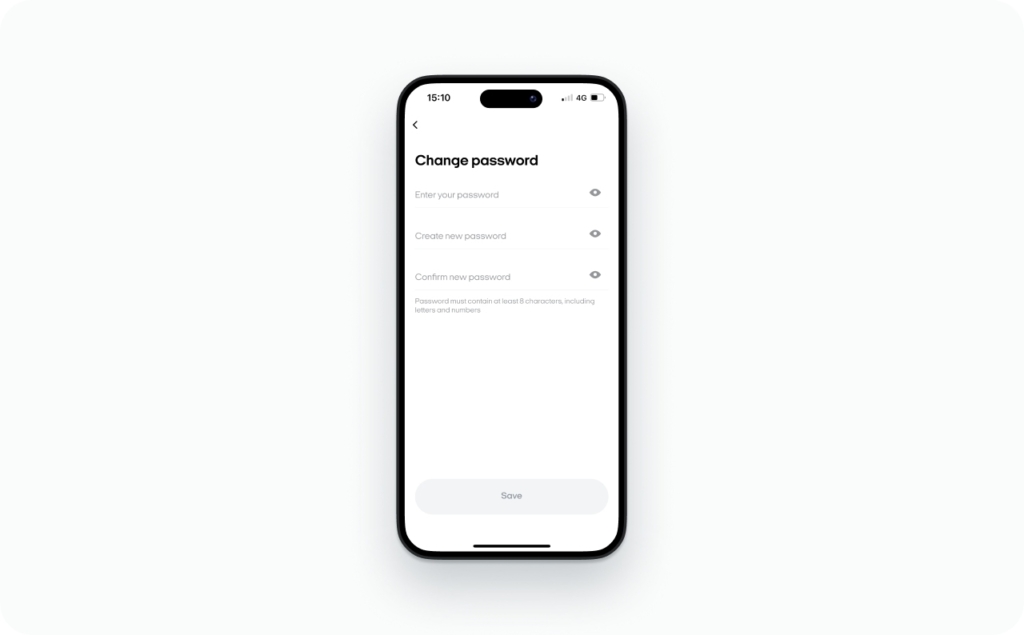
4. Enter your current password
5. Create your new password
6. Re-enter the new password to confirm it
7. Tap the Save button to apply the changes
Use a strong password with at least 8 characters, including numbers and special symbols, to improve your account security.
How to change your password in the Zeely web version
Use this when you’re signed into the dashboard and prefer desktop.
Steps (verbatim)
- Open the Zeely web version in your browser
- Click the Account icon in the upper-right corner
- Click on your name and email section to open your account details
- Click the gear icon in the upper-right corner
- Select Change Password
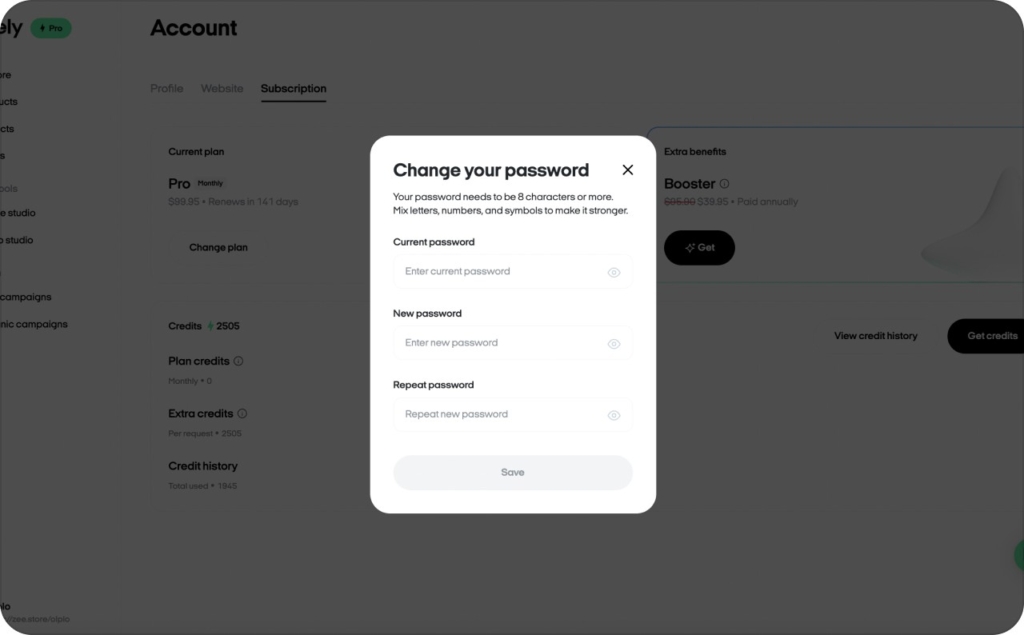
- Enter your current password
- Create your new password
- Re-enter the new password to confirm
- Click Save to apply the changes
Updating your account information and deleting your Zeely account
Profile edits are routine. Deletion is final.
NOTE: Deletion of an account does not mean deletion of your subscription.
If you want to cancel your subscription, you can read the detailed guide in this article. If you’re experiencing issues with your current payment method, you can update it at any time in your account settings. We offer several payment options to ensure a smooth and hassle-free experience. You can read about them in this article.
How to change my personal information in app?
These are the exact steps, no extras.
- Open the Zeely app and go to the Account section and tap Profile Details
- Find the field you want to update (e.g., name, business name)
- Tap the field and enter your new information
How to delete my account in app?
If you no longer wish to use Zeely, you can delete your account directly from the app. Please note that this action is permanent. If you’ve decided to close your account, I’ll help you do it quickly and without any stress.
Here’s how:
- Open the Zeely app and tap that human icon at the top-left corner
- In the Account section, tap Profile Details
- Scroll to the bottom of the page and tap Delete My Account. Confirm the deletion when prompted
If you’re unsure or something isn’t working as expected, our support team is always here to help. And yes, we’re always happy to see you back.
How to delete my account from Zeely dashboard?
If you no longer wish to use Zeely, you can delete your account directly from the web dashboard. This takes just a few clicks and fully closes your account.
Here’s how:
- Log in at https://app.zeely.ai/login
- Click the first letter of your name in the top-right corner
- Then, click the gear icon and choose Delete Account from the list, and confirm the deletion when prompted
If you’re running into trouble or want to talk through anything before deleting, our support team is here for you. Reach out anytime. And yes, we’re always happy to see you back.
Quick “where do I do this?”
| Task | Best place | What you’ll click (matches this guide) |
| Create Zeely account | App | Sign Up → quick quiz → name + password |
| Zeely web login | Web | https://app.zeely.ai/login |
| Log out (app) | App | Account (bottom-right) → Log Out |
| Log out (web) | Web | Account (top-right) → Log Out |
| Change password | App or Web | App: Profile details → Password • Web: Account → gear icon → Change Password |
| Update profile info | App | Account → Profile Details |
| Delete account | App or Web | App: Delete My Account • Web: gear icon → Delete Account |
Now that you know how to sign up, access your account, and update your information, you’re ready to take the next step. Read our guide on how to set up your first Zeely project and start making the most of all the tools and features available to you.