How to create a second Instagram account
Want a second Instagram account for business, privacy, or a side project? Go to your profile, tap your username, choose Add account, then Create new account. My guide covers the full setup on iPhone, Android, and desktop, plus switching, privacy, and troubleshooting.

The whole process happens inside the app. You don’t log out of anything. Tap your profile, tap your username at the top, Add account, Create new account. Works on iPhone, Android, desktop. Takes about a minute.
Key takeaways
- Profile → tap username → Add account → Create new account. Same steps on iPhone and Android
- If the account already exists somewhere, you don’t need to make a new one. Choose Log into existing account from the same menu
- You need a different email or phone number for each account at signup. Instagram won’t let you register two with the exact same email, though you can share one email across accounts by changing it in settings after registration
- Your second account is not publicly tied to your first. Instagram may still recommend it to people who share your contacts or Facebook though
How to create a second Instagram account in the app
Same process on iPhone and Android. Instagram moves buttons around from update to update, but they haven’t changed this particular flow in a while.
- Open Instagram. Go to your profile
- Tap your username, top of the screen
- Tap Add account
- Hit Create new account
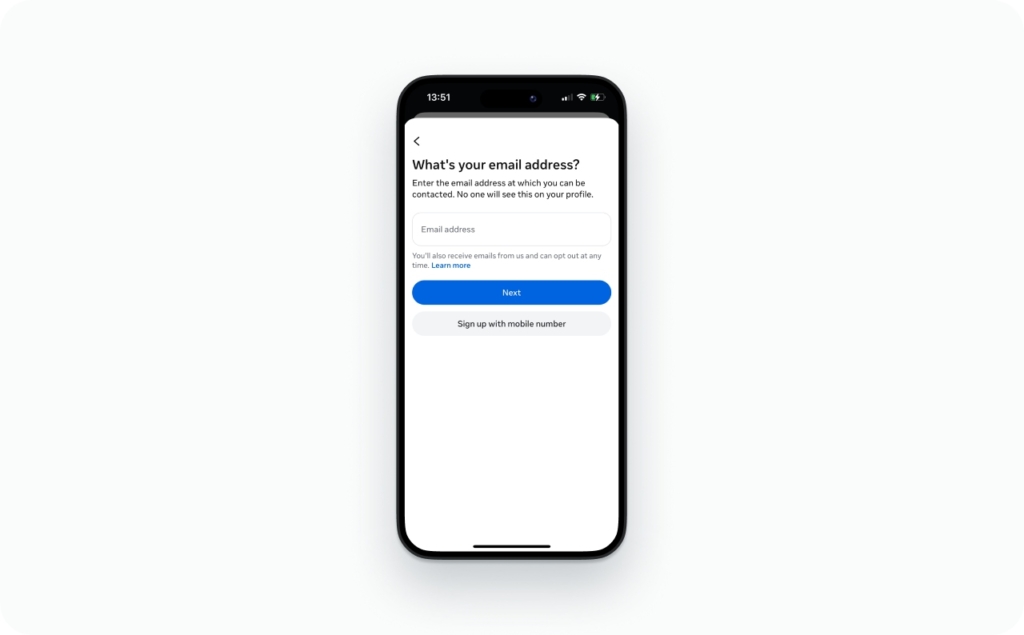
- Choose a username, add an email or phone number, pick a password
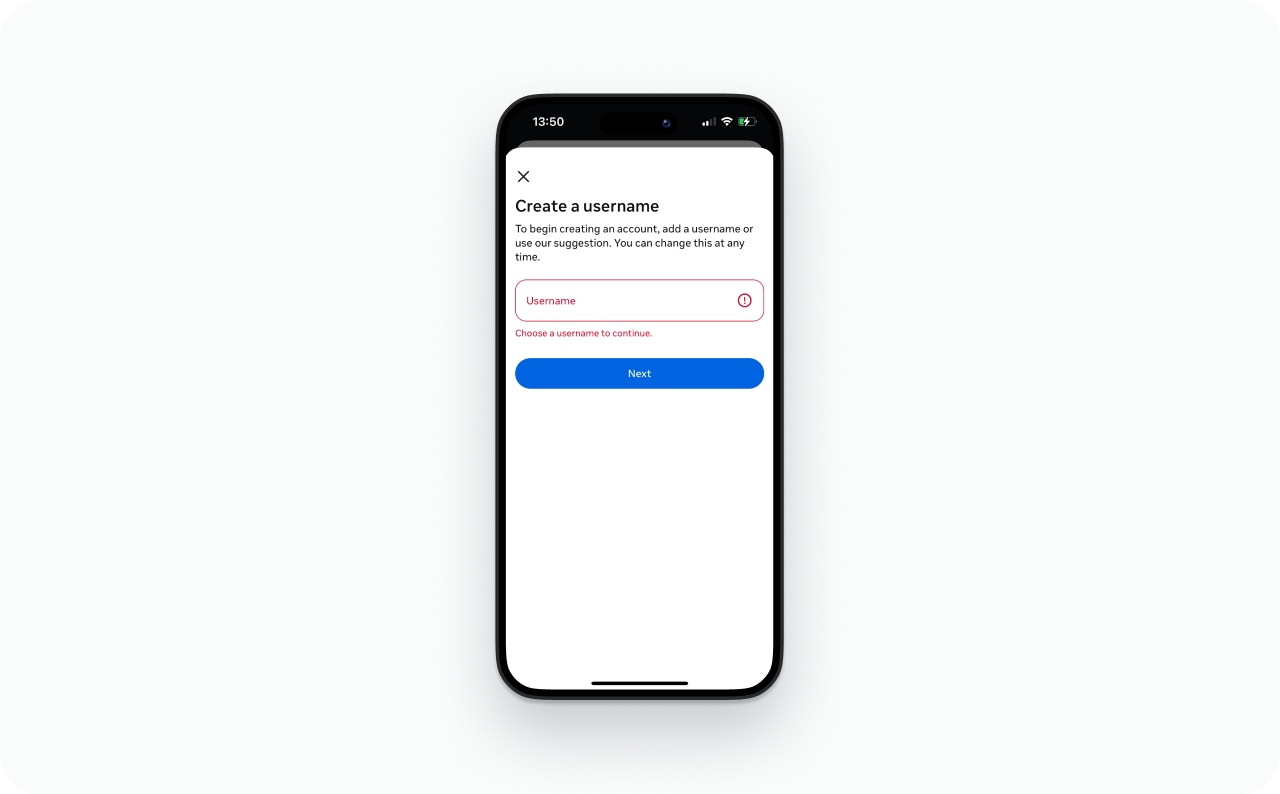
The button label may appear as “Add account” or “Add Instagram account” depending on your app version. Both lead to the same place.
That switcher menu you just opened is also where you flip between profiles later.
If your second account is for a business, there’s one more step after setup: go to Settings and privacy → Account type and tools → Switch to Professional account. Choose Business or Creator. It’s free.
How to create a second Instagram account on desktop
Go to instagram.com. Sign-up form: email or phone, full name, username, password. Create the account. Then on your phone, open the account switcher → Log into existing account, and pull it in.
Good option when the app is acting up or you just prefer a bigger screen.
Recovery setup for your new account
Spend an extra thirty seconds on this:
- Email. Strongest pick for a business or brand. Recovery and ownership stay clean if anything goes wrong
- Phone number. Gets you through sign-up fast. On its own, not really enough for anything business related
- Accounts Center. Handy for hopping between Instagram and Facebook. Just know it doesn’t replace having real login credentials you control

How to add an existing Instagram account
Different situation from creating one. If the account already exists and you just want it on this device:
- Go to your profile
- Tap your username at the top
- Tap Add account
- Hit Log into existing account
- Type the username and password
- Tap Log in
Lands in your switcher immediately. Password stays saved until you actively log out. Once both accounts are active, you can see who unfollowed you on Instagram on either profile to keep track of audience changes.
Instagram’s Help Center confirms it: add the account once, then switch freely without signing in and out every time.
Linked login vs. separate credentials
Linked login makes sense for alts, hobby pages, anything that’s yours and will stay yours. Quick to switch, no extra passwords to track.
Separate email and password is worth the hassle when the account runs ads, belongs to a client, might get handed off someday, or has more than one person posting to it.
What I recommend in practice:
- Personal second account → linked login, no issue
- Business second account → own email, own password, and turn on two-factor authentication
- Team account → separate email, write down who has access, share recovery info with at least one other person
More annoying up front? Yes. But nobody has ever regretted it when something went sideways six months later. Meta published a two-factor authentication guide for Instagram and I’d set it up for anything that touches money or ads.
Can you create a second Instagram account with the same email?
Nope. One email per account, enforced at registration. You’ll get an error if the email is already attached to another profile.
One thing people miss: after you create an account with a unique email, you can go into settings and change it to an email already on another account. Some users report that Instagram allows multiple accounts to share a single email address this way. The restriction applies at sign-up, not necessarily afterward.
A few workarounds for registration:
- Register with your phone number. Use email on the first account, phone number on the second
- Gmail alias. This works with Gmail specifically, because Gmail treats + as an alias character. So yourname+brand@gmail.com and yourname@gmail.com land in the same inbox, but Instagram sees two separate addresses. One inbox, two valid registrations
- Just use a different email. Boring answer, but for anything business or team related, separate email addresses save you a headache later. Ownership disputes, recovery, handoffs, all cleaner
Instagram used to have a feature where one set of login credentials could access multiple accounts. They removed that for new setups. If yours was configured before the change, it probably still works. But there’s no way to do it fresh anymore.
How to make a second Instagram account private without notifying friends
Instagram doesn’t send anyone a notification when you create a new account. Nobody gets alerted.
What it does do is suggest your new profile to people who already have your phone number or email saved, and to people linked to your Facebook. Those suggestions happen silently. So the real move is shutting them off before they have a chance to fire.
Privacy setup for a second account
- Say no to the friend-finding prompts. Instagram asks for your Facebook friends and phone contacts during setup so it can suggest people. Exactly what you’re trying to avoid. Decline all of it
- Leave Facebook disconnected. Accounts Center hooks Instagram and Facebook together for sharing. Perfect for a brand. Defeats the purpose of a private account
- Set it to private before you post anything. Settings and privacy → Account privacy → flip Private account on. Instagram’s private account page explains what this controls. Order matters here. Don’t post first and then make it private. If you need a full walkthrough, the guide on how to make your Instagram private covers every step
- Make it look like a different person. New photo, different bio, a username that has zero resemblance to your main handle. You can also hide your followers on Instagram to limit what people see when they land on your profile
- Kill the suggestion toggle if you can find it. Settings and privacy → Account → Contacts syncing and similar account suggestions. Switch it off. Fair warning: this setting doesn’t show up on every account type, and the exact menu name may vary by app version
Privacy checklist
- Private account on
- Contacts not synced
- Facebook not linked
- Handle looks nothing like your main
- No business info visible unless you need it
- Two-factor authentication enabled
How to switch between Instagram accounts
Two taps once everything is set up.
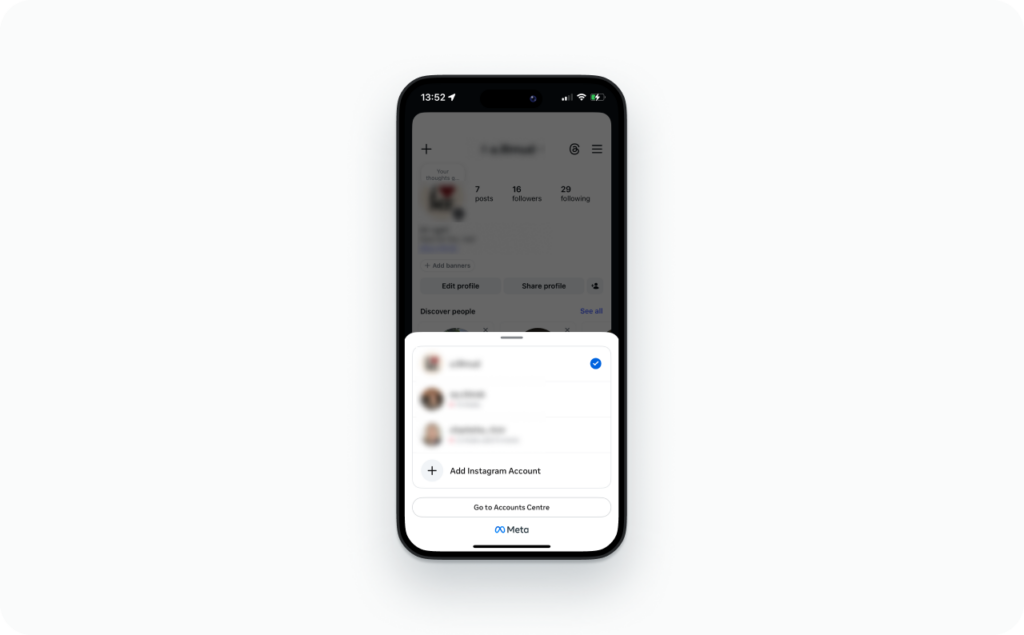
- Tap your username at the top of your profile. All your logged-in accounts show up in a list. Pick one
- Or long-press the profile icon in the bottom-right corner. Opens the same account list, works from anywhere in the app
How many Instagram accounts can you have?
Instagram’s Help Center caps it at five accounts per device in the app switcher. That’s five logged in at the same time, not five total forever. You can create as many accounts as you want, but on any single phone, five is the ceiling before you need to log one out.
Meta Accounts Center and multiple accounts
Accounts Center groups your Instagram and Facebook profiles under a single Meta identity. In practice, that means shared login credentials, some cross-app settings, and the ability to cross-post Stories to both platforms. It does not increase the five-account app limit. If a profile is in your Accounts Center but isn’t among your five active logins, you still have to sign into it manually.
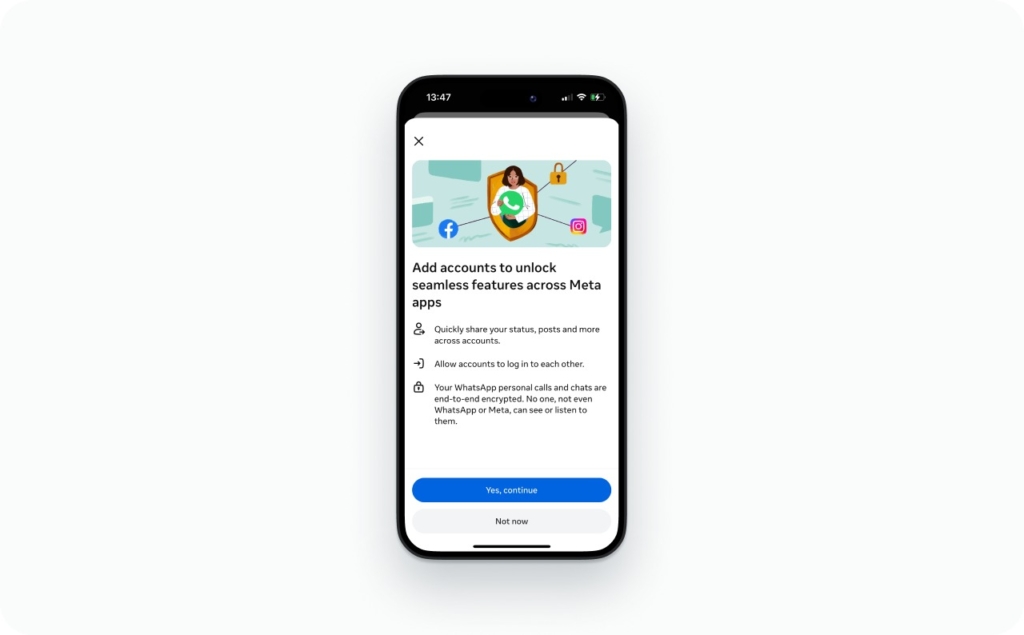
Setting it up:
- Open your Instagram profile
- Tap the menu, the three lines icon
- Go to Settings and privacy
- Tap Accounts Center
- Walk through the prompts to add your Facebook account
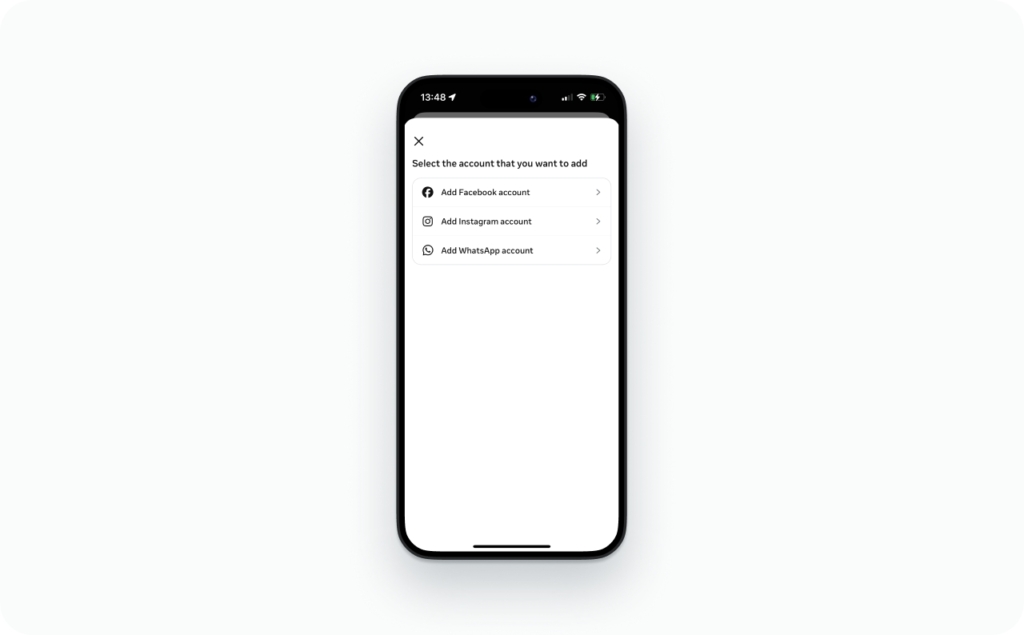
Cross-posting is the main perk. Worth it for a business account. Skip it if the second account is meant to stay quiet.
Can people tell you have two Instagram accounts?
Nobody can pull up a list of other accounts you own.
Indirect connections are a different story:
- Contact syncing. Someone saves your phone number or email in their phone, Instagram might pop your new account into their suggestion feed
- Accounts Center cross-posting. If you share a Story from one account to a Facebook profile linked through Accounts Center, that particular post reveals the connection. The link itself stays hidden otherwise. Meta’s Accounts Center documentation explains how connected experiences work across linked profiles. Separately, if you’re wondering whether Instagram shows screenshots of Stories, the answer depends on what you’re screenshotting
- Instagram’s recommendation engine. Both accounts on the same phone, same wifi, followers that overlap? Instagram might suggest one to followers of the other. The suggestion settings from the privacy section above are what control this
- The obvious username thing. If you’re @emmadesigns on your main and @emmadesigns2 on your second, nobody needs an algorithm to connect those dots
The accounts aren’t publicly linked. The signals around them can be. The privacy steps earlier in this guide shut most of those down. On the flip side, if you actually want people to find your second profile, the guide on how to increase reach and views on Instagram covers what to check when a new account isn’t getting seen.
Why Instagram won’t let you create another account
Rarely random. Almost always one of these five things.
1. Five accounts already logged in
The switcher is full. Drop one. Go to that account → Settings and privacy → bottom of the page → Log out.
2. Someone already has that username
No two usernames can match on Instagram. Yours is taken? Tack on your city or a niche keyword. What I’d avoid: slapping random numbers on the end. Profiles like @sarah382847 read as spam.
3. Too much login activity too fast
Bouncing between a bunch of accounts in a short window, or doing it across multiple networks and VPNs, trips the security system. Instagram reads it as bot behavior. Result: temp blocks, verification loops, the works. Best fix is boring. Stick to one device, one wifi network, and leave it alone for a couple hours.
4. The app needs an update
Instagram redesigns bits of the interface constantly. If “Create new account” seems to have vanished from the switcher, odds are your app just needs an update. Check the App Store or Google Play. An outdated app can also cause other issues, like Instagram Stories not working after you switch accounts.
5. Desktop as a backup plan
instagram.com lets you register an account from any browser. Email or phone, name, username, password. After that, pull it into your phone through the switcher → Log into existing account.
Tried everything and still stuck? Fresh email. New password. One device. And stop mashing the sign-up button. Walk away for an hour. If you’re completely locked out of an existing account during this process, the guide on how to recover an Instagram account covers every recovery path.
Final take
Running a business, a brand, or a side project on the second account? Make it in the app, give it a dedicated email and password, flip it to professional, and leave Facebook disconnected unless you genuinely need the cross-posting. Just want a quiet alt? Private account, no contacts synced, no Facebook, minimal notifications. Done.
One accidental Story posted to the wrong profile at midnight and you’ll understand why keeping them separate matters. If you’re starting the second account from zero, the guide on how to get 1K followers on Instagram is a solid next step.
FAQ
The app holds five at a time. Create as many as you want beyond that, but only five stay in the switcher. You’d have to log one out to swap in another.
Not at sign-up. Instagram blocks duplicate emails during registration. But after the account exists, you may be able to change its email in settings to one already on another account.
Yes, one phone number can sit on multiple accounts. I’d still give a business account its own dedicated email though, just to keep recovery and ownership cleaner.
There’s no feature that exposes it. No public list, no badge. But Instagram’s suggestion engine can connect the dots through shared contacts, device info, or Facebook links. Keeping contact syncing off and the account private is the best defense.
Tap your username at the top of your profile. Your accounts pop up. Tap the one you want. You can also long-press on the profile icon in the corner.
Sure. Same menu. Profile → username → Add account → Log into existing account. Punch in the credentials. It joins your switcher.
Check the basics first. Are there already five accounts on this phone? Is the username you want taken? When did you last update the app? Have you been logging in and out a lot today? Those are the usual culprits. If the app won’t cooperate, try making the account at instagram.com on a computer and adding it to the phone after.
They only link if you deliberately set it up. Accounts Center ties Instagram and Facebook profiles into one Meta identity for login and cross-posting purposes. Nothing merges. Nobody outside your account can see the connection.
Yes. Switch to that account, go to Settings and privacy, scroll to the bottom, tap Log out. The account stays alive. It just leaves the switcher until you log back in.
Two options on the same screen. Create new account builds something from scratch, username and all. Log into existing account takes a profile you already have and drops it into the app on this phone so you can switch to it.