How Flux Kontext Pro edits product photos
I’ve seen good products lose the click because the photo looked like it was taken during a power outage. I’ll show how Flux Kontext Pro works and how Zeely uses it among other AI models for practical product ad workflows.
Flux Kontext Pro product image editing works best when you start with a real product photo, then use precise prompts to change the background, lighting, surface, props, color variants, or packaging text while keeping the product shape, logo, and proportions unchanged. For ads, it helps turn a plain product shot into studio, lifestyle, seasonal, or platform-ready visuals.
Most sellers already have product photos. The problem is that one photo rarely gives you enough strong variants for ads, marketplaces, landing pages, and seasonal campaigns.
That’s where Flux Kontext Pro product image editing becomes useful. Instead of asking AI to invent your product from scratch, you can start with a real image and prompt the edit you need. You keep the product truth, then build cleaner backgrounds, stronger ad scenes, and more usable creative variations around it.

What is Flux Kontext Pro for product image editing?
Flux Kontext Pro is an AI image model from Black Forest Labs built for image generation and editing with both text and image inputs. In plain English, you can upload a product photo, write what you want changed, and get a new version of that image.
Black Forest Labs describes FLUX.1 Kontext as a model family that can generate and edit images from text and image inputs. The same release highlights local editing, character or object consistency, style reference, and iterative editing as core parts of the model family.
That matters for AI product image editing because a product photo is not just a pretty object. It carries details that must stay true: the label, cap, logo, shape, texture, dimensions, and SKU color. A normal AI image generator can make a beautiful skincare bottle, but it may invent the packaging. Flux.1 Kontext Pro Black Forest Labs workflows are more useful when you already have the real product and need to change the scene around it.
For ecommerce sellers, that difference is everything. You don’t want a “better” product that doesn’t exist. You want your product in a cleaner, sharper, more clickable setting.
Flux Kontext Pro vs a regular AI image generator
A regular AI image generator starts from a blank canvas. You ask it to “generate a luxury skincare bottle,” and it creates a new bottle.
Flux Kontext Pro starts from your input image. You can ask it to “change the background to marble while keeping the bottle, cap, label, and logo unchanged.” That makes it better for background replacement, product-scene edits, and ad variants where product identity matters.
Is it better for editing or generating product images from scratch?
For product work, Flux Kontext Pro is best for editing and variation building from a source image. It can support generation, but I’d use a real product photo when accuracy matters. For a catalog image, SKU page, or paid ad, the source image protects your product truth.
How Flux Kontext Pro edits an existing product photo
At user level, the workflow is simple: upload a product image, write a prompt, name what must stay fixed, describe the edit, then iterate.
In the official BFL docs, image editing with FLUX.1 Kontext requires both a text prompt and an input image. The docs show the /flux-kontext-pro endpoint, plus parameters such as prompt, input_image, aspect_ratio, seed, prompt_upsampling, and output_format.
That means your prompt becomes the creative brief, while the uploaded image becomes the source of truth. You might ask it to replace a messy kitchen counter with a clean white surface, add soft studio lighting, or place a candle on a wooden table with warm shadows.
The key is not to ask for too much at once. Local image editing AI works best when the edit is clear and contained. Change the background first. Then adjust lighting. Then create a platform size. Smaller edits are easier to inspect and fix.
How to keep the product unchanged while changing the scene
Use the preservation rule first. Name what must stay fixed before asking for the change.
Prompt example:
“Keep the bottle shape, cap, label, logo, proportions, and front-facing angle unchanged. Replace only the background with a warm marble bathroom counter. Add soft natural light and a realistic contact shadow.”
That structure tells Flux Kontext Pro what the product is and what it may edit.
How to use annotation boxes for targeted product edits
Annotation boxes help when you need a local edit on a small area. BFL says bright colored boxes can guide targeted edits, especially text edits that need repositioning or resizing. The output removes the boxes automatically.
Use boxes for a label region, price sticker, small badge, packaging text, background area, or unwanted prop. Still inspect every final image. Small text can look convincing before you zoom in.
How to get repeatable results with seed and aspect ratio
A seed helps with reproducibility, but it’s not a magic “same result forever” button. It gives you more control when you test similar prompts.
Use aspect ratio by channel: 1:1 for catalog images, 4:5 for feed ads, 9:16 for Stories and Reels, and 16:9 for banners or video thumbnails.
Best Flux Kontext Pro product image use cases for ads
The best Flux Kontext Pro ads use cases are not about making products look unreal. They’re about turning one honest product photo into enough usable ad creative for testing.
That need is only growing. The U.S. Census Bureau estimated Q1 2026 U.S. retail ecommerce sales at $326.7 billion, up 9.8% year over year, with ecommerce making up 16.9% of total retail sales. More online selling means more product images competing for the same scroll.
AI product image editing can help small teams create polished product visuals without booking a new shoot every week. You can build clean marketplace images, lifestyle scenes, seasonal ad creative, product color variants, packaging updates, shadows, reflections, and social-ready layouts from the same source photo.
For Shopify, Etsy, WooCommerce, Amazon, and Google Shopping sellers, the best use is simple: keep the product accurate, then adapt the context to the channel.

White background and catalog product images
Yes, Flux Kontext Pro can place a product on a white background. It can clean up distracting scenes, add a white or transparent-looking surface, improve lighting, and create a soft shadow.
That doesn’t mean you can skip marketplace review. Main product images often need a clean product focus, accurate framing, and no distracting extras.
Lifestyle, seasonal, and ad creative scenes
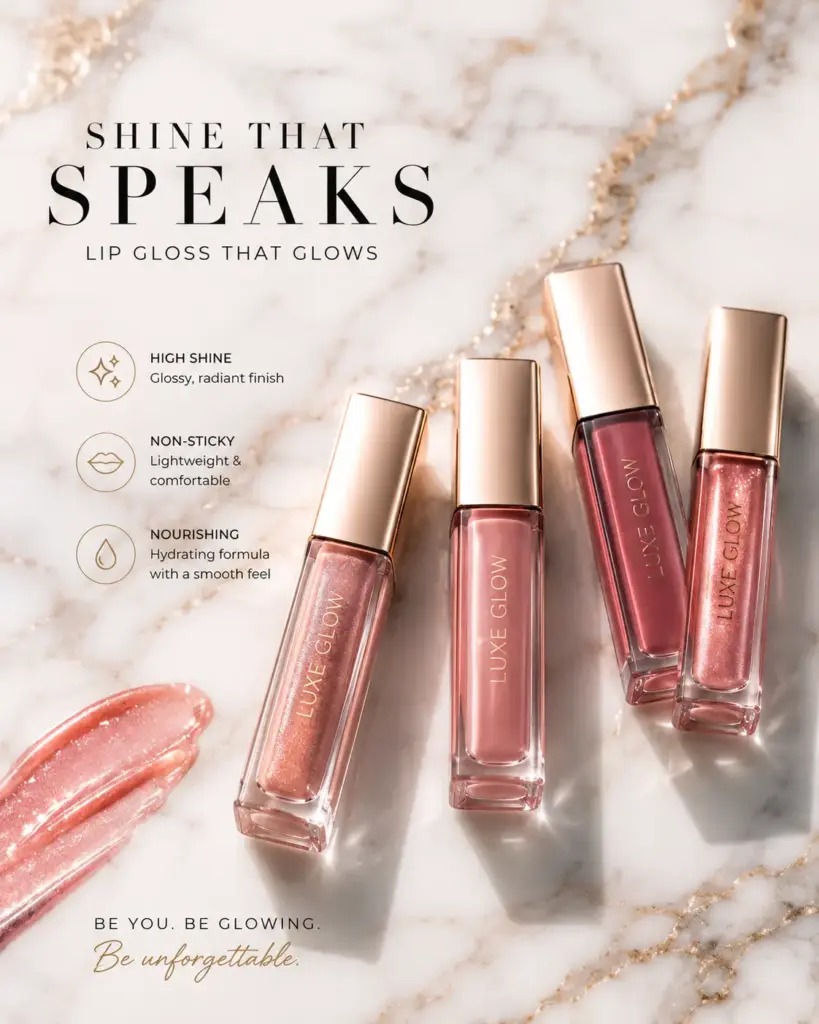
Lifestyle scenes are where Flux Kontext Pro product image editing feels useful fast. Think cosmetics on marble, coffee on a morning table, jewelry on velvet, skincare in a bathroom, or a candle in a cozy holiday setup.
For ads, you can create Black Friday visuals, Christmas bundles, summer sale creatives, and founder-style product scenes. The goal is not just a pretty image. The goal is a scene that helps the shopper understand when, why, and how they’d use the product.
Product colors, materials, labels, and packaging text
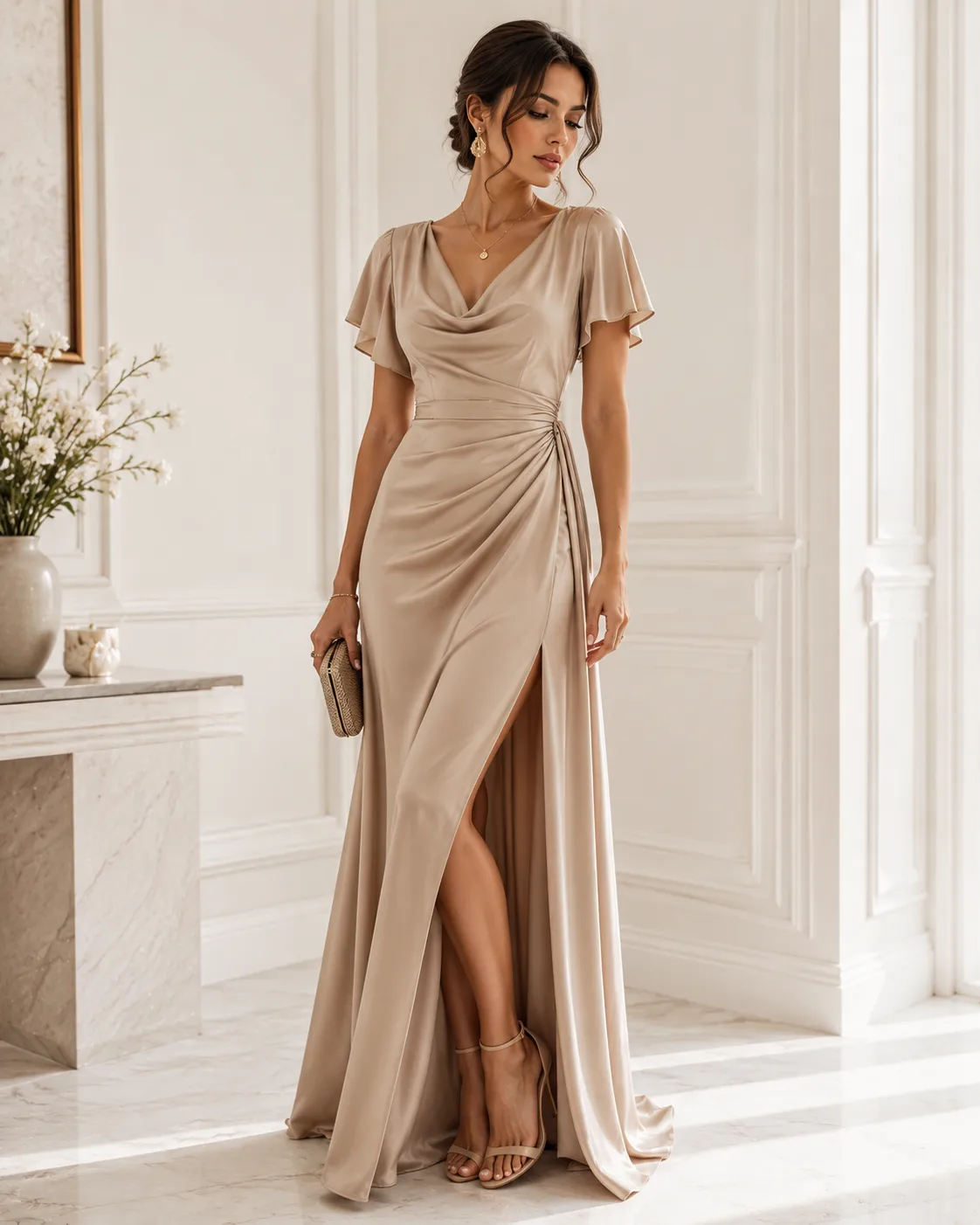
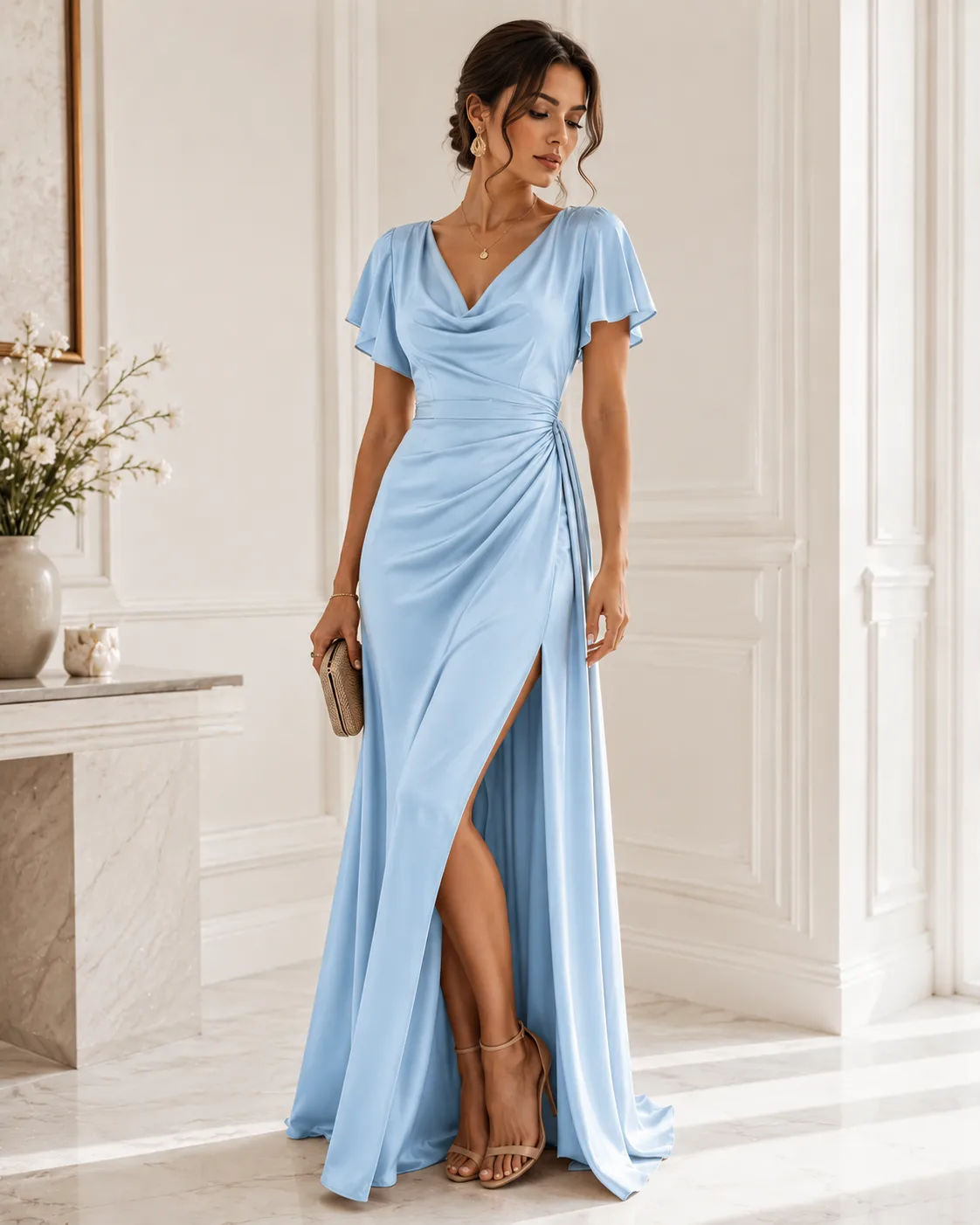
Flux Kontext Pro can help create product color variants, material changes, finish edits, and label replacements. Use separate prompts for each edit.
For example, don’t ask for a matte black bottle, new label, marble background, gold cap, and holiday props in one pass. Edit the bottle color first. Then inspect it against the real SKU. Then edit the label. Brand colors, packaging copy, and logo details always need manual review.
Flux Kontext Pro prompt guide for product photos
A strong Flux Kontext Pro prompts for product photography workflow starts with one rule: describe what stays the same as clearly as what changes.
Black Forest Labs gives similar prompting guidance for single-reference editing. Its docs say you provide one input image and describe the changes, while the model preserves what you didn’t ask to change. The same guide recommends being specific about what should change and what should stay the same.
Here’s the prompt structure I’d use for ecommerce work:
- Name the product identity
- Name what must stay unchanged
- Name the exact target area to edit
- Describe the new scene, surface, lighting, and camera feel
- Define the final use case and aspect ratio
That gives local image editing AI fewer chances to drift.
The product preservation prompt formula
Use this formula:
Keep [product identity details] unchanged. Change only [target area]. Set the scene to [background/surface/lighting]. Preserve [logo/text/proportions/material]. Output [format/aspect/use case].
Example:
“Keep the skincare bottle, cap, front label, logo, text, proportions, and glossy plastic material unchanged. Change only the background. Set the scene to a bright white studio surface with soft shadow and clean ecommerce lighting. Output a 1:1 catalog image.”
Ready-to-use Flux Kontext Pro product prompts
White background product photo:
“Keep the product shape, label, logo, proportions, color, and packaging text unchanged. Replace the background with a clean white seamless studio background. Add soft even lighting and a realistic contact shadow. Output a 1:1 ecommerce catalog image.”
Premium studio lighting:
“Keep the product exactly as in the input image. Place it on a smooth beige studio surface with softbox lighting, gentle highlights, and a realistic shadow. Preserve all label text and logo details.”
Amazon-style clean catalog image:
“Keep the product unchanged. Remove all background clutter. Show the product centered on a solid white background with clear edges, natural shadow, and no props. Output a square catalog-ready image.”
Shopify lifestyle product image:
“Keep the product, label, logo, color, and proportions unchanged. Place it on a modern bathroom counter with soft morning light, neutral tiles, and subtle natural props in the background.”
Color variant:
“Keep the product shape, logo, label layout, material, and lighting unchanged. Change only the product color to deep forest green. Preserve all packaging text and exact proportions.”
Label text replacement:
“Keep the package shape, material, logo placement, and lighting unchanged. Replace ‘Original Blend’ with ‘Vanilla Blend’ on the front label. Keep the text aligned and readable.”
Seasonal ad:
“Keep the product unchanged. Place it in a warm Christmas gift scene with soft lights, pine branches, and red ribbon in the background. Keep the product centered and clearly visible.”
Realistic shadow/reflection:
“Keep the product unchanged. Add a soft realistic contact shadow and subtle glossy reflection below the product. Do not change the label, shape, logo, or color.”
Negative instructions to rewrite as positive prompts
Negative prompts can work, but product edits often get cleaner when you say what to preserve.
| Weak prompt | Stronger prompt |
| Don’t distort the logo. | Keep the logo exactly as in the input image. |
| Don’t change the label. | Preserve the label layout, text, color, and placement. |
| Don’t make it weird. | Keep the product proportions and material realistic. |
| Don’t ruin the background. | Replace only the background with a clean studio surface. |
Specific positive instructions give the model a clearer target.
Quality checks before using AI product images in ads
Before you use AI product image editing outputs in ads, treat the image like a preflight file. It may look great at first glance and still fail a product, brand, or marketplace check.
Google Merchant Center’s image requirements are a useful baseline. Google says product images must accurately display the entire product, recommends images around 1500×1500 pixels or higher when possible, and says generative AI images must preserve AI-generation metadata such as IPTC DigitalSourceType.
That doesn’t mean every ad image must look like a plain catalog shot. It means the image must still tell the truth. The product can live in a lifestyle scene, but the scene should not invent claims, bundle items, badges, awards, or packaging details.
Product identity QA checklist
Check every Flux Kontext Pro product image editing output against this list:
- Logo unchanged
- Label text readable
- Product dimensions unchanged
- Color variant matches the real SKU
- Materials and finish match the actual product
- No invented claims, seals, badges, or awards
- Bundle items match what is actually sold
Zoom in. Small mistakes often hide around label edges, reflections, caps, shadows, and packaging corners.
Marketplace and ad policy QA checklist
Catalog images, marketplace listings, and paid ad images can follow different rules. A main product image may need a white background and minimal staging. An ad image can usually use more context, but claims still need proof.
For Amazon, Shopify, Etsy, WooCommerce, and Google Shopping workflows, keep one clean catalog image and build lifestyle ad images separately. Don’t let one creative try to serve every placement.
When to use a human designer instead
Use a human designer or reviewer for regulated products, legal claims, luxury hero campaigns, tiny packaging text, exact color matching, reflective products, complex bundles, and major product launch visuals.
AI is fast. Final brand judgment still belongs to a person.
Flux Kontext Pro limits and the FLUX.2 question
Here’s the honest answer: Flux Kontext Pro is still worth understanding, but it is no longer the newest default in BFL’s own docs.
The BFL documentation now describes FLUX.1 Kontext [pro] as a previous-generation model and recommends FLUX.2 for new image editing projects. The same docs say FLUX.2 offers improved editing quality, multi-reference support, better text editing, and up to 4MP output.
That does not make FLUX. 1 Kontext Pro useless. Existing integrations, workflows, tools, and content libraries still use it. It also remains a clear way to understand local editing, single-image product refinement, and iterative scene building.
But for new BFL-native workflows, FLUX.2 should be part of the model test. BFL describes FLUX.2 as a family for image generation and editing with multi-reference editing, color control, up to 4MP output, and model options for speed, scale, quality, and control.
Common Flux Kontext Pro product editing mistakes
- Warped logo: preserve the logo explicitly and edit fewer things per prompt.
- Wrong color: use exact product color names, and use hex values when your workflow supports them.
- Bad text: put replacement text in quotes and inspect manually.
- Fake reflections: ask for a realistic contact shadow first.
- Product shape drift: return to the original source image and run a smaller edit.
Most problems come from asking for too many changes in one pass.
Is Flux Kontext Pro still worth using now that FLUX.2 exists?
Yes, for Flux Kontext Pro articles, existing integrations, and single-image local editing workflows. Just don’t frame it as the newest BFL default.
For new builds, test FLUX.2 too. Treat it as the next step in the model family, not a reason to ignore workflows already built around Flux Kontext Pro.
Zeely broader AI ad workflow
Flux Kontext Pro can handle detailed product image editing, but one image model rarely covers the full ad creation process.
A small business may sta rt with a plain product photo and need several assets from it: a clean catalog image, a lifestyle scene, a seasonal version, a feed creative, and a Stories format. Flux Kontext Pro can support the image editing stage, especially when precise visual changes and scene control matter.
Zeely AI ad creator takes a broader workflow-based route. Instead of depending on one specific model, Zeely combines multiple AI models for ad creative generation across copy, images, video, avatars, and creative variations. This helps businesses move from a product page or image to campaign-ready ads without managing separate tools for every step.
The difference is simple. Flux Kontext Pro is a specialized image model. Zeely is an AI ad creation platform that brings multiple models and production steps into one workflow.
FAQ
Yes. Flux Kontext Pro can replace or clean up a product background from a text prompt. I’d phrase the task as background replacement, not a guaranteed perfect cutout every time.
Yes. It can place a product on a clean white background with a soft shadow. Before uploading, check the final image against marketplace or Google Shopping image rules.
It can preserve logos and packaging better when you prompt clearly. Still review every logo, label, and small text area manually before using the image in ads or listings.
Yes, it can create visual color variants. The final image must match the real SKU color, material, and finish, especially for catalog images and paid product ads.
Use Flux Kontext Pro if your tool or workflow already supports it and you need iterative single-image editing. For new BFL-native workflows, test FLUX.2 too because BFL now recommends it for new editing projects.

Emma blends product marketing and content to turn complex tools into simple, sales-driven playbooks for AI ad creatives and Facebook/Instagram campaigns. You’ll get checklists, bite-size guides, and real results, pulled from thousands of Zeely entrepreneurs, so you can run AI-powered ads confidently, even as a beginner.
Written by: Emma, AI Growth Adviser, Zeely
Reviewed on: July 31, 2026