Best Canva alternatives for 2026
Which Canva alternative fits your work without inflating your software bill? I compared 12 current options by price, free access, exports, brand control, and practical limits.
Quick Canva alternative picks
- Adobe Express is the closest all-around Canva alternative for everyday graphics, video, PDFs, and brand work
- VistaCreate is my budget pick for teams that make social graphics and reuse templates. Its Pro plan includes up to ten team members
- Zeely is my pick when you need image and video ad variations from product information. It focuses on ads rather than general design
- Choose Visme or Piktochart for data visuals, Beautiful.ai or Gamma for decks, and Clipchamp for video editing
- Before switching, make one real file and check its export, mobile workflow, seats, and final subscription price
What is Canva?
Canva is a visual design platform for social posts, presentations, videos, print materials, and branded graphics. Templates help you make routine assets without learning a professional design program.
That wide range matters when you look for an alternative. You might want a similar editor for everyday work. Or you might need one focused tool for the job Canva makes difficult, such as detailed photo editing, data visuals, or paid ad creation.
What makes a good Canva alternative?
A good Canva alternative should improve the work you actually repeat. A larger feature list means little if you still rebuild every export.
In an Adobe Express-commissioned survey of 1,000 U.S. small-business owners from 2026, only 20% felt prepared for the creative and brand marketing work their businesses required. I would judge each tool by how easily you can finish that work, revise it, and hand it off.
Check five things before paying:
- Your main output: Can it make the ad, deck, graphic, or video you need?
- Editing and exports: Can you change the result and download the right file?
- Brand and teamwork: Can people reuse approved assets without extra cleanup?
- Platforms: Can you do the necessary work on your devices?
- Total cost: What will seats, credits, exports, and renewal actually cost?
Canva alternatives at a glance
| Tool | Best alternative for | Platforms | Starting U.S. price |
| Adobe Express | Everyday design | Web, iOS, Android | Free; Premium $9.99/month |
| VistaCreate | Budget-friendly team templates | Web, iOS, Android | Free; Pro $10/month |
| Zeely | Image and video ad creation | Web, iOS, Android | Web Starter advertised at $29.95/month |
| Figma | Professional design systems | Web, macOS, Windows | Free; Professional full seat $16/month, billed annually |
| Affinity | Free professional vector, photo, and layout work | macOS, Windows | Free core tools |
| Desygner | Reusable team templates and PDFs | Web, iOS, Android | Free; Business $19/user/month |
| Visme | Charts, reports, and interactive visuals | Web, macOS, Windows, iOS | Free; Starter $12.25/person/month, billed annually |
| Beautiful.ai | Slides with guided layouts | Web | 14-day trial; verify Pro rate at checkout |
| Piktochart | Infographics | Desktop web browser | Free; Pro $10/member/month, billed annually |
| Gamma | AI-assisted decks and web presentations | Web, iOS, Android | Free; check paid rate in your account |
| Clipchamp | Video editing | Web, Windows, iOS | Free |
| Pixlr | Photo editing | Web, desktop, iOS, Android | Plus $2.49/month |
For ad creative, I would start with Zeely. Adobe Express remains the broader Canva alternative for general design.
12 best Canva alternatives
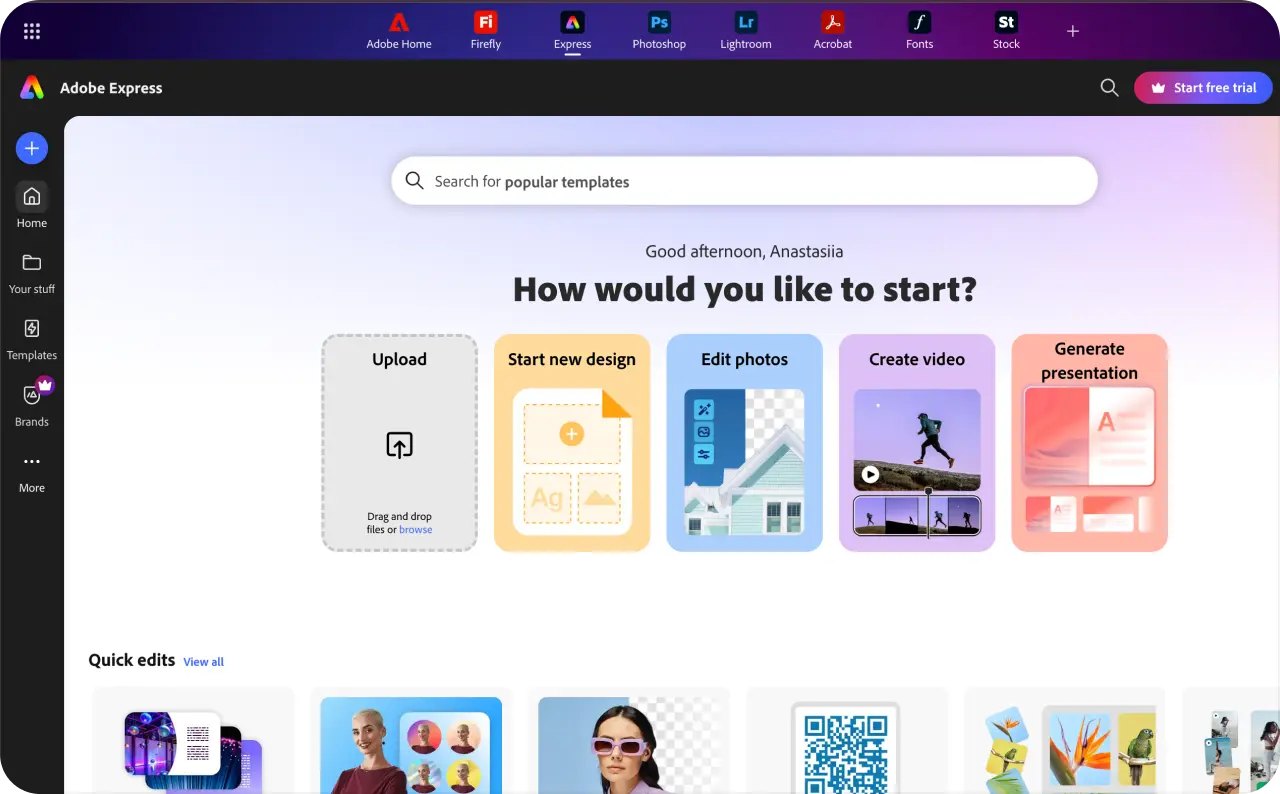
1. Adobe Express: best overall Canva alternative
Adobe Express is the first tool I would consider for everyday Canva work. It handles social graphics, short videos, flyers, PDFs, and scheduling. You can start with a template, then resize and revise it for another placement.
The broad workflow makes it useful when your team creates several kinds of content. If you already use Adobe, you can also bring familiar fonts and assets into the process. The tradeoff is a busier editor than you may need for occasional posts.
- Best for: marketers and small teams making several types of branded content
- Platforms: web browser, iOS, and Android
- Pricing: Free plan; Premium is advertised at $9.99 per month
- Pros: Covers many everyday Canva tasks; works well with existing Adobe assets
- Cons: Some brand tools and assets require Premium; the editor can feel crowded for simple jobs
Adobe Express is my overall pick because it comes closest to Canva’s range. The recommendation is for Adobe Express, not the full Creative Cloud suite.
2. VistaCreate: budget option similar to Canva
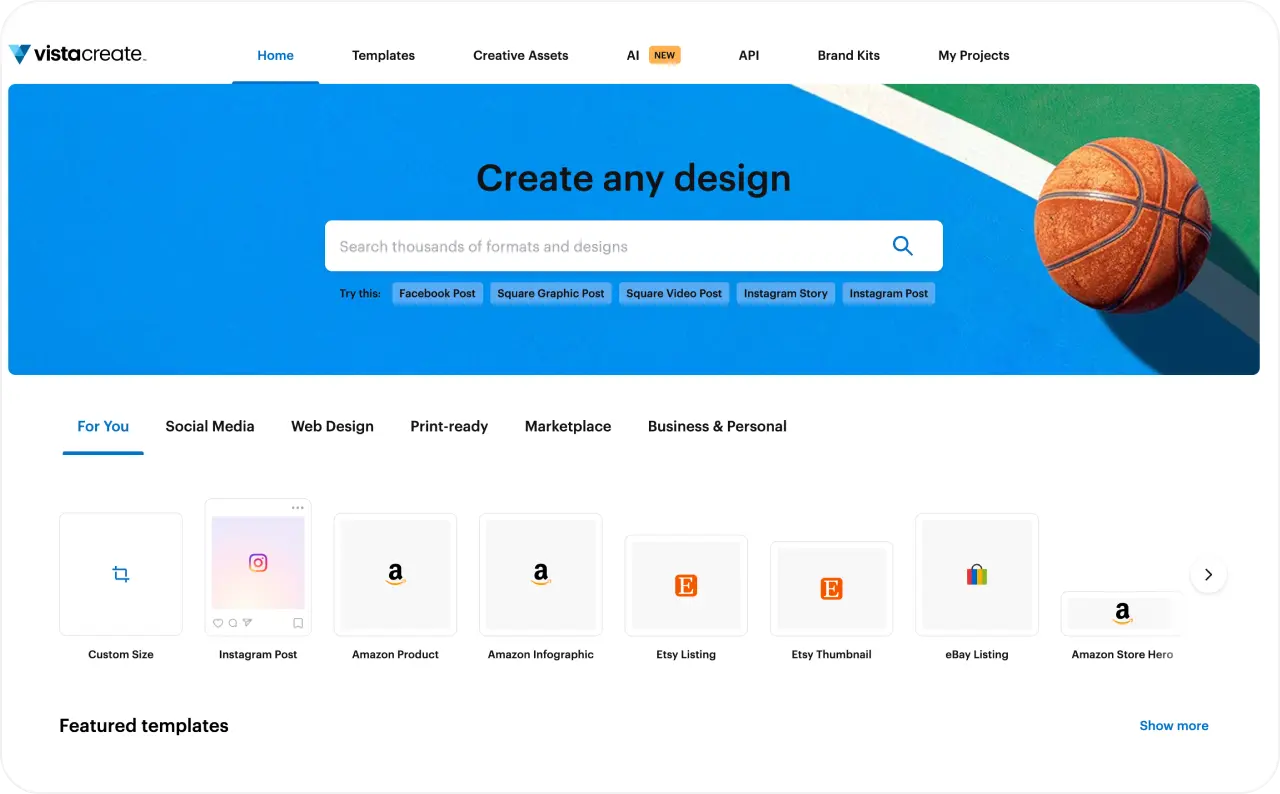
VistaCreate feels familiar if you spend most of your time adapting templates. Pick a layout, add your images and copy, apply your brand, and resize it for another channel. It suits weekly social graphics, simple animations, and print materials.
Its price needs a little context. Adobe Express Premium costs slightly less for one person. VistaCreate Pro becomes an interesting budget choice when several teammates need access, since its advertised $10 monthly plan includes up to ten members.
- Best for: small teams producing repeat social and marketing graphics
- Platforms: web browser, iOS, and Android
- Pricing: Free Starter plan; Pro is advertised at $10 per month
- Pros: Familiar template workflow; generous team access for the price
- Cons: Limited control for detailed vector work; templates need editing to look distinct
I would choose VistaCreate when the team needs a shared, approachable editor. It is less compelling if one designer needs precise control over every element.
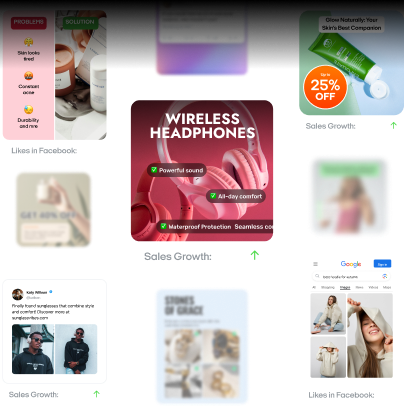
3. Zeely: best Canva alternative for ad creation
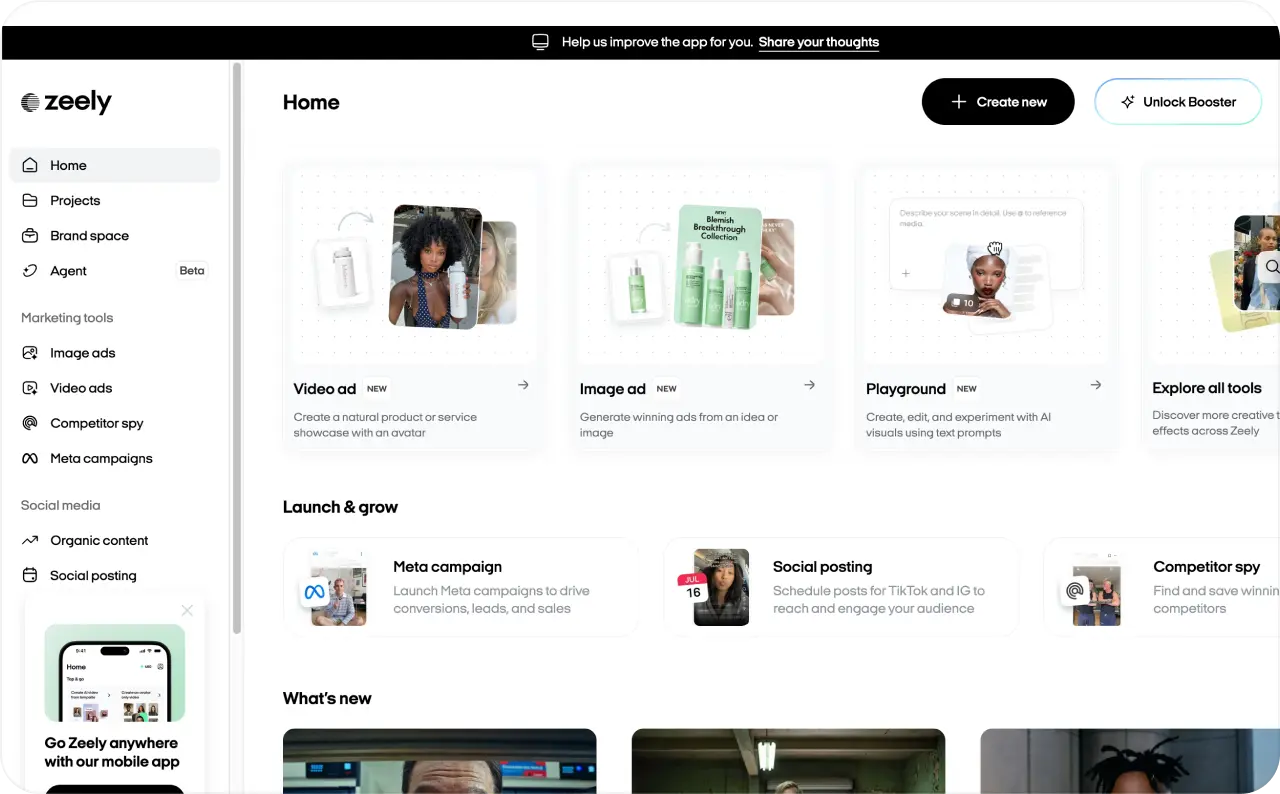
If making ads is your weekly design task, I would start with Zeely. Add a product link, photos, or a short description. Zeely uses those details to create image and video ad options, including UGC-style videos. Brand DNA and visual references help guide the look of image ads.
The useful part is what happens after the first draft. Review the message and visuals, choose the versions you like, and use eligible creatives in a Facebook or Instagram campaign launched through Zeely. Once your campaign runs, you can check spend, clicks, and CTR in the dashboard. Those numbers help you decide what to change in your next set of ads.
- Best for: small businesses creating and running Facebook and Instagram ads regularly
- Platforms: web, iOS, and Android
- Pricing: Web Starter is advertised at $29.95 per month with 2,500 credits; check your checkout price
- Pros: Turns product details into several image and video ad directions; connects creative work with Meta campaign launch and reporting
- Cons: Focuses on ads rather than detailed print or presentation design; advertising spend is separate from the subscription
For ad creation, Zeely is my first choice on this list. It takes you from a product to creative options, then gives you a way to launch and learn from them.

4. Figma: best Canva alternative for design teams
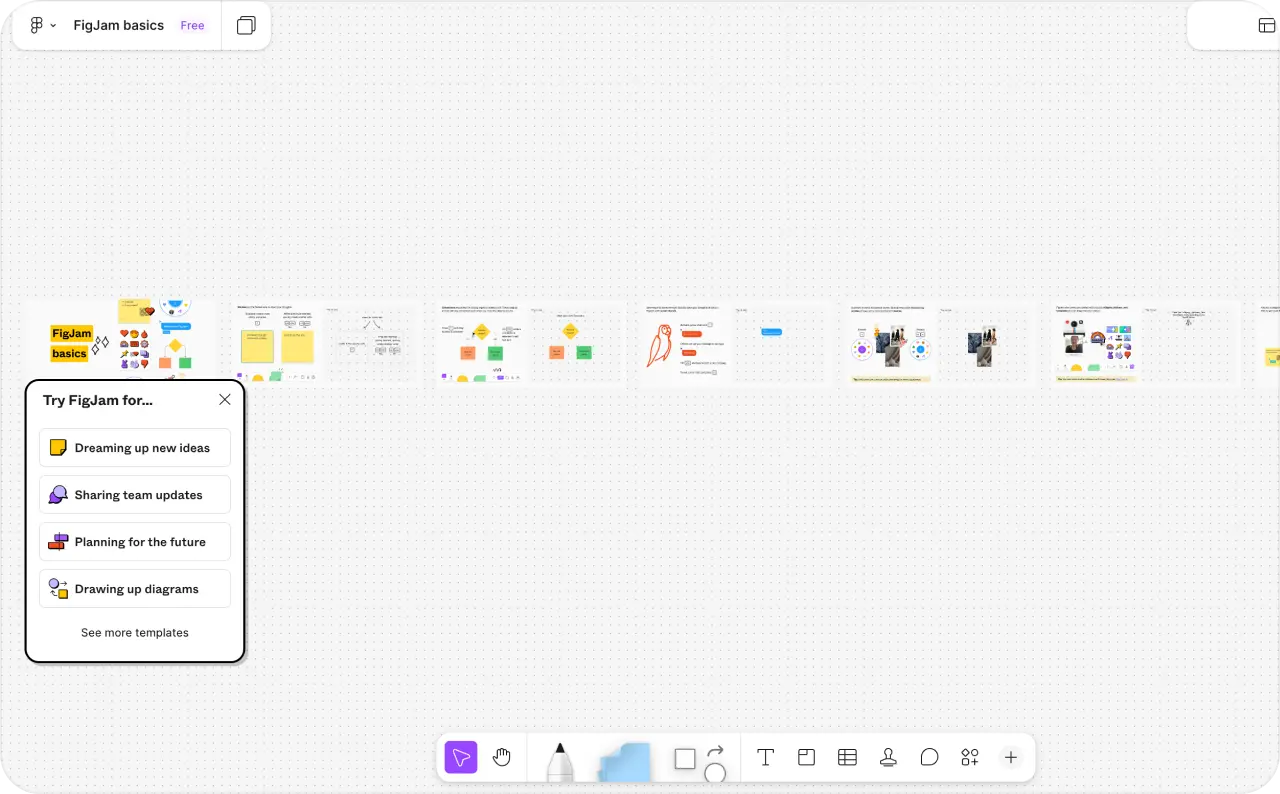
Figma makes sense when several people must build from the same design system. Designers can reuse components, share libraries, and revise work together. Product teams can also hand finished designs to developers without rebuilding the files.
Figma Slides and Buzz give teams more ways to make presentations and branded assets. Still, the main reason to choose Figma is structured design work. If you make three Instagram posts a month, learning its component system may add work instead of saving it.
- Best for: product teams, agencies, and designers sharing reusable assets
- Platforms: web browser, macOS, and Windows; iOS and Android apps mainly support viewing and review
- Pricing: Free Starter plan; a Professional full seat is advertised at $16 per month with annual billing
- Pros: Strong collaboration and reusable components; useful developer handoff
- Cons: Steeper learning curve for routine graphics; mobile does not replace desktop design work
I would pick Figma when consistency across many files matters more than template speed.
5. Affinity: best free Canva alternative for professional design
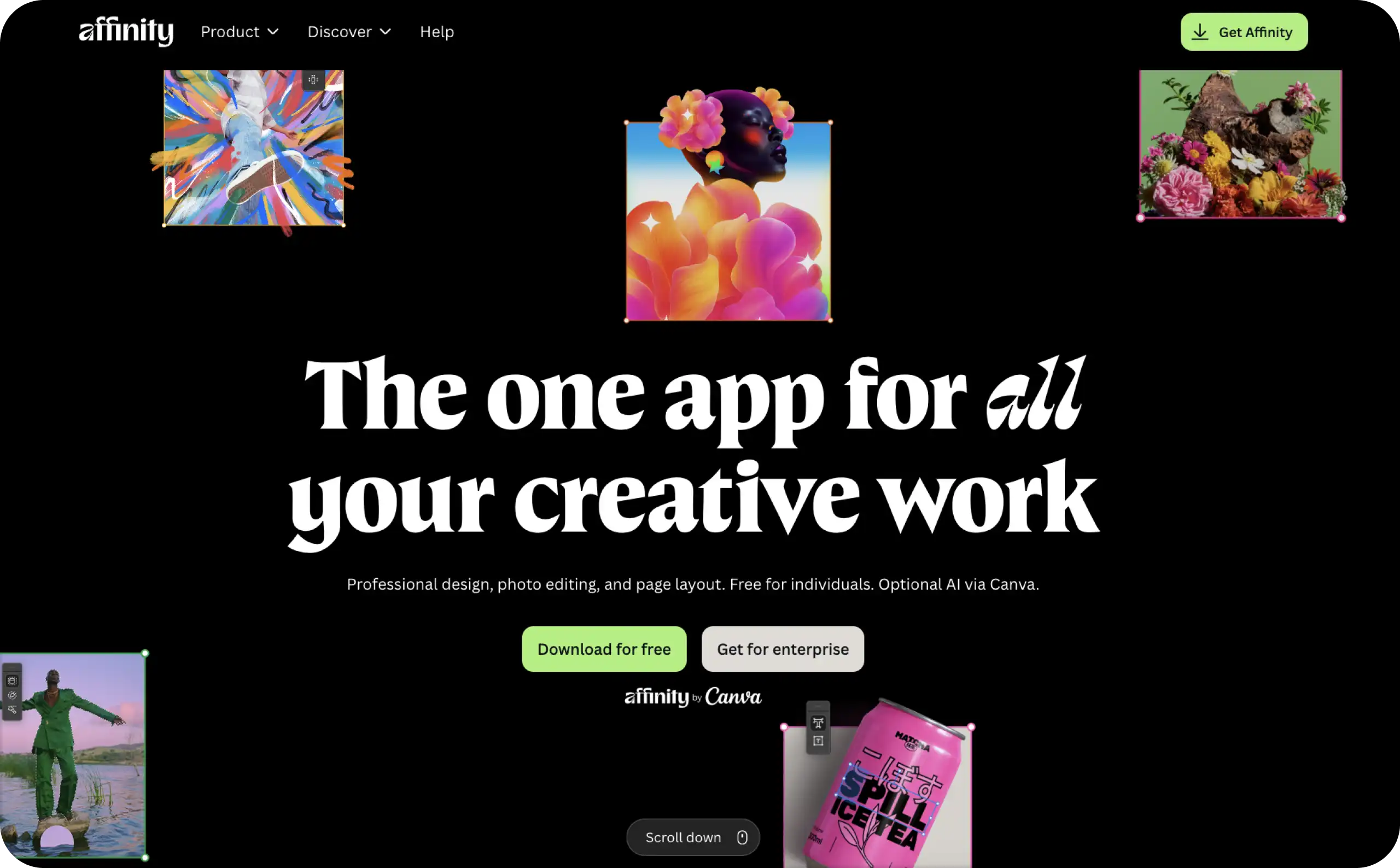
Affinity gives experienced designers detailed control over vector artwork, photos, and page layouts. I would consider it for packaging, brochures, logos, and print-ready files. Its tools make more sense when you want to shape the design yourself rather than follow a template.
There is one distinction to make clear: Affinity is part of Canva. It is a different editor, but it is not a way to leave Canva’s company ecosystem. The current app provides free core tools; its optional Canva AI features require a Canva premium plan.
- Best for: designers working on detailed graphics, photos, and layouts
- Platforms: macOS and Windows; the new iPad version is still in development
- Pricing: Free core vector, photo, and layout tools
- Pros: Precise editing without a subscription for core tools; strong print and digital controls
- Cons: Requires more design knowledge; no current iPad version of the new app
Affinity earns its place for the work it lets you do. It is a poor fit if you need Canva-style templates on your phone.
6. Desygner: best Canva alternative for team templates
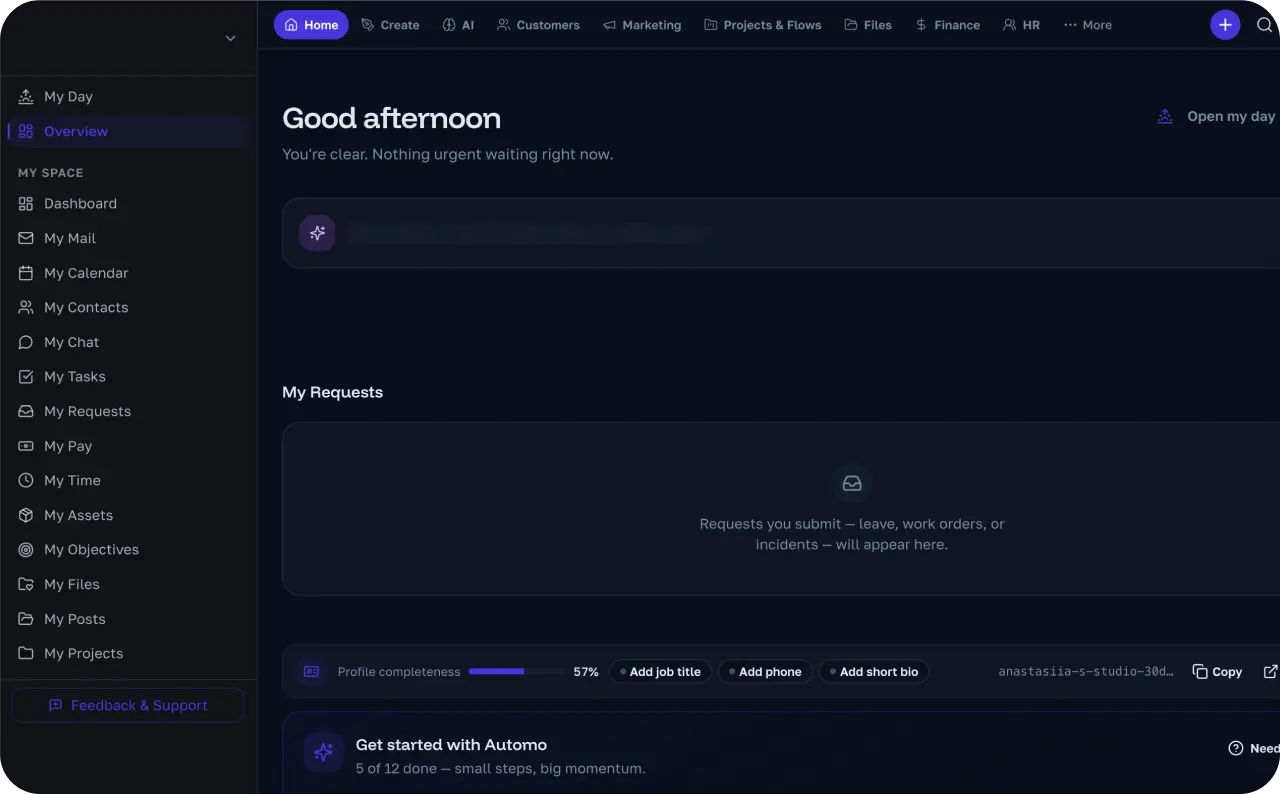
Desygner is useful when several people keep updating the same branded materials. A team can reuse layouts for social posts, flyers, presentations, and PDFs. That helps when each person needs to change the offer without moving the logo again.
PDF editing also gives you a practical way to handle existing materials. I would start with one real document before moving a whole library. Check whether its text, images, and layout remain easy to edit.
- Best for: small teams reusing branded templates and PDFs
- Platforms: web browser, iOS, and Android
- Pricing: Free plan; Business is advertised at $19 per user per month
- Pros: Reusable team materials; projects can continue across desktop and mobile
- Cons: Specialist vector and video editors offer deeper control; advanced automation requires payment
Choose Desygner when approved templates are the everyday problem. A full professional design system would be more than many teams need.
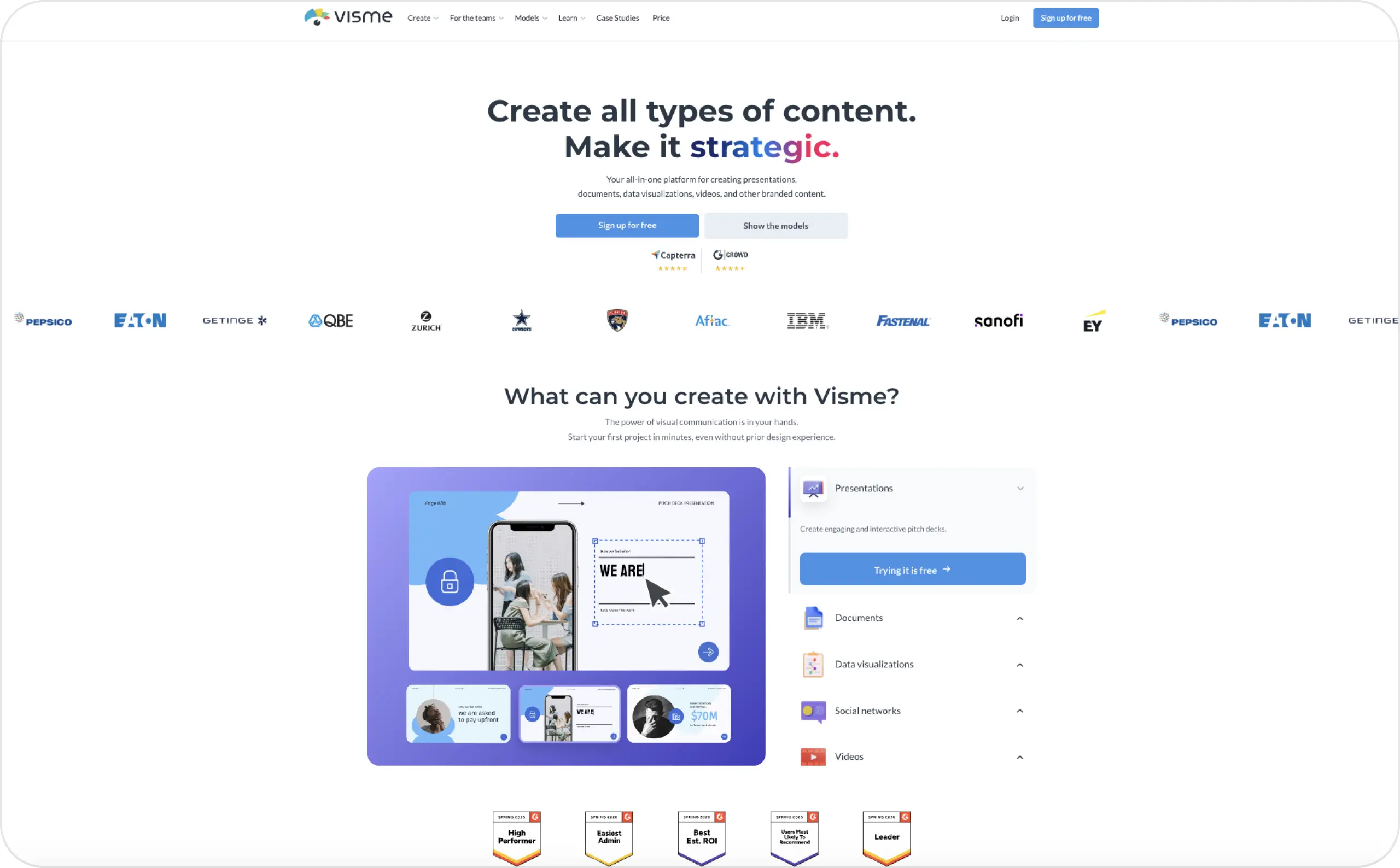
7. Visme: best Canva alternative for charts and reports
Visme is worth a look when the numbers carry your story. It brings charts, maps, infographics, reports, and interactive elements into one workspace. That range helps when a plain graphic cannot explain the information clearly.
I would start with the file you need to deliver. Build a sample chart, export it, and check the result in its final format. Visme has more controls than a basic social editor, and the plan you choose affects your export options.
- Best for: reports, data-led presentations, and interactive visuals
- Platforms: web browser, macOS, Windows, and iOS; Visme lists Android as coming soon
- Pricing: Free Basic plan; Starter is advertised at $12.25 per person per month with annual billing
- Pros: Several ways to explain data; supports static and interactive work
- Cons: Takes more time to learn than a template editor; check exports and brand features by plan
I would choose Visme for recurring reports or data-heavy content. It is more editor than you need for a quick sale announcement.
8. Beautiful.ai: best Canva alternative for guided presentations
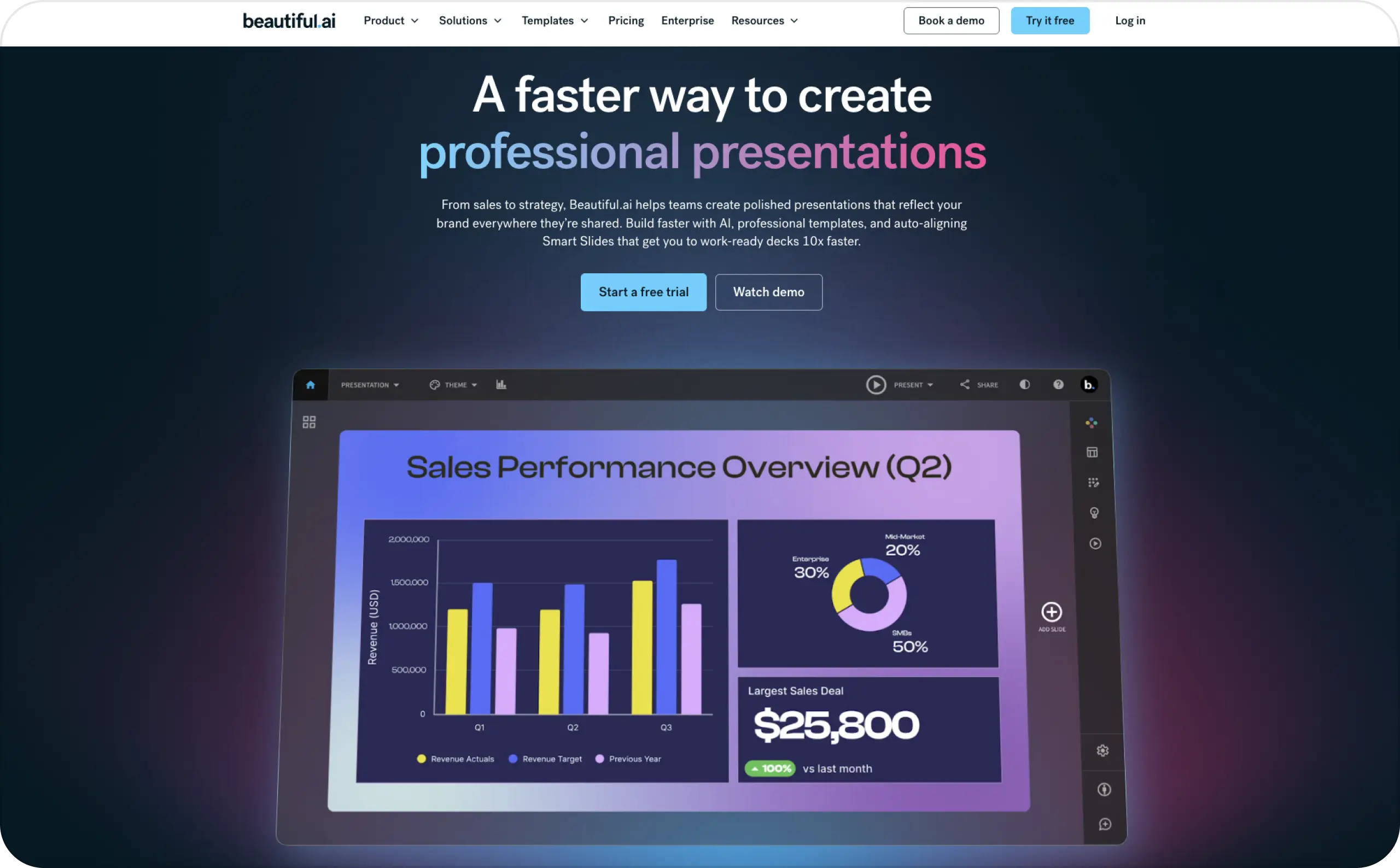
Beautiful.ai helps when slide formatting keeps stealing time from the message. Its Smart Slides adjust layouts as you add or change content. Brand settings can help several authors keep a deck consistent.
A quick draft still needs a clear story. In Canva’s September 2026 presentation study, 71% of respondents trusted AI to build slides but not to present or tell the story. I would check how easily you can revise the deck before sharing it with a client. www.canva.com
- Best for: teams and non-designers creating consistent presentation decks
- Platforms: web browser
- Pricing: 14-day trial; confirm the annual Pro price at checkout, since Beautiful.ai’s official pages currently show different rates
- Pros: Layout guidance reduces manual alignment; useful brand controls for decks
- Cons: Focused on presentations; Smart Slide layouts offer less fine positioning than a free-form canvas
I would choose Beautiful.ai when you want help keeping slides tidy. If the deck needs unusual, highly controlled layouts, try one difficult slide first.
9. Piktochart: best Canva alternative for infographics
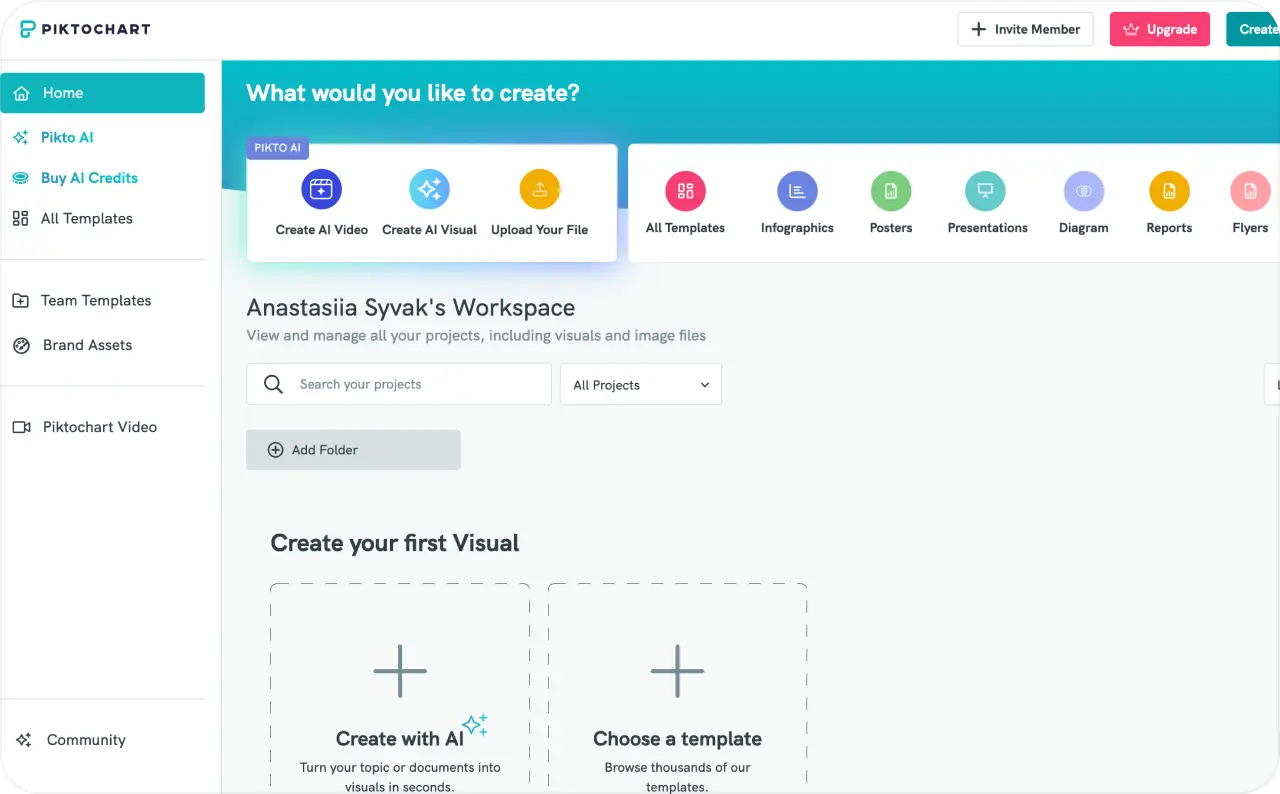
Piktochart helps turn a complicated explanation into something people can follow. Use it for an infographic, process diagram, report, or chart-led presentation. Templates and data imports provide a starting point without requiring a blank canvas.
I would check the download before building a long piece. The free plan limits downloads, and different plans offer different file formats. A useful editor still needs to give you the file your team or client expects.
- Best for: infographics, process explainers, and visual summaries
- Platforms: desktop or laptop web browser; the main editor is not optimized for mobile
- Pricing: Free plan; Pro is advertised at $10 per member per month with annual billing
- Pros: Approachable infographic tools; helpful for repeat data visuals
- Cons: Limited free downloads; desktop editing is the practical choice
Choose Piktochart when clarity matters more than making many kinds of content. A focused infographic tool can save you from decorating a chart that already needs work.
10. Gamma: best Canva alternative for AI-assisted decks
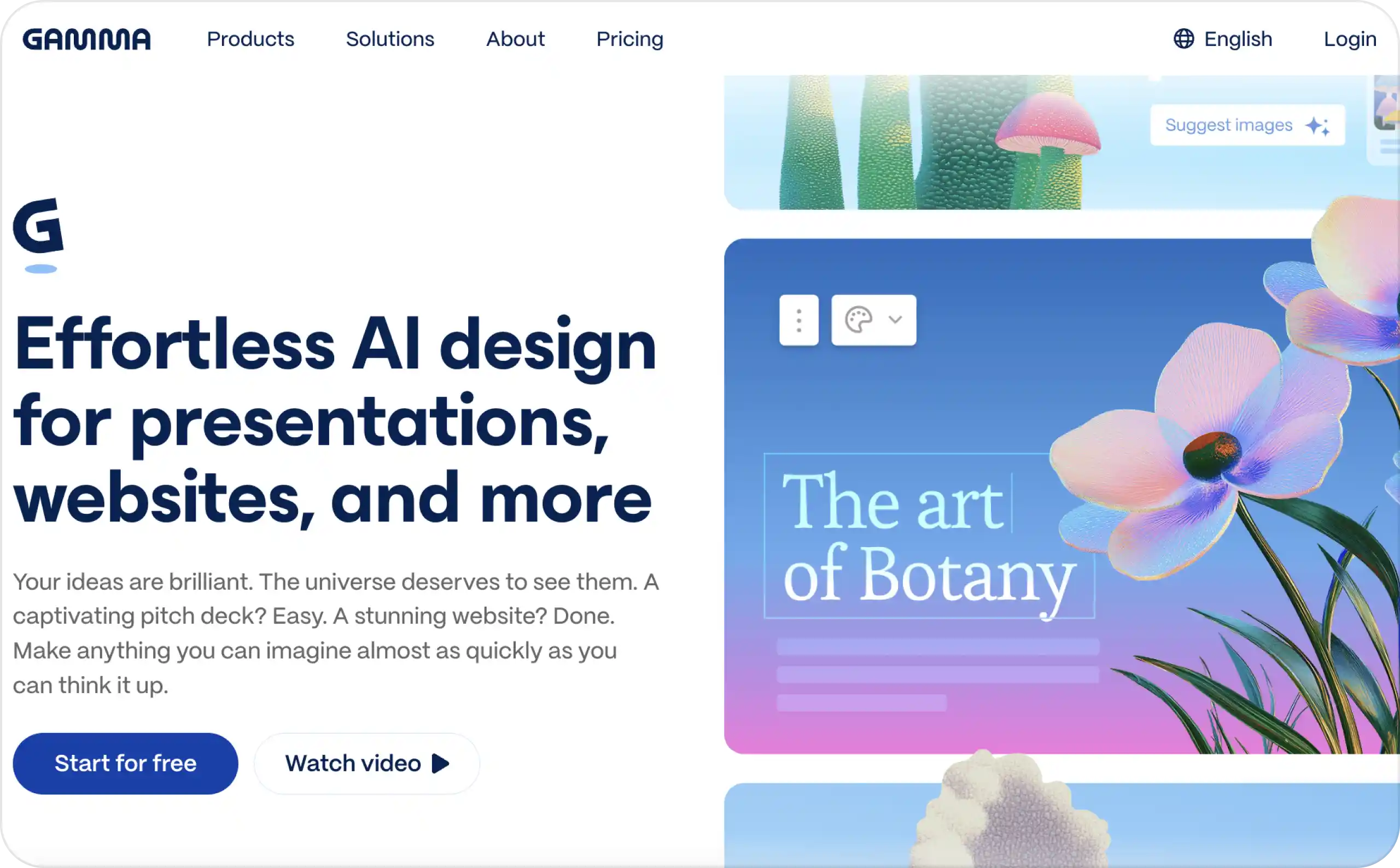
Gamma is useful when you have the material but no deck structure yet. Give it an outline or prompt, then revise the cards, visuals, and order. Its format works especially well when people will read the presentation through a link.
It can also export presentations, but I would check a real client handoff. Open the exported file in the program your client uses. That small test tells you more than a polished preview inside Gamma.
- Best for: quick deck drafts and presentations shared online
- Platforms: web browser, iOS, and Android
- Pricing: Free plan; check the paid rate and included credits in your account
- Pros: Helps structure a first draft; easy web sharing and mobile access
- Cons: Card layouts differ from traditional slides; exports may need review before handoff
Gamma launched native iOS and Android apps in August 2026. It now works for more than desktop-only drafting, though I would still make a complex deck on a larger screen.
11. Clipchamp: best Canva alternative for video editing
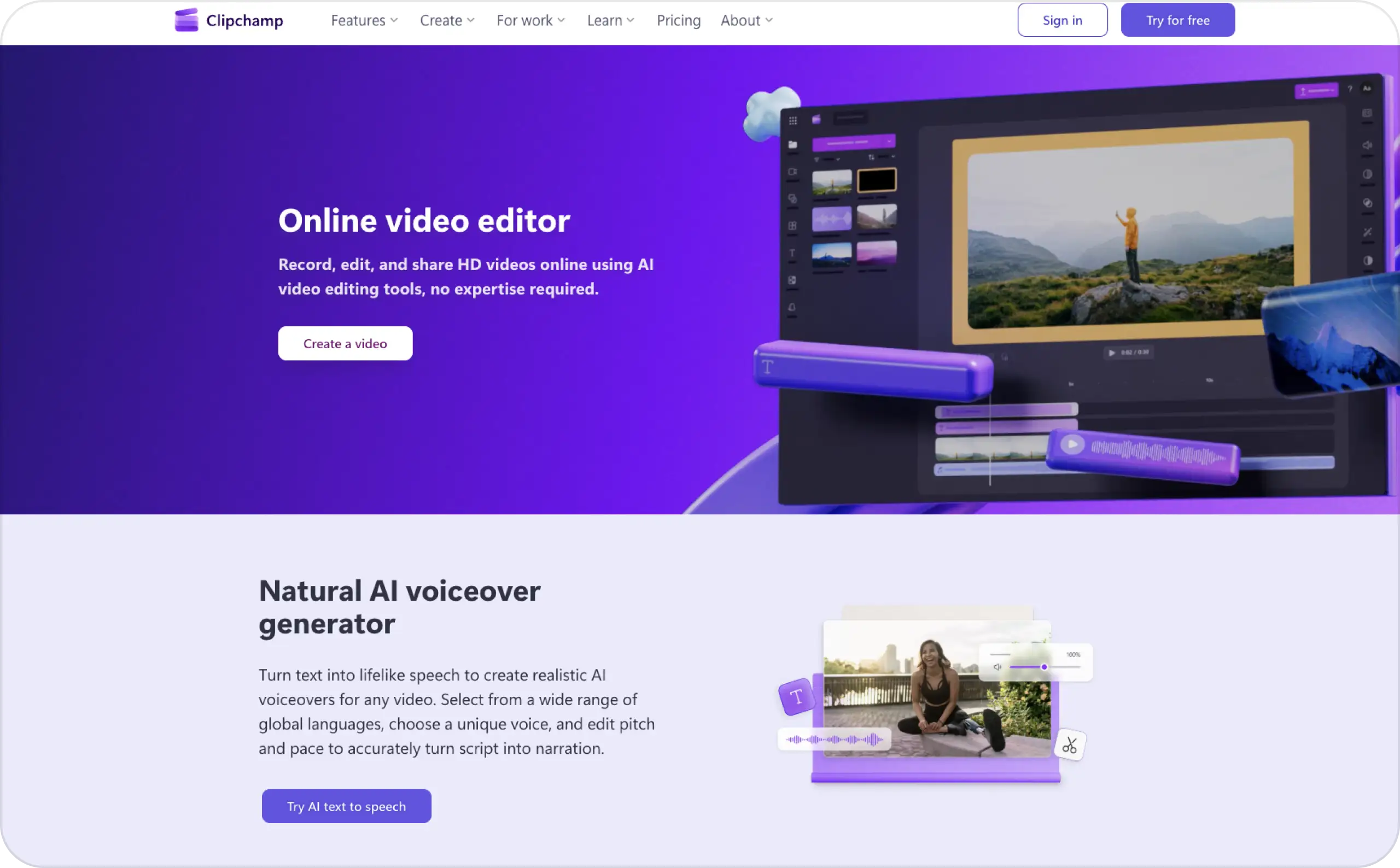
Clipchamp is a better fit when the finished file is a video. Its timeline lets you trim clips, arrange scenes, add captions, record audio, and adjust the result. You have room to edit the sequence rather than squeeze it into a graphic template.
The free 1080p export is useful for straightforward videos. Check the assets you add, since premium features can change what your project requires. Clipchamp will not take over your flyers, reports, or other static design work.
- Best for: beginners and Microsoft users editing short videos
- Platforms: web browser and Windows; a separate iOS app is available
- Pricing: Free editing with up to 1080p exports without a watermark; premium features cost extra
- Pros: Clear editing timeline; useful free export for basic projects
- Cons: Narrower than Canva for general design; desktop and iOS projects do not currently sync
I would choose Clipchamp for a repeat video workload. If you edit on your phone and finish on desktop, test that handoff first.
12. Pixlr: best Canva alternative for photo editing
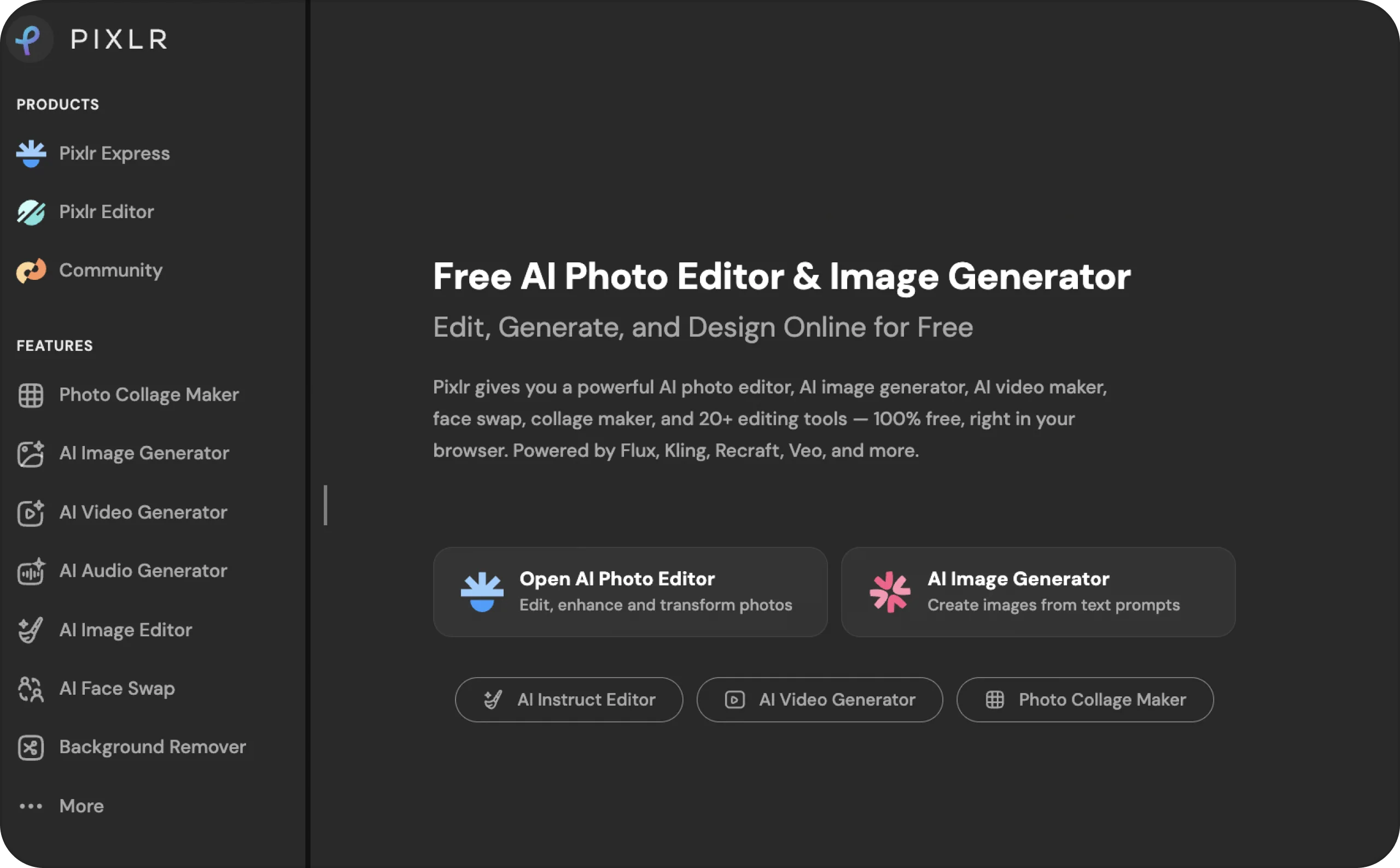
Pixlr is my pick when the real task is fixing an image. You can work with layers, remove a background, expand a frame, or make quick AI edits. That is useful for product photos that need attention before they become an ad or post.
It is less suited to managing a whole team’s branded materials. Also, check how many AI edits your usual workload needs. A low entry price matters less if you keep reaching your credit limit.
- Best for: product-photo cleanup and quick image changes
- Platforms: web, desktop, iOS, and Android
- Pricing: Pixlr Plus is advertised at $2.49 per month; yearly billing changes the effective monthly rate
- Pros: Accessible photo tools across devices; supports layers and AI-assisted edits
- Cons: AI credit use can increase the effective cost; fewer team design controls than broader editors
I would use Pixlr alongside a design workflow when photos need regular repair. I would not choose it to replace every kind of file my team makes in Canva.
How to choose an alternative to Canva
Start with one output. Name the item you create every week: a deck, Reel, report, brochure, product image, or ad.
Then ask five questions:
- Can I produce the correct file without rebuilding it elsewhere?
- Does the plan include my required exports and commercial use?
- Can the team protect approved fonts, colors, logos, and layouts?
- How many seats, credits, or downloads will normal work consume?
- Can I cancel or downgrade inside the account?
The best alternatives to Canva remove one repeated bottleneck. They should not add another login without a measurable benefit.
Compare total cost, not the sticker price
Estimate one ordinary month. Count users, AI generations, storage, stock assets, premium exports, and likely overages. Then add any second tool required for cleanup.
Annual billing can reduce the displayed monthly rate. It can also lock in a poor fit. I would test monthly when the price difference is tolerable. Move to annual billing only after the workflow survives real team use.
Run a 30-minute finalist test
Choose two finalists. Give each the same brand asset and source material. Build one real project in thirty minutes.
Score setup speed, first-draft quality, editing control, brand accuracy, export quality, collaboration, and monthly cost. Use ordinary work, not a perfect demo template.
Export the result. Reopen it. Ask one teammate to review it. A tool does not pass because its first screen looks friendly.
Check free-plan limits before entering a card
A useful free plan supports the test you need. Confirm watermarks, transparent PNGs, PDFs, SVGs, PPTX, MP4, storage, downloads, AI credits, and commercial rights.
Also confirm what happens after cancellation. Your existing files should not become hostages to a forgotten trial.
Know when Canva remains the better choice
Keep Canva when your team already works quickly there. It remains practical for many formats, familiar templates, and easy onboarding.
Switch when another product clearly improves a repeated task. Otherwise, migration creates work without creating value.Switch when another product clearly improves a repeated task. Otherwise, migration creates work without creating value.
FAQ
Adobe Express is my best general Canva alternative. It covers graphics, images, video, PDFs, templates, and scheduling. Choose Visme for data, Figma for product teams, or Zeely for ads.
Yes. Affinity gives individuals professional design tools for free. VistaCreate suits templates, Figma supports collaborative product design, and Clipchamp handles video. Always check the required exports.
VistaCreate feels most similar to Canva and costs $10 monthly for Pro. Adobe Express Premium costs $9.99 monthly. The cheaper choice depends on templates, seats, and brand controls.
Choose Figma for interfaces, prototypes, and shared design systems. Pick Affinity for vector artwork, photo editing, page layout, and print-ready exports.
Choose Beautiful.ai for automatic layout guardrails. Gamma creates prompt-led drafts faster. Visme works better when charts, reports, and interactive data carry the story.
Yes. Canva remains useful for teams needing many formats and simple onboarding. Switch only when another tool clearly improves a repeated task, export, or workflow.
Sometimes, but expect cleanup. Export PNG, PDF, SVG, PPTX, or MP4 based on the destination. Editable layers, fonts, animations, and effects may not transfer perfectly. Rebuild one important file before planning a full migration.
Figma offers the deepest reusable systems for professional teams. Adobe Express suits everyday brand kits. VistaCreate works for smaller template teams. Zeely’s Brand DNA is more focused because it supports ad creation.

Emma blends product marketing and content to turn complex tools into simple, sales-driven playbooks for AI ad creatives and Facebook/Instagram campaigns. You’ll get checklists, bite-size guides, and real results, pulled from thousands of Zeely entrepreneurs, so you can run AI-powered ads confidently, even as a beginner.
Written by: Emma, AI Growth Adviser, Zeely
Reviewed on: September 30, 2026