Seedream 5.5 review for product images and ads
Is Seedream 5.5 worth trying for product pictures and other promotional designs? I'll discuss the documented upgrades and go over the performance checks that matter most, then I'll show you how to use it in Zeely Studio.
Seedream 5.5 is worthy of testing for scenarios requiring legible copy and finer editing. I’d especially start with product scenes and promotional graphics to find mistakes. In this Seedream 5.5 review, I’ve documented upgrades, features, and tests seen in Zeely’s current settings.
Key takeaways
- Seedream 5.5 was released on November 9, 2026. It upgraded realism in image, text and editing consistency
- Key features of Seedream 5.5 include improved lighting and textures, truer typography, and repeated image editing and generation of natively transparent images
- Compared to Seedream 5.0 Pro, the new model adds text-to-transparent image generation and extends layer decomposition from 16 to 99 layers
- In Zeely Studio, Seedream 5.5 costs 20 credits per generation and offers 2K resolution with an estimated 2-minute generation time.
- My verdict: Seedream 5.5 shows potential in product and promotional graphics as well as editing.
Seedream 5.5 and its key features
What is Seedream 5.5?
Seedream 5.5 is ByteDance’s multimodal AI image generation and editing model. It allows its users to create images from text prompts, provide reference photos to guide the model in achieving the desired result, and/or edit existing images with text prompts.
You can use Seedream 5.5 to create product photos, ads, social media posts, and other kinds of graphics and designs. For example, you can use Seedream 5.5 to change a product photo to a lifestyle photo, edit text to promote a product or offer, remove the background, and more.
Seedream 5.5’s official release date was November 9, 2026. Seedream 5.5’s focus in this update was making the model better at creating realistic images and edited text, and making the overall editing process more consistent.
The following Seedream 5.5 key features will provide more information on the updates, and the importance of those updates for creating various types of images.
More natural lighting and materials
ByteDance’s model showcase emphasizes the use of natural lighting, materials, and skin textures. For design work, study the natural fold of fabric or the edge of an object and its cast shadow. For product work, look closely at glass reflections and how light interacts with an object.
The glass of the candle jar should look like glass in the chosen light. The label should be correct. I’d pull those apart, because an appealing scene can still contain the wrong product..
More legible promo text
The update also looks to address readable text in dense layouts. The Offer graphic is a good example, with one headline, one price, and one call to action.
Talk to the model, and give it the exact wording in quotation marks. Look at the finished piece, and check the legibility at the size it will be presented. A headline can look right when larger, but be illegible at the smaller size in a feed.
More controlled changes with repeated edits
Certain areas outside the editable space are protected in the model to ensure that no unwanted changes happen when a user edits the model. That’s useful when you find a composition you like but the background or prop needs to be changed.
When I get a request to change one detail in the surrounding area of the product, I consider that a fixed product and use that as a reference when checking for changes later.
Native transparent and semitransparent assets
For things like a semitransparent edge of a glass surface, for example, you would want the output to also be semi-transparent, so that you can preserve detail when you export that to the layout.

Seedream 5.5 realism and text rendering under review
ByteDance reports that, compared to Seedream 5.0 Pro, the improved quality and usability across six evaluated use cases of Seedream 5.5 result in overall improved performance. According to published text evaluation reports, Seedream 5.5 has a 0.4% severe corruption rate and a 1.7% minor corruption rate. The announcement demonstrates 100 successive edits, with each output feeding the next request.
The reported evaluations are for ByteDance products. They do not set your product’s error rate or the number of attempts your product would need.
When assessing realism, consider both appearance and identity. For appearance, does the material seem real? For example, does the cap retain its shape? For identity, do product colors, labels, and package sizes remain correct? A well-executed background makes little difference if the product itself doesn’t match.
When assessing typography, I’d use a stricter standard. Do offer terms and a currency symbol exactly match? A design that largely looks correct doesn’t absolve a failure due to an incorrect digit in a price, for example.
According to the Nielsen 2026 Annual Marketing Report, 55% of marketers trust AI recommendations but want to review them manually. Surveys were conducted with 1,200 marketers, across six markets. The report is about general AI; I’d use the same review habit for recommendations regarding product details and promotional copy.
Generally, I review the smallest business detail first. Read the label. Evaluate the offer terms and overall composition.
Seedream 5.5 performance tests in Zeely
I wanted to see how Seedream 5.5 handled real products, real people, and real-life pictures with instructions. So I created a small fashion campaign using handmade beaded ornaments in Zeely Studio.
I started with some white background product photos made from pics of some of the actual products. I used these pics throughout to see if the person in the pics remained recognizable. I used the same woman’s photo throughout the tests to check if her appearance remained recognizable.
In the first few generations I selected Seedream 5.5 at 2K resolution with a 1:1 aspect ratio to get 1 output pic per request. Each request in Zeely Studio costs 20 credits.
Test 1: Can Seedream 5.5 generate fashion photography?
I began this test with two one-of-a-kind handmade ornaments. The first was a wide beaded collar with a green base and white lines that make interesting geometric patterns. The second was a colorful fringe choker.
I took pictures of a model, and then uploaded each picture with the corresponding Seedream prompt.
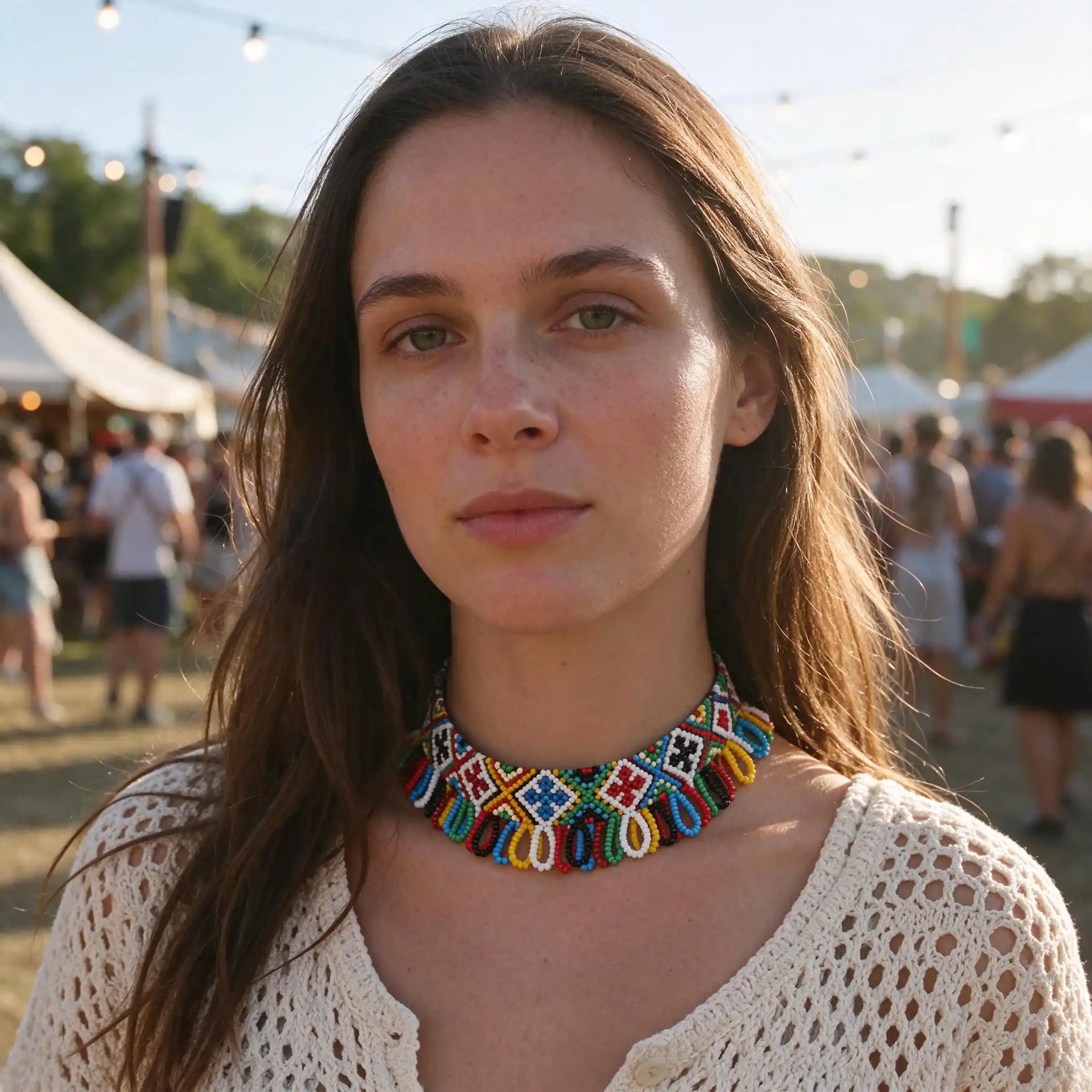
For the green collar, I asked Seedream to create a woodland editorial with an olive linen dress and misty forest shots with mossy trees. For the colorful fringe choker, I asked for a festival editorial with a golden hour background, people in the shots, and a crochet ivory dress.
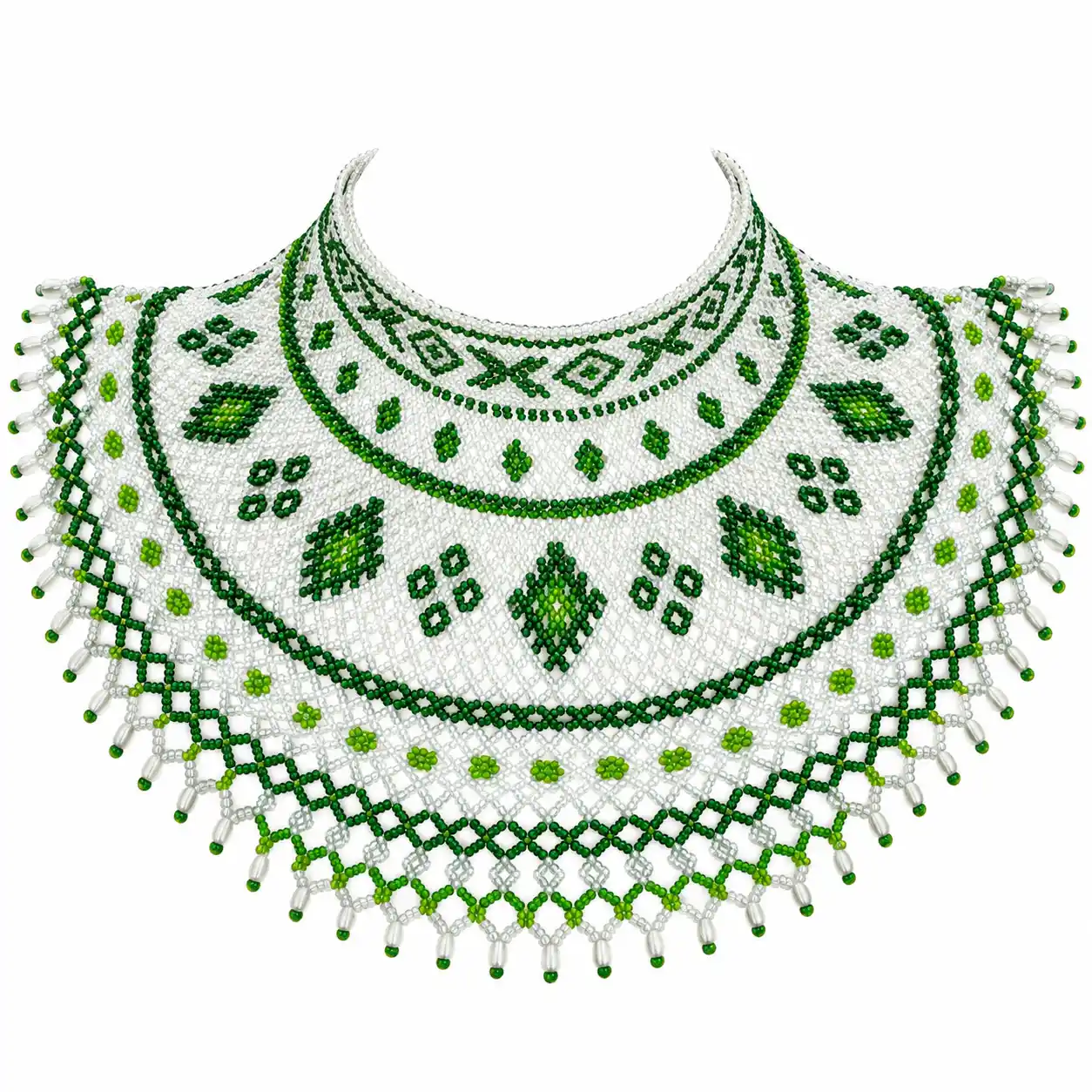
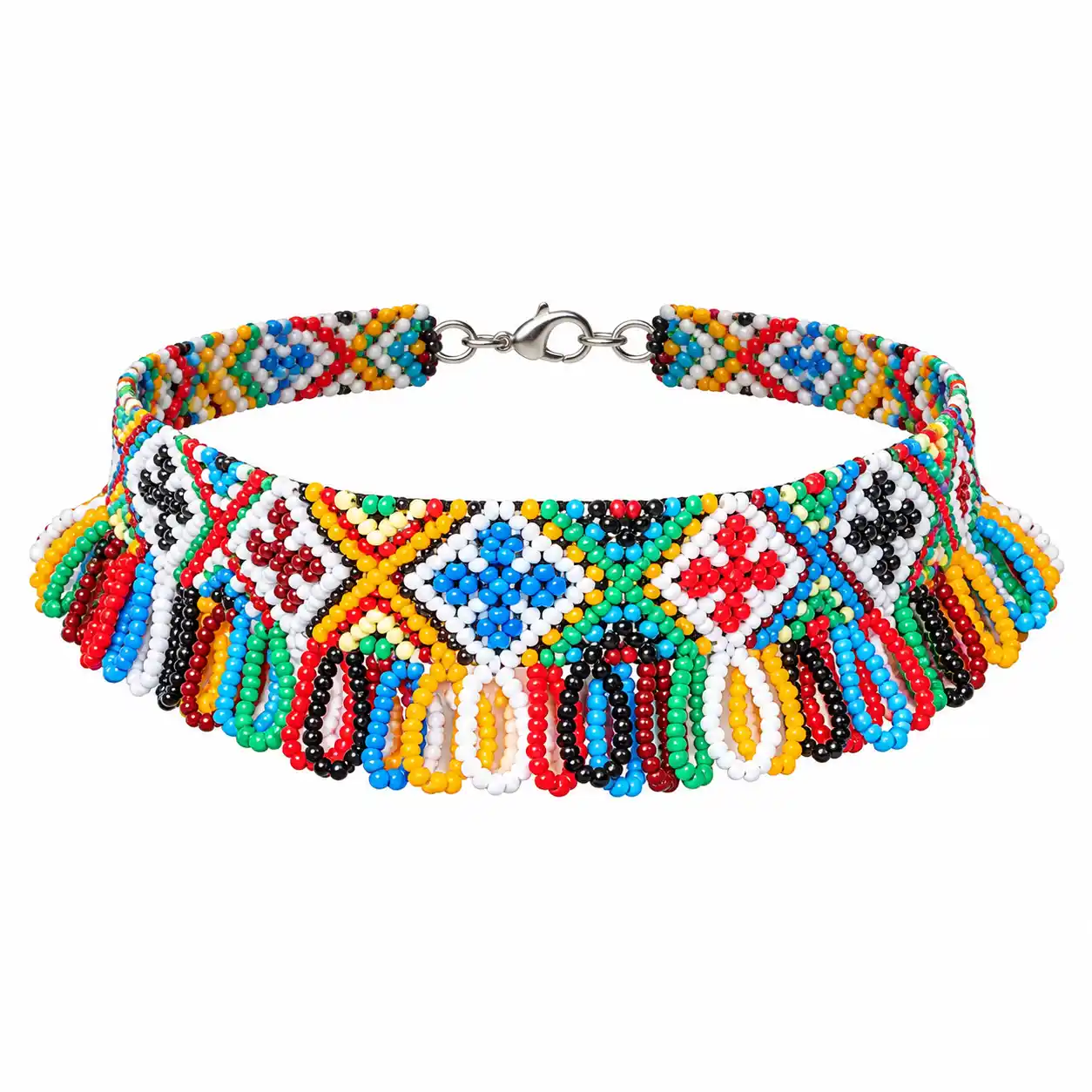
The result:
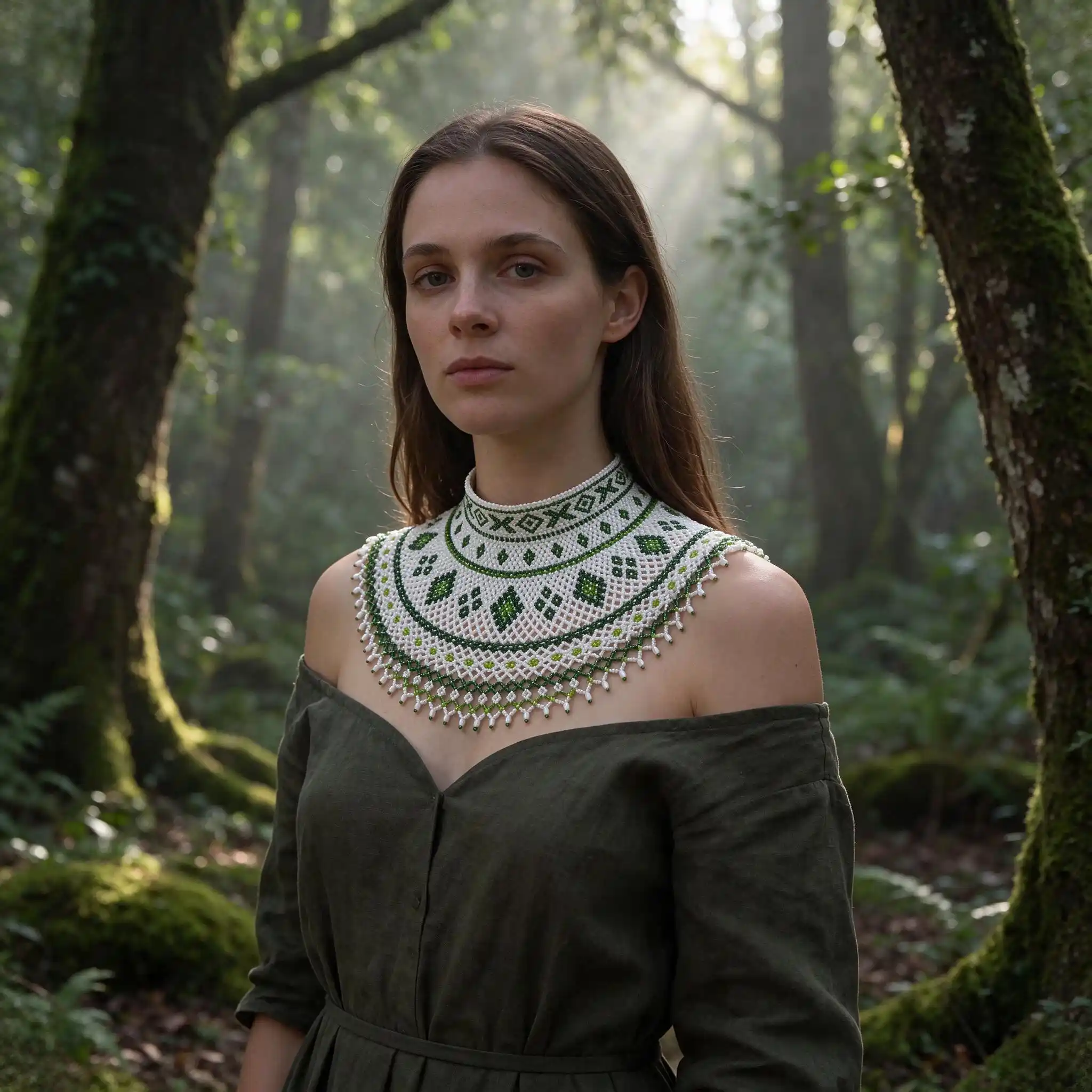
What I found:
I thought both results were great examples of lifestyle photography. I was impressed with the light in the forest shot. The festival photo was good as well. It’s good that both images show the subject’s face.
Both images showed the general shape and design of the ornaments. The green collar showed the general shape of beading and fringe, but when you zoom in, the beading was not the same as the reference. The choker also showed the design, but depending on how you zoomed in, you might find mistakes.
I would probably use the results as a starting point for new campaigns. I’m not sure how close the results reflect reality. I’d want to look at beadwork up close and compare before I’d post a final result.
Test 2: Can Seedream 5.5 make a still image appear to be in motion?
I found the first results to be fairly polished, but the models were merely posing for the camera. I was trying to emulate a more candid fashion campaign.
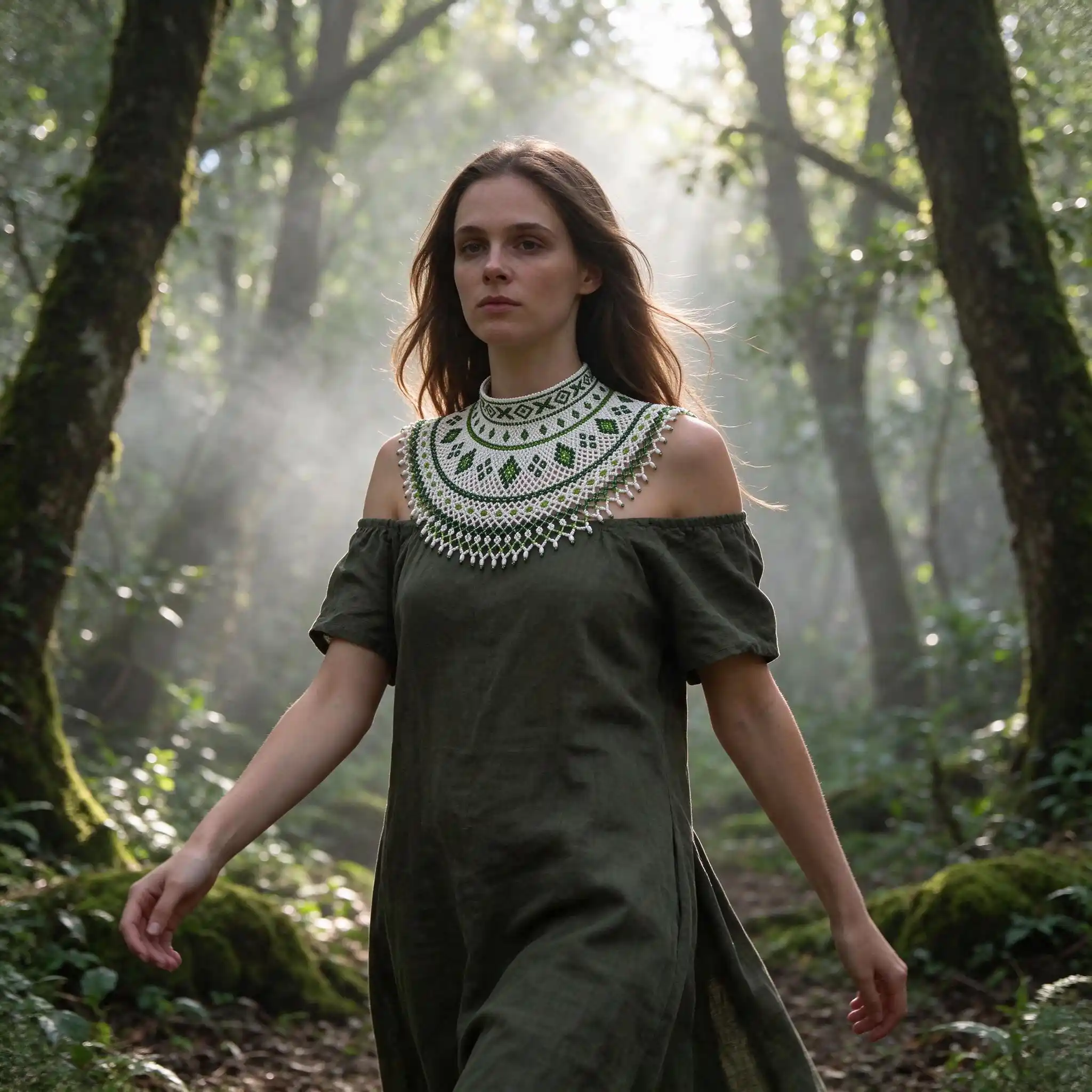
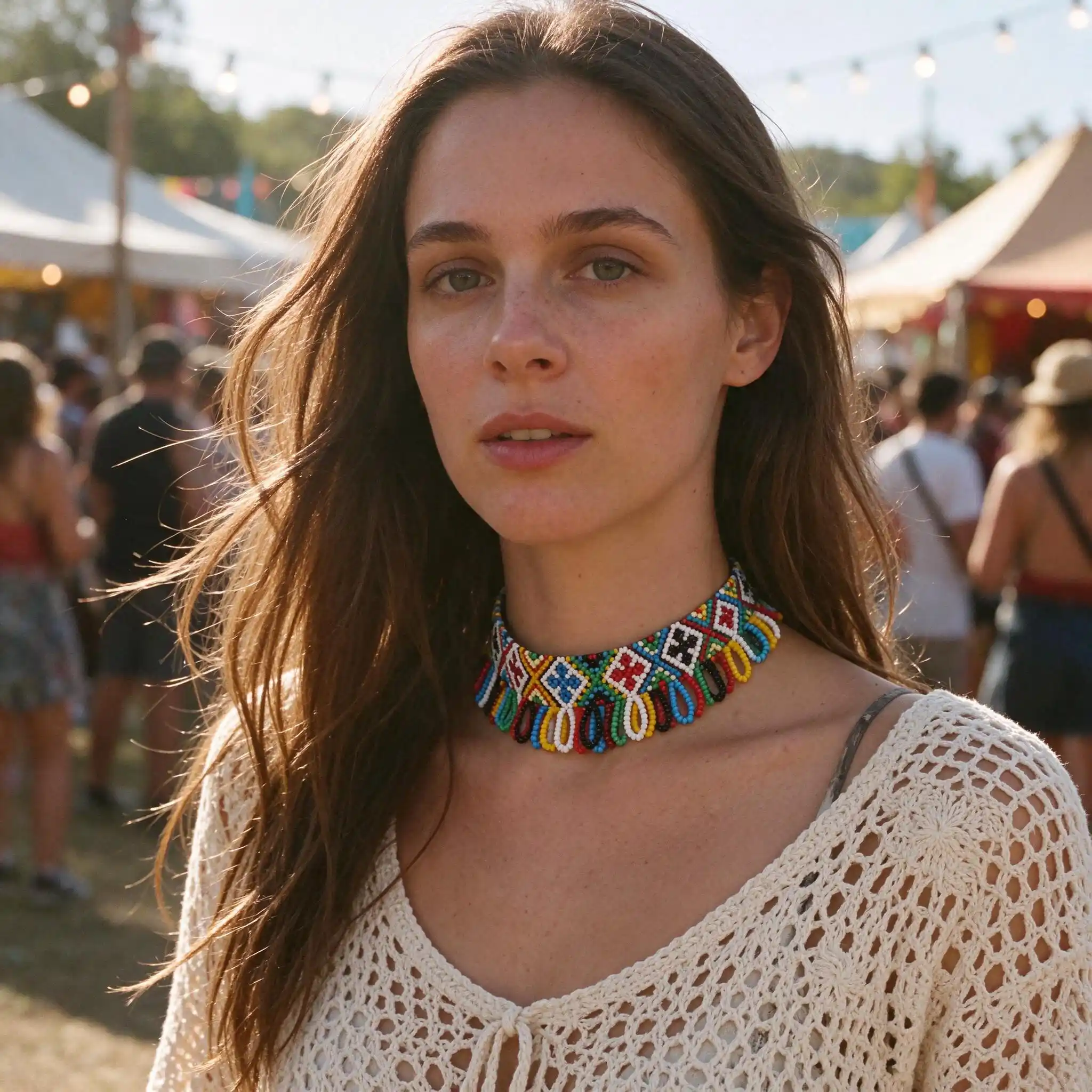
I used the same ornaments, but changed the prompts to describe motion. For the forest scene, I asked the model to walk naturally, and for her dress and hair to do the same. For the festival scene, I asked for a candid shot of wind blown hair, and a body turn.
I also changed the photos a bit to add more depth.
The result:
What I found:
I was able to see the best changes with the forest photo. In the earlier version the woman was depicted mid-step, with her arms naturally positioned. The longer framing also made the image resemble a fashion editorial. The hair movement was good, as was the slight turn in her pose. The image is still, of course, but with her arms positioned and her movement, it felt like a series of poses.
As for the festival picture, again, I got a good still shot, but less of what was going on around her. I had asked for a more active shot.
There isn’t true movement in any of these. Seedream focused on movement in hair and clothes. In lieu of true movement, they showed poses, long hair, and clothes. Wider shots allowed for more of the background to be included. This made the images look more natural, but the background contained less details and smaller beadwork.
When it came to advertising, I’d have the choice of a close-up to clearly show the product, or a wider shot to capture the mood of the product.
Test 3: Can one Seedream 5.5 prompt produce two separate fashion images?
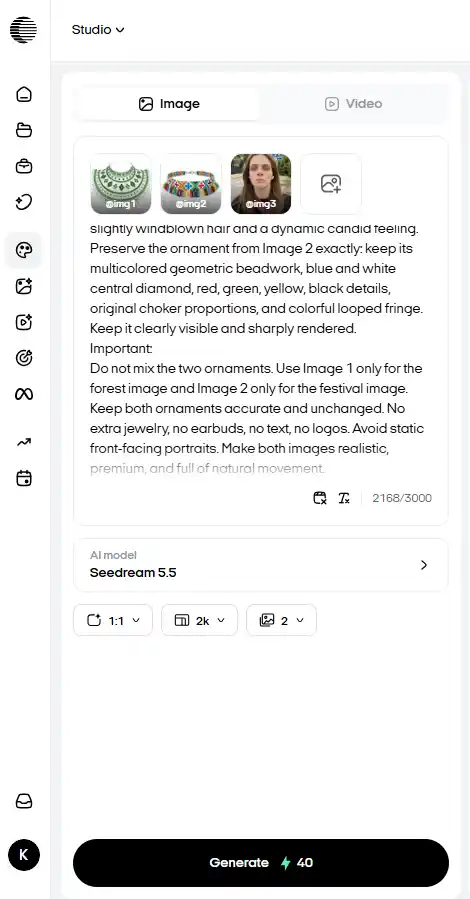
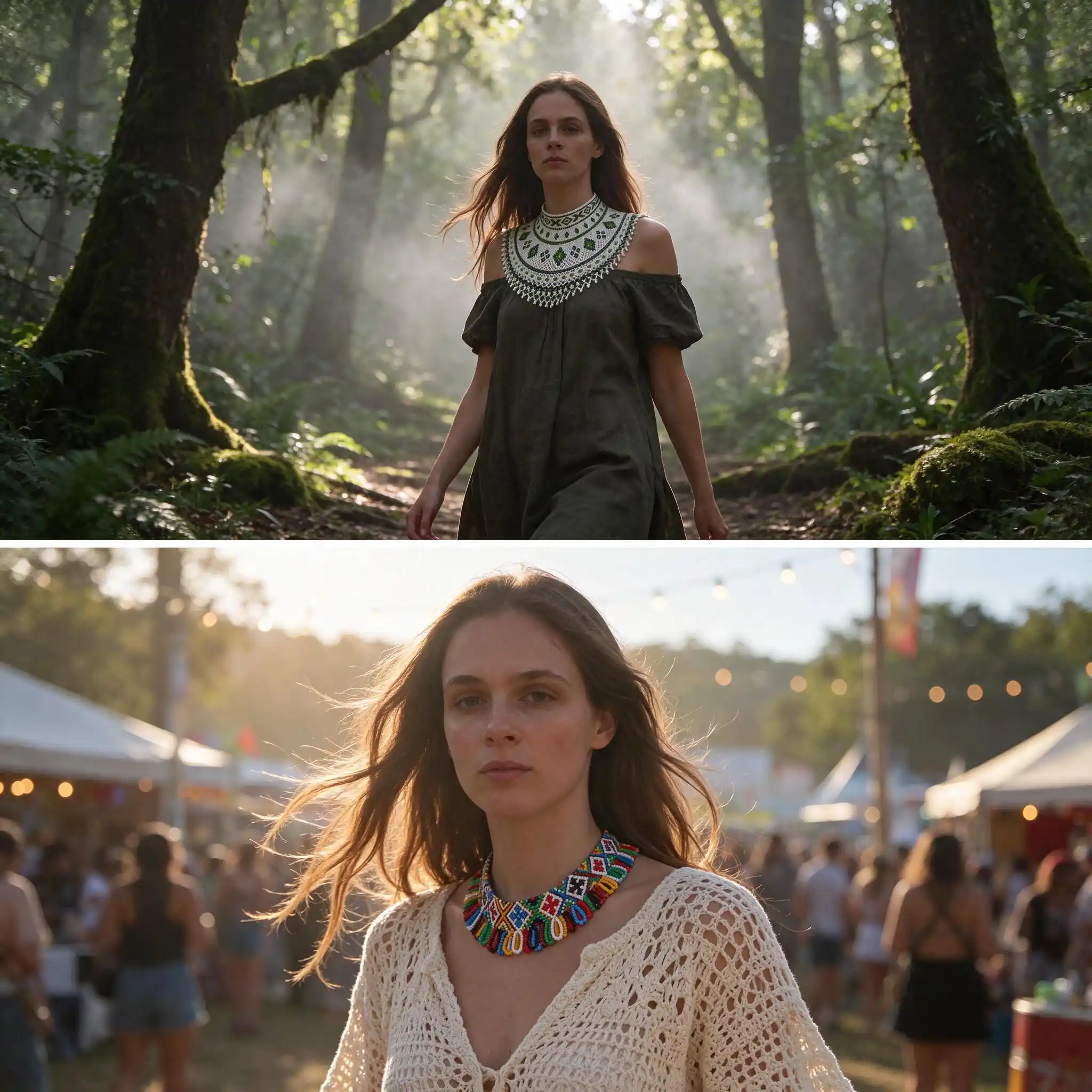
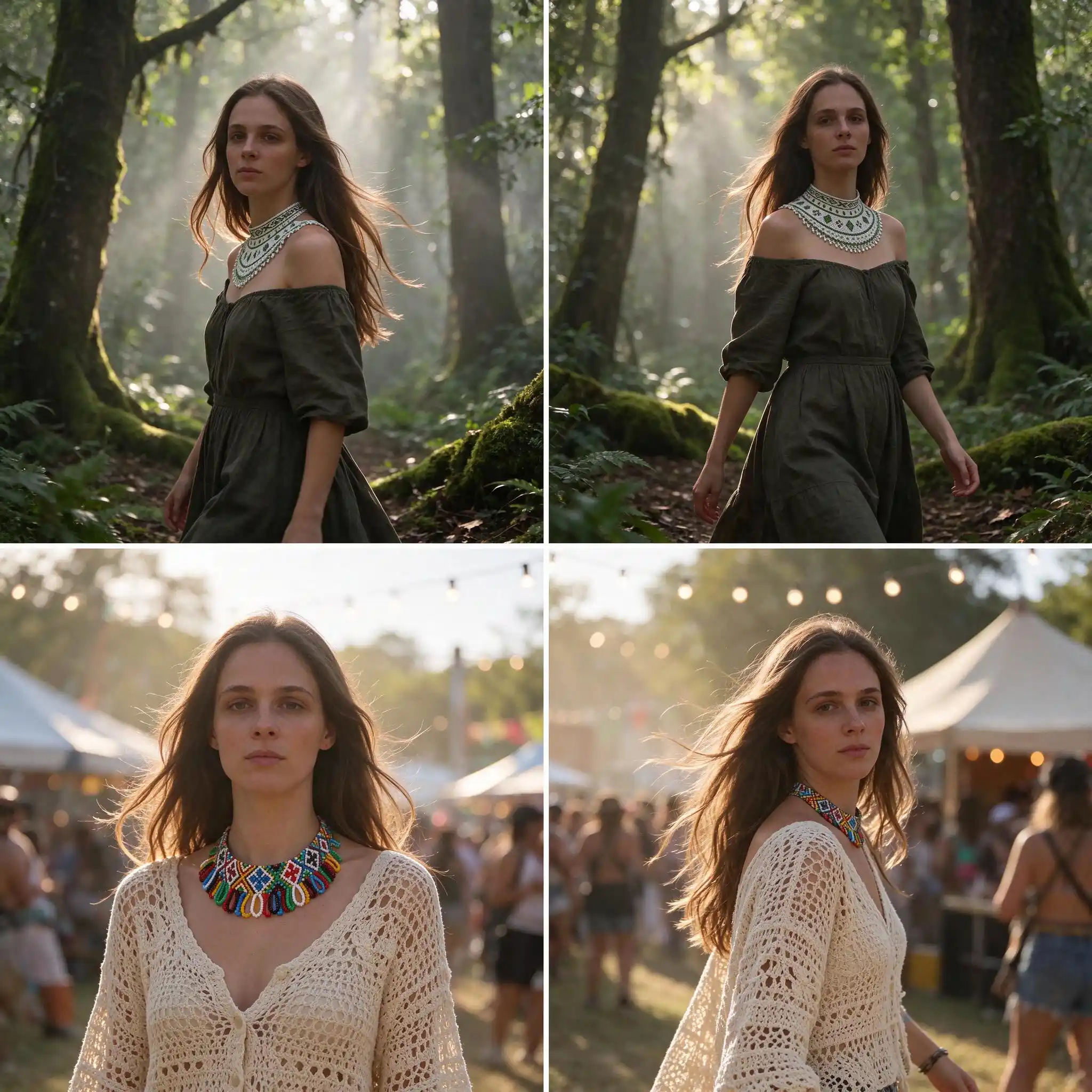
I tried to reduce the number of individual requests next. Combining the forest and festival instructions, I supplied four reference photos and Seedreamed again. The task was to create two different campaign images, with the correct ornament and the same model in each.
The results I was given were interesting, but weren’t formatted in the way I asked for.
The results:
What I found
Seedream interpreted both fashion concepts but did not release them as two separate campaign images. One result combined the forest and festival scenes vertically. The other arranged four fashion shots in a grid.
Generally, the model selected settings and used the correct ornaments, but choosing two outputs didn’t always produce two individual photos. Each file contained a collage with multiple scenes.
I’d use the collages to illustrate different creative directions, but not as finalized ads. When I need to produce separate photos for different placements, I’d generate each concept individually.
Test 4: Can I make a dynamic fashion video with Zeely using Seedream 5.5 images?
Having worked on static images, I wanted to create a real fashion video, with speed, quick transitions and alterations. Since Seedream 5.5 creates images, this time I chose Kling 4.0 to make a video in Zeely.
I uploaded 6 reference images of totally different necklaces. These included a model photo and 5 handmade ornaments. I wanted to create an ad where a woman changes necklaces and hairstyles every 3 seconds.
In the prompt I wrote hairstyles such as long, straight black hair with bangs and a blonde bun, long, straight, red hair, and pink double buns.
I also requested quick transitions, dynamic camera movements and energetic music. I also gave instructions for captions and a voice-over to say: “Even if you change every day, it’s up to your style.”
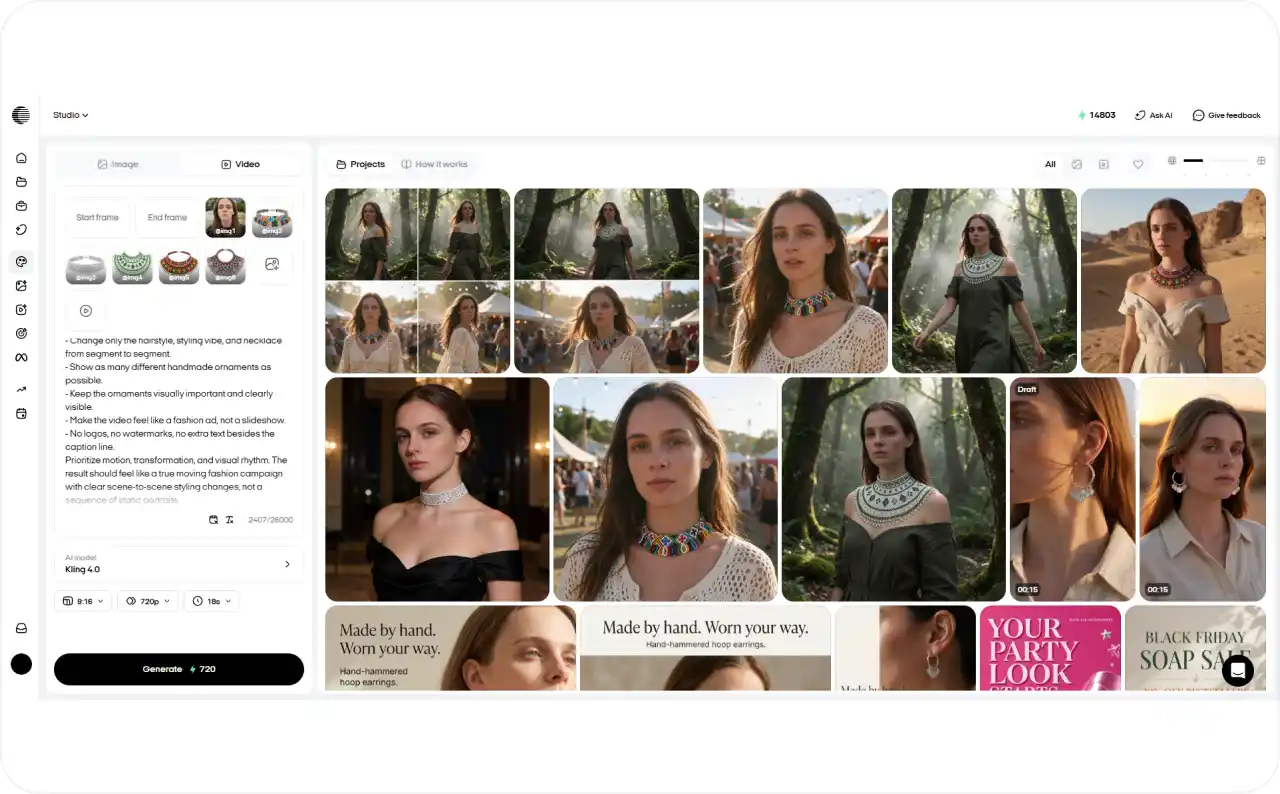
The result:
What I found:
I didn’t get what I wanted. My expectation was to have the handmade ornaments be recognizable, and to have the model’s hairstyle change, as well as create a dynamic fashion video. However, the jewelry designs changed during generation.
It’s a major constraint for a product campaign to have the AI generate a design for a necklace, that in reality doesn’t exist. Even if the accessory generated by AI is beautiful, it still can’t explain the handmade product.
I see that my prompt, too, directed the AI to manage too many things at once. It had to work with 5 necklaces, 6 different hairstyles, scene transitions, movement, and audio, all in a 18 second video.
In the future:
- Use one necklace per video clip. Upload the product reference and model image instead of asking the model to manage 5 necklaces at once.
- Describe protected details. Indicate the exact colors of beads, geometric patterns, proportions and fringe that has to remain the same.
- Keep movement controlled. Initially ask the AI to work with simple movements like walking or gentle head turns, and camera movement.
- Generate short clips and combine. Generate each look and combine the best results later.
- Edit. Add music and voice overs, and use captions as you wish for better control of the final product.
When product accuracy is of concern, I’d say complex multi-reference video generation still requires lots of tests. For a fashion related concept, the use of different accessories can be acceptable. For a real case scenario advertising actual handmade products, I would rather make a few controlled, edited clips and combine them, as compared to the risk showing a client jewelry that has nothing to do with what I’m selling.
Seedream 5.5 performance test results at a glance
I used Seedream 5.5 to create three ornament designs and test it for ornament making. I also used Kling 4.0 through the Zeely Studio to generate campaign videos, and share my thoughts on what worked, what didn’t, and what I would change.
| Test | Model and settings | Time spent | Displayed cost | Actual result | My verdict |
| 1. Product photography | Seedream 5.5, 2K, 1:1, one image per request | 55 sec | 20 credits per image | Created realistic forest and festival portraits. The model remained recognizable, and the ornaments retained their overall designs, although some beadwork details changed. | Good for fashion concepts, but product details need checking. |
| 2. Adding movement | Seedream 5.5, static image generation | 55 – 60 sec | 20 credits per single image | The forest image showed the model walking. The festival image suggested movement through windblown hair and posing. Both remained still images. | Convincing movement in photography, with clearer action in the forest scene. |
| 3. Multiple images from one prompt | Seedream 5.5, 2K, 1:1, two outputs selected | Up to 2 min | 40 credits per 2 images at once | Instead of two standalone campaign images, I received composite layouts. One combined two scenes vertically; another arranged four scenes into a grid. | Understood the creative brief, but failed to deliver the requested image structure. |
| 4. Fashion video generation | Kling 4.0, 720p, 9:16, 18-second video, six references | 8 min | 720 credits displayed | The generated video changed the handmade ornament designs instead of preserving them throughout the hairstyle transitions. | The result didn’t meet my requirements for accurate product advertising. |
My overall verdict
Seedream 5.5 excelled at one image task. It produced convincing lifestyle photos, used different settings, and kept the model largely recognizable. The combined-prompt test also showed that interpreting two creative directions won’t necessarily yield two different outputs. I’d generate individual campaign assets when the format is of great importance.
The video test introduced a new limitation. Kling 4.0 had challenges keeping multiple intricate, handcrafted ornaments, while changing hairstyles and scenes. This is a limitation in the Kling video workflow, and is not a failure on the part of Seedream 5.5.
For future campaigns, I’ll have Seedream 5.5 create campaign images I’ll further edit to enhance, then create short video clips, also to be enhanced, that will provide product references. This gives the most control in what jewelry will be presented to customers.
Seedream 5.5 vs 5.0 Pro and what has changed
I will base my comparison of Seedream 5.0 Pro on the information provided by ByteDance. Other members of the 5.0 family are Seedream 5.0 Lite and Seedream 5.0 Flash.
ByteDance launched Seedream 5.0 Pro on July 8, 2026, with features like in-app image editing and advanced layout options. The latest version provides additional controls over production, which the Seed team claims leads to improved efficiency.
From documentation provided by BytePlus, models available at the platform level may vary.
| Capability | Seedream 5.0 Pro | Seedream 5.5 |
| Text and image inputs | Supported | Supported |
| API resolution presets | 1K, 1.5K, 2K | 1K, 1.5K, 2K |
| Maximum API reference images | 10 | 10 |
| Transparent output from text alone | Not supported | Supported |
| Transparent output from references | One already-transparent PNG | Up to 10 references; input transparency unnecessary |
| Layer decomposition | Base image plus up to 16 layers | Base image plus up to 99 layers |
| Rich-text OCR metadata | Not supported | Supported |
These differences are relevant if you connect “Seedream 5.0” with 4K output. The comparison of models lists 4K under 5.0 Lite. It will not be the case with 5.5.
In a trial where a user edits a video multiple times, or uses transparencies several times, I would choose 5.5. I would not replace my 5.0 Pro until 5.5 clearly outperforms it in similar scenarios. Use the best available hardware for each and reveal any differences.
How to create images with Seedream 5.5 with Zeely
Start with the image brief and reference you want to maintain. The following steps are based on the Zeely Studio image guide, which has 1K and 2K for this model.
- Open Studio. On the web, go to Marketing Tools then Image
- Upload reference. Use the image picker to upload your product image or select from your assets. References are not necessary for text-to-image generation
- Explain the outcome. Use tags like @img1 to explain the role of the reference. Include information about the scene, lighting and other details to maintain
- Select Seedream 5.5. It is the artificial intelligence (AI) model to use for this case
- Set the settings. Select the aspect ratio and resolution you want. The image generator will tell you the credit charge for the generation
- Image generation and review. Click ‘Generate’ and wait for it to process. Once it is done processing, the image will appear in the projects section where you can review it and use it accordingly
For first time use, the product photography prompt will be easiest. The outcome will be easier to review since it is a single scene. Once the result looks correct, test offer images with the same reference.
When combining multiple images, describe clearly which image defines the product and which provides the setting. Do not let the model make packaging details inferences.
Who should choose Seedream 5.5 for image creation
I recommend this model to e-commerce teams creating product scenes, marketers building offer graphics, and designers who need to finesse their compositions. People in these roles can evaluate whether the images provided suit their needs.
In Adobe’s 2025 survey of 1,600+ marketers, 37% said they didn’t have enough fresh content variations for paid social. This likely informs the range of product settings tests. This survey does not indicate that this model’s images would enhance the campaign’s results.
For a candle seller, I’d consider a bathroom shelf, a bedside table, and a gift arrangement. Keep the product and offer the same for the tests described above. If you need layout ideas first, these ad examples can help choose a format to test.
A larger team can do the same with an agreed upon acceptance criteria. Decide who reviews packaging, who approves offer wording, and which edits make an asset unusable. This makes comparisons consistent.
When a job depends on very small packaging copy or a precise product silhouette, I’d be more discerning. Start with a small representative sample and account for any manual correction. If you need the output for transparency, confirm the export before building the rest of the workflow around it.
Seedream 5.5 review verdict for product images and ads
I would test this model on one of the products you are more familiar with. There are documented improvements in the area of more helpful production tasks, and Zeely allows you to test it with your own references.
The ultimate decision is usually made in the finished work. Was the product accurate? Was the offer made in the edit preserved? How much time and credit was spent on the accepted image?
If these checks are passed consistently, you can do similar work to test more products and layouts. Before committing to this workflow, you can try product image models offered by competing AI services and make an informed decision.
FAQ
Images created by Zeely can be used for commercial purposes, under the terms of service and rules governing permitted use. You are responsible for having the appropriate rights to uploaded photos, logos, and other third-party content. Terms of use for commercial purposes may vary on other platforms.
Seedream 5.5 creates still images. However, you can create a video with an image created by Seedream 5.5 as the first frame, using Zeely Studio. Just go to your generated image, select Create video, and continue to the Video tab.
Zeely Studio accepts various image formats like WEBP, PNG, JPEG, JPG, and HEIC. The maximum file size per upload is 10 MB. You can upload different references including a product photo, a person, and a preference for a visual style. The number of references supported depends on the selected model.
Yes. In Zeely Studio, you can choose different aspect ratios to create 9:16 for Instagram Stories and Reels and 4:5 and 1:1 for Feed Posts. You can use the same references and prompts to generate different formats. Check each result to ensure important elements of the product are visible.
It depends on the platform. According to BytePlus, Seedream 5.5 has an AI-generated watermark that is enabled by default and can be turned off. Zeely applies no watermarks to creatives generated via its tools.
Sources
ByteDance Seed, Seedream 5.5 release announcement;
ByteDance Seed, Seedream 5.5 model showcase;
ByteDance Seed, Seedream 5.0 Pro announcement;
BytePlus, Seedream 5.5 model documentation;
BytePlus, Image generation tutorial;
Nielsen, 2026 Annual Marketing Report;
McKinsey, The state of AI in 2026;
Adobe, 2025 content demand research;
Zeely Help Center, How to create an image in Studio;
Zeely Help Center, How to create a video in Studio;
Zeely Terms of Service.
Fact checked by Illia Tihostup