How to change Instagram Story background color without hiding video
How do you actually change the background color on an Instagram Story in 2026? I'll walk through six methods for solid fills, photos, shared posts, videos, and brand colors, plus the fixes for when Instagram won't cooperate.
Go into your Story editor and tap that squiggle icon at the top. That’s the Draw tool. Pick a color, then press your finger on the screen and hold it there. The whole background floods with that color. Done. That one move covers most situations.
Key takeaways
- The Draw tool plus a long press on the screen fills your entire Story with whatever color you picked
- Create mode, the Aa icon, is faster when you just need a solid or gradient backdrop for text
- Sharing someone else’s post? Tap the background after adding it to your Story and Instagram cycles through a few color options pulled from that post
- Fill first, add photo second. That order prevents the color from painting over your image
- No Draw tool on screen? Drop any photo onto the canvas. The icon usually appears after that
But Instagram doesn’t treat every Story the same way. A blank text Story, a photo that doesn’t fill the frame, a reshared post, a video clip: each one handles backgrounds a little differently. I’ll walk through every scenario here and throw in the fixes for the stuff that breaks.
New to Stories entirely? Go read how to post a Story on Instagram first, then come back.
Solid color with Create mode
I reach for Create mode when I want a clean colored background for a text post, a poll, or a link sticker. No photo needed, no fuss.
- Swipe right from your Instagram feed to open Stories
- Hit the Aa icon to enter Create mode
- The screen fills with a color right away
- Tap the color circle at the bottom. Keep tapping. Some options are solid, others are gradients
- Drop in your text, stickers, whatever you need
- Post it with Your Story
That color circle only rotates through Instagram’s presets. When you need an exact shade, skip down to the Draw tool or the custom color section.
Quick note on gradients: they live in the same color circle rotation inside Create mode. Just keep tapping until a two-tone option shows up. Want a gradient Instagram doesn’t have? Make your own. Build a 1080 × 1920 image in Canva or whatever editor you prefer, save it, and drop it into Stories as your background.

Solid color with the Draw tool
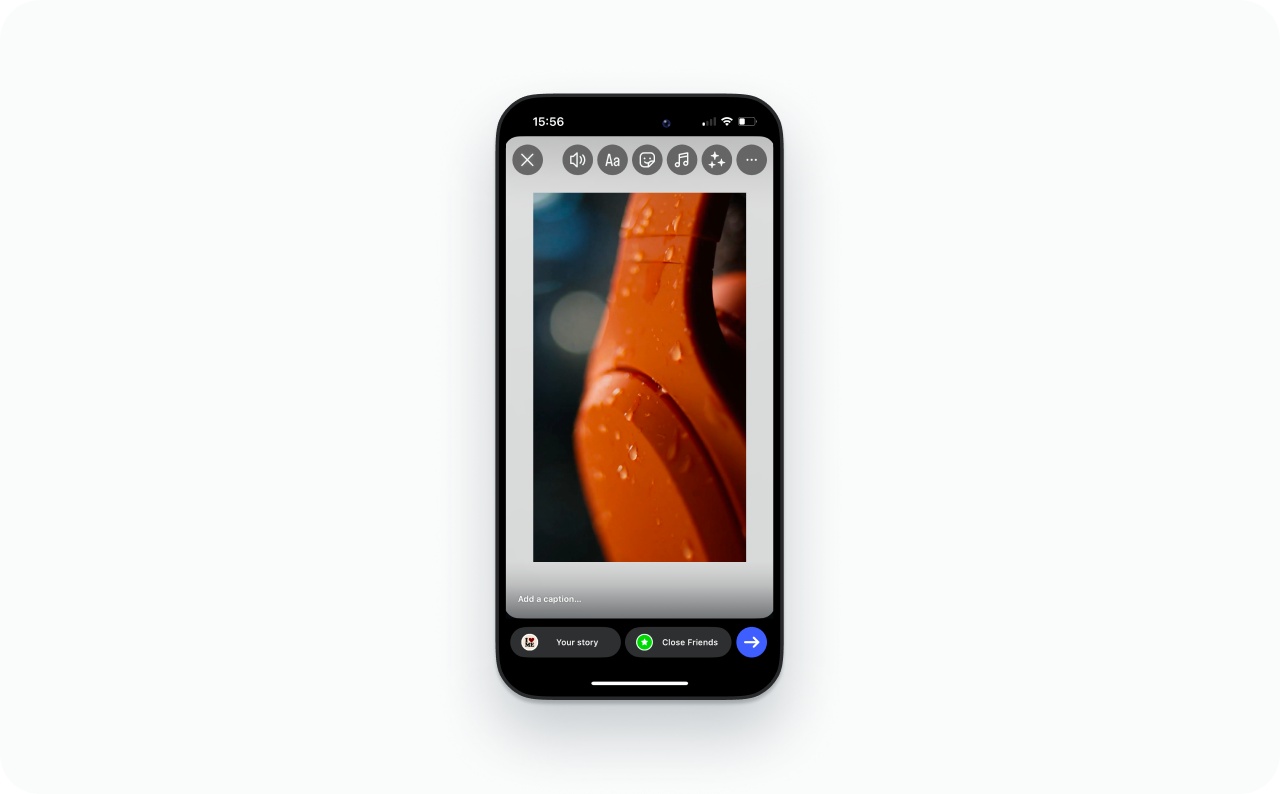
The Draw tool is the universal option. Doesn’t matter if you’re working with a photo, a video, or nothing at all on the canvas. And unlike Create mode, you get access to the full shade slider, not just presets.
- Open a Story. Snap a photo, pull one from your camera roll, or leave the canvas blank
- Tap the squiggle icon at the top to open the Draw tool
- Pick the Pen, which is the first brush
- Grab a color from the palette at the bottom
- Now hold your finger down on the screen. One, two seconds. The color takes over the entire canvas
- Hit Done
Used a photo? Yeah, the color just buried it. Don’t panic. The next section sorts that out.
Background color behind a photo
Photos that don’t fill the full 9:16 frame get an automatic background from Instagram, usually some blurry version of the image itself. Looks lazy. Here’s how to swap it.
Photo sticker layering. This is the cleanest method because your photo lives on its own layer, completely above the background color.
- Open a Story and flood the background with your color. Draw tool, pick a color, hold down on the screen
- Now tap the Sticker icon, the smiley face up top
- Find Photo in the sticker tray. Might show up as a little camera roll thumbnail on your version of the app
- Pick your image, resize it, drag it where you want it
I do this constantly for product shots where I want a branded border. Same trick works when you make a collage on an Instagram Story too.
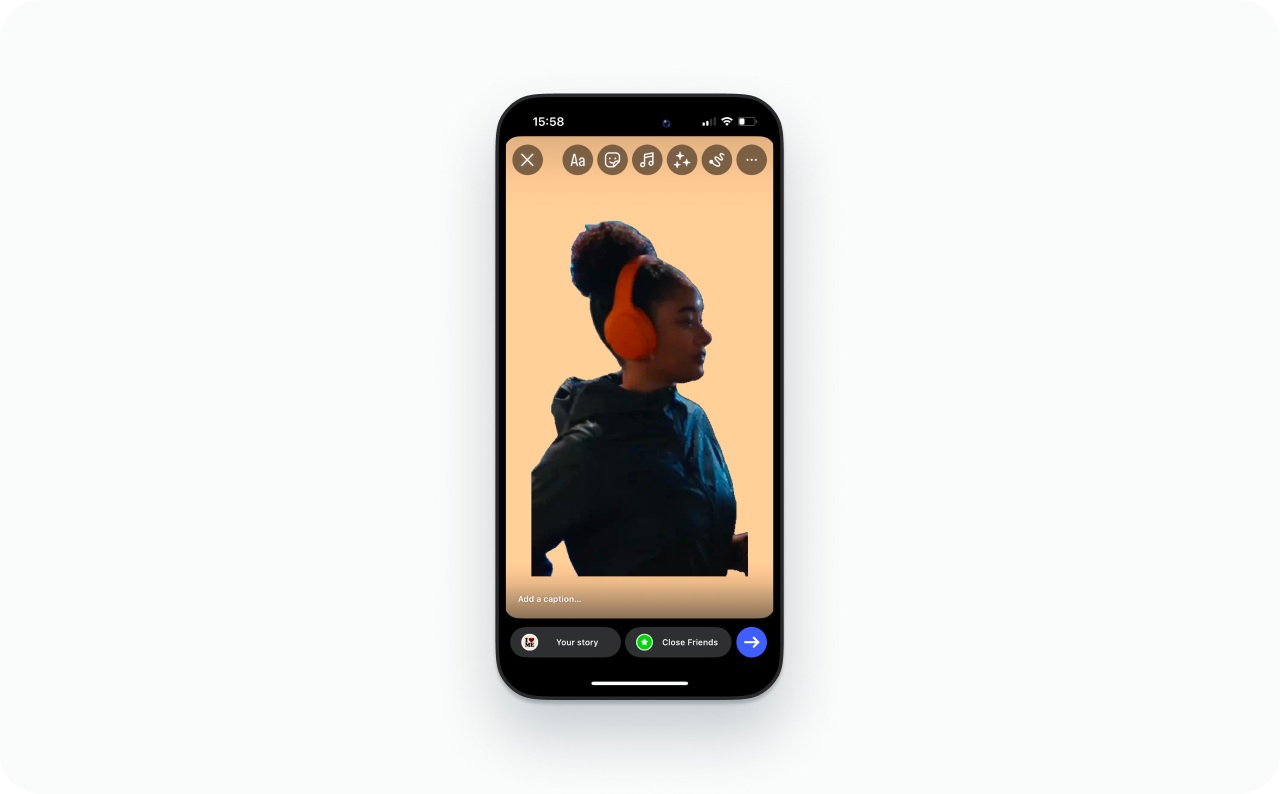
Eraser reveal trick. Already filled the background and accidentally covered your photo? Don’t start over.
- Grab the Eraser from the Draw tool
- Brush over the part where your photo sits underneath
- Your image comes through wherever you erase
Looks kind of raw and hand-drawn. Cool effect if that’s the vibe. If you want precise edges though, the Photo sticker method above wins every time.
Background color when sharing a post to Story
Reshare a feed post or Reel to your Story and Instagram picks a background color for you, usually something sampled from the image. You don’t have to live with it. Full resharing details are in how to repost a Story on Instagram.
Feed posts:
- Tap the paper airplane icon under the post
- Choose Add post to your Story
- Now tap the background itself. On a lot of accounts, this flips through several color options Instagram generated from the post
- Not cycling? Open the Draw tool, pick your own color, hold down on the background to fill it
Reels:
- Same thing. Share the Reel → Add to Story
- Draw tool → pick a color → hold down to fill
- If the fill paints over the Reel preview, undo it and switch to the Highlighter brush before trying again
Some share types just lock the background and won’t let you change it at all. Workaround: screenshot the post, upload that screenshot as a regular Story photo, then do the Draw fill behind it like normal.
Color tint on a video Story
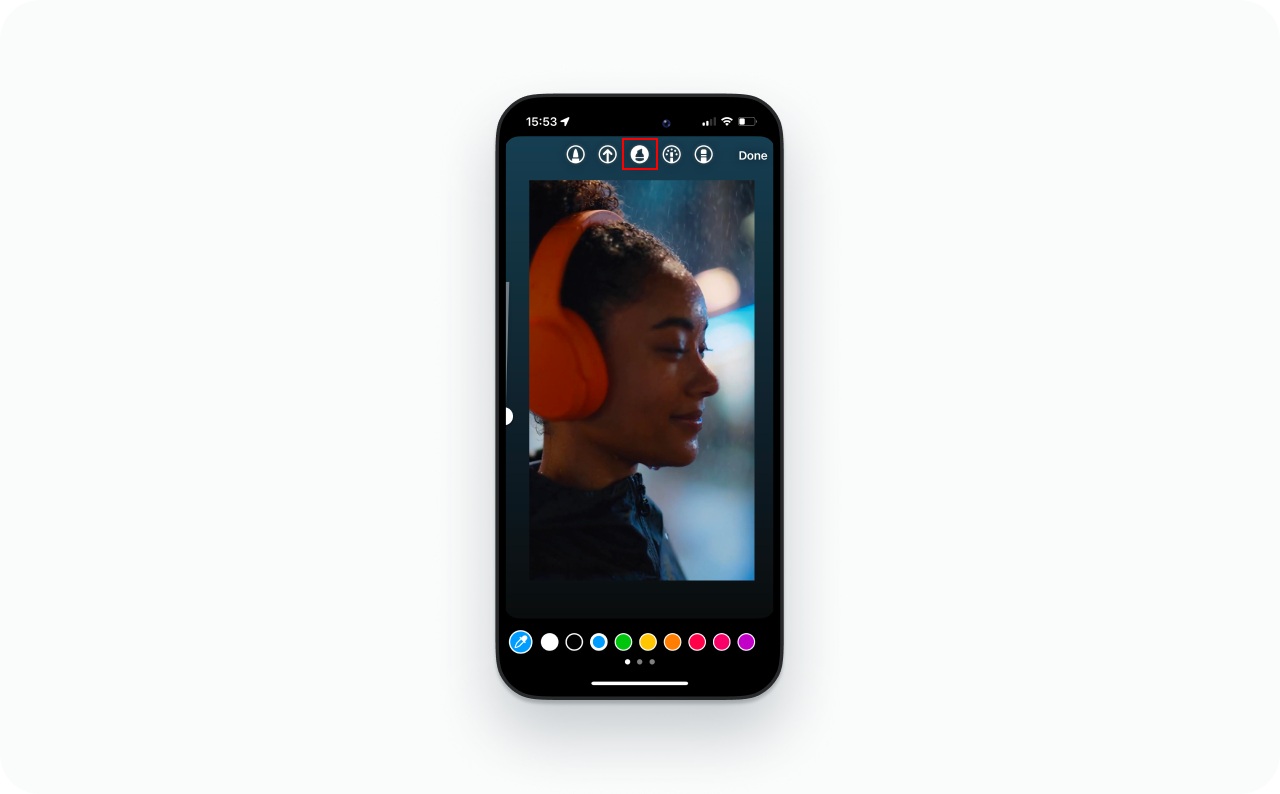
Don’t use the Pen on videos. The Pen blocks everything. Grab the Highlighter instead because it puts color over the footage without hiding it.
Highlighter tint overlay:
- Pull your video into the Story editor
- Open the Draw tool
- Switch to the Highlighter, usually the second brush option with the wider chisel-shaped tip
- Pick your color. Long-press any color dot if you want the shade slider
- Hold your finger on the screen. The tint fills the canvas but your video still plays through it
Too strong? Undo and slide toward a lighter shade. Dark tints over bright footage make text way easier to read, by the way.

External canvas method. The in-app tools can’t really do a proper border. For that, you need to build the layout somewhere else.
- Fire up Canva, CapCut, or any editor. Make a new 1080 × 1920 canvas in 9:16
- Pick your background color or gradient
- Drop your video in and scale it smaller so color shows around the edges
- Export as MP4 and upload that file straight to Stories
Instagram sees a single video file so nothing glitches. More on the right export settings in the Instagram Story size and dimensions guide.
Custom and brand colors
Instagram’s default color dots won’t cover every brand palette. Three workarounds.
Shade slider. Long-press any color dot in the Draw tool or text color palette and a full spectrum slider opens up. Drag it anywhere. Need pure black or white? Push all the way to the left or right edge.
Eyedropper. Tap the eyedropper icon in the Draw tool palette and then tap whatever color on your canvas you want to steal. A logo, a product label, part of an outfit. Instagram grabs that exact shade and sets it as your active color. Hold your finger on the screen and the background fills with it. I use this one constantly.
Hex code workaround. There’s no hex code field in Instagram. The workaround: create a plain image filled with your hex color in any design app. Save that swatch to your phone, throw it into a Story, and eyedropper the shade off it. Delete the swatch image from the canvas after.
Brands that post a lot should keep a folder of saved color swatches on their phone. Cuts the whole process down to a few seconds. Even faster if you pair your brand colors with Story templates.
Troubleshooting
| Problem | Likely cause | Fix |
| Color fill covers my photo | Filled after the photo with the Pen brush | Undo. Fill the background first, then add the photo via the Photo sticker |
| Draw icon is missing | No media on the canvas, or UI layout variation | Add any photo first, then check for the Draw icon |
| Press and hold does nothing | Wrong brush or editor glitch | Switch between Pen and Highlighter. Force close and reopen Instagram |
| Cannot change the repost background | Background is locked for that share type | Screenshot the post, upload it as a photo, then fill normally |
| Colors look different on friend’s phone | Feature rollout varies by account and device | Update Instagram. Try an alternate method |
| Video quality drops after posting | Instagram compression | Export at 1080 × 1920 before uploading |
| Cannot change background after posting | Stories are not editable once published | Delete and recreate the Story |
Still stuck? Update your app. Instagram rolls out features unevenly across accounts, so what your friend has might not show up on your screen until a later update.
FAQ
Draw tool → pick a color → press and hold on the screen. Whole thing fills. If you don’t need a photo, Create mode with the Aa icon is even faster.
Usually one of three things. The Draw tool isn’t showing up, which you fix by adding any photo first. The background is locked on a shared post, so try the screenshot workaround. Or the feature just hasn’t rolled out to your account yet. Update the app and restart it.
It samples the strongest colors from your photo or the post you shared and generates a background from those tones. Tap the background area to cycle through other options, or use the Draw tool to replace it entirely.
After you tap Share → Add to Story, tap the background. Instagram usually gives you a few color variations to cycle through. If it doesn’t, open the Draw tool and fill manually. Some share types lock the background entirely so you’ll need the screenshot workaround.
Long-press any color dot for the shade slider. For a precise brand color, upload a swatch image and eyedropper the shade off it. No hex code input exists in Instagram.
Fill the background first, then bring your photo in through the Photo sticker in the sticker tray. That puts the image on a layer above the color so nothing gets hidden. The Eraser tool also works if you already covered the photo by accident.
Use the Highlighter brush. The Pen blocks the footage completely, but the Highlighter tints it without hiding it. If you want a clean border around the video, build that layout in a separate editor at 1080 × 1920 and upload the finished file.
Inside the Draw tool palette there’s an eyedropper icon. Tap it, then tap the spot on your photo with the color you want. Instagram grabs that shade. Hold your finger on the screen and the background fills with it.