What Is PixVerse AI for social video creation?
Can PixVerse AI turn one image or prompt into a short social video with a clear beginning, middle, and payoff? I’m Emma from Zeely, and I’ll explain how PixVerse V5.5 works.
PixVerse AI is a video generation platform with models for text-to-video, image-to-video, transitions, effects, audio, and multi-shot storytelling.
PixVerse V5.5 stands out for turning one image and prompt into connected shots with changing camera angles. That makes it useful for short product reveals, visual hooks, mini stories, and cinematic social clips. However, V5.5 usually generates five, eight, or ten seconds, not a complete 15-second ad. You’ll still need to check product accuracy, add captions, tighten pacing, and confirm commercial-use rights before publishing.

What is PixVerse AI?
PixVerse AI is both a video generation platform and a family of AI video models.
The platform provides the interface, generation tools, templates, effects, account credits, and editing features. Models such as PixVerse V5.5, V5.6, V6, C1, and R1 handle different types of video generation inside that wider system.
For most creators, the main workflows are:
- Text-to-video
- Image-to-video
- First-frame and last-frame transitions
- Video extension
- Multi-shot generation
- Reference-based generation
- Audio and sound generation
- Templates and social effects
This difference between the platform and the model matters. Saying “I made this in PixVerse” doesn’t explain which model, input type, duration, or audio setting created the result.
Those choices affect motion quality, credit use, narrative length, and how many retries you may need.
PixVerse describes its platform as using proprietary video foundation models for text-to-video, image-to-video, multimodal references, templates, lip sync, and audio workflows. Its developer documentation also lists output resolutions up to 1080p.
For this guide, I’m focusing on PixVerse V5.5 because its MultiShot feature has a clear job inside social creative: turning one visual idea into a short sequence of connected shots.
How does PixVerse 5.5 generate social videos?
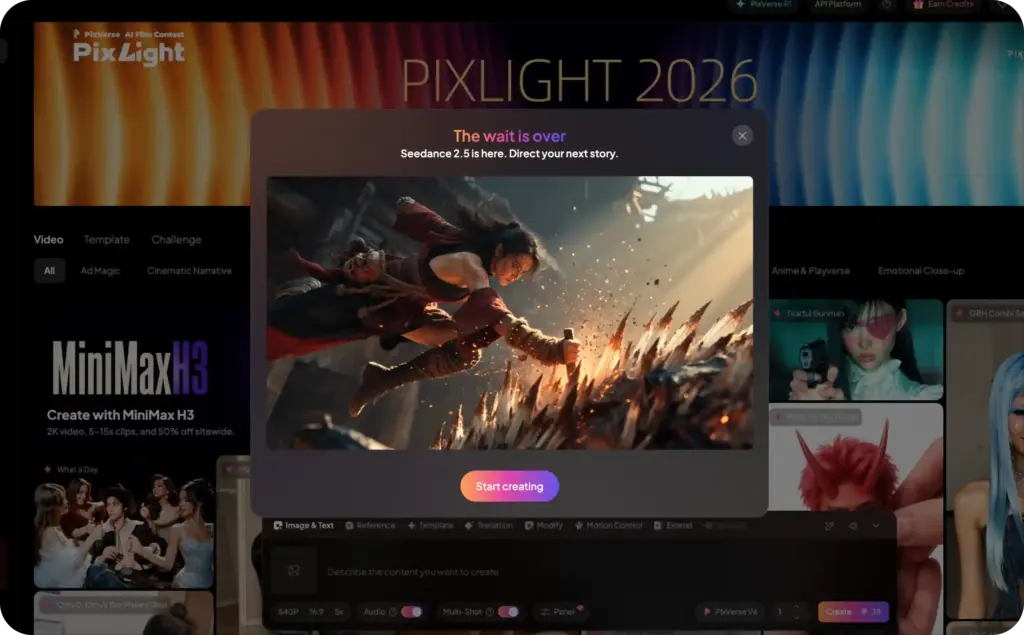
The PixVerse AI video generator reads your prompt, reference image, generation settings, and requested movement. It then predicts a sequence of frames that turns those instructions into motion.
With text-to-video, you describe the entire scene. PixVerse creates the people, objects, environment, lighting, movement, and camera behavior.
With image-to-video, the starting composition already exists. The model concentrates more of its work on movement, camera direction, expression, atmosphere, and scene progression.
For product ads, image-to-video is usually the safer starting point. Your real product photo gives the model a stronger visual reference than a written description alone.
What makes PixVerse V5.5 MultiShot different?
A basic image-to-video tool often animates one continuous shot. The camera may zoom, pan, orbit, or move closer, but the clip still feels like one scene.
PixVerse V5.5 can generate several shots from one image and one description. Its official documentation calls this Multi-Shot Camera Control and lists camera changes such as push-ins, shot switching, and changes in shot scale.
That lets you request a simple social sequence:
- Wide shot introduces the situation
- Close-up shows the problem or product
- Final shot delivers the visual payoff
The model can also generate background music, sound effects, and dialogue as part of the broader audio field. However, PixVerse’s V5.5 API documentation says its separate lip-sync and sound-effect switches aren’t supported in that model. Audio is generated through the general audio setting instead.
In practical terms, V5.5 can make a clip feel edited even when you haven’t opened an editor yet.
What is PixVerse V6, and is V5.5 still useful?
PixVerse V6 is the newer flagship model. PixVerse announced it on March 30, 2026, with stronger camera execution, character performance, physical interaction, multilingual text generation, native audio, and multi-shot generation.
V6 also supports longer outputs. Its current platform documentation lists generation from one to 15 seconds, depending on the selected workflow and settings. V5.5 uses fixed five, eight, or ten-second options at most resolutions, while 1080p generation is limited to five or eight seconds.
So why would a team still use PixVerse V5.5?
Because the newest model isn’t automatically the right model for every creative task.
V5.5 remains useful when you need:
- A short multi-shot visual story
- Fast image-to-video exploration
- A cinematic product reveal
- Several camera angles from one reference
- A five to ten-second social hook
- Predictable fixed-duration testing
- A model already connected to an existing production workflow
V6 is the better starting point when you need a complete 15-second sequence, stronger native audio, more complex character performance, or greater control across longer scenes.
You can see how video, image, copy, voice, and avatar systems work together in our guide to AI models for ad creative generation and explore how Zeely uses them.
What can you create with PixVerse 5.5?
PixVerse is often associated with dramatic effects and viral transformations. Those formats attract attention, but they’re only one part of the platform.
For social marketing, PixVerse 5.5 can help create several useful video types.
Cinematic product reveals
Start with a clean product image. Ask for a wide environmental shot, a controlled camera move, and a close-up of one product detail.
This works well for skincare, fashion, accessories, electronics, food packaging, home products, and visually distinctive offers.
The clip should still preserve the real product. If the logo, shape, cap, label, or materials change, the generation isn’t ready for an ad.
Problem-to-solution mini stories
MultiShot works well when the visual problem is easy to understand.
A cluttered desk becomes organized. Dull hair gains shine. A dark outdoor space becomes illuminated. A plain outfit receives one finishing accessory.
The model supplies motion and scene changes. Your concept supplies the selling point.
Product-in-use scenes
Image-to-video can help turn a still product photo into a demonstration concept.
You could show:
- A serum bottle opening before application
- A lamp illuminating a dark corner
- A coffee maker beginning its brew cycle
- A backpack moving through a travel scene
- A shoe entering an active outdoor setting
Treat these as generated interpretations, not proof of real product performance. Physical functions and product claims must still match reality.
Visual social hooks
Some videos only need to stop the scroll and set up the next scene.
A dramatic object reveal, unexpected camera move, fast environmental transformation, or unusual scale change can become the first three seconds of a longer ad.
You can then connect that opening to real product footage, creator content, screenshots, captions, or a direct offer.
For more opening formats, see our collection of TikTok ad hooks built for the first three seconds.
Is PixVerse good for TikTok, Reels, and YouTube Shorts?
Yes, with the right brief.
AI social videos need more than attractive movement. They need a visible subject, quick context, mobile framing, and a reason to continue watching.
PixVerse supports vertical generation for mobile-first placements. That makes it suitable for TikTok-style feeds, Instagram Reels, Facebook Reels, Stories, and YouTube Shorts.
YouTube currently classifies square or vertical videos up to three minutes as Shorts when they meet its upload rules. PixVerse clips are much shorter, which makes them better suited to individual scenes, hooks, product reveals, and brief narrative sections.
Can V5.5 create an entire 15-second social ad?
Not usually in one generation.
V5.5 supports clips up to ten seconds at 360p, 540p, and 720p. At 1080p, the documented choices are five or eight seconds.
That means a complete 15-second ad normally needs one of three workflows:
- Generate an eight to ten-second story, then add an edited ending.
- Generate two connected clips and combine them.
- Use V6 for a longer single-generation concept.
I prefer the first option for most ads. Let PixVerse handle the visually demanding scene, then use a video editor or ad platform for captions, product facts, social proof, price, and the call to action.
Trying to generate every sales message inside one cinematic sequence often creates a prettier video and a weaker ad.
How to build a hook, middle, and payoff with MultiShot
A MultiShot prompt should give every shot one job.
Hook: Show the unusual movement, problem, or setting.
Middle: Bring the product or subject into focus.
Payoff: Show the result, transformation, or final visual.
For example:
Vertical social video for a portable reading light. Shot one: a dark bedroom with someone struggling to read, handheld camera, natural evening shadows. Shot two: close-up as the compact light clips onto the book and turns on. Shot three: warm light fills the page while the rest of the room stays dim. Realistic motion, accurate product shape, no extra text, no logo changes.
That prompt gives the model a sequence. It doesn’t ask it to invent the marketing message, pricing, testimonial, and CTA at the same time.
How do you create a social video with PixVerse?
A reliable PixVerse AI video generator workflow starts before you enter the prompt.
1. Choose one job for the video
Decide whether the clip is supposed to:
- Stop the scroll
- Reveal a product
- Show one benefit
- Establish a mood
- Demonstrate a use case
- Bridge two real clips
- Create a visual ending
One generation shouldn’t carry your entire product page.
2. Pick text-to-video or image-to-video
Use text-to-video when you’re exploring a fictional scene, broad concept, or mood.
Use image-to-video when product appearance, character identity, packaging, wardrobe, or composition matters.
For ecommerce creative, I’d start with a clear product image on a simple background. Busy collages give the model too many visual decisions.
3. Select the social format first
Choose the target aspect ratio before generating.
For TikTok, Reels, Stories, and most Shorts workflows, start with 9:16. Don’t create a horizontal scene and assume an automatic crop will preserve the subject.
Keep the product, face, or central action away from the extreme top and bottom. Platform interface elements can cover those areas.
4. Write the shots in order
Use clear shot labels or transition language.
For example:
Shot one: wide shot.
Shot two: close-up.
Shot three: overhead product shot.
Avoid describing several actions at once inside one shot.
5. Draft at a lower cost
Test your concept with a shorter duration or lower resolution before spending more credits on the final version.
Your first test should answer basic questions:
- Did the model understand the story?
- Is the product recognizable?
- Are the camera changes useful?
- Does the subject stay consistent?
- Is the payoff visible?
Higher resolution won’t repair a confused scene.
6. Finish the selected clip elsewhere
Once you have a usable generation, add the elements that need exact control:
- Captions
- Brand fonts
- Logo placement
- Price
- Offer
- CTA
- Disclosures
- Licensed music
- Accurate voiceover
- Final pacing
- Platform-safe text placement
This is also why broader tools matter. Our guide to creating AI video ads with Zeely covers the rest of the path from product input to campaign-ready creative.
How should you write a PixVerse prompt?
A good PixVerse prompt reads like direction for a short shoot.
Include the subject, action, setting, shot order, camera behavior, lighting, visual style, and anything that must remain unchanged.
A simple template looks like this:
Create a [format] video for [product or subject]. Shot one: [opening composition and action]. Shot two: [closer view or change]. Shot three: [payoff]. Use [camera movement], [lighting], and [visual style]. Preserve [product, character, color, clothing, packaging]. Avoid [unwanted changes, extra objects, text, distortion].
PixVerse prompt for a product reveal
Create a vertical social video for a matte black insulated bottle. Shot one: wide shot of the bottle standing on a rock beside a mountain trail at sunrise. Shot two: slow push-in as condensation forms on the surface. Shot three: close-up of cold water pouring into a metal cup. Natural movement, realistic morning light, crisp product detail, accurate bottle proportions, no text, no logo changes.
PixVerse prompt for a beauty ad hook
Create a vertical beauty video from the reference image. Shot one: close-up of the serum bottle reflecting soft bathroom light. Shot two: the dropper rises slowly with one clear drop. Shot three: macro shot of the drop touching hydrated skin. Premium but natural, realistic liquid physics, soft handheld camera, preserve the exact bottle, cap, label colors, and logo.
PixVerse prompt for a problem-solution story
Create a vertical social video about a compact desk organizer. Shot one: overhead view of a messy desk with cables and small accessories. Shot two: fast transition as the organizer appears and each item moves into place. Shot three: smooth side angle showing the clean desk and visible organizer. Realistic object movement, bright home-office lighting, accurate organizer shape, no floating objects, no text.
What weak prompts get wrong
Weak prompts usually rely on broad adjectives:
Make an amazing viral product video that looks cinematic and professional.
That doesn’t explain what happens.
Words such as “cinematic,” “premium,” and “viral” can describe the look. They can’t replace the sequence.
Describe visible behavior instead:
- Camera tracks beside the product.
- Light moves across the packaging.
- The scene cuts from wide to close-up.
- The subject turns toward the product.
- Water splashes behind the bottle.
- The final frame holds for one second.
The model can follow actions more easily than marketing language.
Which inputs work best for text-to-video and image-to-video?
Text-to-video works best when you care more about the idea than exact identity.
Use it for imagined environments, abstract product worlds, visual metaphors, seasonal concepts, and broad story exploration.
Image-to-video works better when accuracy matters.
Use a reference image when you need to preserve:
- Product shape
- Packaging color
- Clothing
- A spokesperson
- A character
- Room design
- Brand composition
- The starting frame
Your input image should be sharp and large enough to show the details you want preserved. Avoid tiny products, partially hidden labels, heavy reflections, mismatched collages, or multiple versions of the same item.
A single reference can improve continuity, but it can’t guarantee perfect identity across every generated shot. The more the camera moves, the more chances the model has to reinterpret hidden surfaces or small details.
For recurring creators or spokespersons, I’d use a dedicated avatar or reference-based workflow rather than rebuilding the person through text prompts. Our UGC AI video generator comparison covers tools made specifically for creator-style ads.
How good is PixVerse 5.5 video quality?
PixVerse 5.5 can produce smooth motion, atmospheric lighting, clear camera changes, and visually rich short scenes. Its strongest results often come from image-to-video prompts with one main subject and a simple sequence.
The quality feels weaker when the brief requires several precise objects, small text, complex hand interactions, major spatial changes, or exact product behavior.
I’d review every output using five checks.
Prompt adherence
Did the model create the requested shots in the right order?
A beautiful video still fails if the product never appears or the final scene delivers the wrong result.
Temporal consistency
Does the subject remain recognizable from beginning to end?
Watch for clothing changes, disappearing objects, facial drift, altered packaging, and background elements moving between shots.
Motion quality
Do people, liquids, fabrics, products, and cameras move naturally?
Look closely at hands, lids, straps, buttons, pouring actions, reflections, and physical contact.
Product accuracy
Does the generated item still match what customers will receive?
This matters more than cinematic polish. A changed label, missing feature, or invented function can make an ad misleading.
Editing readiness
Can you add captions, product facts, and a CTA without covering the main action?
Sometimes the best-looking generation leaves no clean area for text. That makes it less useful for social advertising.
What is the real cost per publishable PixVerse video?
The price of a generation isn’t the same as the cost of a usable video.
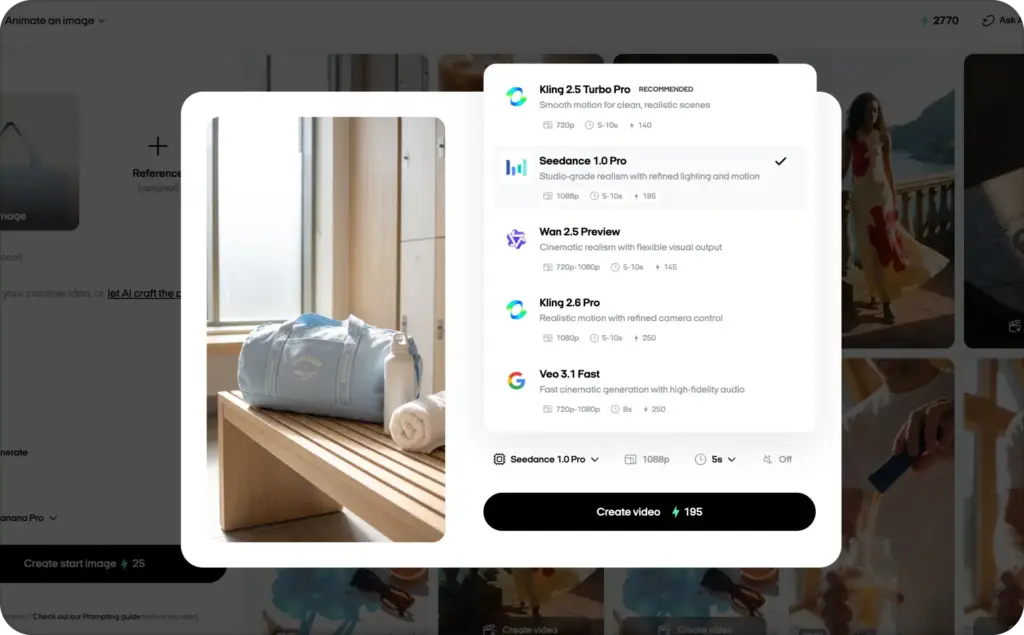
PixVerse uses credits, and consumption changes with the model, duration, resolution, audio, and multi-clip settings. Its API credits and web membership credits are separate, so don’t assume one pricing table applies to every product surface.
As one API example, a ten-second V5.5 multi-clip video at 720p currently uses:
- 162 credits without audio
- 172 credits with audio
A five-second 720p multi-clip generation uses 90 credits without audio or 100 credits with audio.
Now include retries.
If a ten-second 720p video with audio costs 172 credits and only one of four generations is usable, the real generation cost is 688 credits.
That still doesn’t include:
- Caption editing
- Voiceover replacement
- Music licensing
- Logo correction
- Product cleanup
- Resizing
- Human review
- Alternate hooks
Track accepted outputs, not total generations.
A simple creative log should record the prompt, model, input type, duration, resolution, credit use, retry count, failure reason, and final decision. After ten or twenty tests, you’ll know which prompt formats waste credits and which ones produce usable footage.
What are PixVerse 5.5’s limitations?
PixVerse 5.5 is useful, but it isn’t a complete social ad production system.
Short generation length
V5.5 tops out at ten seconds for most supported resolutions and eight seconds at 1080p.
That’s enough for a hook or compact story. It may not be enough for a full product explanation, testimonial, offer, and CTA.
Product and character drift
MultiShot changes camera angles. Each change creates another opportunity for the model to reinterpret the subject.
Labels, faces, accessories, clothing, colors, and small product parts may shift between shots.
Limited exact text control
Don’t rely on generated packaging text, prices, captions, disclaimers, or offer details. Add those later using an editor with precise typography.
Imperfect physical behavior
Hands may grip objects incorrectly. Liquids may move strangely. Containers can bend. Products may open from the wrong side.
Review every physical interaction frame by frame.
Audio still needs checking
Generated audio can speed up concept development, but dialogue, pronunciation, timing, background sounds, and music may not match the final ad.
Replace anything that sounds unclear or distracts from the product.
MultiShot can overcomplicate a simple ad
Three cinematic shots aren’t always better than one direct product demonstration.
If the buyer needs to see how the item works, real footage or a controlled product demo may communicate more than a dramatic generated sequence.
PixVerse itself notes that even V6 continues to develop in areas such as precise directional control in complex scenes and consistency across major spatial changes.
Is PixVerse free?
PixVerse offers free access, but generation remains credit-based.
Its current app documentation says users receive 60 daily credits, refreshed at 00:00 UTC. Unused daily credits expire instead of carrying over.
That free allowance is useful for learning the interface and testing low-cost drafts. It isn’t enough for dependable multi-shot production at higher resolutions.
Paid use becomes more practical when you need:
- Repeated generations
- Longer clips
- Higher resolution
- Multi-clip output
- Audio
- Several campaign variations
- Fewer pauses between tests
Check the live pricing screen before buying. PixVerse updates models, credit rates, plans, and promotional offers, while API pricing operates separately from web and app membership.
When is PixVerse the wrong tool for a social-video project?
PixVerse may be the wrong starting point when your video requires exact factual presentation.
Choose another workflow when you need:
- A customer testimonial that must sound authentic
- A spokesperson delivering a longer script
- A detailed software walkthrough
- Exact packaging text throughout the scene
- A technical product demonstration
- A regulated product claim
- Several prices or promotional conditions
- Precise brand templates across hundreds of videos
It may also be unnecessary when you already have strong real footage. In that case, editing, captioning, resizing, and hook testing can create more value than replacing the footage with generated motion.
Use PixVerse when generated movement helps people understand or notice the idea. Don’t use it simply because an AI version looks more expensive.
Is PixVerse 5.5 good for social video ads?
PixVerse AI is a strong option for short visual stories, especially when one image needs to become several connected shots.
V5.5’s MultiShot generation gives social teams something more useful than another slow zoom. It can create an opening, a closer product view, and a visual payoff within one short sequence.
Its limitations are just as important. V5.5 doesn’t generate a full 15-second ad at 1080p, product identity can drift, exact text needs separate editing, and commercial-use terms require review.
I’d use it for the part of an ad where motion does the selling: the reveal, transformation, atmosphere, or visual hook.
Then I’d add the facts, proof, captions, and CTA using tools built for precision.
That’s how a cinematic AI clip becomes a social video you can actually publish.
Emma blends product marketing and content to turn complex tools into simple, sales-driven playbooks for AI ad creatives and Facebook/Instagram campaigns. You’ll get checklists, bite-size guides, and real results, pulled from thousands of Zeely entrepreneurs, so you can run AI-powered ads confidently, even as a beginner.
Written by: Emma, AI Growth Adviser, Zeely
Reviewed on: August 12, 2026